
I deleted a VM from my vSphere inventory on purpose, then restored it with Veeam Backup & Replication v12. This is how I did the restore job.
This is my lab. Take the right steps and document everything before you try a restore on something that matters.
What I needed
- A server or VM running Veeam Backup & Replication. The free Community Edition or the 30 day trial works
- A backup with at least one good restore point
- A place to restore from. Mine is a Synology NAS
If the original VM is still running when you restore to the original location, Veeam powers it off. It only restores the disks that are in the backup. Any other disks stay as they are.
1. Checking for a restore point
First I made sure a restore point actually existed. In the Home view I opened the Backups node. Then I expanded the backup job and checked that the VM had at least one restore point.
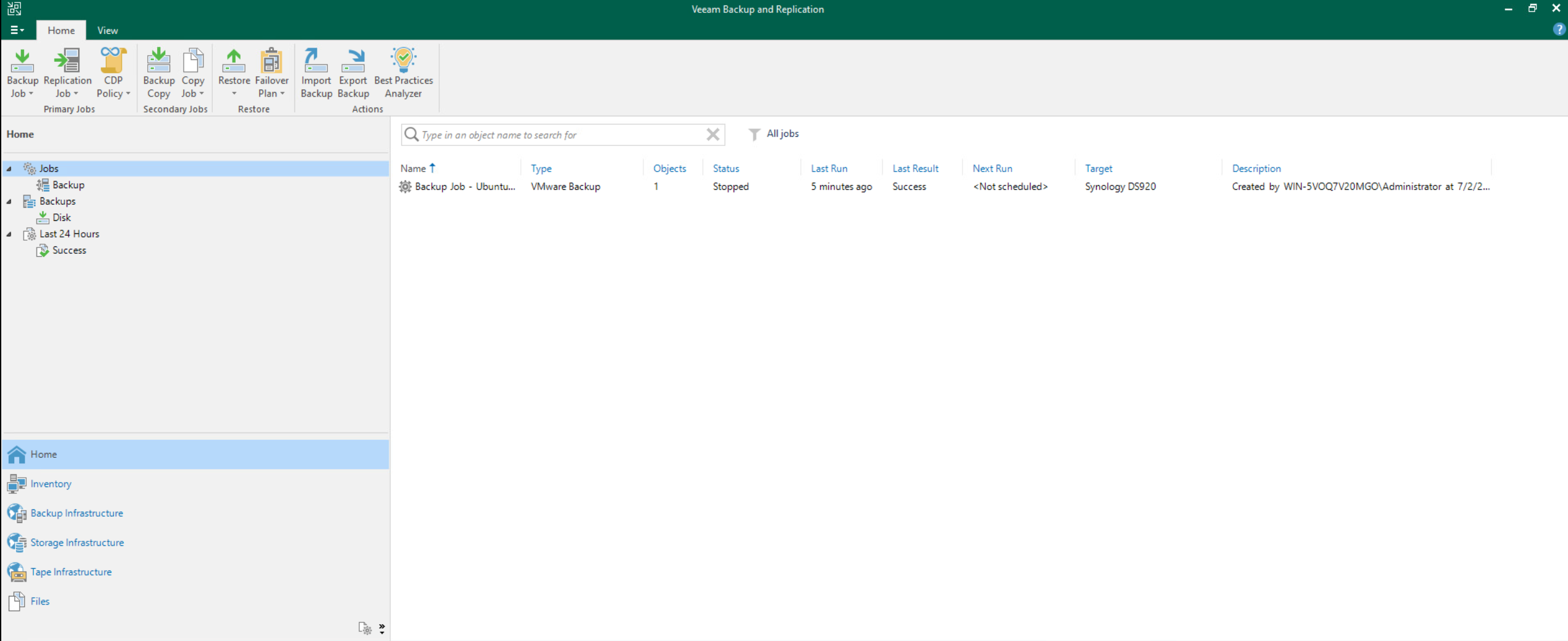
The backup job in the Home view
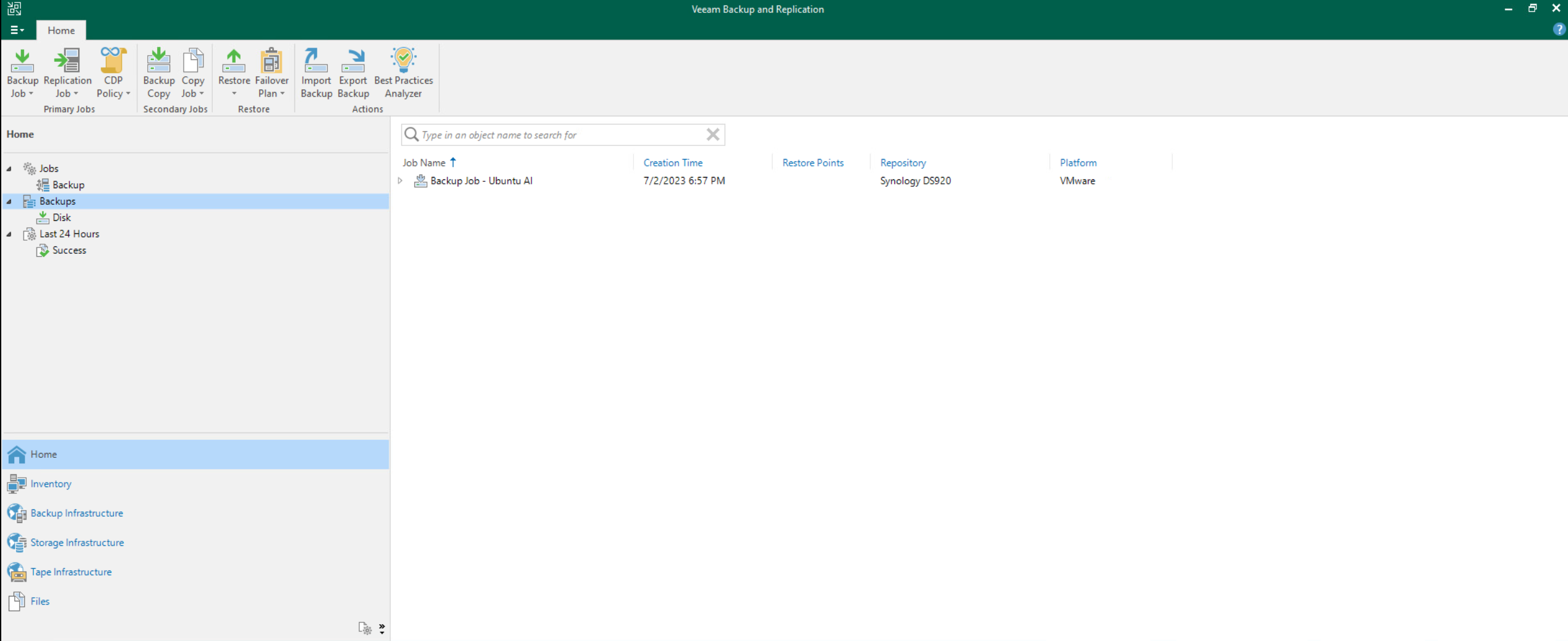
Expanding the backup job
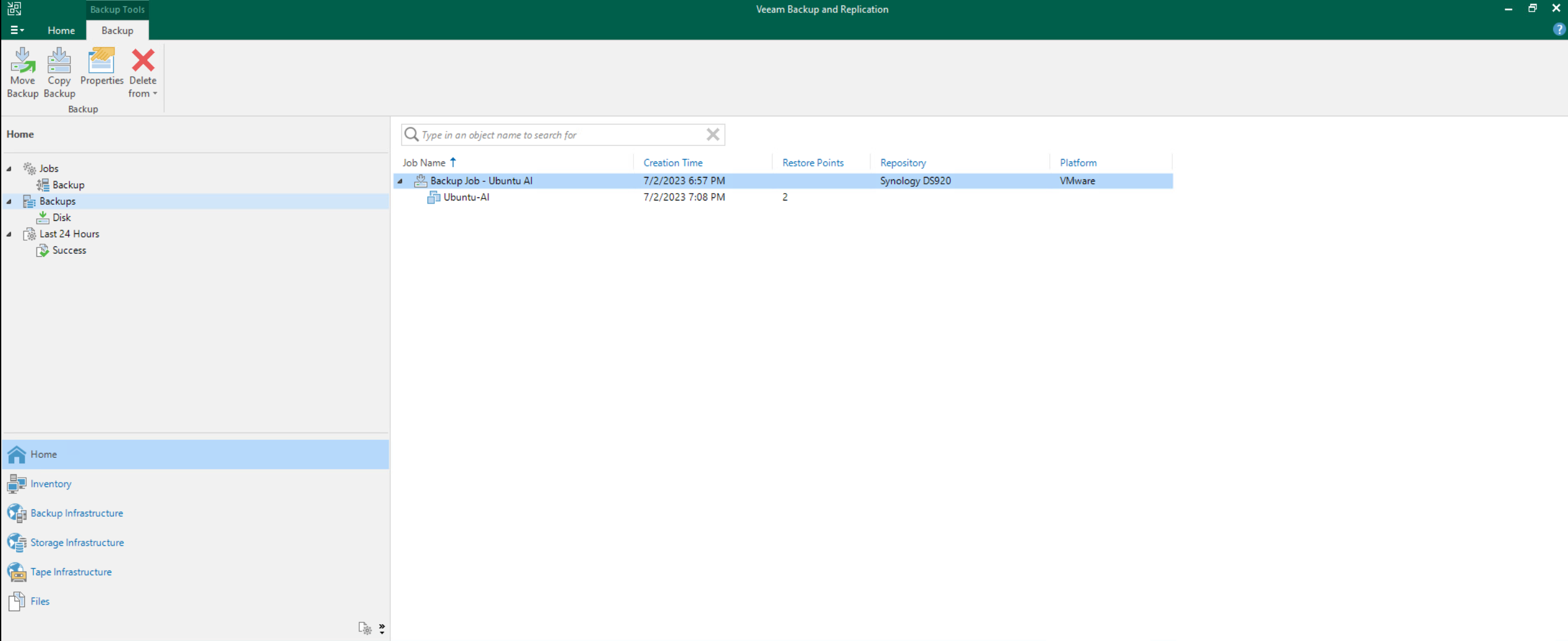
A restore point available for the VM
2. Deleting the VM
I deleted the VM from my vSphere inventory.

The VM removed from the vSphere inventory
3. Starting the restore
Back in Veeam, I went to the Home view.
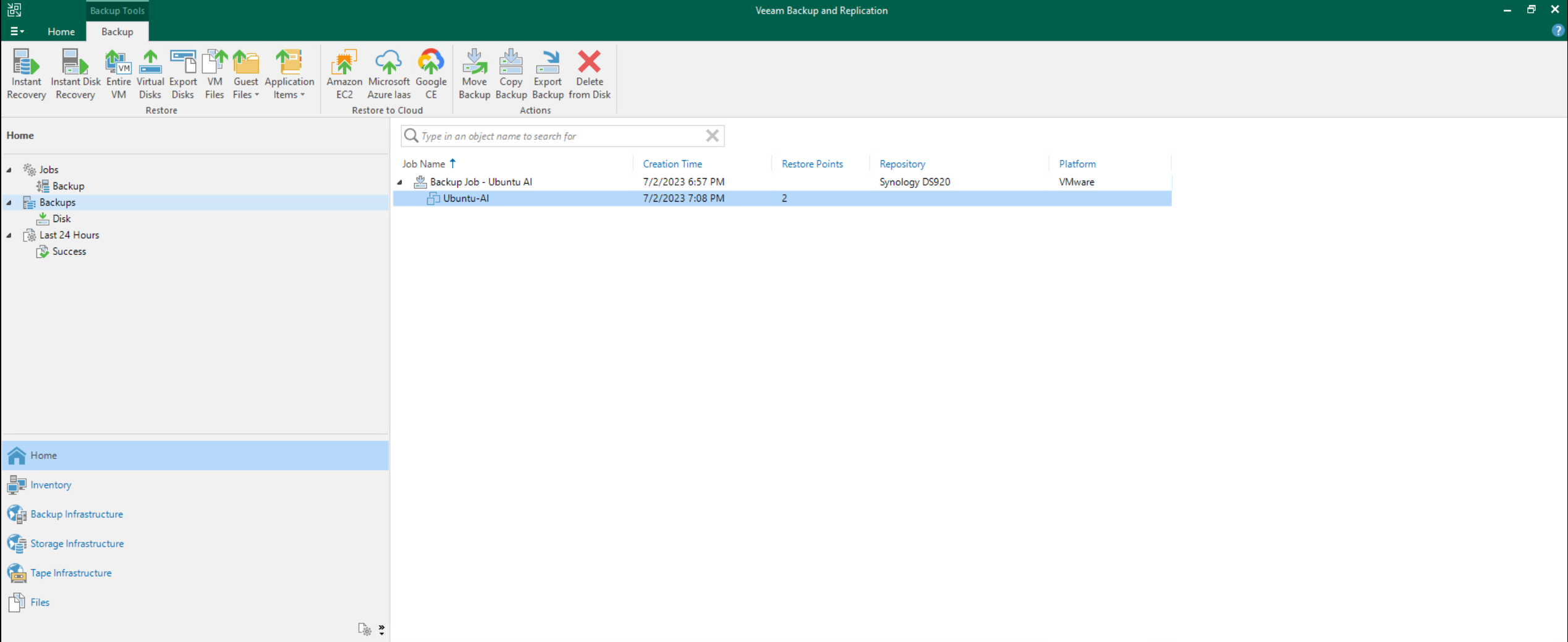
The Home view in Veeam Backup & Replication
I selected Backups, then Disk. I right-clicked the VM and picked Restore entire VM. That opens the Entire VM Restore wizard.
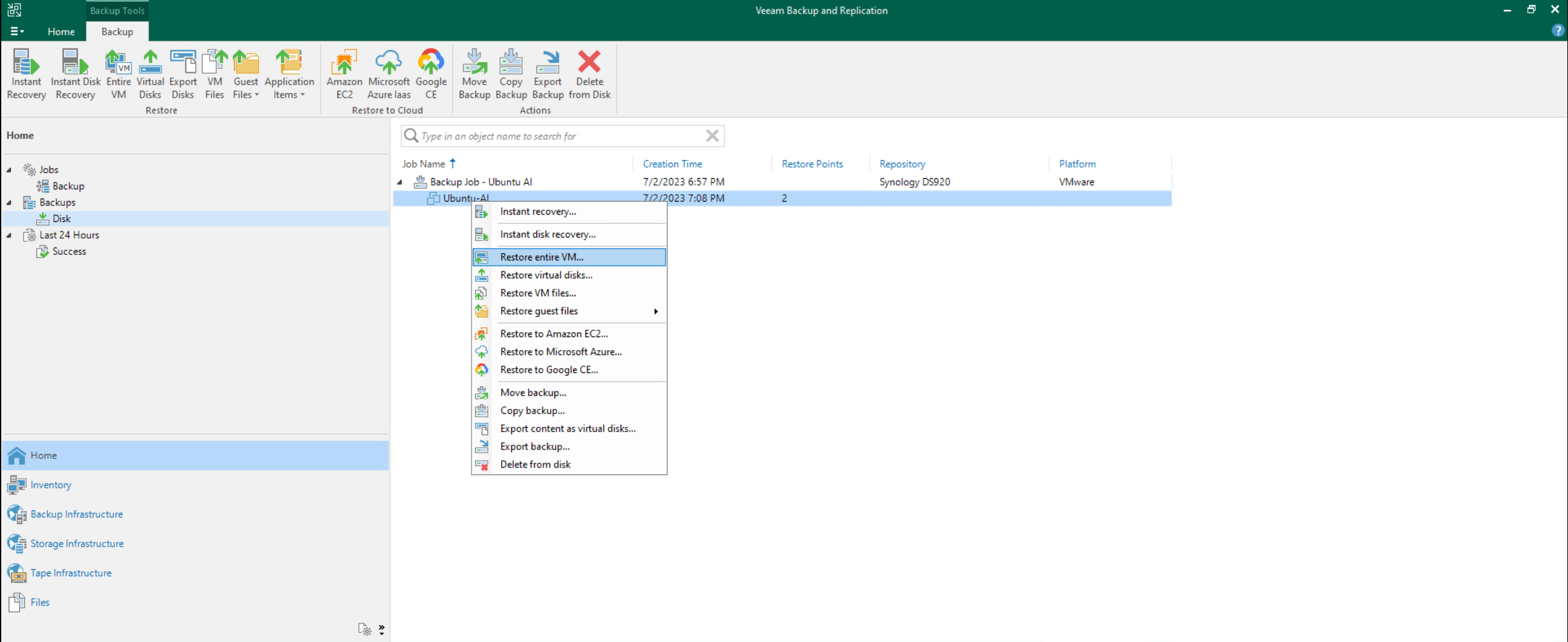
Opening the Backups node
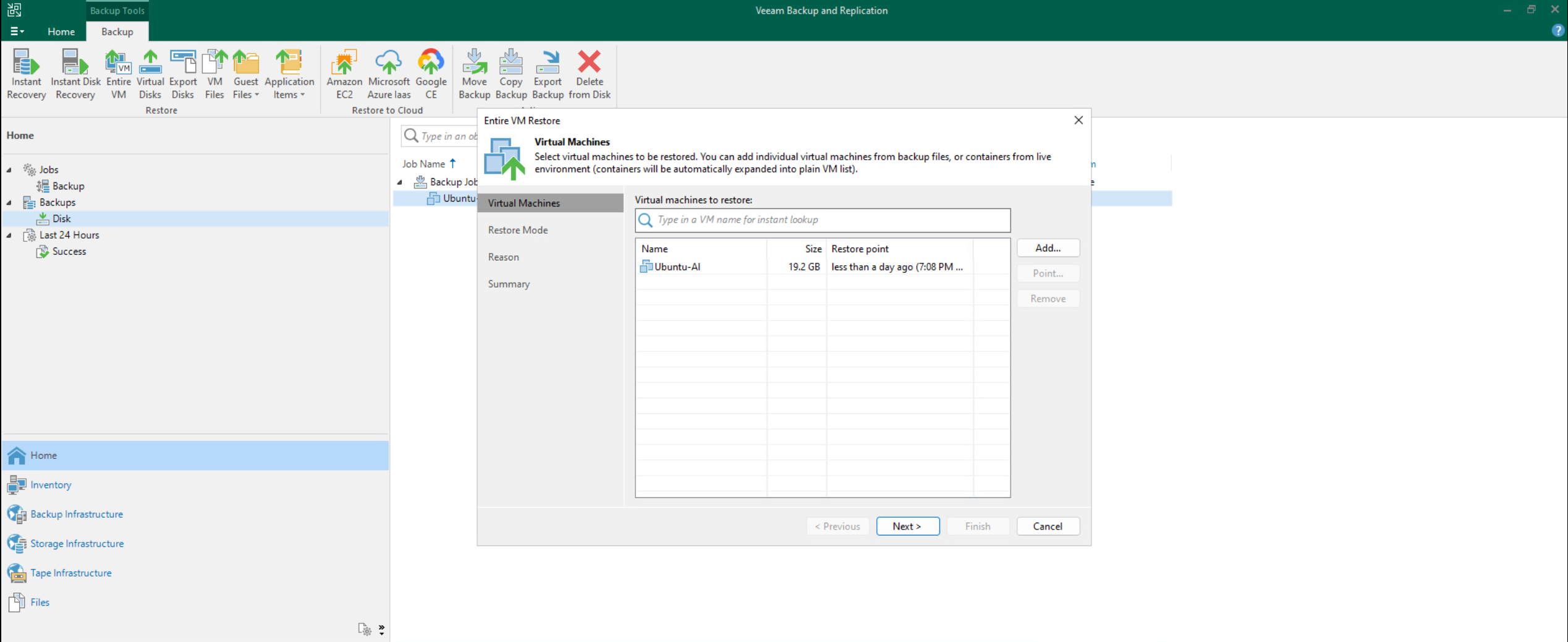
Choosing Restore entire VM
4. Picking the VM and restore point
I selected the VM from the list. Then I clicked Point and picked the restore point I wanted.
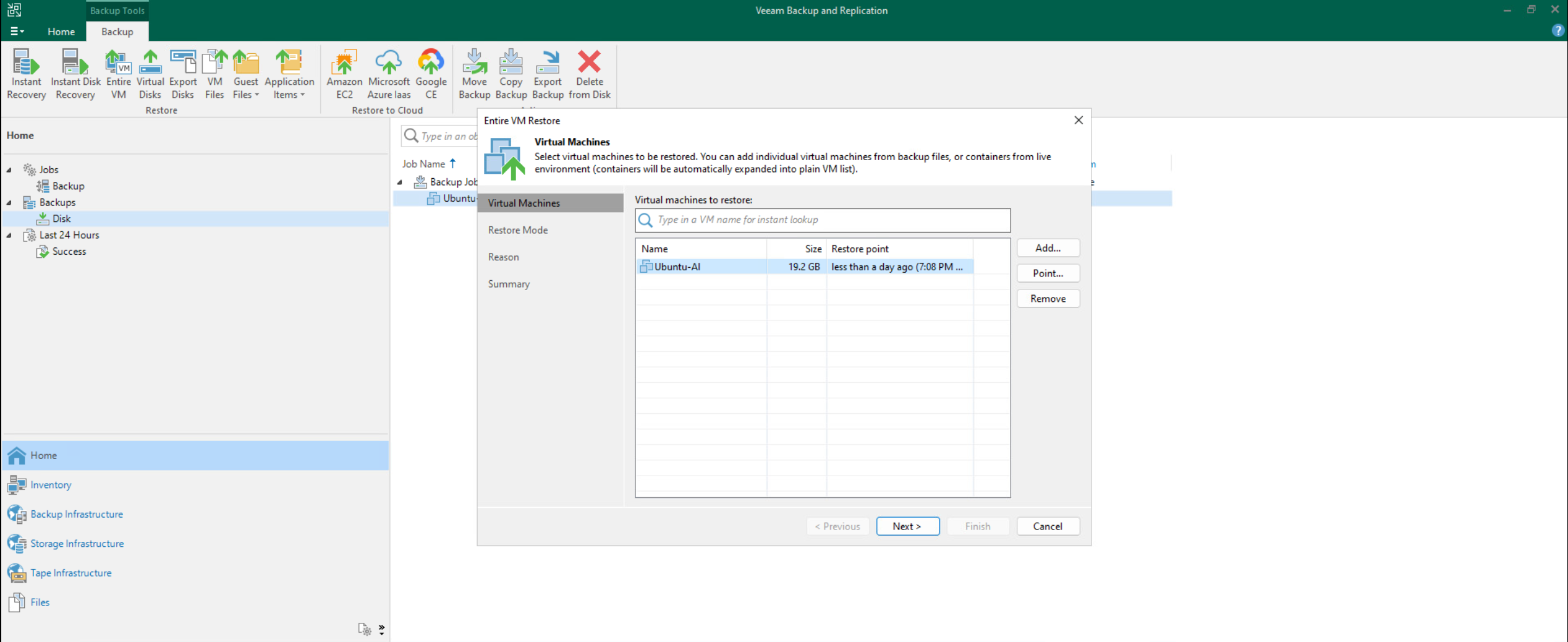
Selecting the VM to restore
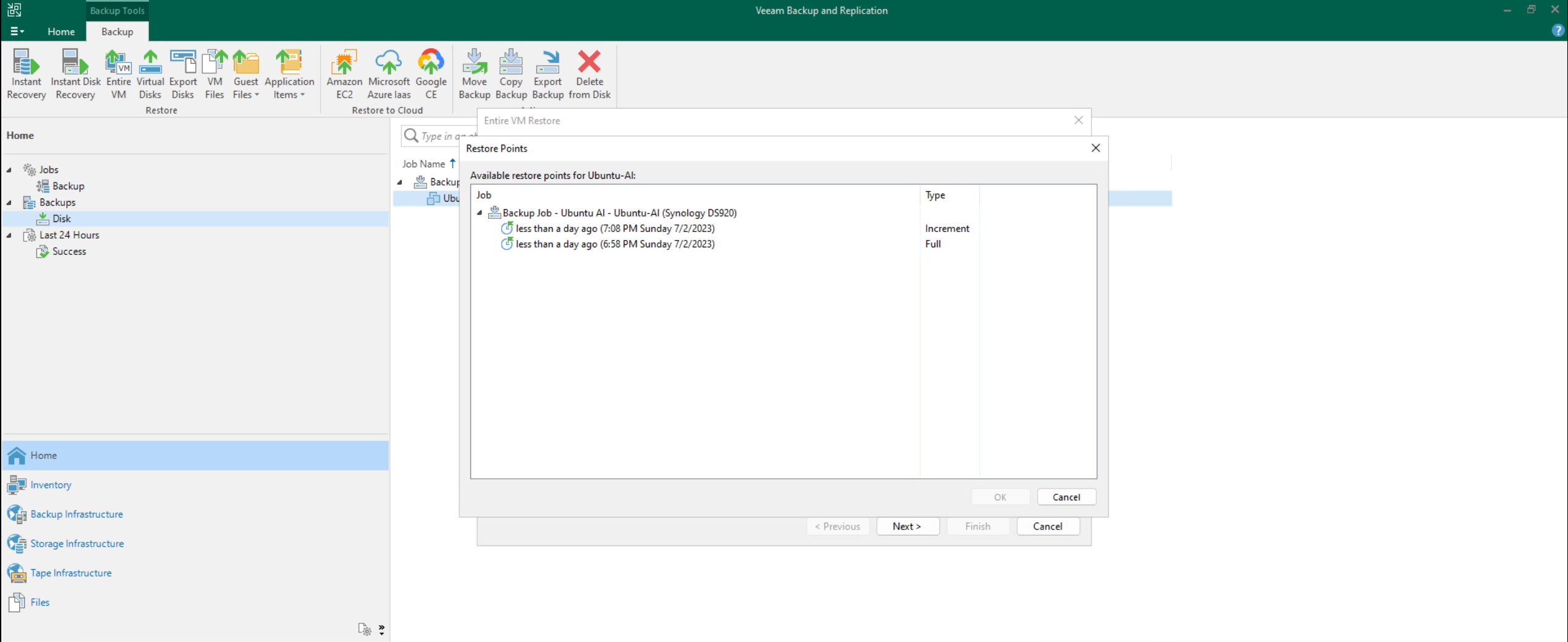
Selecting the restore point
5. Restoring to the original location
I’m putting it back where it came from, so I chose Restore to the original location.
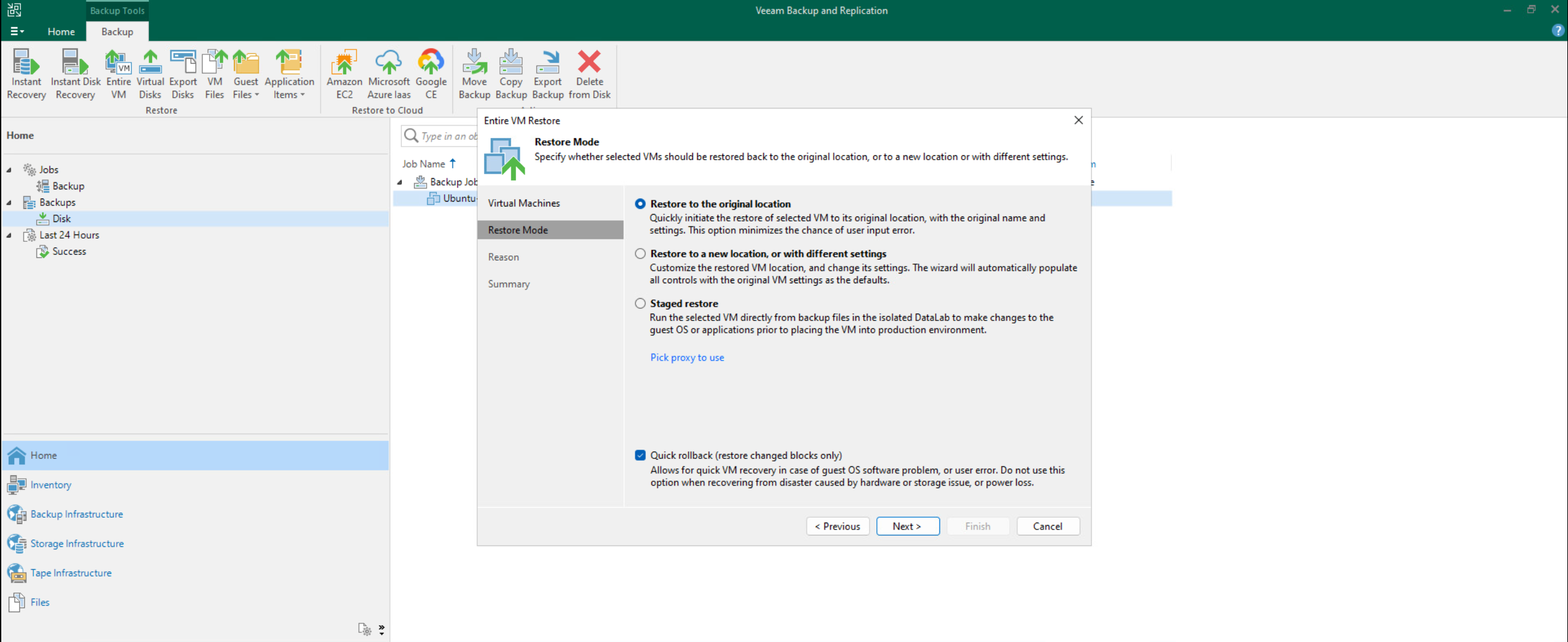
Choosing the original location
I added a reason. 🙂
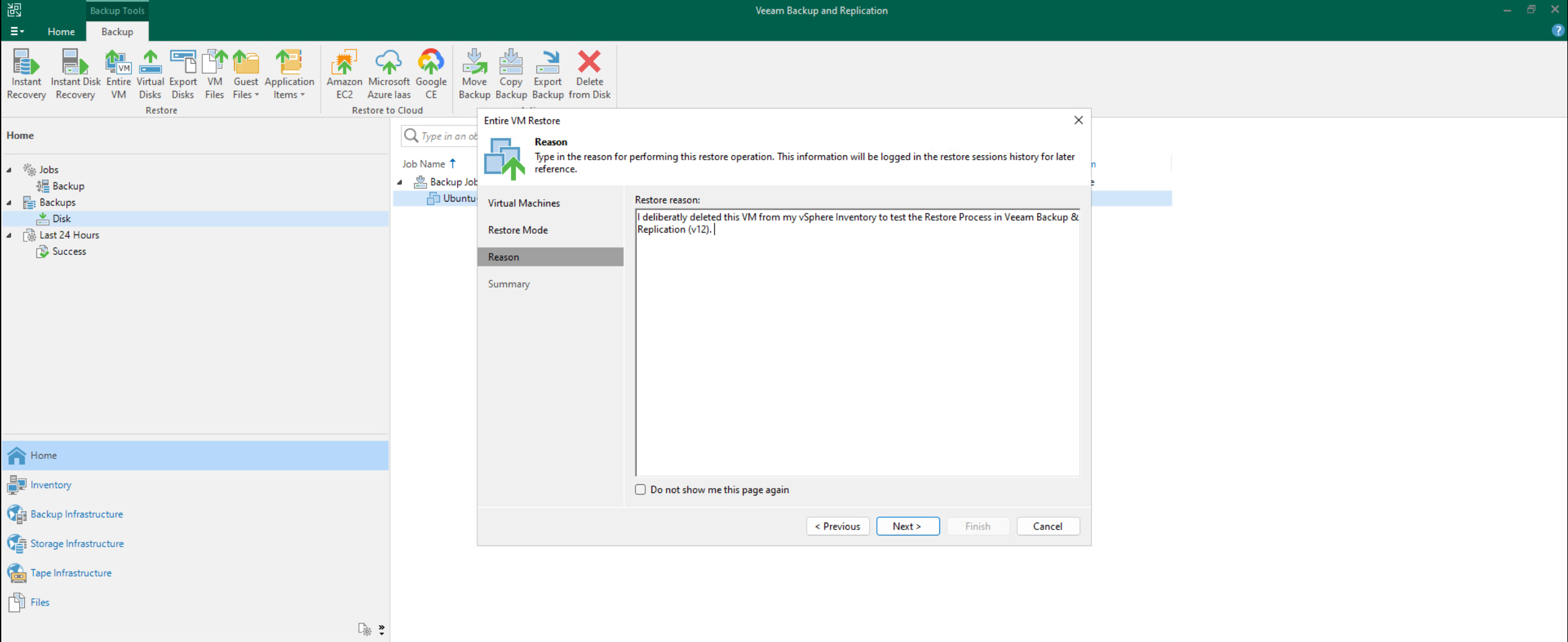
Entering a restore reason
Then I looked over the summary.
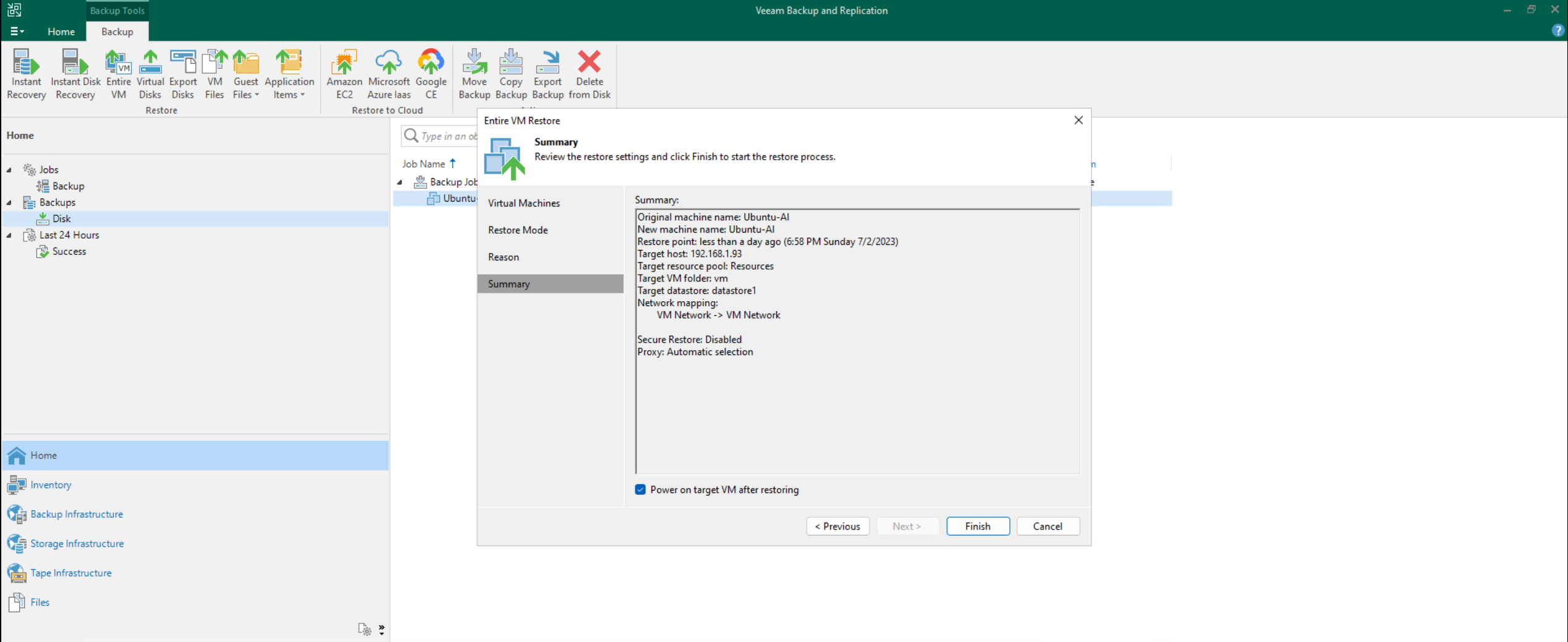
The restore summary
6. Watching the restore
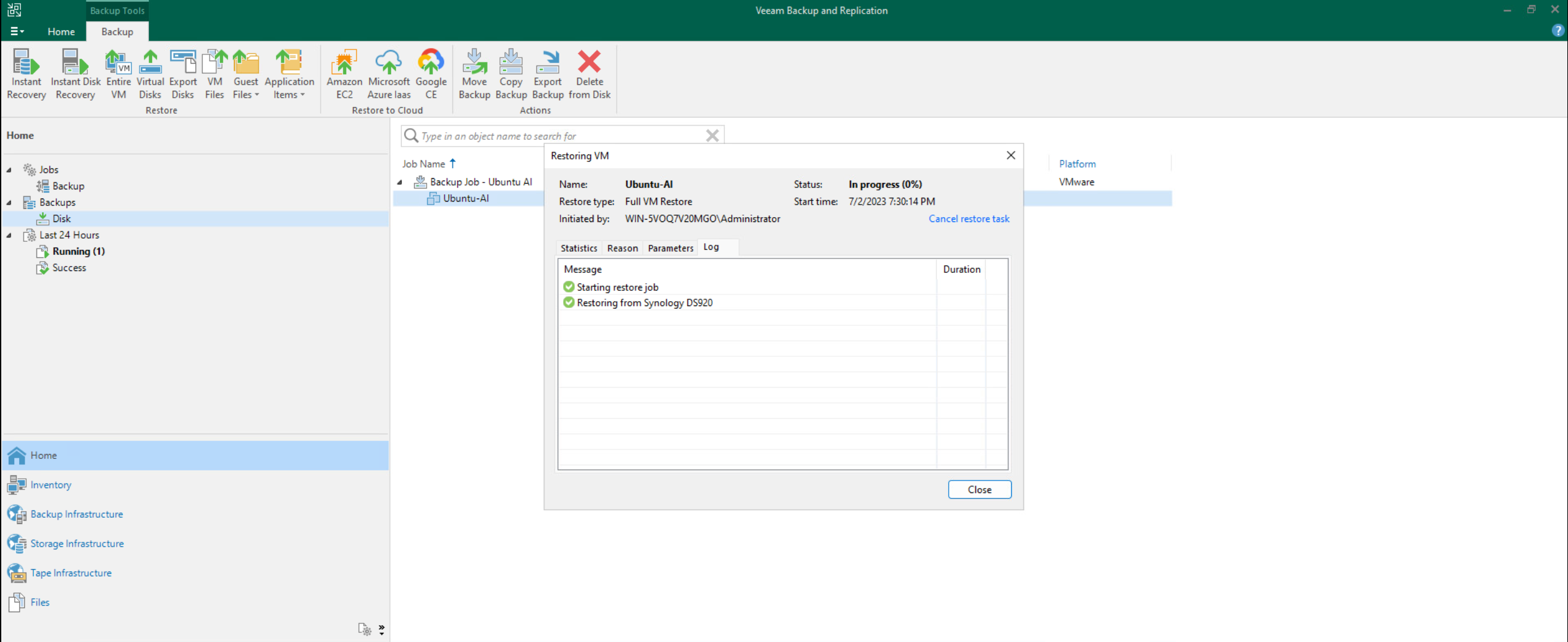
The restore starting
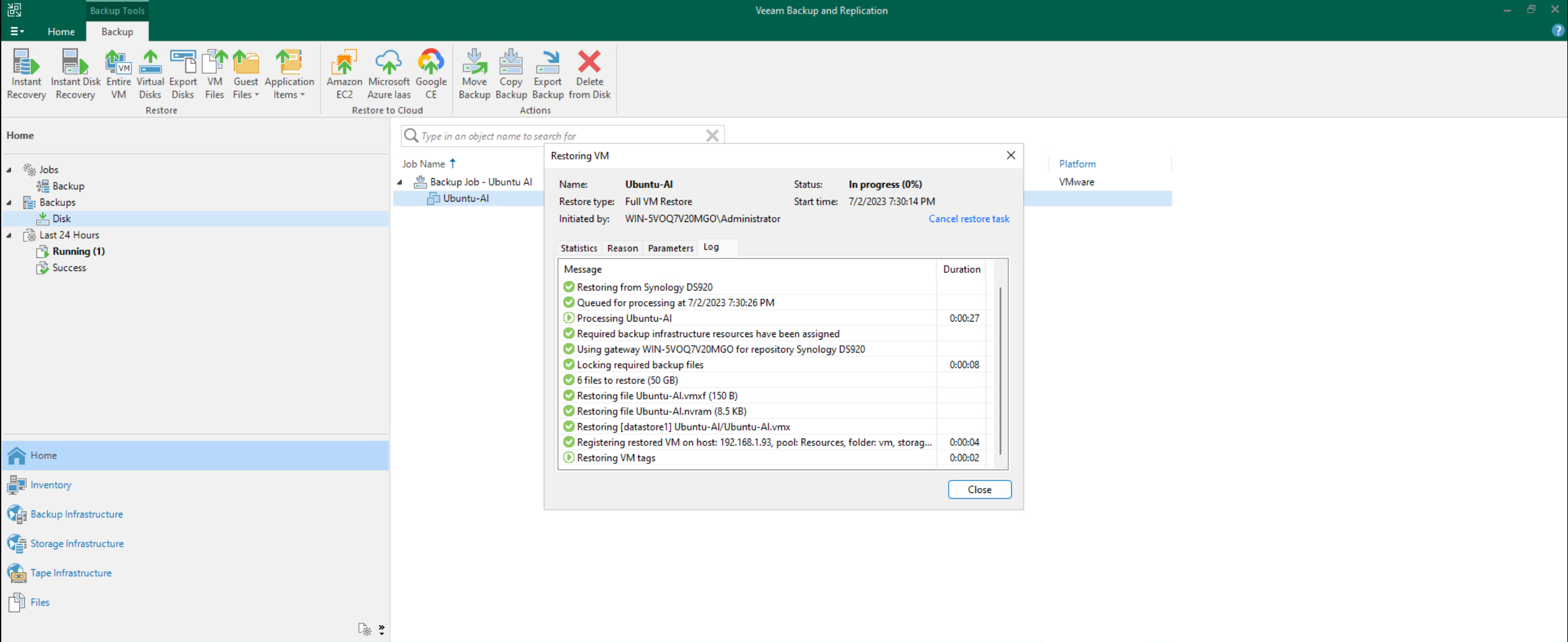
The restore in progress
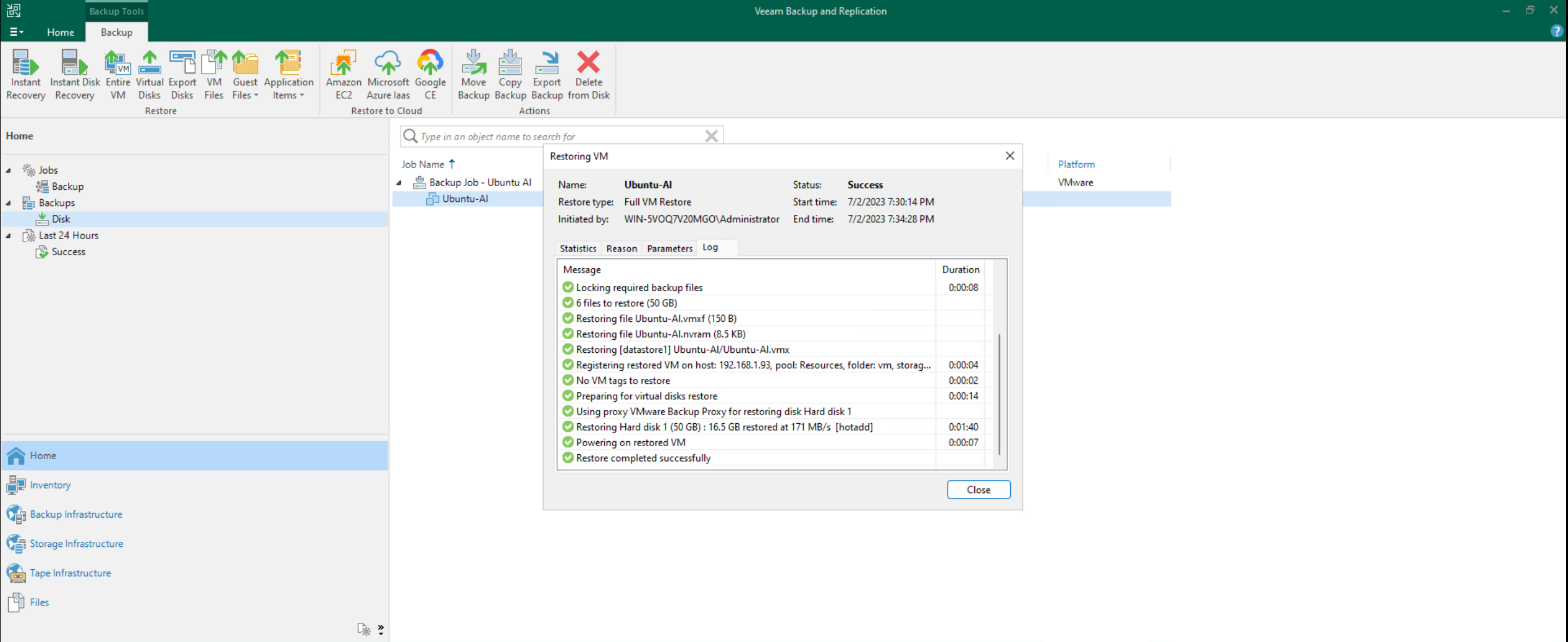
The restore finishing
Result
The VM was back in my vSphere inventory.

The VM restored to the vSphere inventory

The restored VM
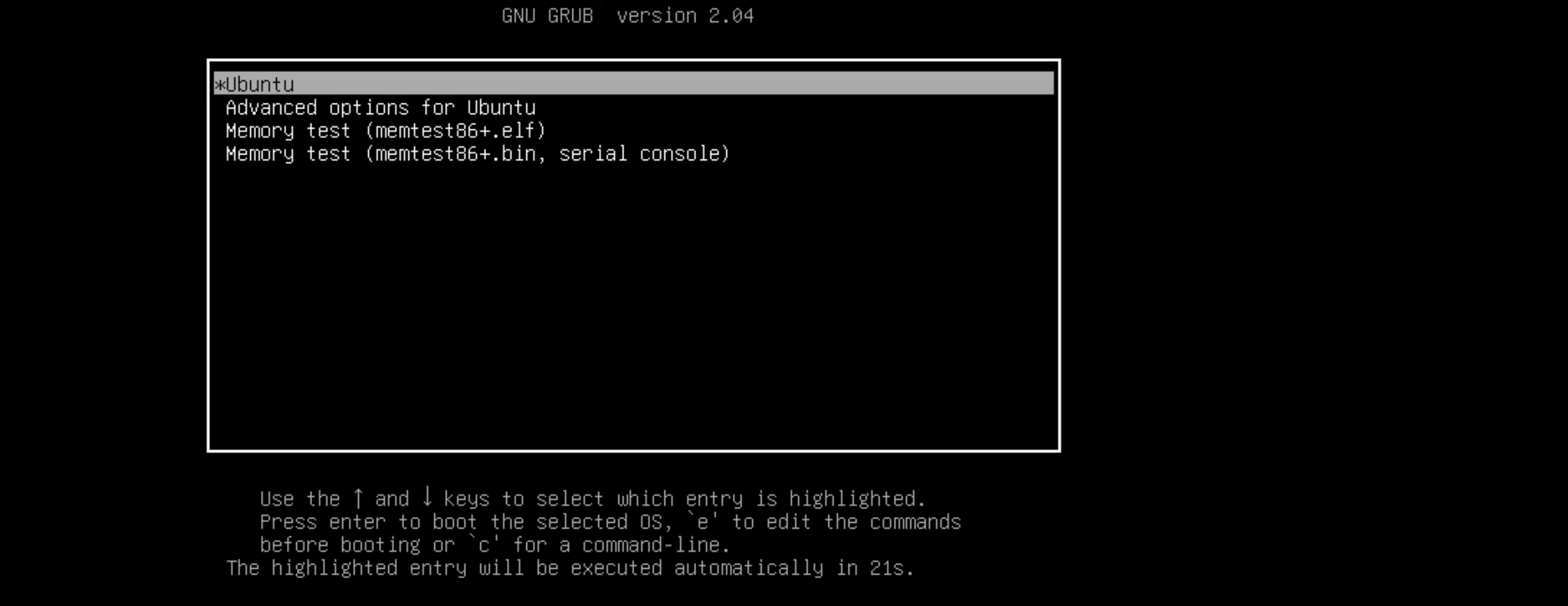
The restored VM details
If I missed anything or you have a suggestion, let me know.