This is part 3 of my hybrid security setup. I already deployed Defender for Endpoint and onboarded my on-prem machines into the Defender XDR portal. Now I wanted to see into Active Directory.
Endpoints are the windows into a network. Identities are the keys. Once an attacker gets the keys they can move around quietly. That’s where Defender for Identity (MDI) comes in.
MDI watches domain controllers and looks at authentication patterns. It can detect things like Pass-the-Hash, Pass-the-Ticket, Kerberoasting, and recon. It also feeds the Defender XDR portal, so identity signals sit next to endpoint and cloud activity.
In this part I did four things:
- Checked the prerequisites
- Created and tested a gMSA
- Turned on auditing
- Installed the sensor on a domain controller
1. Checking the prerequisites
Before deploying MDI I made sure of these:
- The domain controllers run Windows Server 2016 or later. The newest version is best.
- I have the Security Administrator or Global Administrator role to install the sensor.
- I have Defender for Identity licenses in my tenant. A Microsoft 365 E5 trial includes it.
Microsoft also has a script called Test-MdiReadiness.ps1. It tests whether your environment is ready.
2. Creating a gMSA for the sensor
The sensor uses a Group Managed Service Account (gMSA). Windows manages its password for me. And the sensor can authenticate to the domain without a credential stored on the box.
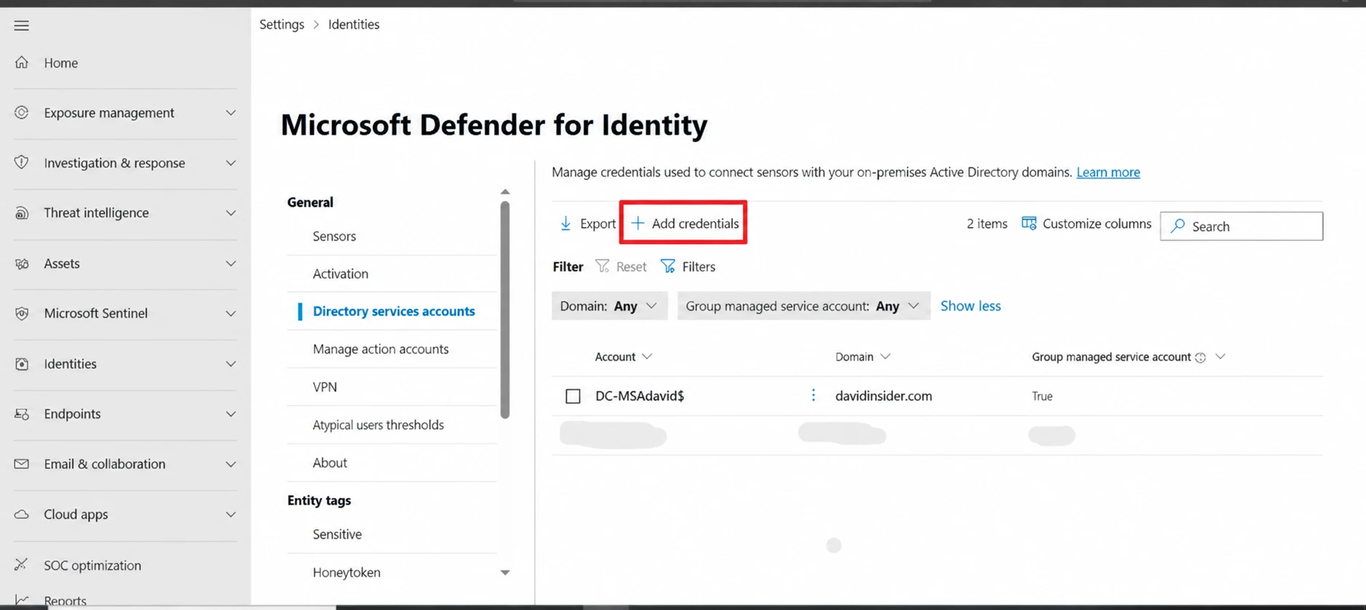
Adding the gMSA in the Defender portal isn’t enough. I set it up on the domain controller first and made sure it worked. Test-ADServiceAccount has to return True. Only after that did I add the same account in the portal.
Setting up the gMSA for the MDI sensor
3. Turning on advanced auditing
MDI relies on Windows event logs to catch attacks like Pass-the-Hash and DCSync. So auditing has to be on before the install.
I enabled these:
- Audit Logon Events (Success, Failure)
- Audit Account Logon Events
- Audit Directory Service Access
- Audit Account Management
I did it with Group Policy Management:
- Open Group Policy Management and edit the Default Domain Controllers Policy. A custom GPO works too.
- Go to Computer Configuration → Policies → Windows Settings → Security Settings → Advanced Audit Policy Configuration → Audit Policies.
- Enable the settings above.
- Run
gpupdate /forceon the DC.
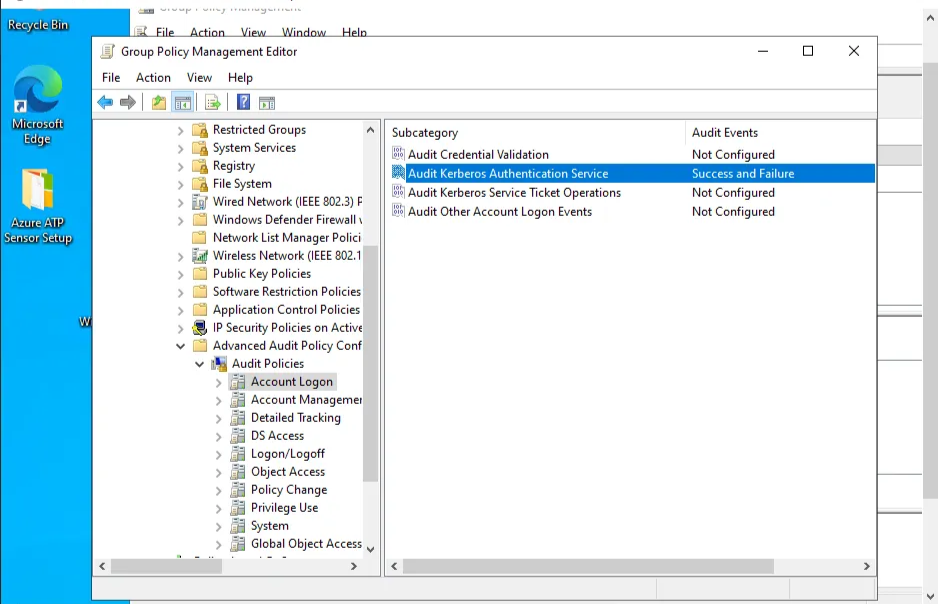
Enabling the audit policies
4. Installing the sensor
In the Defender XDR portal I went to Settings → Identities → Sensors and clicked Download Sensor. I copied the access key too. I needed it during the install.
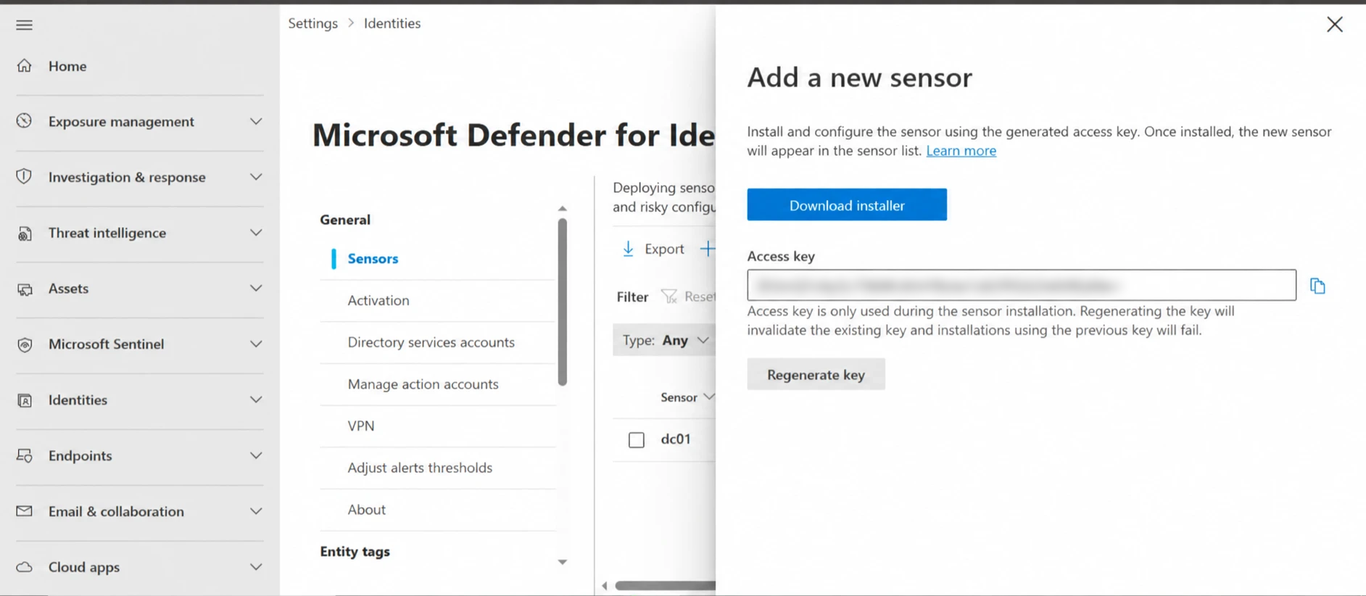
Downloading the sensor and copying the access key
Then on the domain controller:
- Extract the files from the
.zip. Installing straight from the zip fails. - Run
Azure ATP sensor setup.exeas administrator. - Pick a language on the Welcome page and click Next.
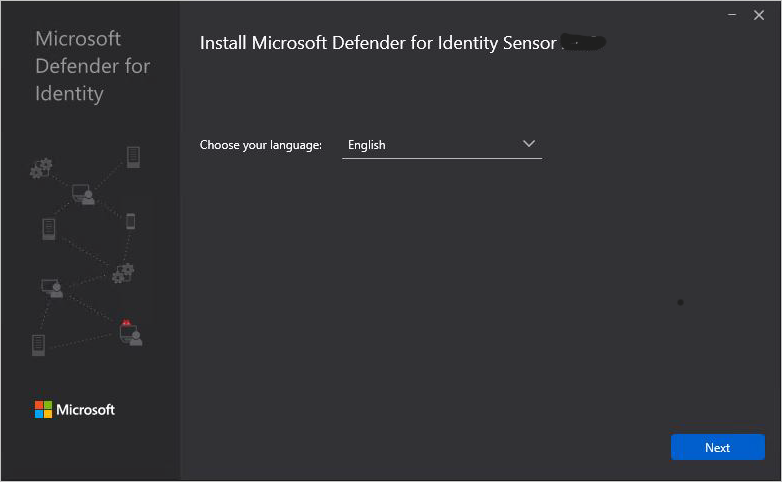
The sensor setup wizard
The installer scans the server to see what role it has. If it’s a domain controller, AD FS, or AD CS server, it installs the Defender for Identity sensor. If it’s a dedicated server with none of those roles, it installs the standalone sensor. The wizard shows which one it picked.
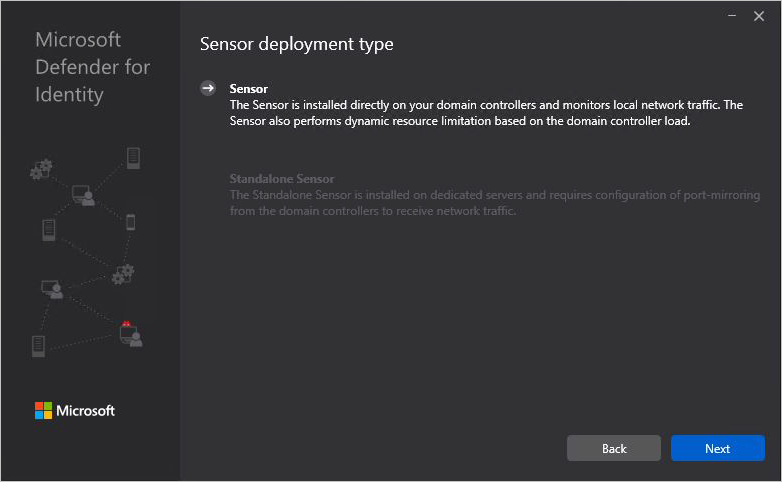
The wizard showing the detected server type
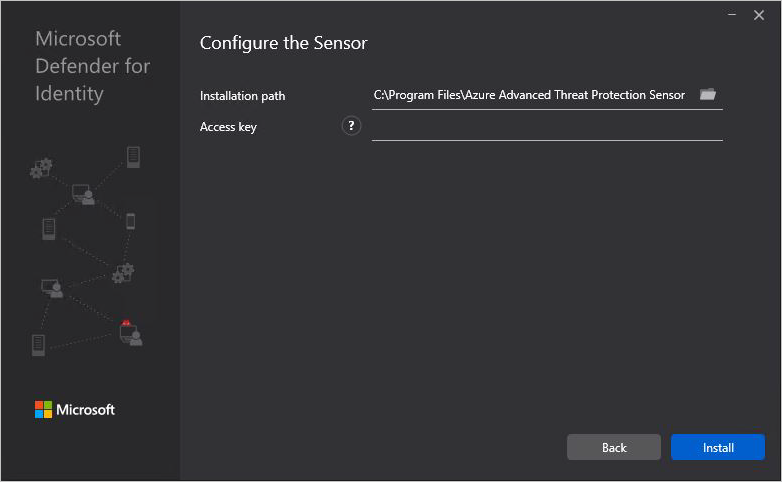
The sensor installation details
I pasted the access key when it asked and finished the install. After that the sensor starts collecting data and sending it to the portal.
5. Checking sensor health
Back in the Defender XDR portal I went to Settings → Identities → Sensors. My domain controller was listed as Healthy with a green status.
If it says Disconnected, check the network connection and make sure the sensor service is running.
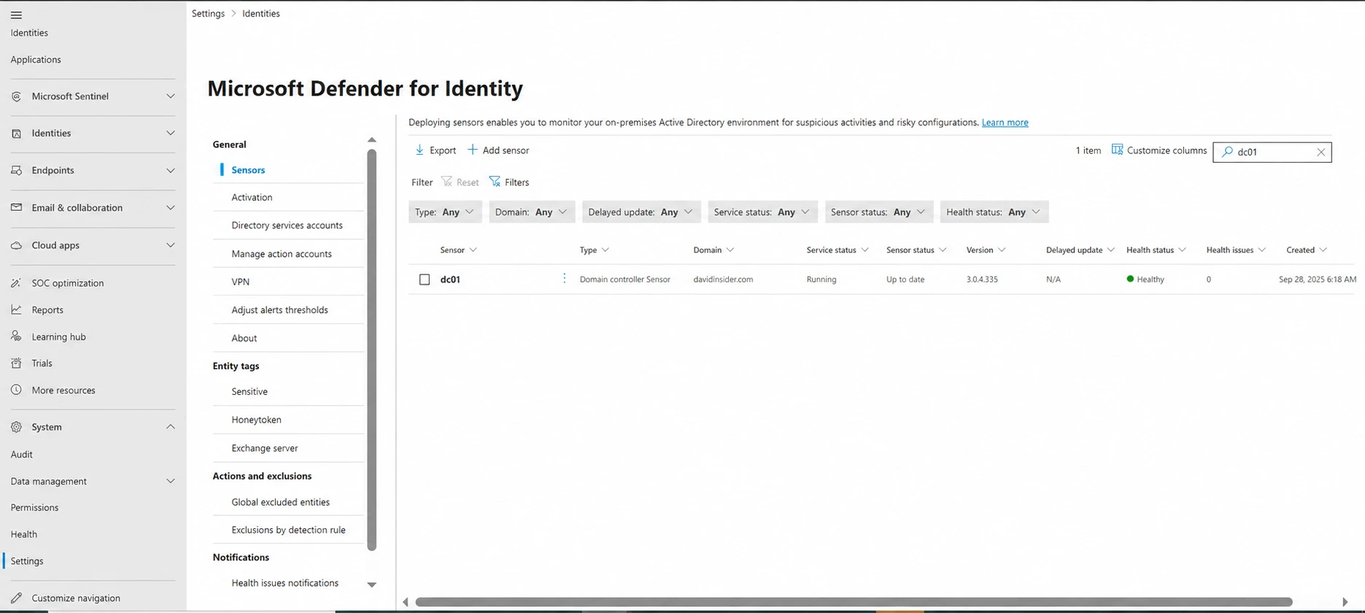
The domain controller showing as Healthy
6. Testing detection
To make sure auditing and the sensor work, I did a few simple things like failed logons. Then I looked for the alerts in the Defender XDR portal.
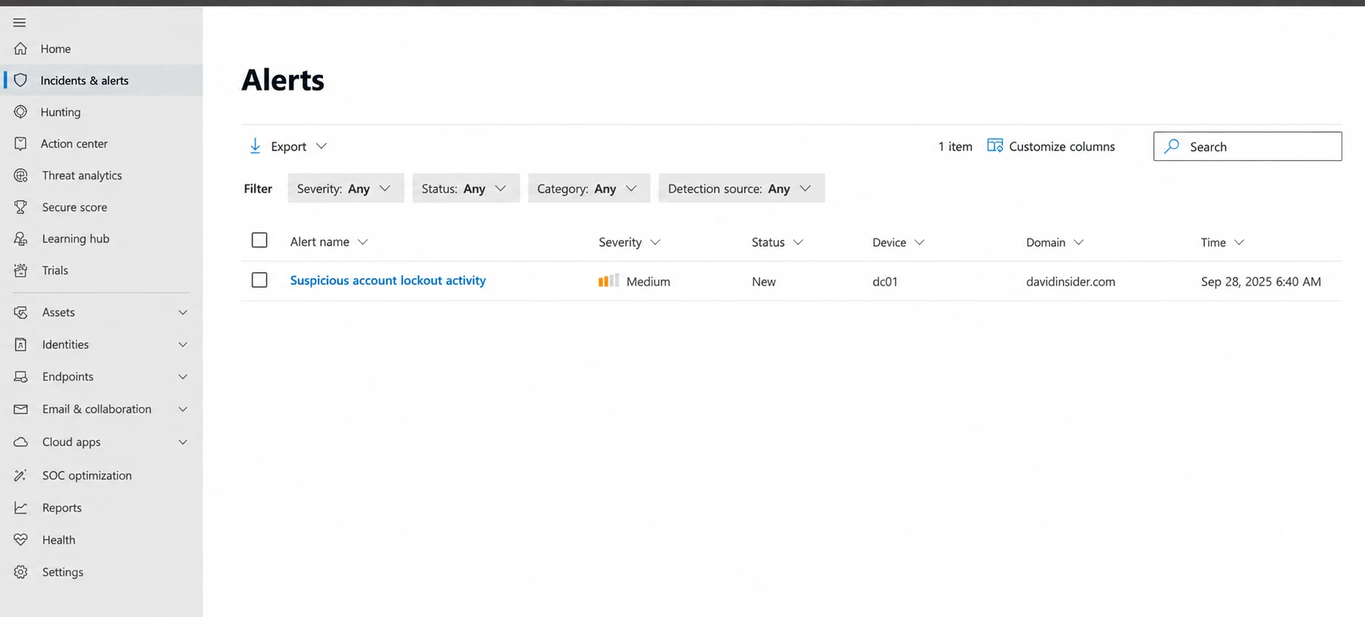
Identity alerts in the Defender XDR portal
Result
MDI isn’t only a sensor install. It gives you a view of how identities behave across the network. You learn what normal looks like and spot what isn’t.
It works even better with Defender for Endpoint and Defender for Cloud Apps. In part 4 I’ll connect MDI to Defender for Cloud Apps to cover identities and SaaS usage.