This is part 5 of my Enterprise Windows lab. In the last part I used Group Policy to manage users, computers, and security settings in the domain. Now I wanted a central place for users to store and share files.
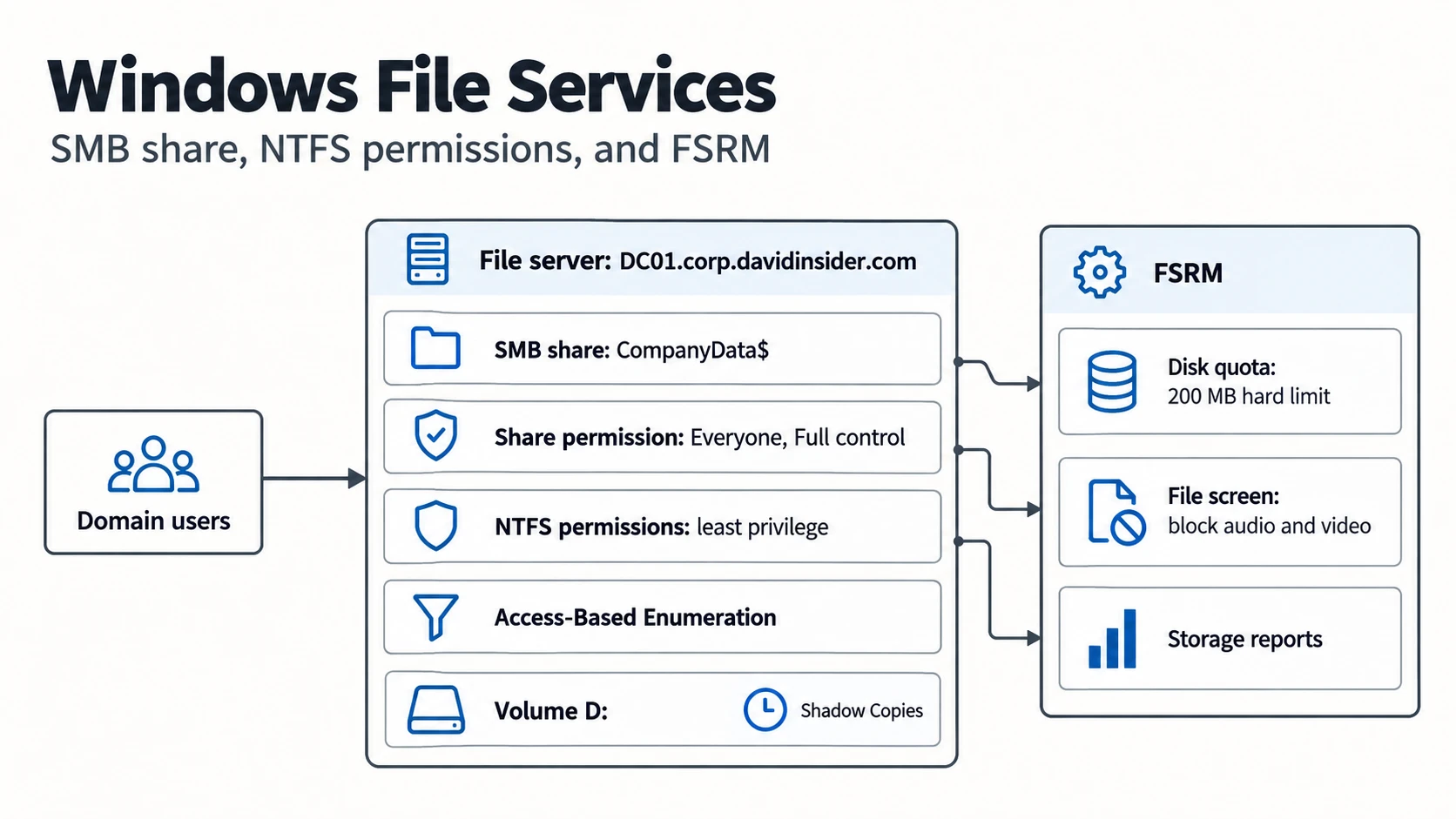
I set up an SMB file share and applied Share and NTFS permissions. Then I turned on Access-Based Enumeration and Shadow Copies. Last, I used File Server Resource Manager (FSRM) for quotas, file screening, and reports.
If you want to follow along, Windows Server has a free 180 day evaluation.
Part 5: Windows file services with SMB, NTFS permissions, and FSRM
What I did
- Created an SMB file share
- Set Share and NTFS permissions
- Enabled Access-Based Enumeration (ABE)
- Configured Shadow Copies
- Installed File Server Resource Manager
- Set up storage quotas and file screening
- Checked the SMB shares with PowerShell
1. The file share
Central file storage lets people share files while I control who can get to what. Users in the domain get one secure place on the network.
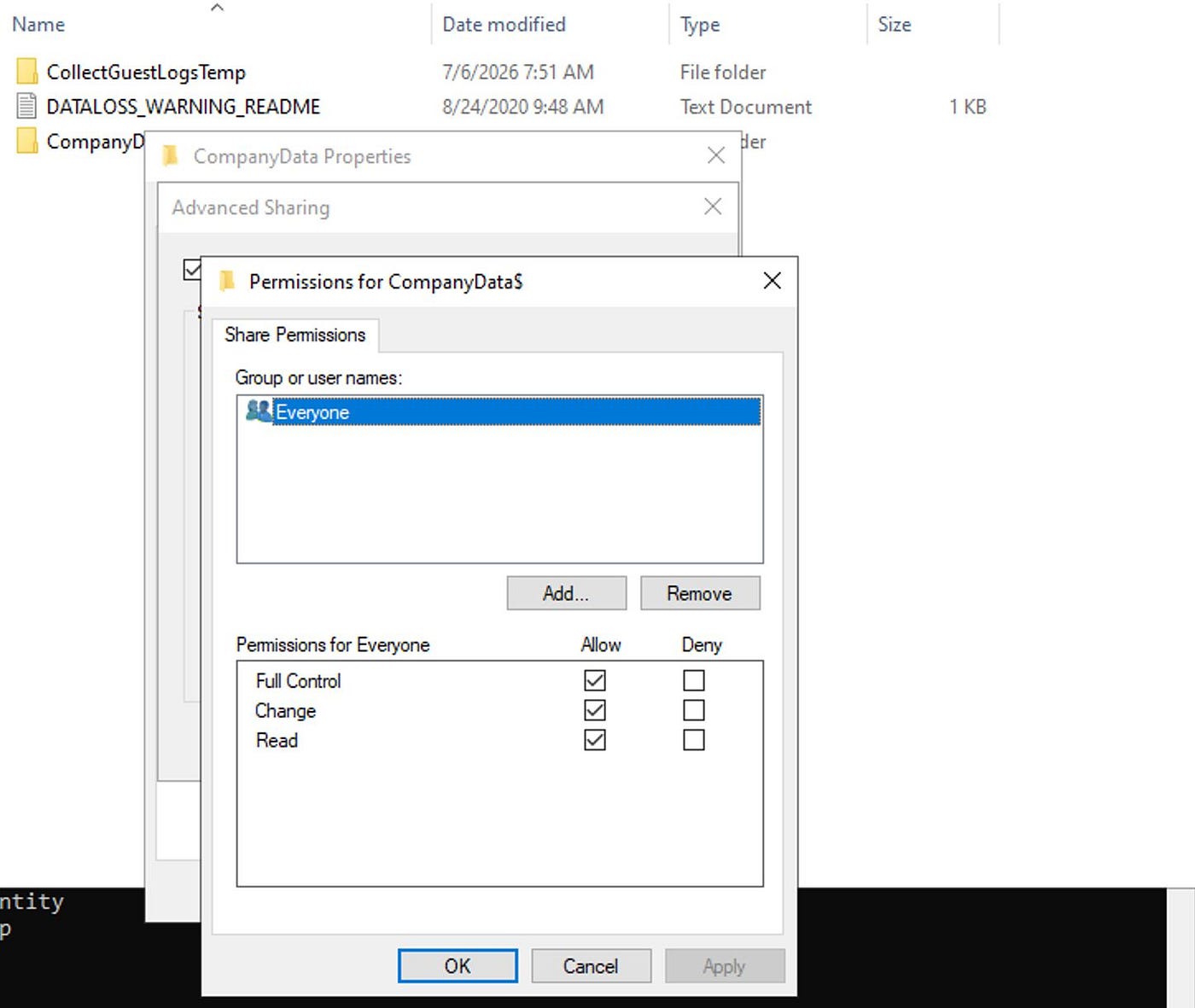
I left the share permission on Everyone with Full control and did the real limiting with NTFS permissions. Access-Based Enumeration means users only see the folders they’re allowed to open. I also turned on Shadow Copies so users can get back an earlier version of a file.
Creating the SMB share
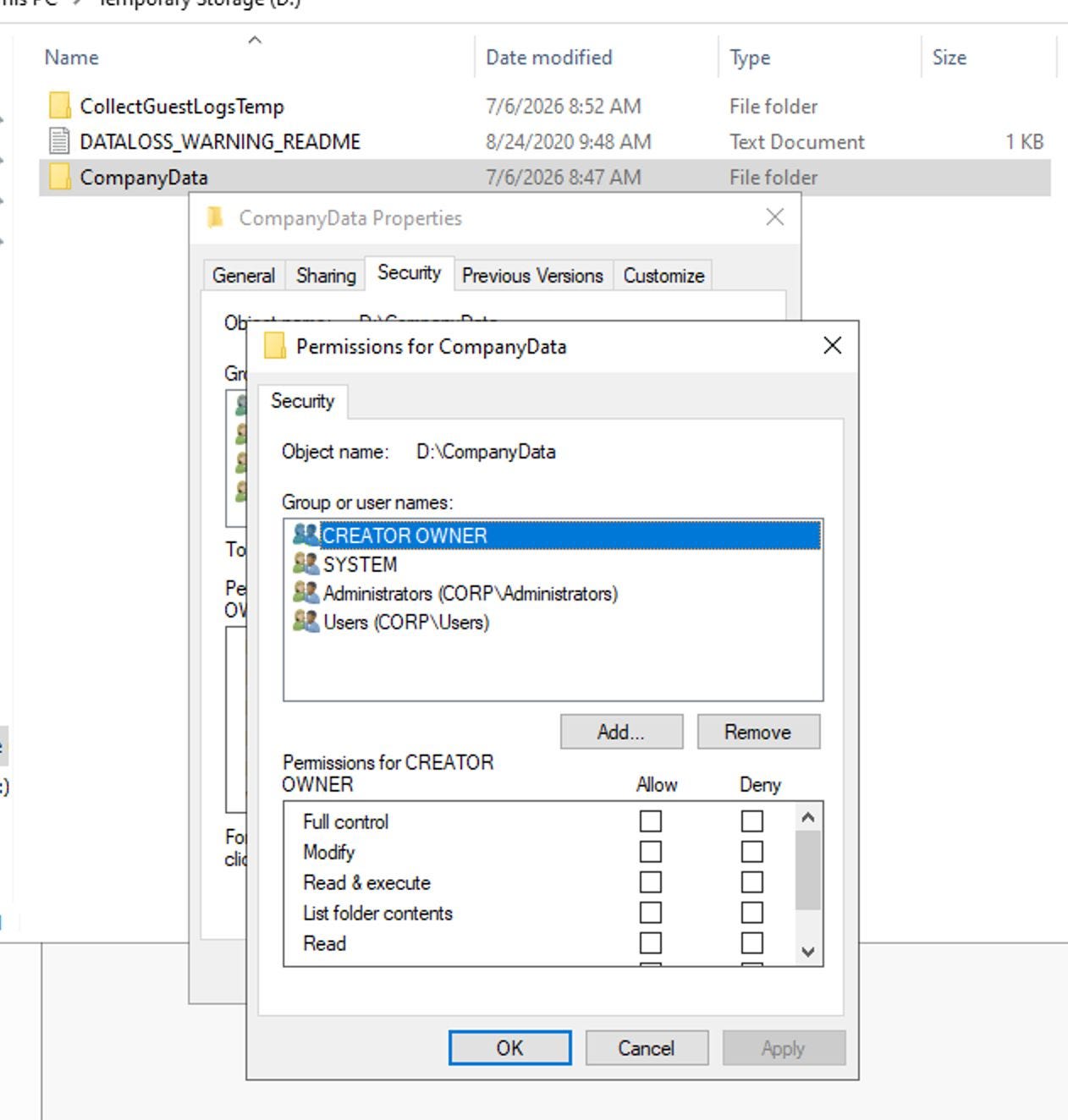
Setting Share and NTFS permissions
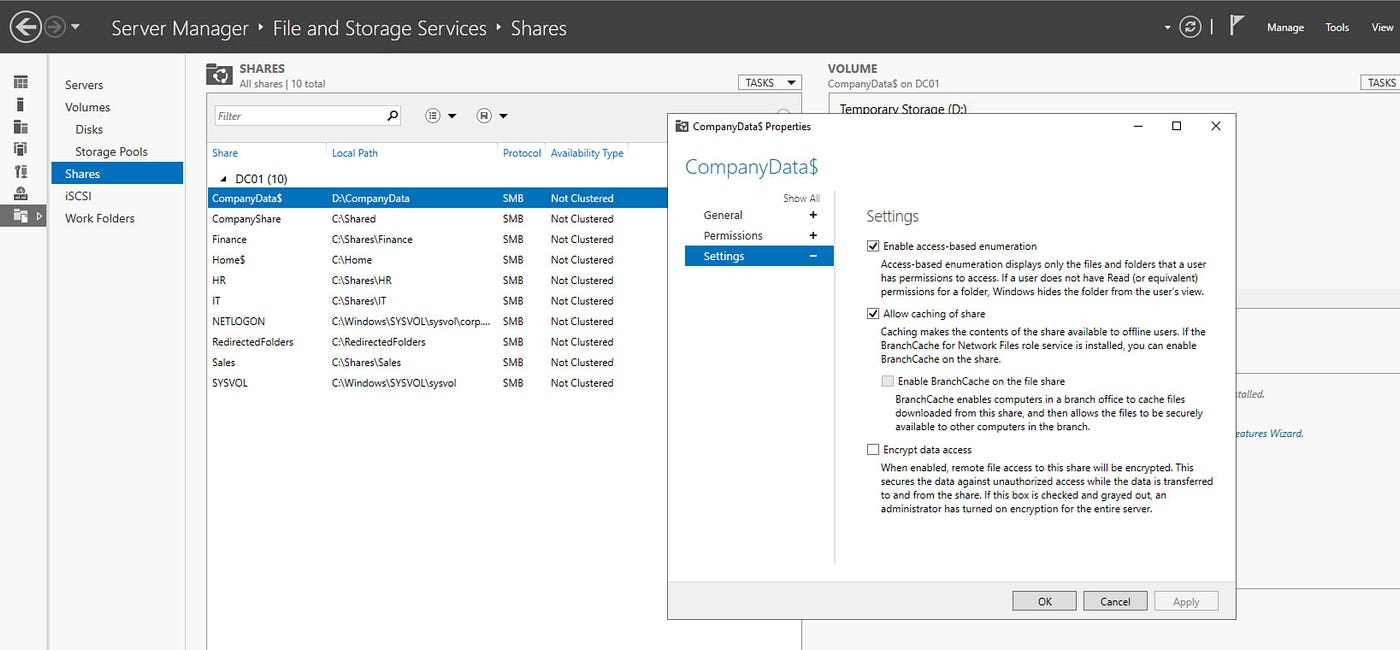
Access-Based Enumeration
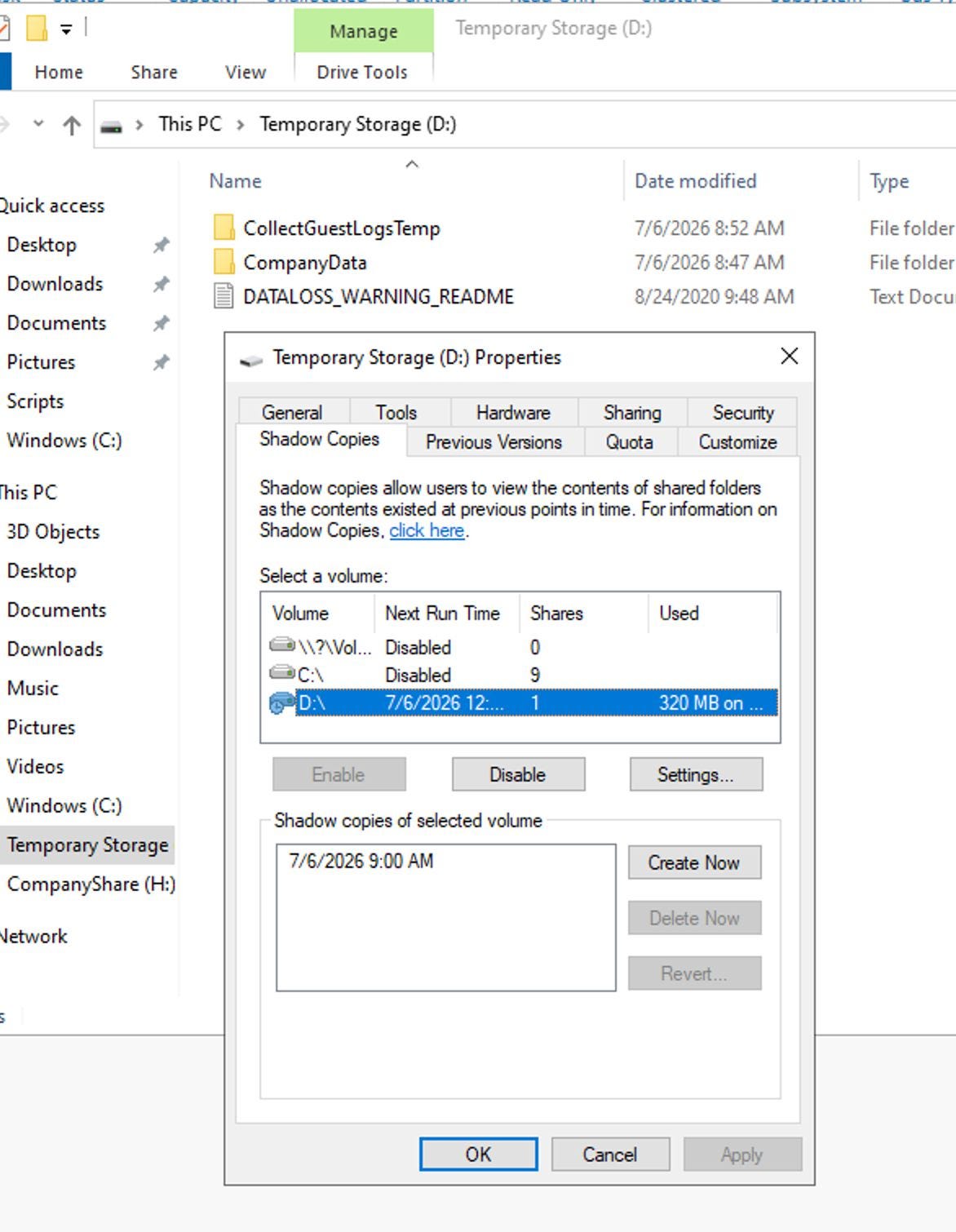
Shadow Copies
2. Managing storage with FSRM
I installed FSRM to keep an eye on storage. I used it for disk quotas, blocking file types I don’t want, and storage reports. It shows how space is being used and enforces the rules.
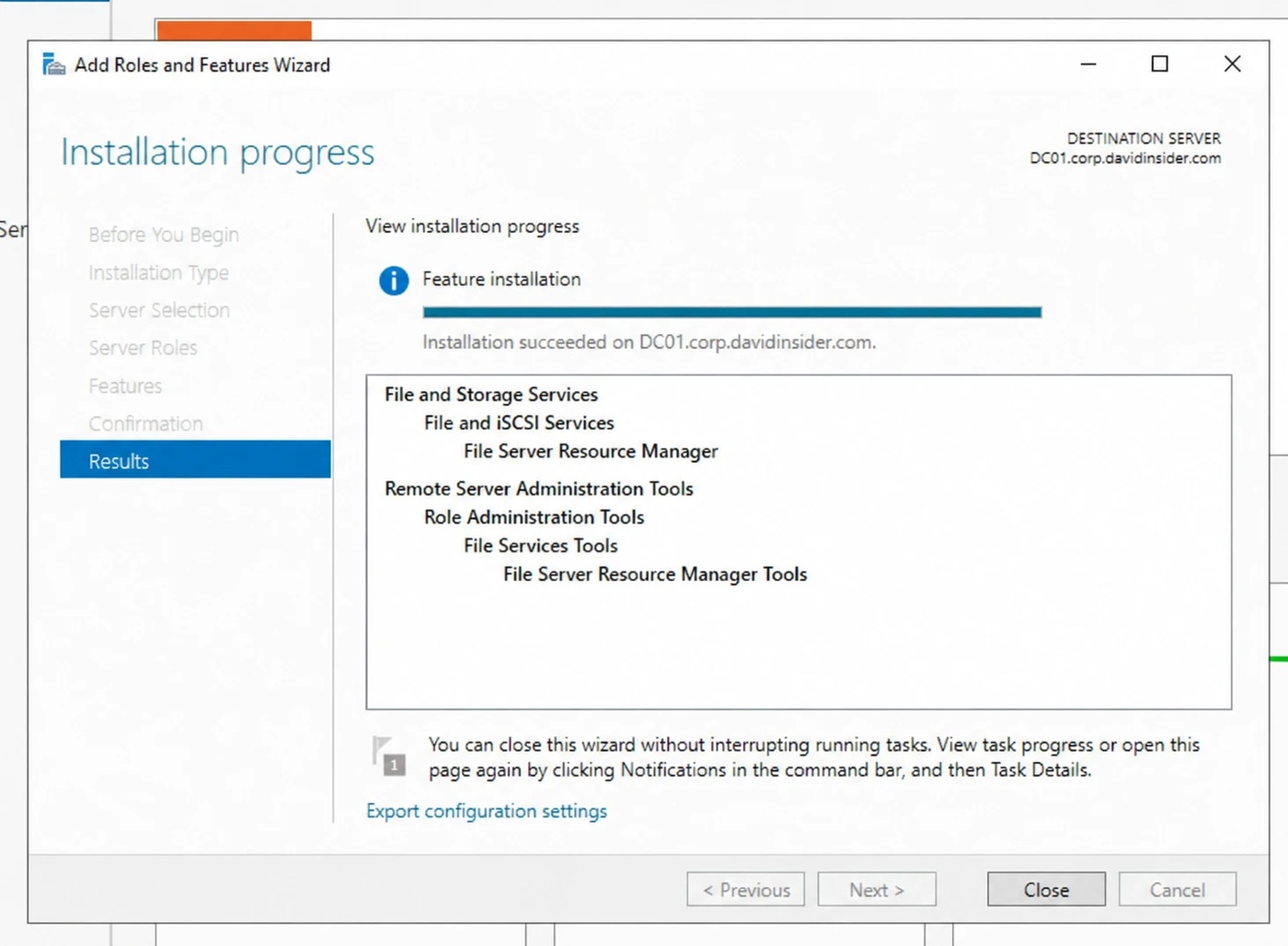
Installing File Server Resource Manager
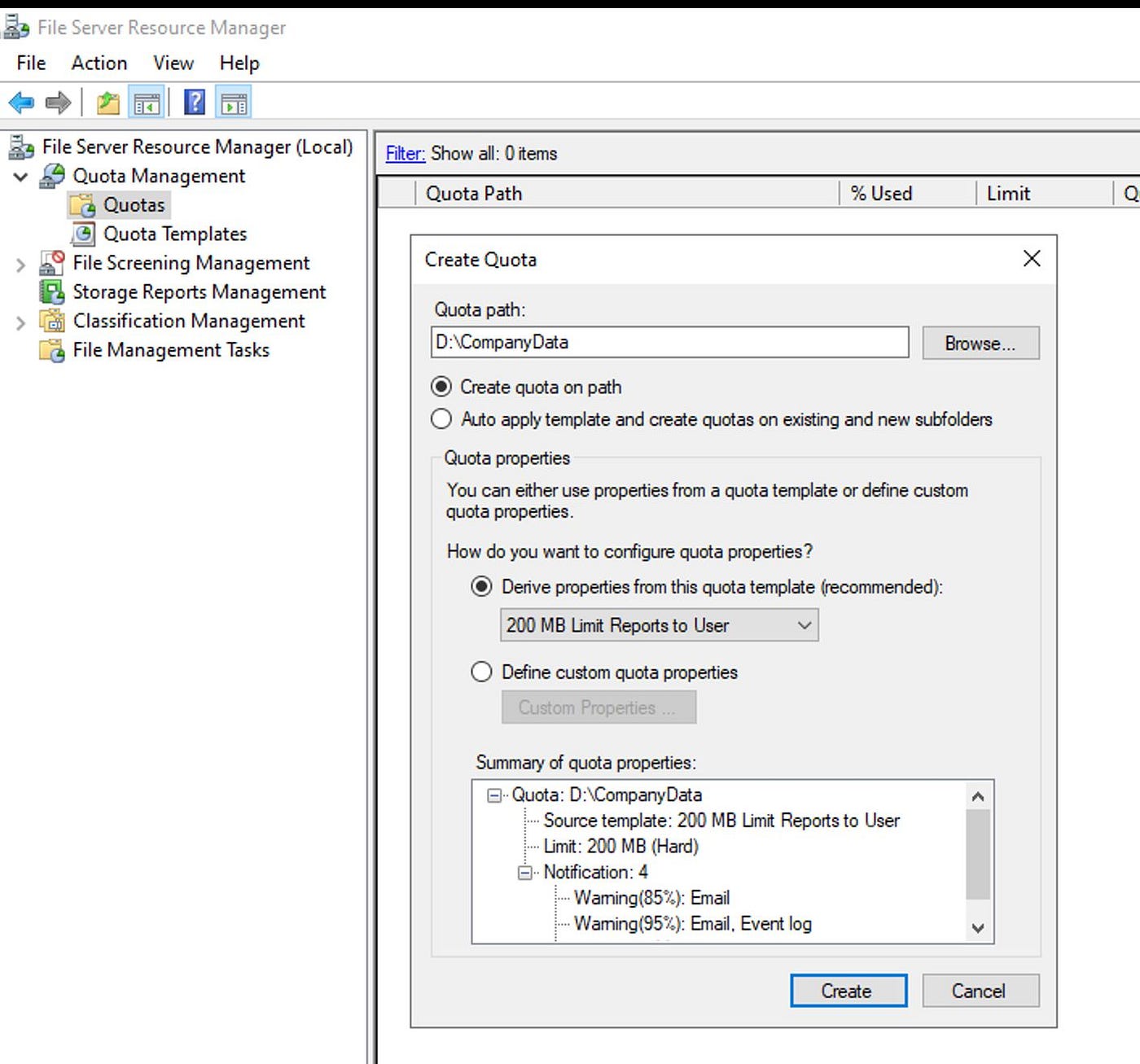
Setting a disk quota
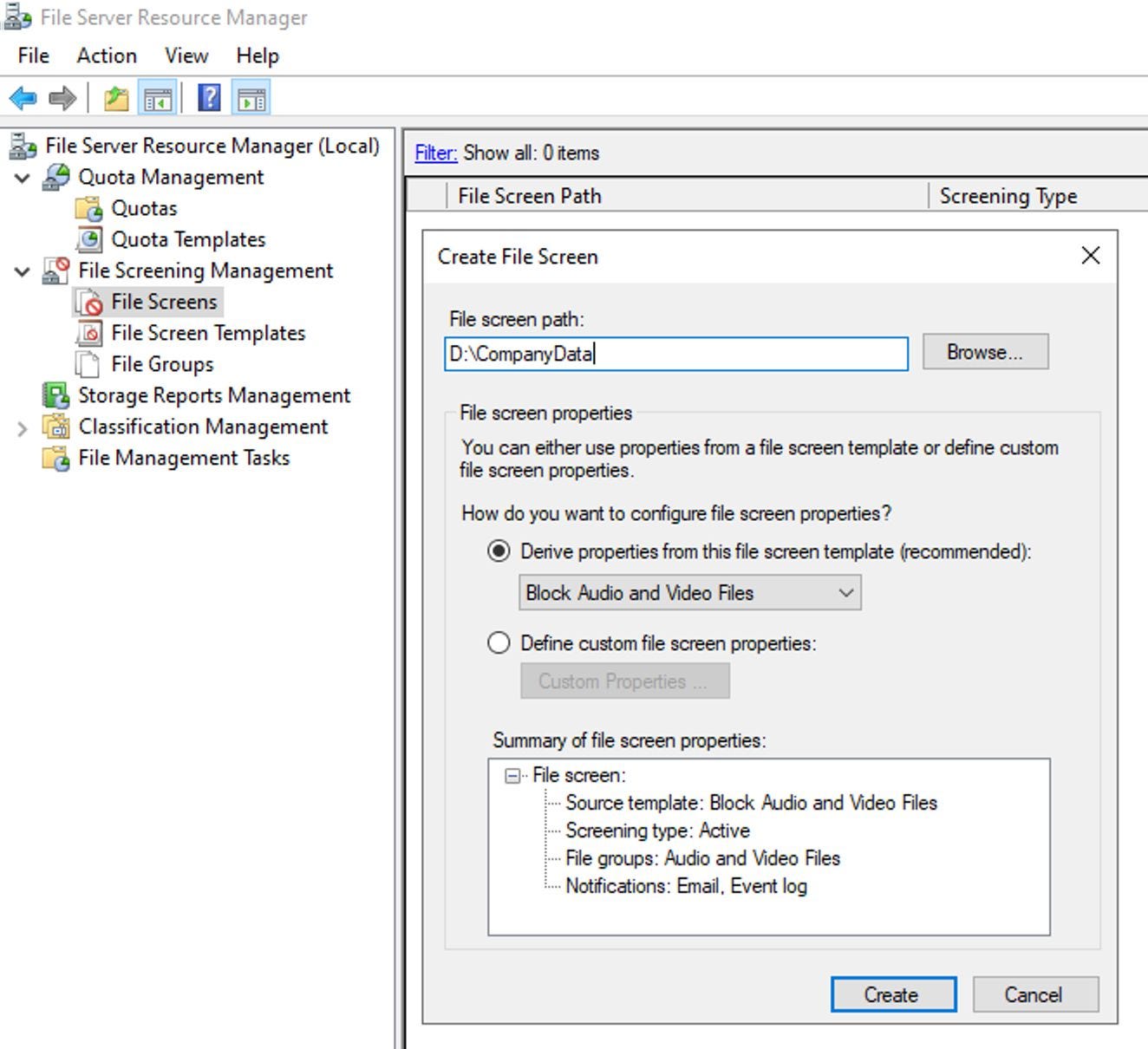
Setting up file screening
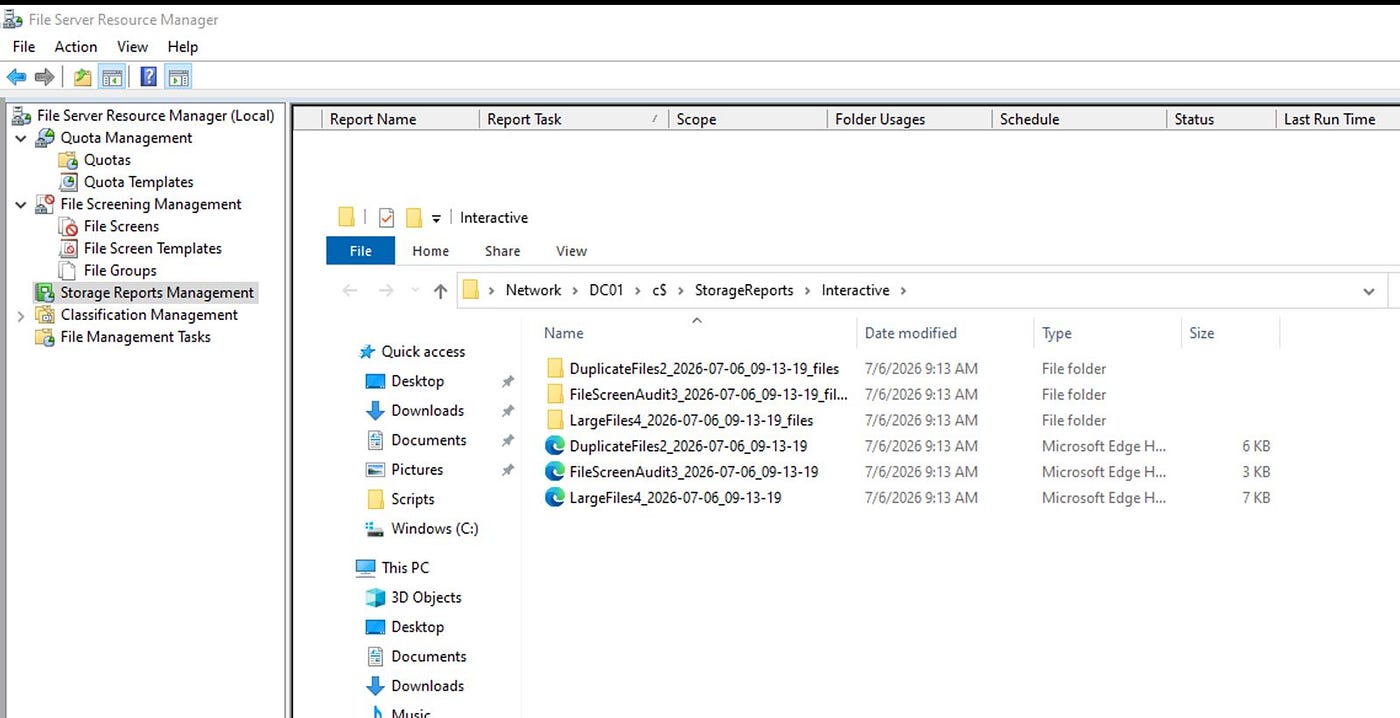
Generating a storage report
3. Checking it with PowerShell
I used PowerShell to check the SMB config, confirm the share permissions, and validate the final setup.
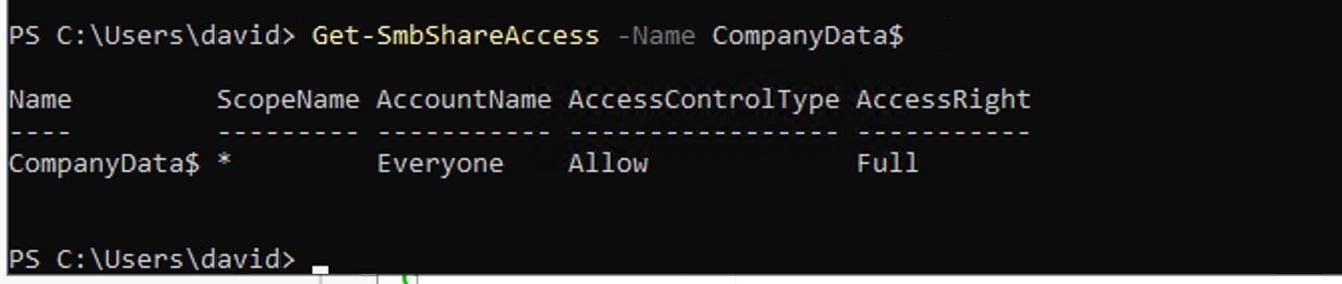
Validating the SMB shares with PowerShell
Here’s what I confirmed:
- The SMB share exists
- Share and NTFS permissions are set
- Access-Based Enumeration is on
- Shadow Copies are configured
- FSRM is installed
- The disk quota works
- File screening works
- Storage reports generate
Tips I’d follow
- Keep the share permission open and use least privilege on the NTFS permissions
- Hide administrative shares with the
$suffix where it makes sense - Turn on Access-Based Enumeration
- Use Shadow Copies to make file recovery easier
- Check FSRM reports regularly to watch storage use
Result
Combining Share and NTFS permissions with ABE, Shadow Copies, and FSRM gives you secure central storage. It’s easier to manage and users can get to their data. I get to keep control of it.
Next in the series is PowerShell automation.