
I used Azure Update Manager to centralize OS patching across Azure VMs and Azure Arc-enabled servers. I set up assessment, recurring maintenance schedules, Azure Policy onboarding, reporting, and staged rollouts.
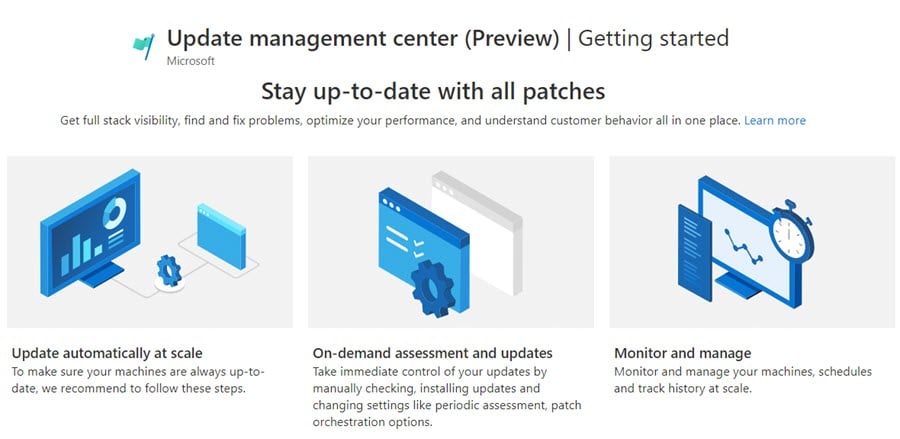
The Azure Update Manager getting-started experience.
Portal screens, pricing, supported regions, and service behavior change. The screenshots show my environment at the time. Check current Microsoft docs before building a production process from these exact settings.
The shots come from a few test runs. Machine counts and VM names differ between them. Early shots also show the old name, Update management center (Preview). It is the same tool.
Where Update Manager fits
With IaaS, Azure runs the platform but patching the guest OS is on me. Update Manager gives me one place to assess and install those updates.
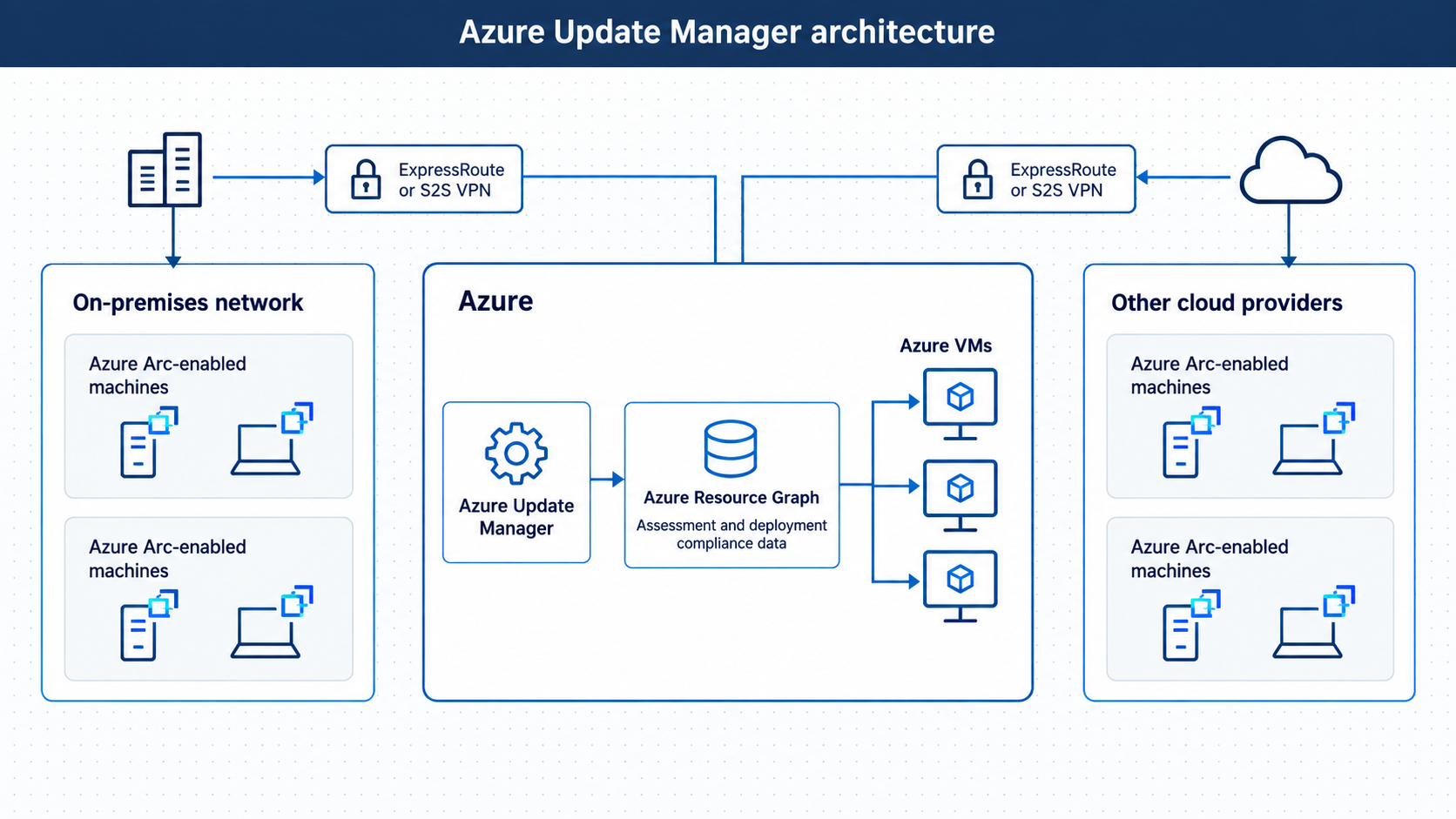
The Update Manager architecture for Azure and Arc-enabled machines.
Azure VMs use the Azure VM agent. Servers outside Azure can join once they’re connected through Azure Arc. The old Automation Update Management is retired. The new model doesn’t need that same Automation Account and Log Analytics setup.
What I checked first
Before setting anything up, I made sure I had:
- An Azure subscription and an appropriate management scope
- Owner or Contributor permissions for the configuration work
- Supported Azure VMs or Azure Arc-enabled servers
- A working Azure VM agent on Azure machines
- Supported operating systems and regions
The older setup had a feature registration step for guest automatic patch assessment. I kept the screenshot for reference. It isn’t part of normal onboarding anymore.
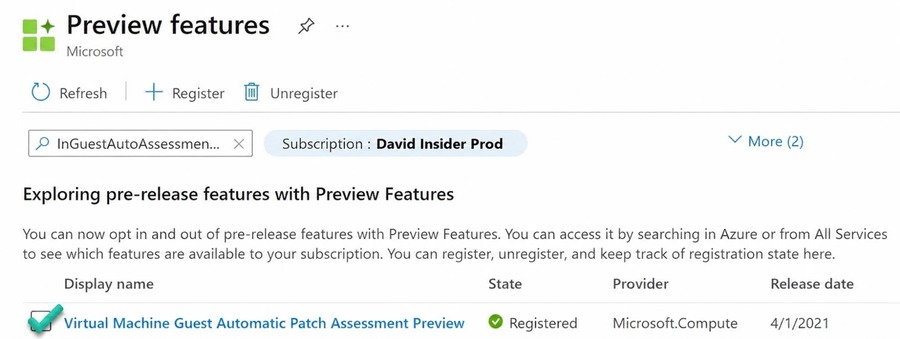
The older guest automatic patch-assessment registration screen.
1. Checking machines and compliance
For a single VM, I could open it and go to its update page.
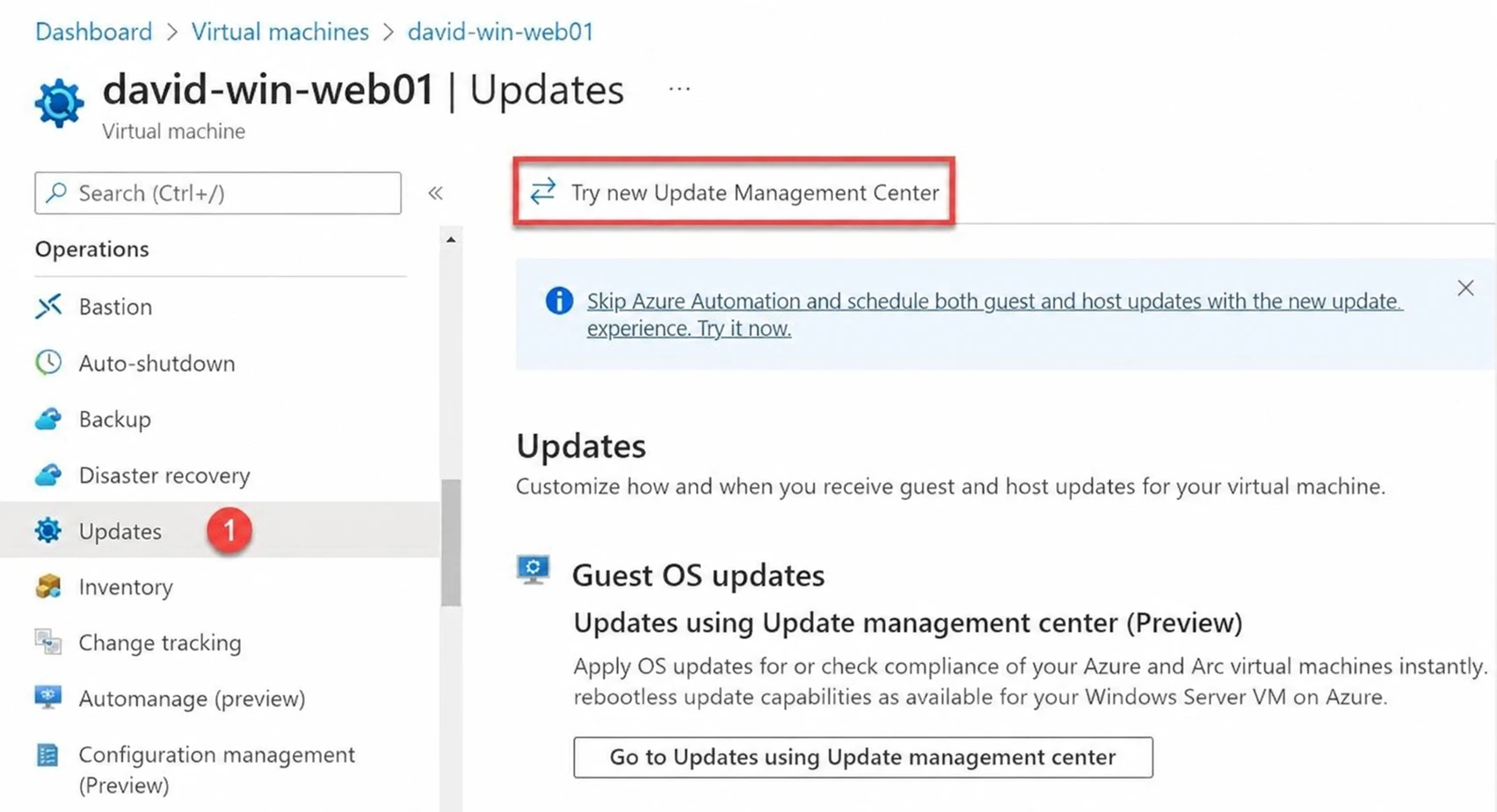
Opening Update Manager from an individual VM.
For the whole fleet, I opened Update Manager in the portal.
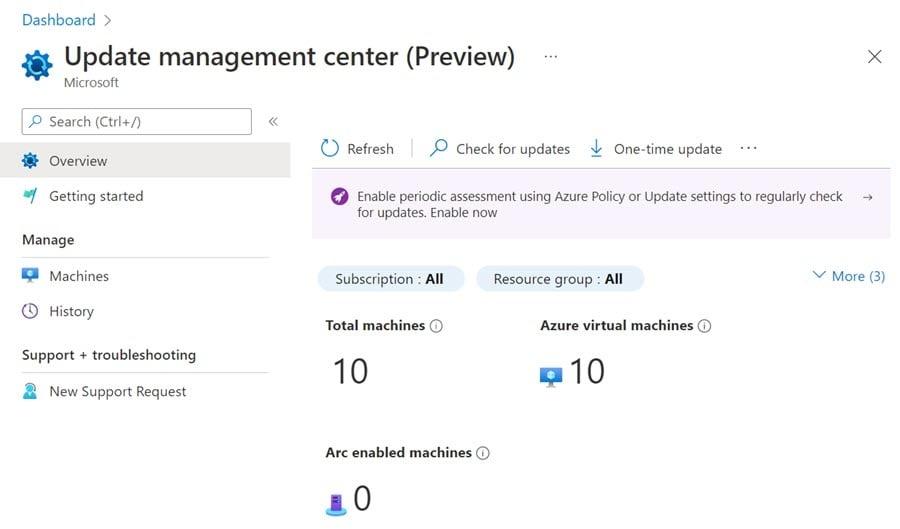
The central Azure Update Manager dashboard.
The overview filters by subscription, resource group, location, and machine type. Machines with no recent assessment stood out right away.
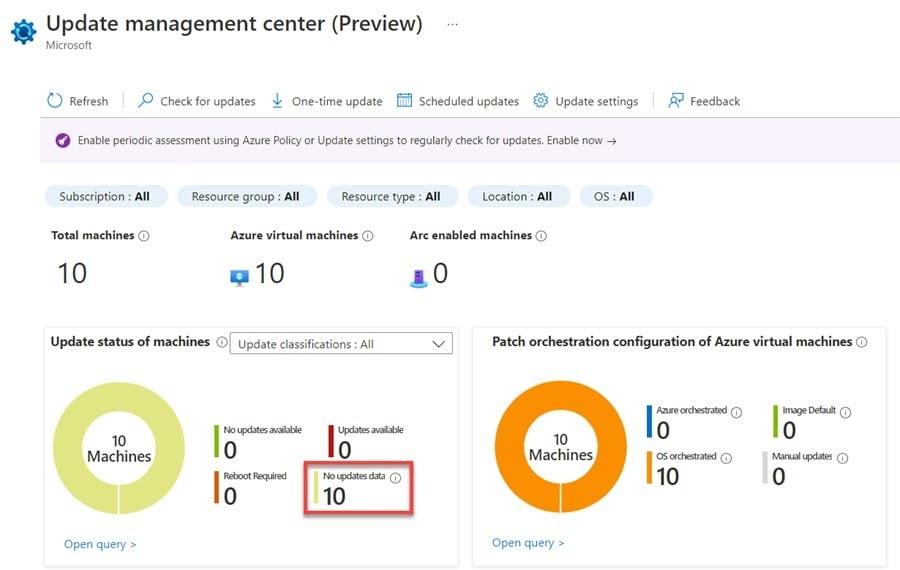
The compliance-oriented Update Manager overview.
2. Turning on periodic assessment
Periodic assessment checks machines for missing updates on a regular basis. I could turn it on for specific machines or use Azure Policy across a wider scope.
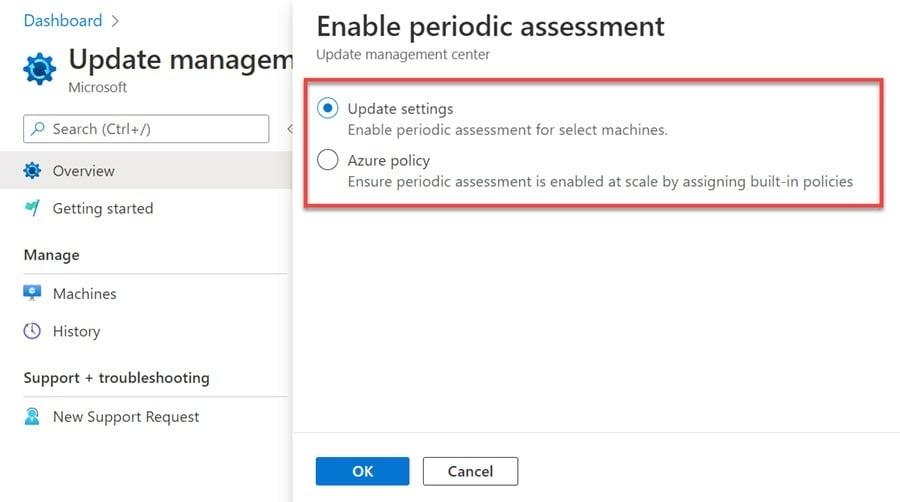
Enabling periodic update assessment.
Update Manager has built-in policies for Azure VMs and Arc-enabled servers.
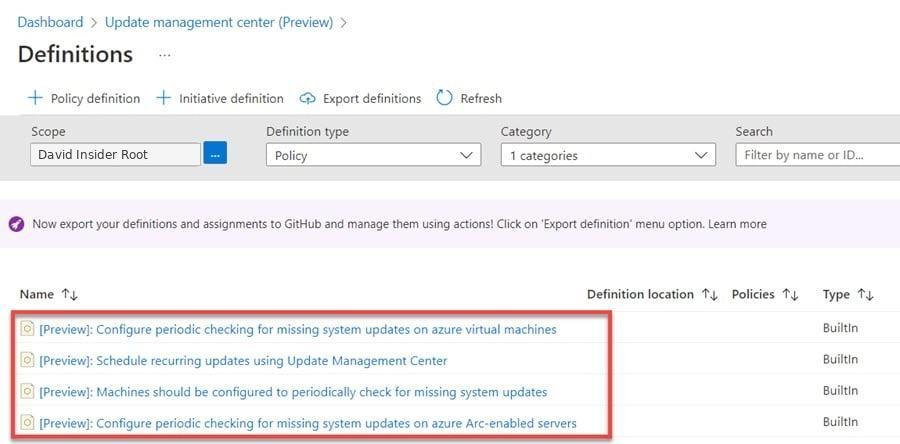
Built-in Azure Policy definitions for Update Manager.
When assigning the policy, I picked the management group, subscription, or resource group.
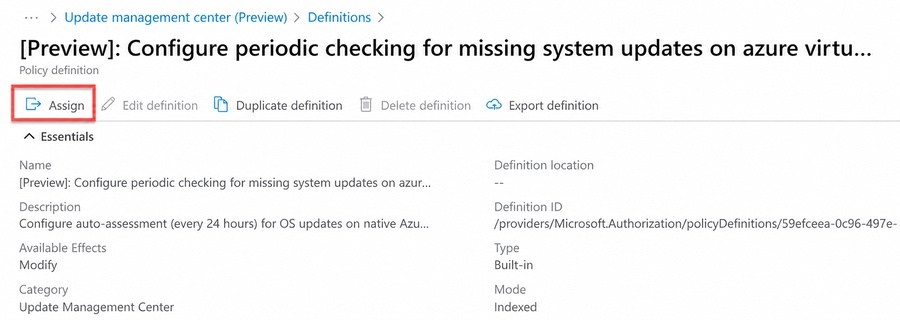
Assigning the policy that configures periodic update checks.
I set the assessment mode to AutomaticByPlatform and picked the OS type. Windows and Linux may need separate assignments.
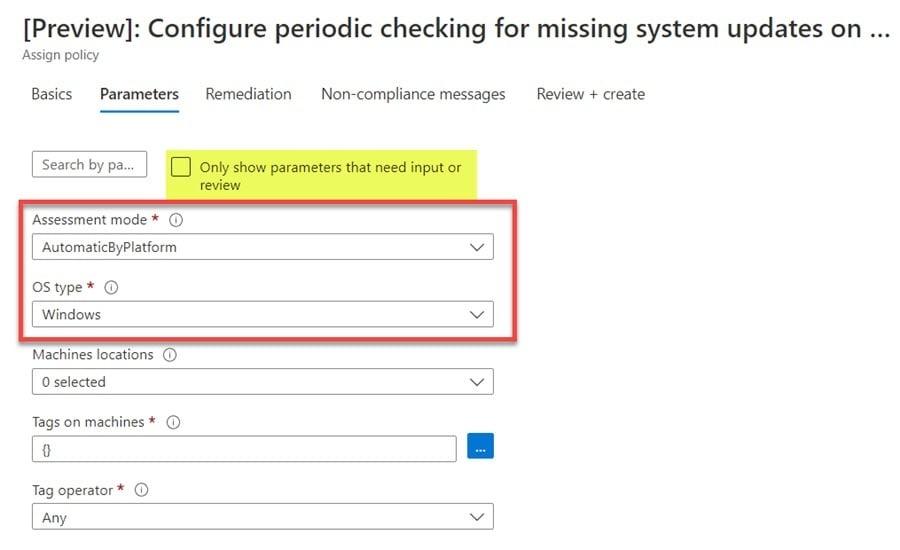
Configuring the assessment mode and operating-system type.
For existing resources, I created a remediation task so the policy would actually apply the setting.
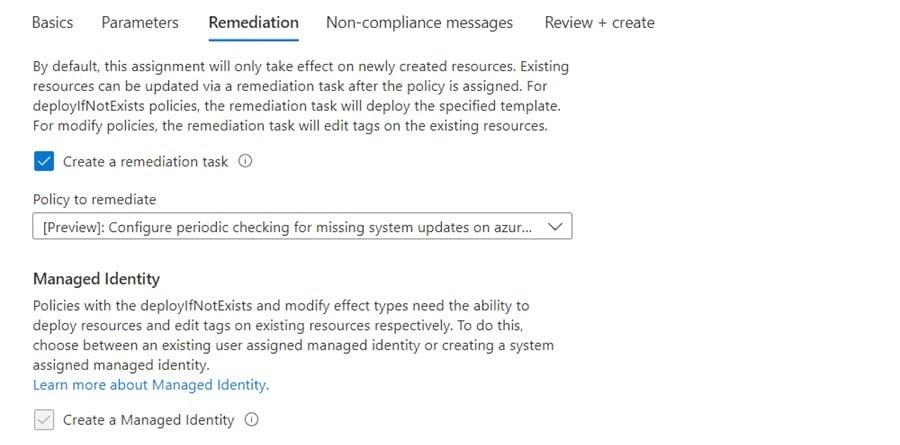
Creating a remediation task for existing machines.
Azure Policy then showed me which machines didn’t match the expected config.
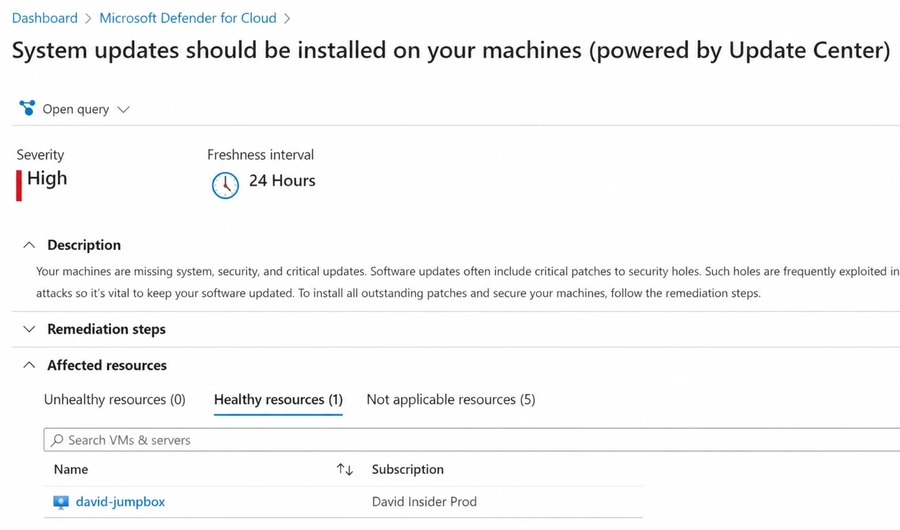
Policy compliance for required system updates.
3. Changing update settings
I could also change settings right from Update Manager.
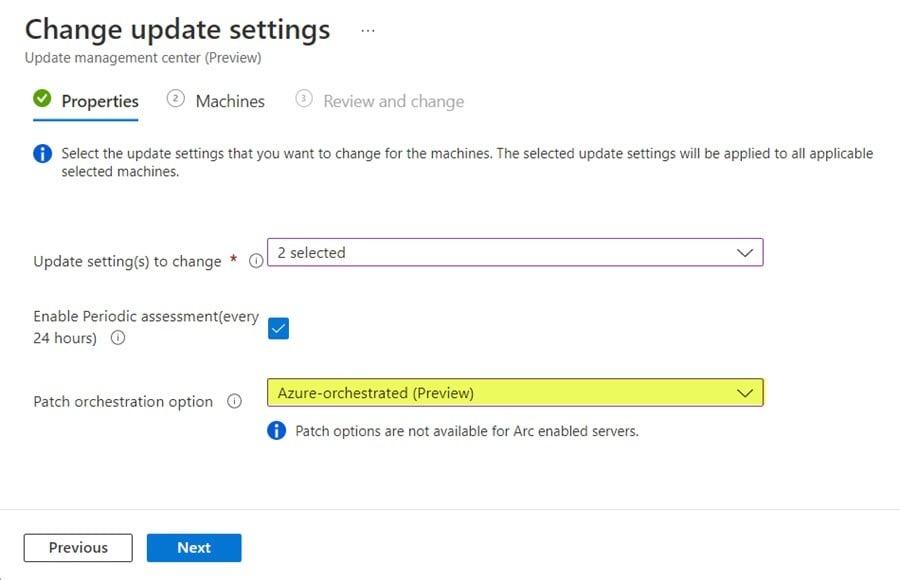
Opening the machine update-settings workflow.
I added the machines I wanted to configure.
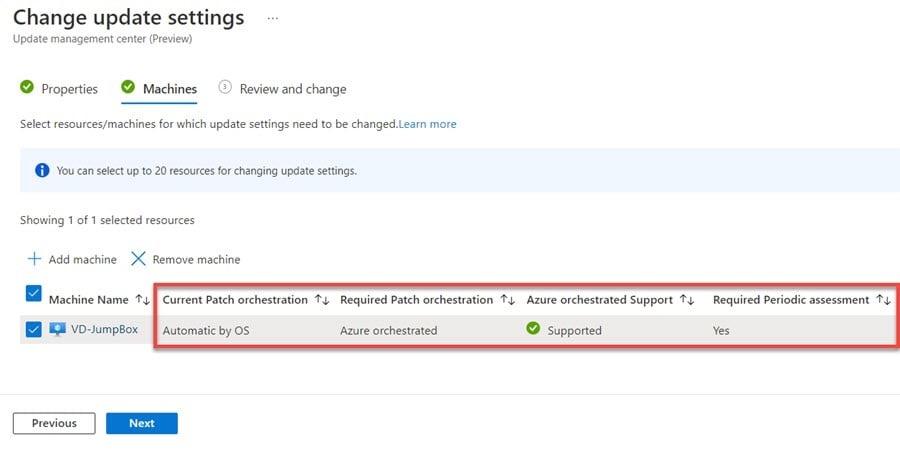
Adding machines to the update-settings change.
Then I reviewed the list and confirmed the assessment and orchestration settings.
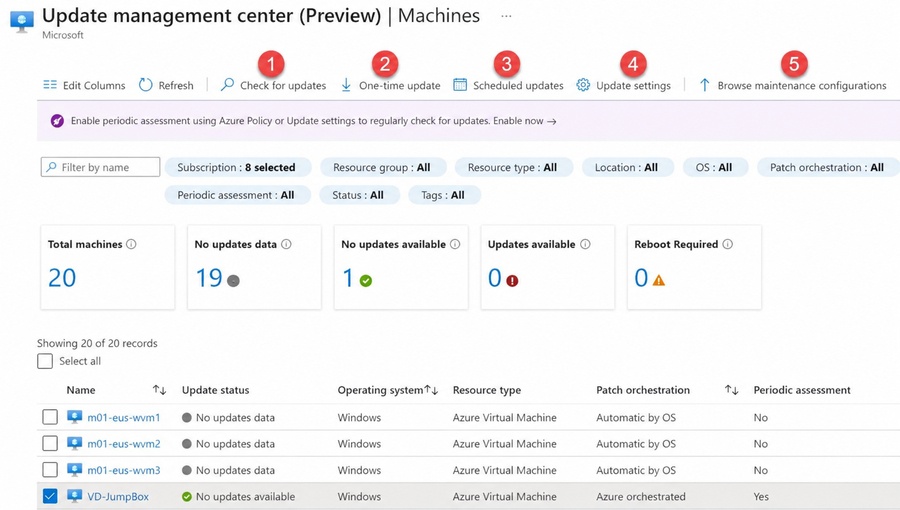
Reviewing the machines managed by Update Manager.
For customer-managed schedules on Azure VMs, these settings matter:
Patch mode = AutomaticByPlatform
BypassPlatformSafetyChecksOnUserSchedule = True
4. Building a recurring schedule
Recurring deployments use maintenance configurations. I created one that set the patch scope and maintenance window.
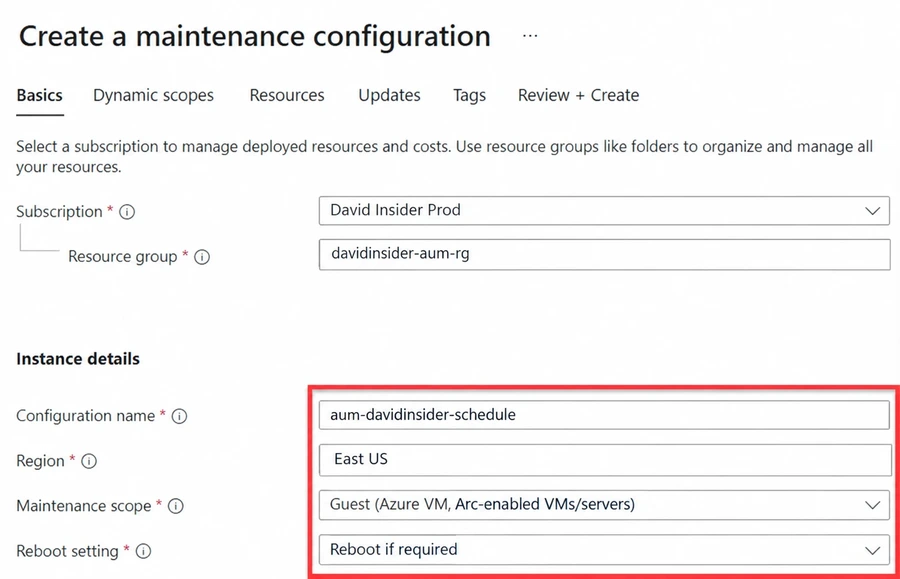
Creating an Azure maintenance configuration.
I picked a recurrence and window that fit. It could be weekly, monthly, or lined up with Patch Tuesday.
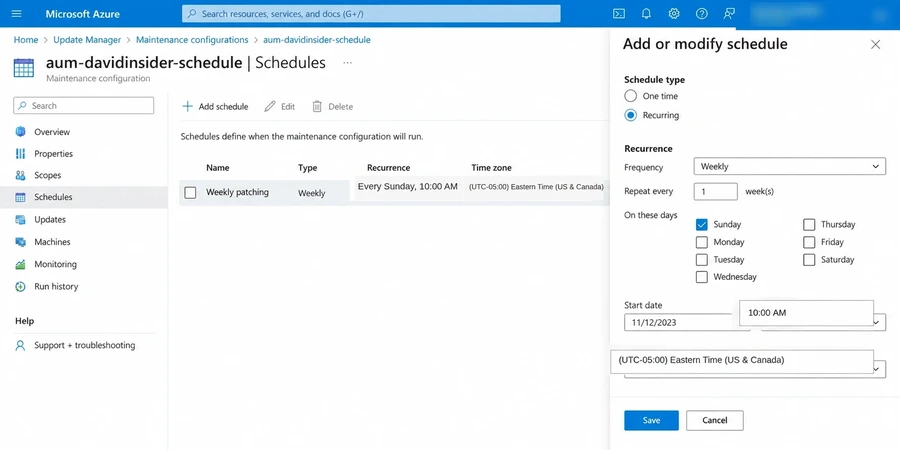
Defining the recurring maintenance schedule.
Dynamic scope picks machines by their properties. I didn’t have to maintain a fixed list by hand.
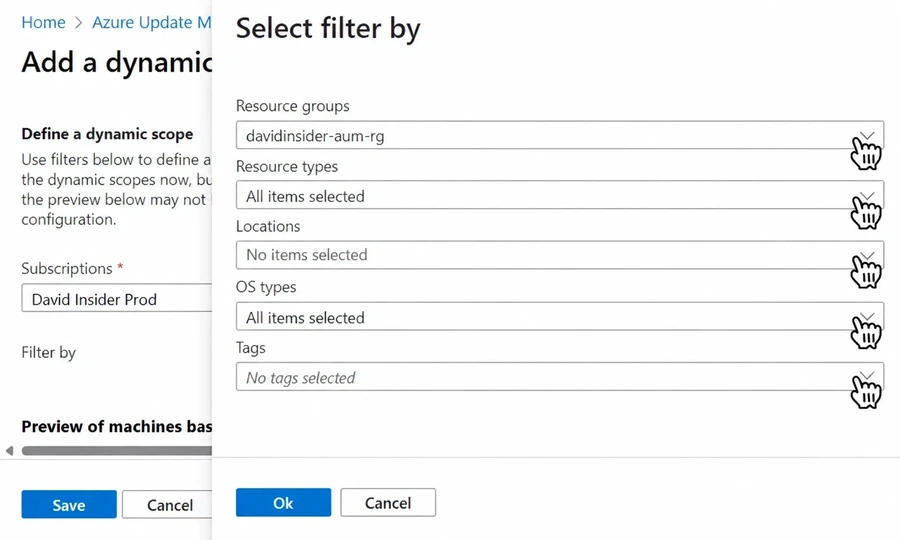
Adding a dynamic machine scope.
I added the Azure VMs and checked that their patch orchestration settings supported a customer-managed schedule.
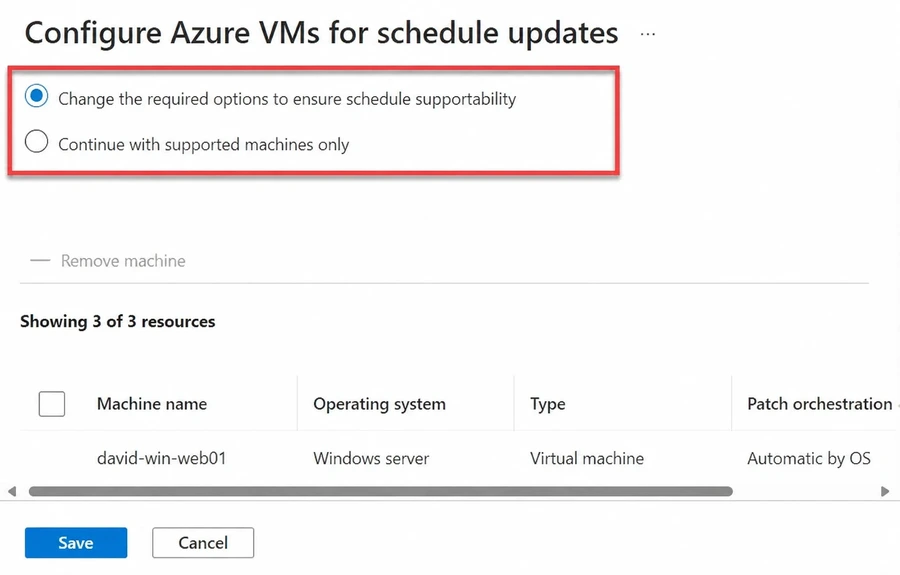
Configuring Azure VMs for scheduled updates.
Next I chose the update classifications and any specific KBs or packages to include.
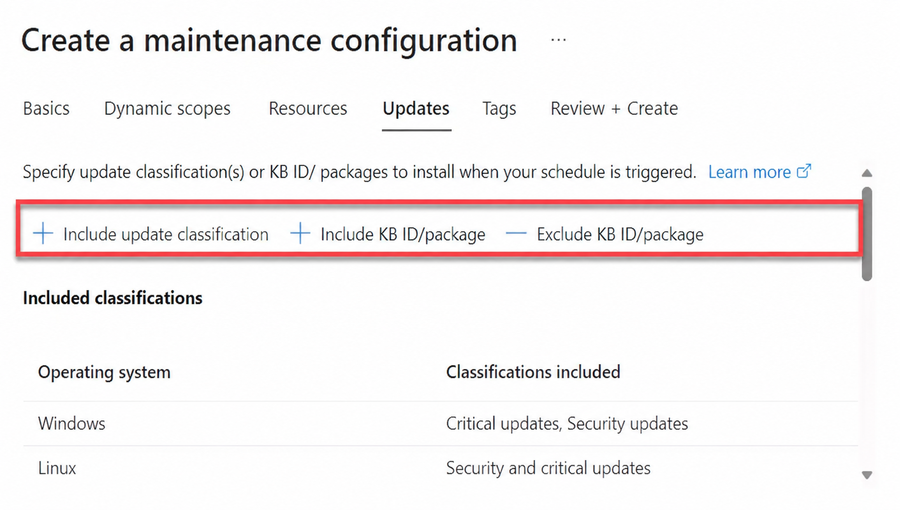
Selecting update classifications and specific updates.
I could also exclude classifications, KBs, or packages that shouldn’t install in this window.
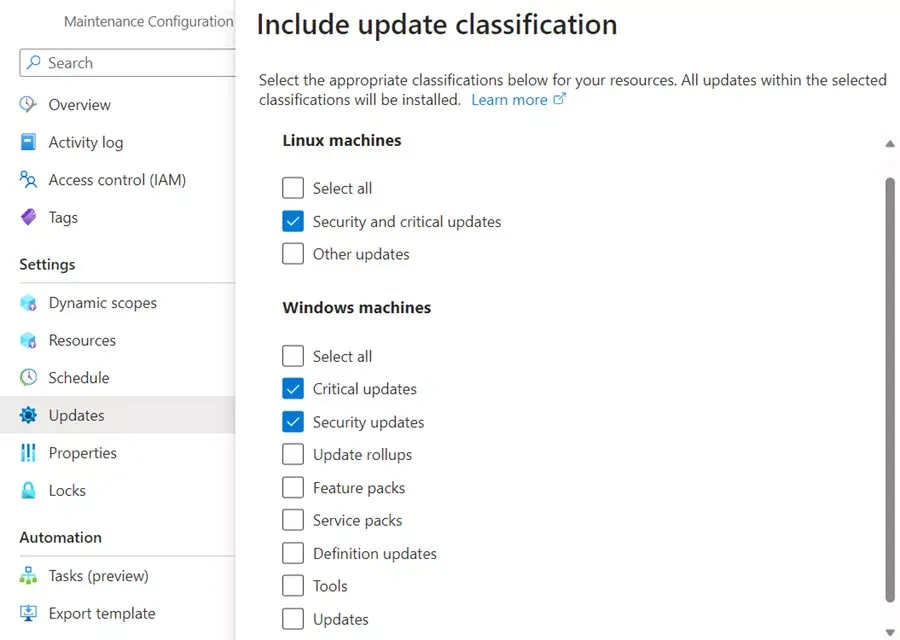
Defining update inclusions and exclusions.
Once created, the maintenance configuration became a reusable schedule.
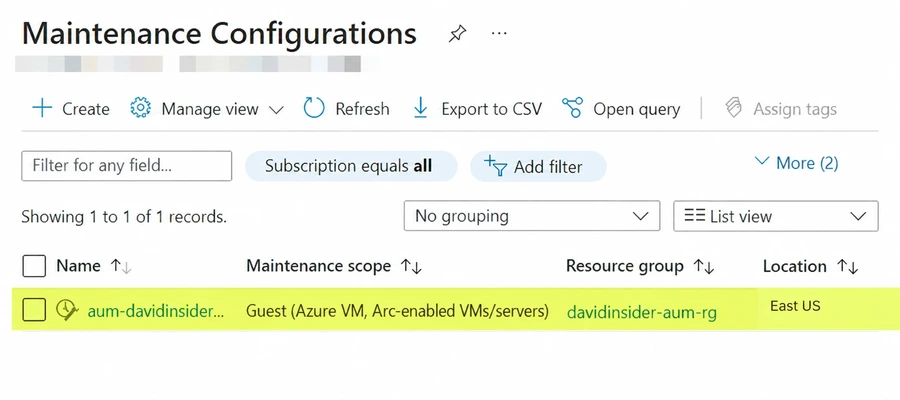
The completed maintenance configuration.
I saved its Resource Manager ID. Policies and automation use it to point at the schedule.
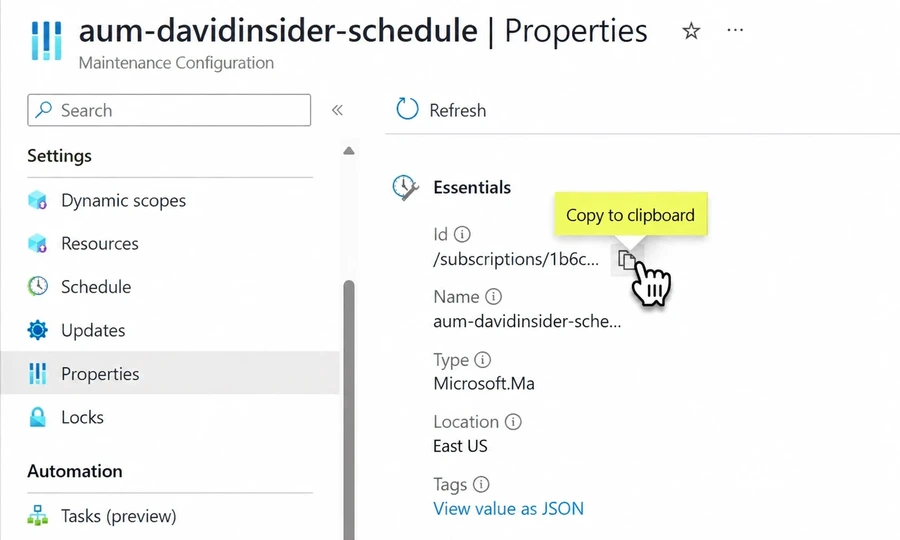
Finding the maintenance configuration resource ID.
5. Enrolling machines with Azure Policy
For a bigger environment, I used policy to link qualifying machines to the schedule. A management group assignment applies the same standard across many subscriptions.
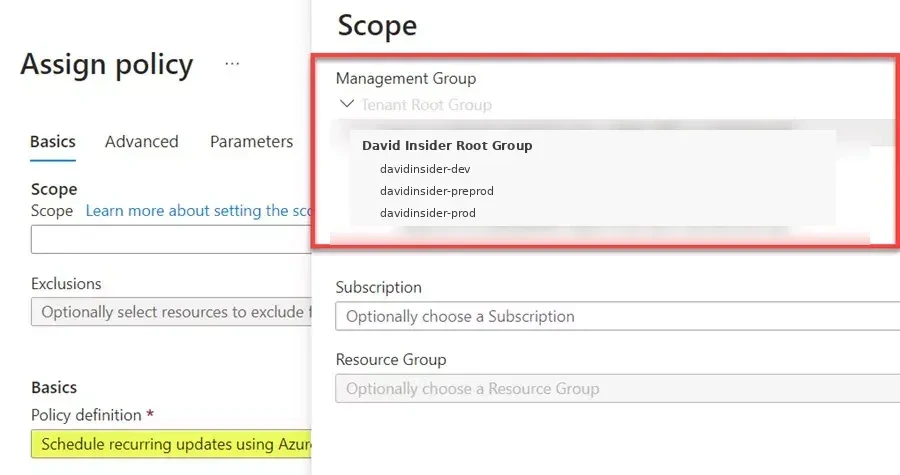
Assigning recurring-update policy at management-group scope.
I picked the built-in policy for recurring updates.
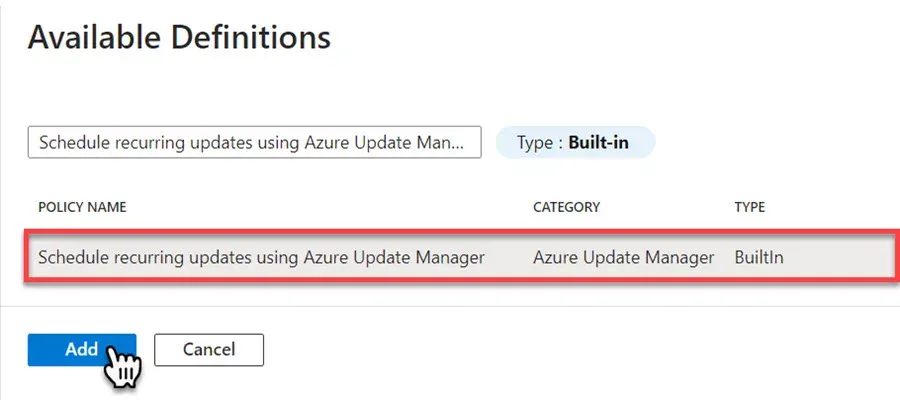
The recurring-update policy assignment.
It needed the maintenance configuration’s resource ID.
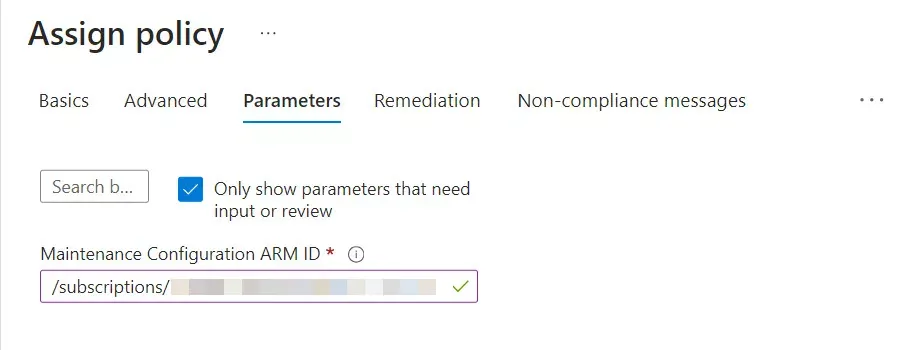
Supplying the maintenance configuration ARM ID.
I read the optional filters carefully. They decide which resources qualify.
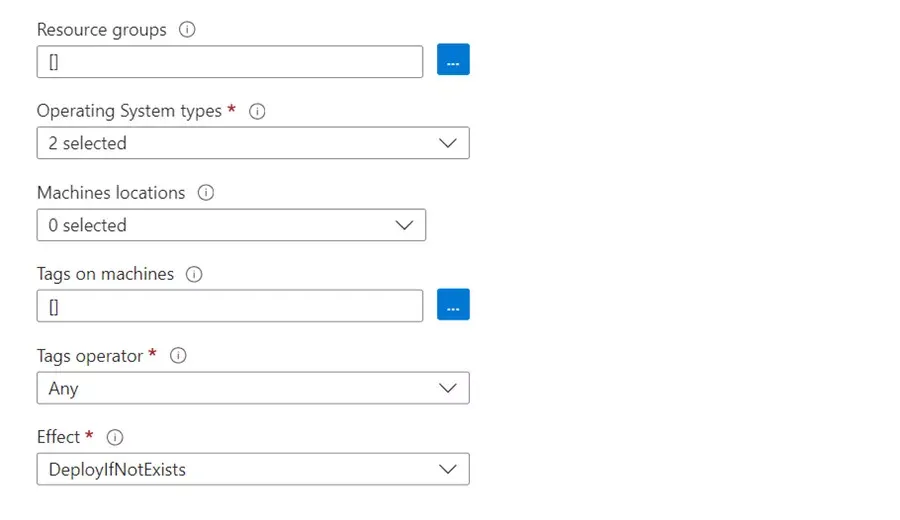
Optional policy parameters and resource filters.
Remediation needed to create assignments, so I created a managed identity for the policy assignment.
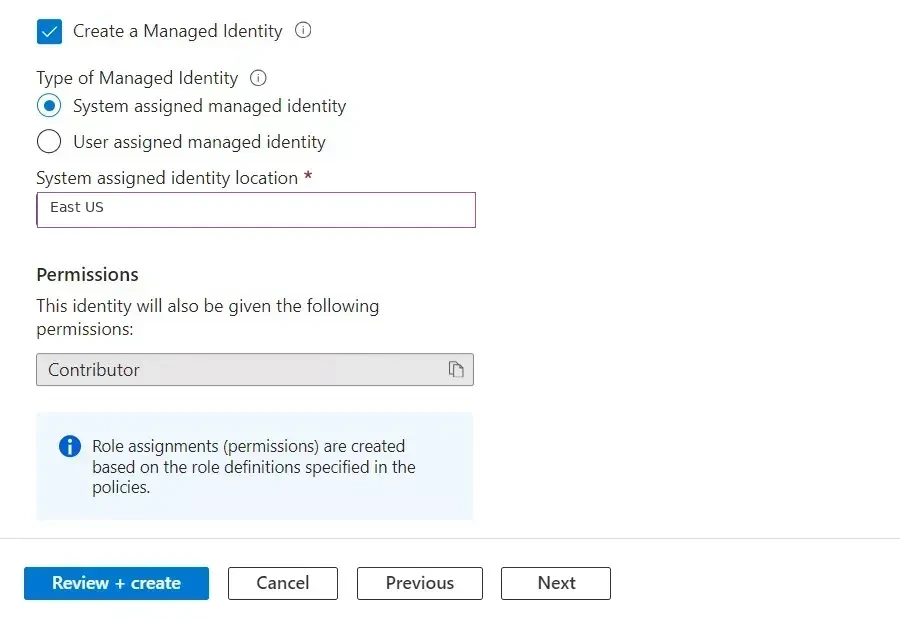
Creating the managed identity used for remediation.
I gave that identity Contributor.
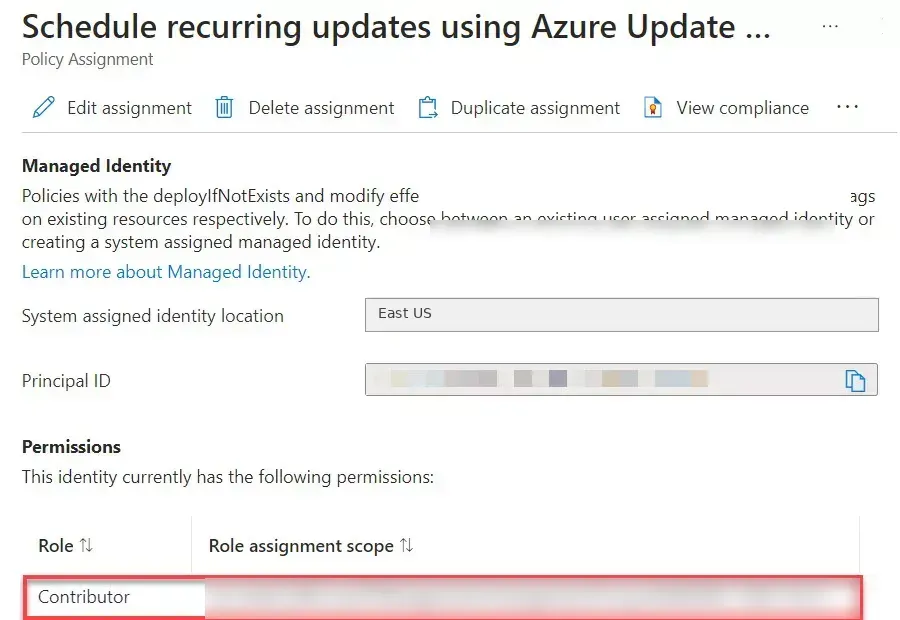
Granting the managed identity permissions for recurring schedules.
In production I’d swap that for a custom role with only the actions remediation needs. After deploying, I checked the remediation tasks. One completed and one failed, so I looked into the failure before trusting the schedule.
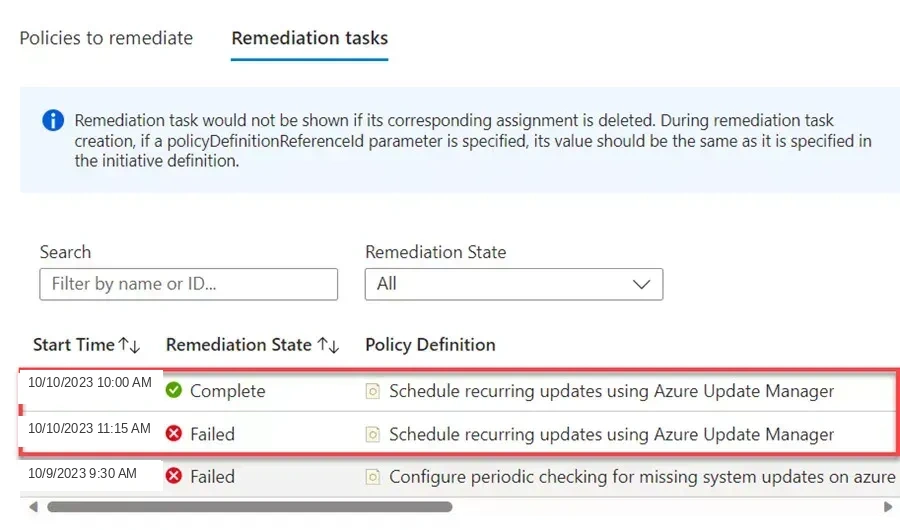
Remediation tasks for the recurring-update policy. One completed and one failed.
6. Monitoring results
Update Manager exposes its data through Azure Resource Graph.
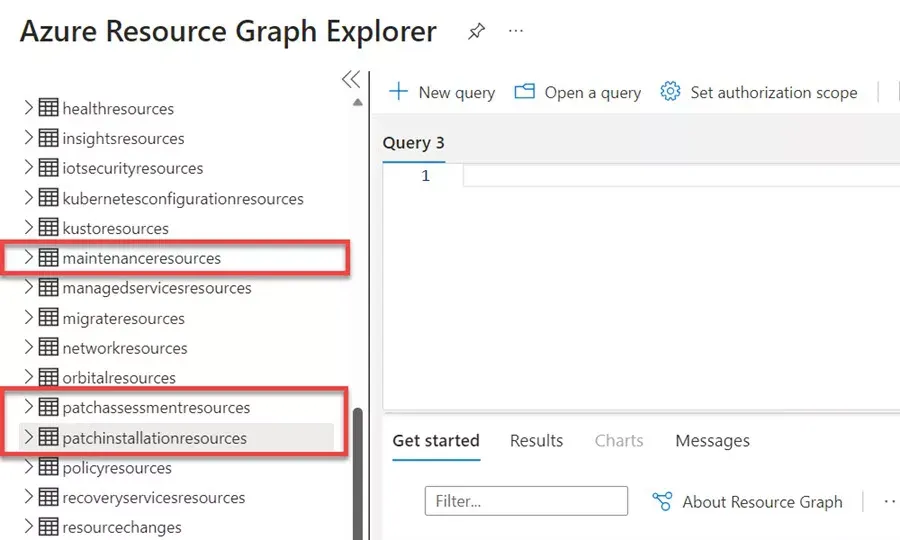
Update Manager logs and Resource Graph access.
Three useful categories:
Patchassessmentresources
Patchinstallationresources
Maintenanceresources
I used this query to see installed patches:
patchinstallationresources
| extend Date = tostring(properties.lastModifiedDateTime)
| extend Status = tostring(properties.installationState)
| extend PatchName = tostring(properties.patchName)
| extend KBID = tostring(properties.kbId)
| extend ID = split(id,"/")
| extend VMName = ID[8]
| mv-expand Classification = properties.classifications
| where Status == "Installed"
| project Date, VMName, Classification, PatchName, KBID
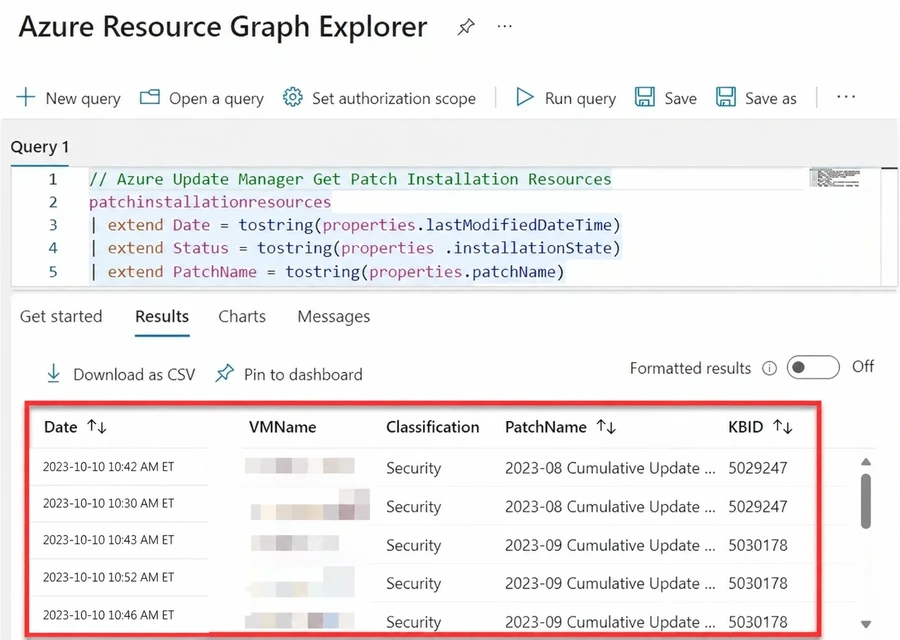
Querying installed patch resources.
To find machines with failures or warnings in the last day:
patchinstallationresources
| where type in~ ("microsoft.compute/virtualmachines/patchinstallationresults",
                  "microsoft.hybridcompute/machines/patchinstallationresults")
| where properties.status in~ ("Failed", "CompletedWithWarnings")
| where properties.lastModifiedDateTime > ago(1d)
| parse id with vmResourceId "/patchInstallationResults" *
| project vmResourceId
| distinct vmResourceId
And to see which VMs had periodic assessment on:
resources
| where type =~ "microsoft.compute/virtualmachines"
| where properties.storageProfile.osDisk.osType in~ ('Windows','Linux')
| extend patchSettingsObject =
    iff(properties.storageProfile.osDisk.osType =~ "windows",
        properties.osProfile.windowsConfiguration.patchSettings,
        properties.osProfile.linuxConfiguration.patchSettings)
| extend assessMode = tostring(patchSettingsObject.assessmentMode)
| extend periodicAssessment =
    iff(isnotnull(assessMode) and assessMode =~ "AutomaticByPlatform", "Yes", "No")
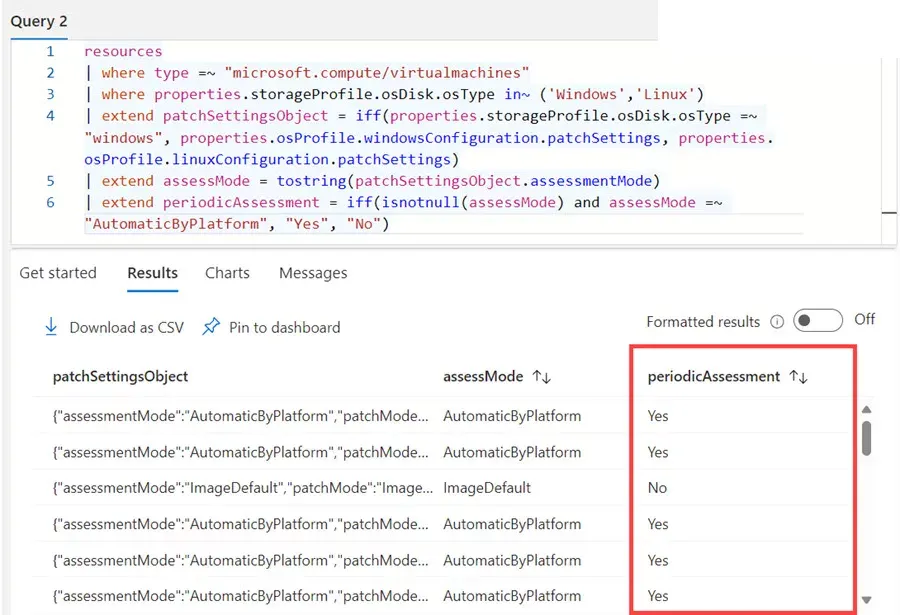
Checking periodic-assessment status with Resource Graph.
An Azure Workbook gave me a more visual summary.
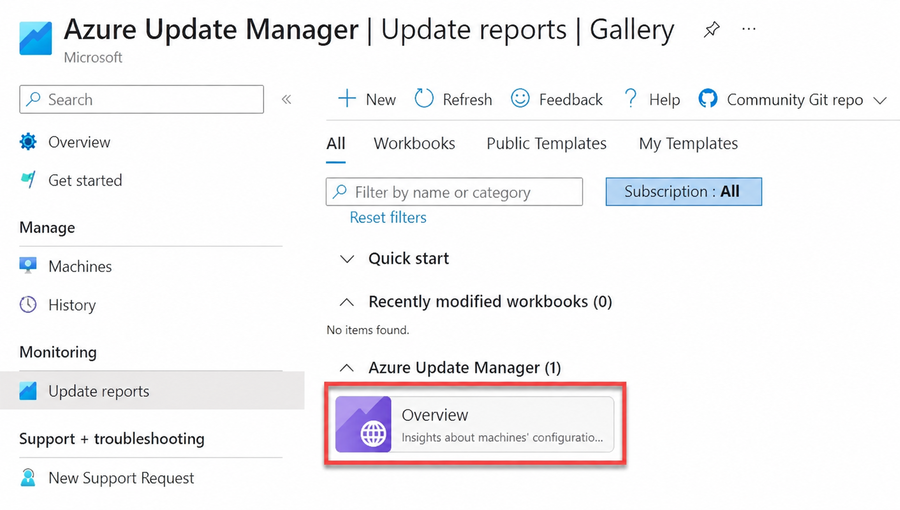
The Update reports workbook gallery.
The built-in reports are another way to review compliance and deployments.
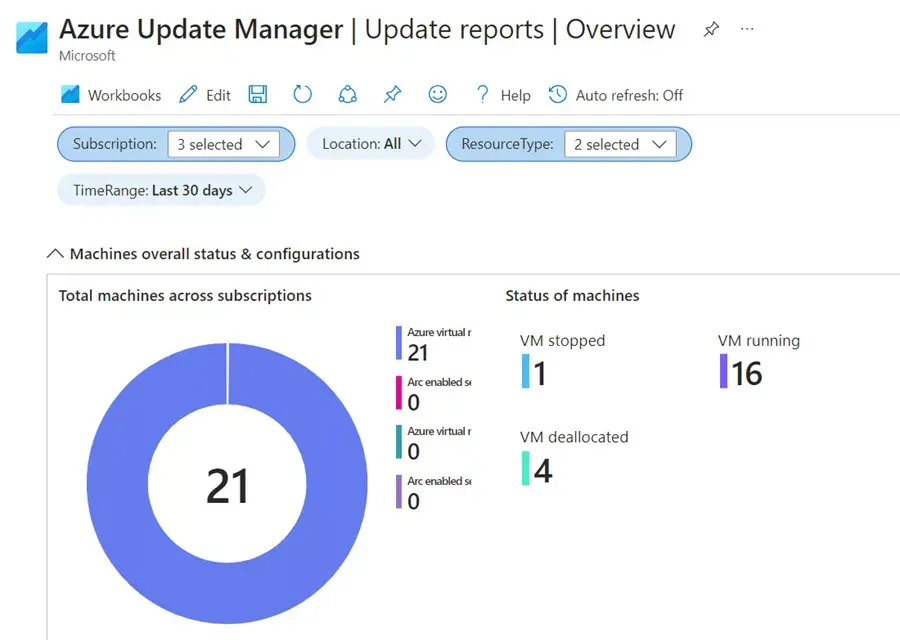
Update Manager reports.
7. Staged patch rings
Patching everything at once is asking for trouble. I set up a staged model that moves updates through dev, pre-production, and production rings.
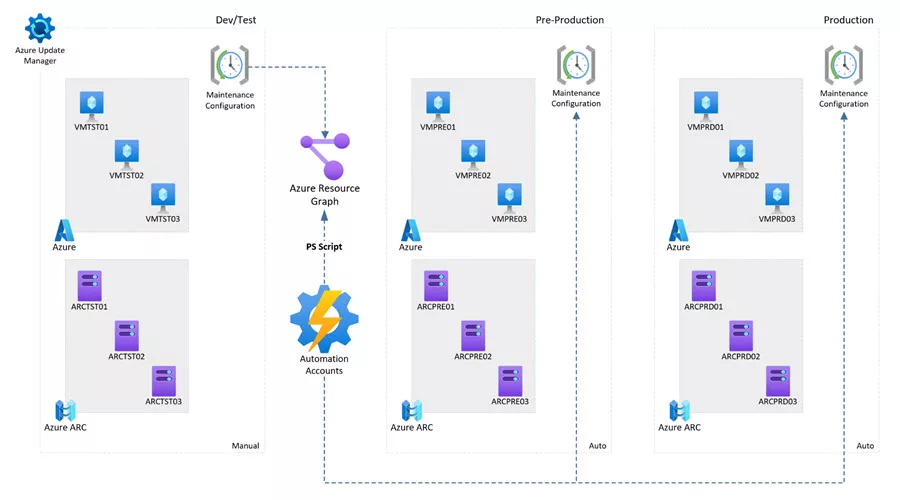
A staged patching model for Azure Update Manager.
It combines maintenance configurations with Azure Automation. Later stages only get created after earlier ones have had time to prove out.
Azure Automation coordinating staged maintenance.
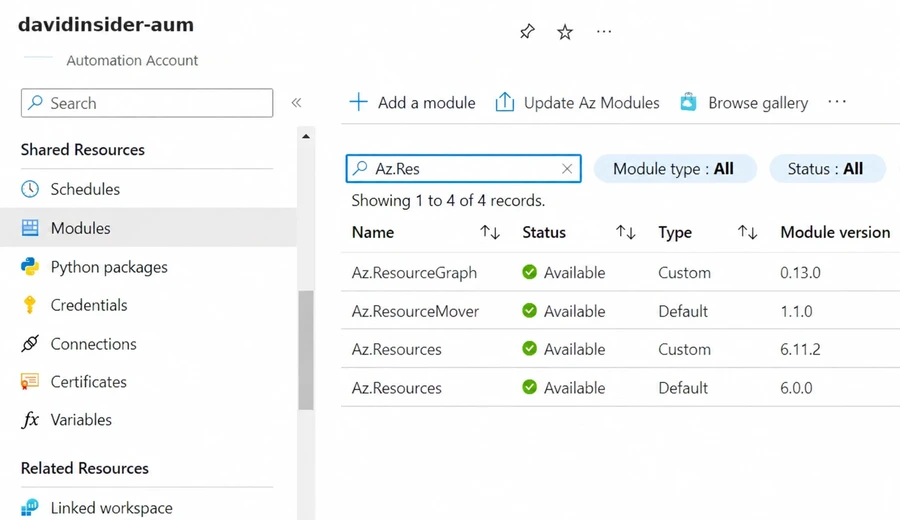
The Automation Account needs modules like Az.Accounts, Az.Resources, and Az.ResourceGraph. I also created a custom role with read access plus the maintenance configuration, assignment, and deployment actions the runbook needs.
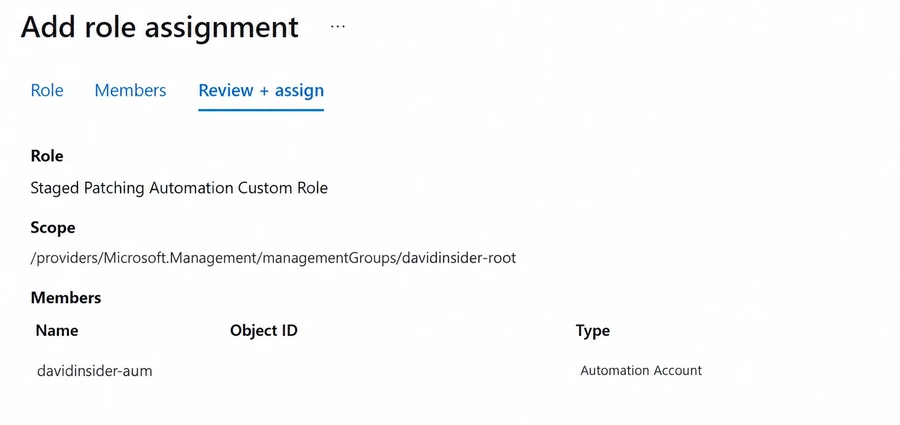
Assigning the staged-patching custom role to the Automation Account identity.
I imported the Create-StagedMaintenanceConfiguration.ps1 runbook.
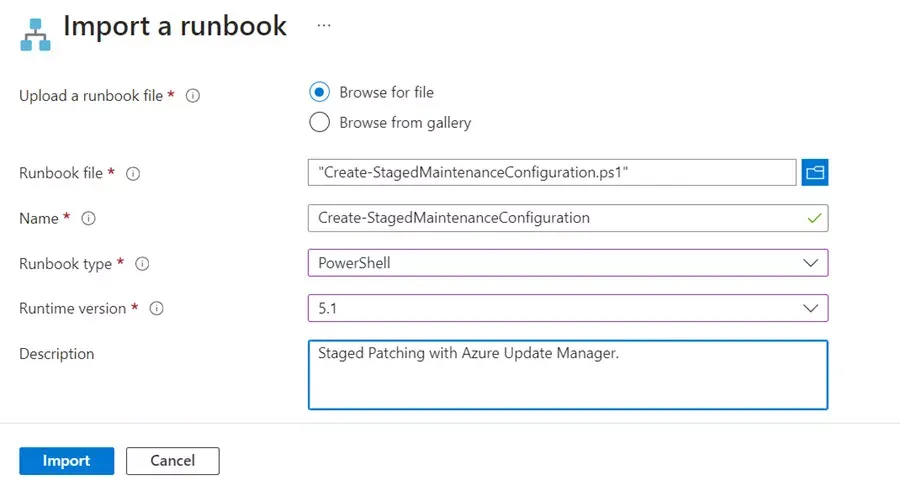
Importing the staged-maintenance runbook.
Machines get grouped with tags like:
aum-stage=dev
aum-stage=preprod
aum-stage=prod
aum-stage=prod-ha-instance1
aum-stage=prod-ha-instance2
I also grouped by OS with tags like os-name=windows2022 or os-name=ubuntu22. Then I created the first maintenance schedule for one OS group.
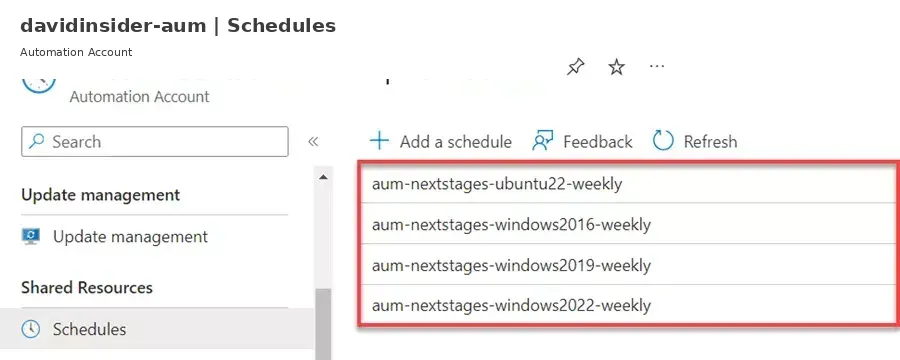
Creating a maintenance schedule for an operating-system group.
Then I linked the runbook schedule.
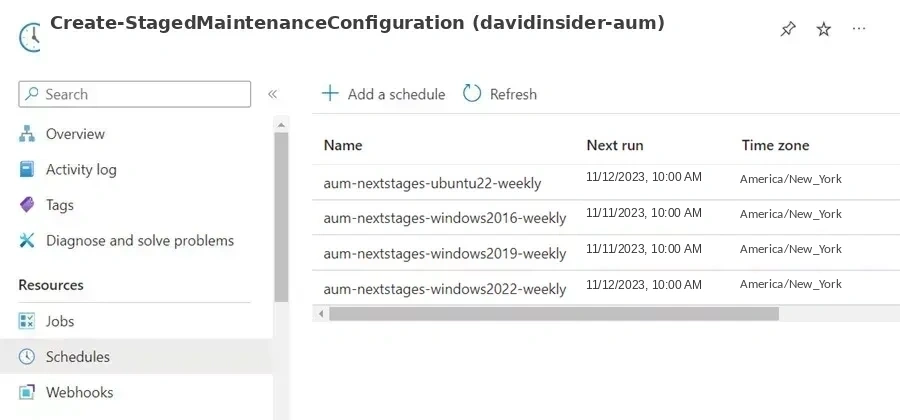
Linking the runbook schedule.
The runbook takes the maintenance configuration ID and a JSON stage definition. That definition can set delay offsets, subscriptions, resource types, tags, locations, and OS.
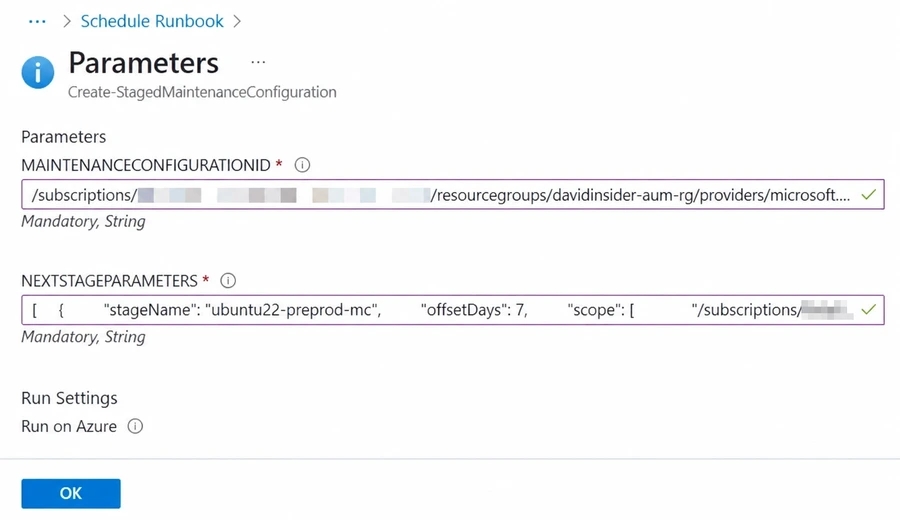
Parameters for the next staged maintenance configuration.
Now the delay between rings is written down and repeatable. Nobody has to kick off each stage by hand.
8. The Updates view
The Updates blade starts from pending updates, not machines. It’s handy when the question is “Which updates are missing, and where?”
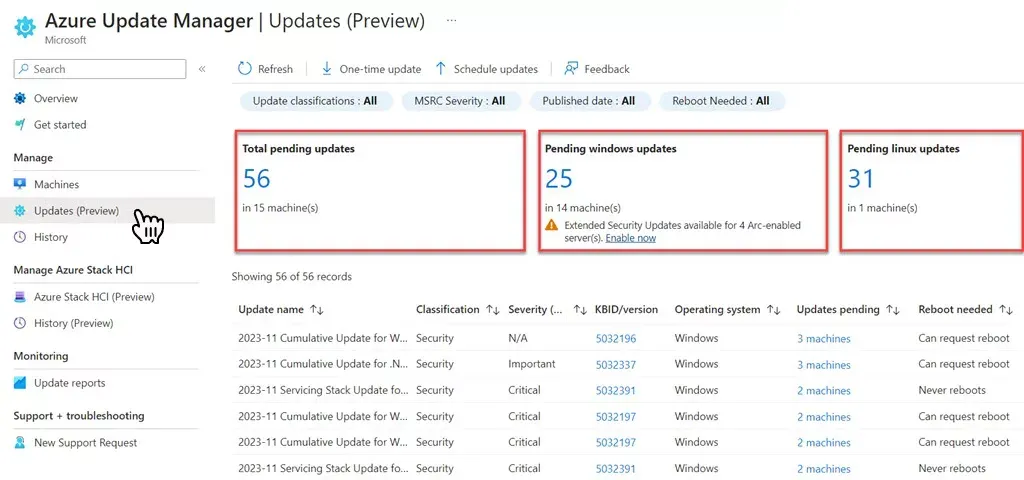
The pending-updates view in Azure Update Manager.
9. Governance with policy
Azure Policy holds it all together. It enforces assessment settings, maintenance assignments, and schedules across the hierarchy.
Test policy assignments on a small resource group before rolling them out to a management group. That goes double when remediation or managed identity permissions are involved.
10. Migrating from Automation Update Management
If you still have the retired Automation Update Management setup, Microsoft has a migration tool inside the Automation Account.
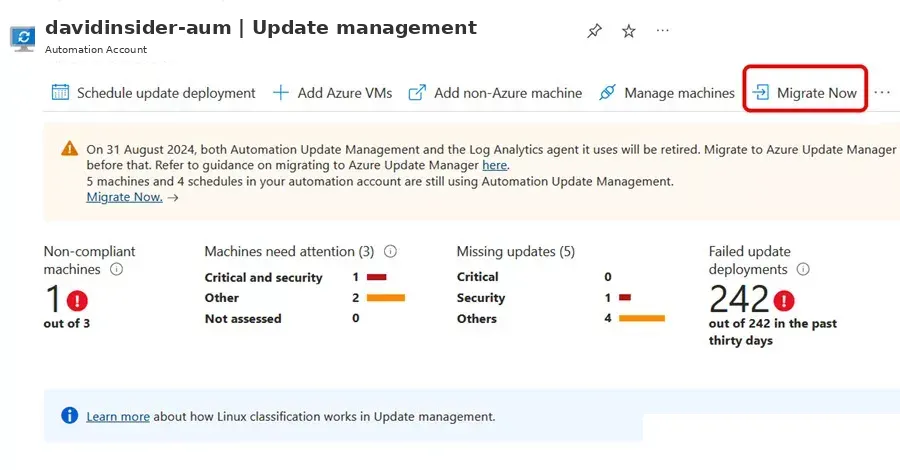
The Update Management migration tool.
It checks prerequisites, migrates workloads, and lists what to do after.
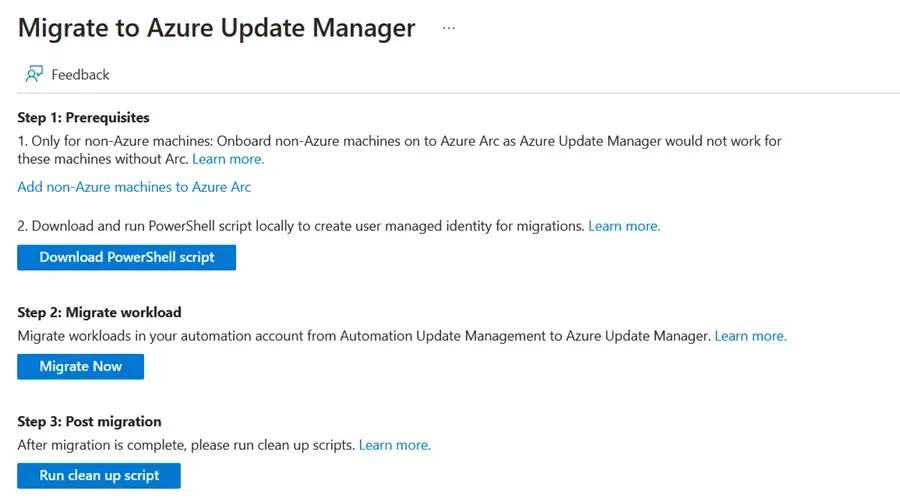
The guided migration to Azure Update Manager.
Complex schedules may need extra work. That’s especially true if they use pre/post tasks or saved-search queries. Any deadlines in older migration material are out of date. Check current Microsoft guidance.
The order I’d roll it out
For a real deployment I’d go in this order:
Inventory Azure and Arc-enabled servers
        |
Confirm operating-system and agent support
        |
Enable periodic assessment
        |
Review compliance and missing updates
        |
Create maintenance configurations
        |
Define schedules and update classifications
        |
Enroll machines with static or dynamic scopes
        |
Use Azure Policy for wider governance
        |
Monitor installation results
        |
Introduce staged rings for production
What I learned
The big win is that assessment, scheduling, installation, and reporting all live in Azure’s own management plane. Maintenance configurations give repeatable windows. Azure Policy scales enrollment. Resource Graph shows what actually happened. Staged rings keep an unproven update from hitting everything at once.
The tool doesn’t replace patch governance. I still need clear owners, tested windows, rollback plans, exception handling, and a process for failed installs. What it gives me is one place to apply that process across a mixed set of servers.