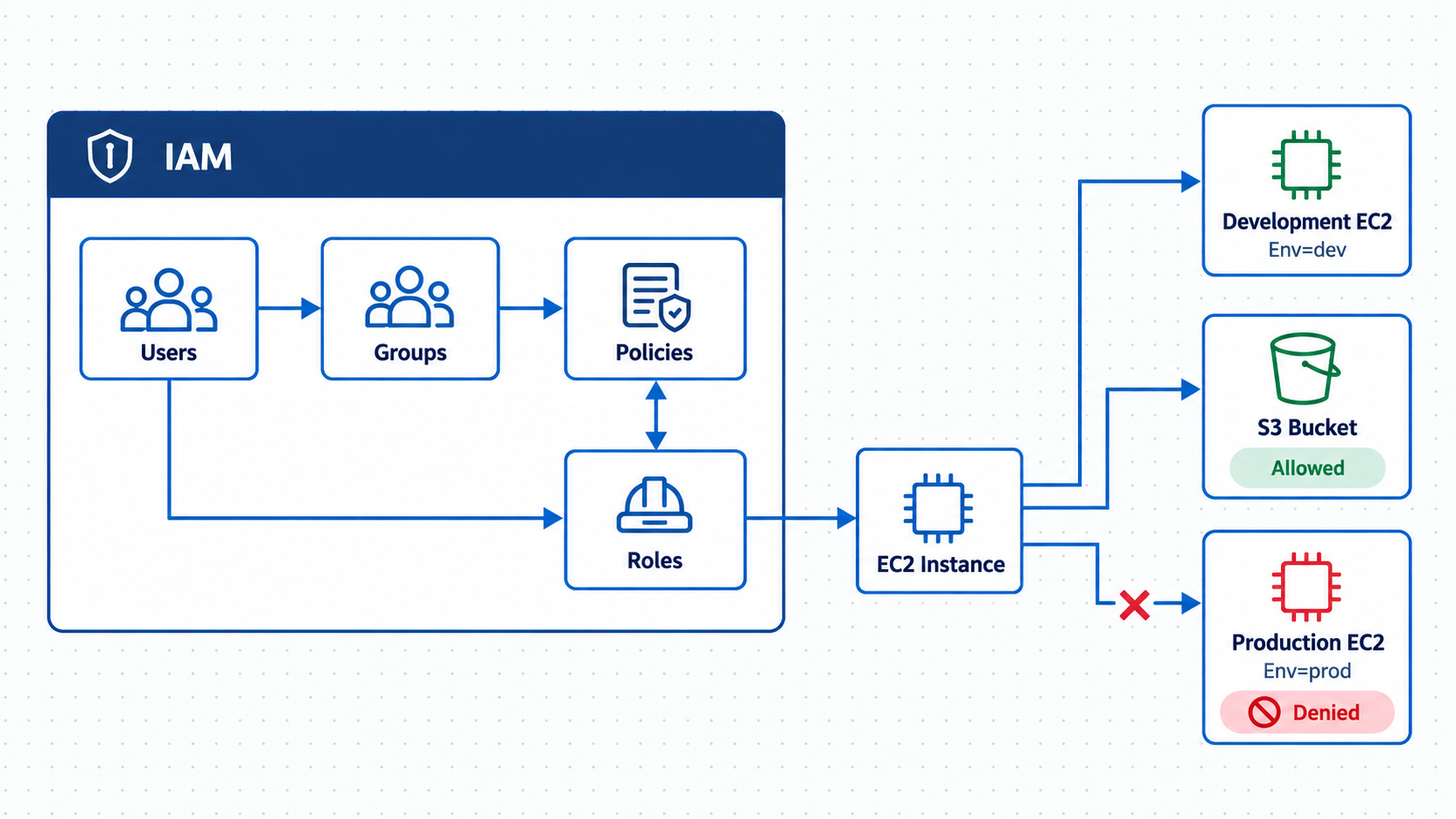
I tested two common AWS access control patterns. First I used an EC2 tag to let a dev user manage a dev instance but not production. Then I attached an IAM role to an EC2 instance and limited it to one S3 bucket.
The screenshots are from an older AWS console. Some buttons and layouts look different now. The identity and least privilege ideas haven’t changed.
The IAM pieces I used
I worked with four IAM building blocks:
- Users represent people or workloads that need AWS access.
- Groups apply shared permissions to multiple IAM users.
- Policies are JSON documents that define allowed or denied actions.
- Roles provide temporary credentials to trusted users, applications, or AWS services.
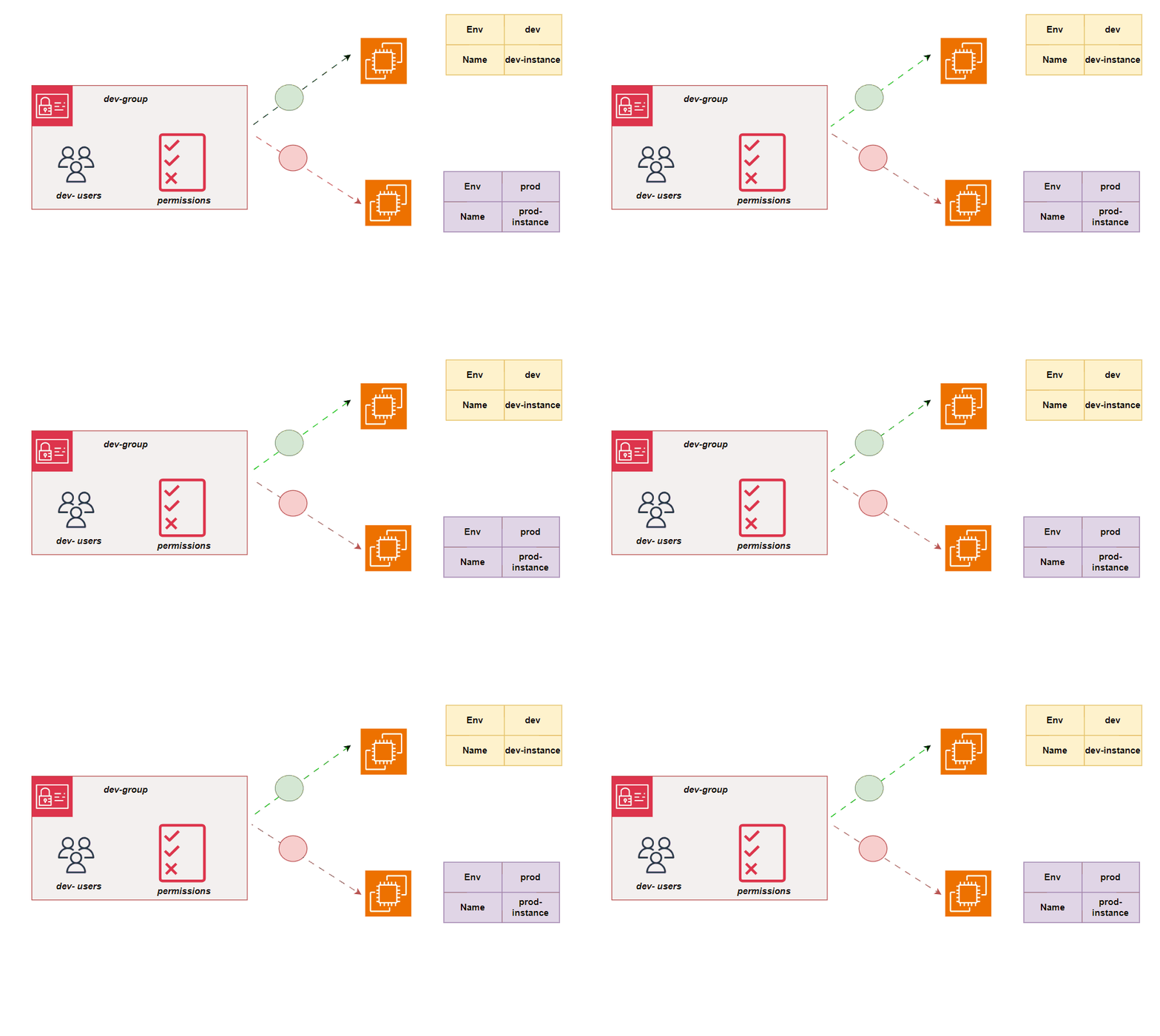
The relationship between IAM users, groups, roles, and policies.
1. Creating development and production EC2 instances
I launched two Amazon Linux EC2 instances and named them dev-instance and prod-instance.
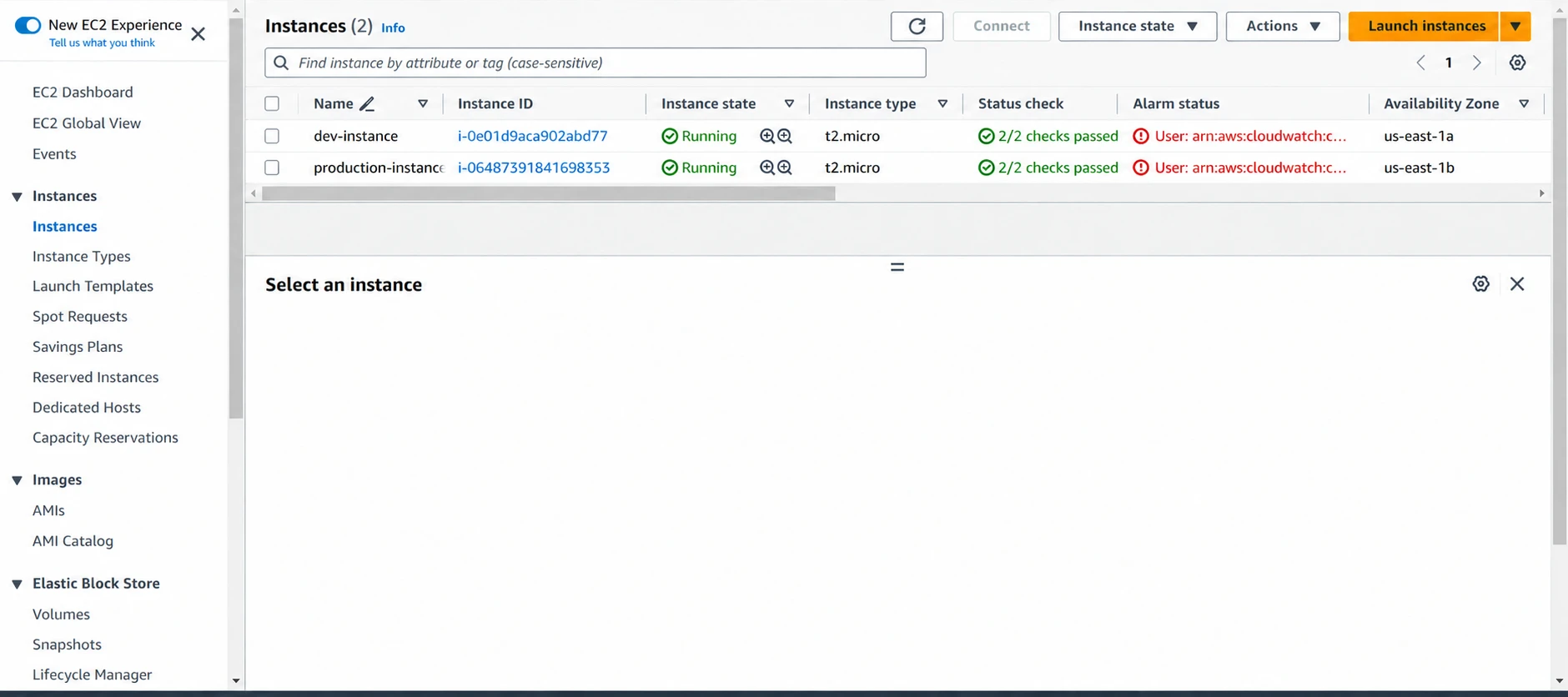
The development and production EC2 instances.
I added an Env tag to each instance. The development instance received Env=dev.
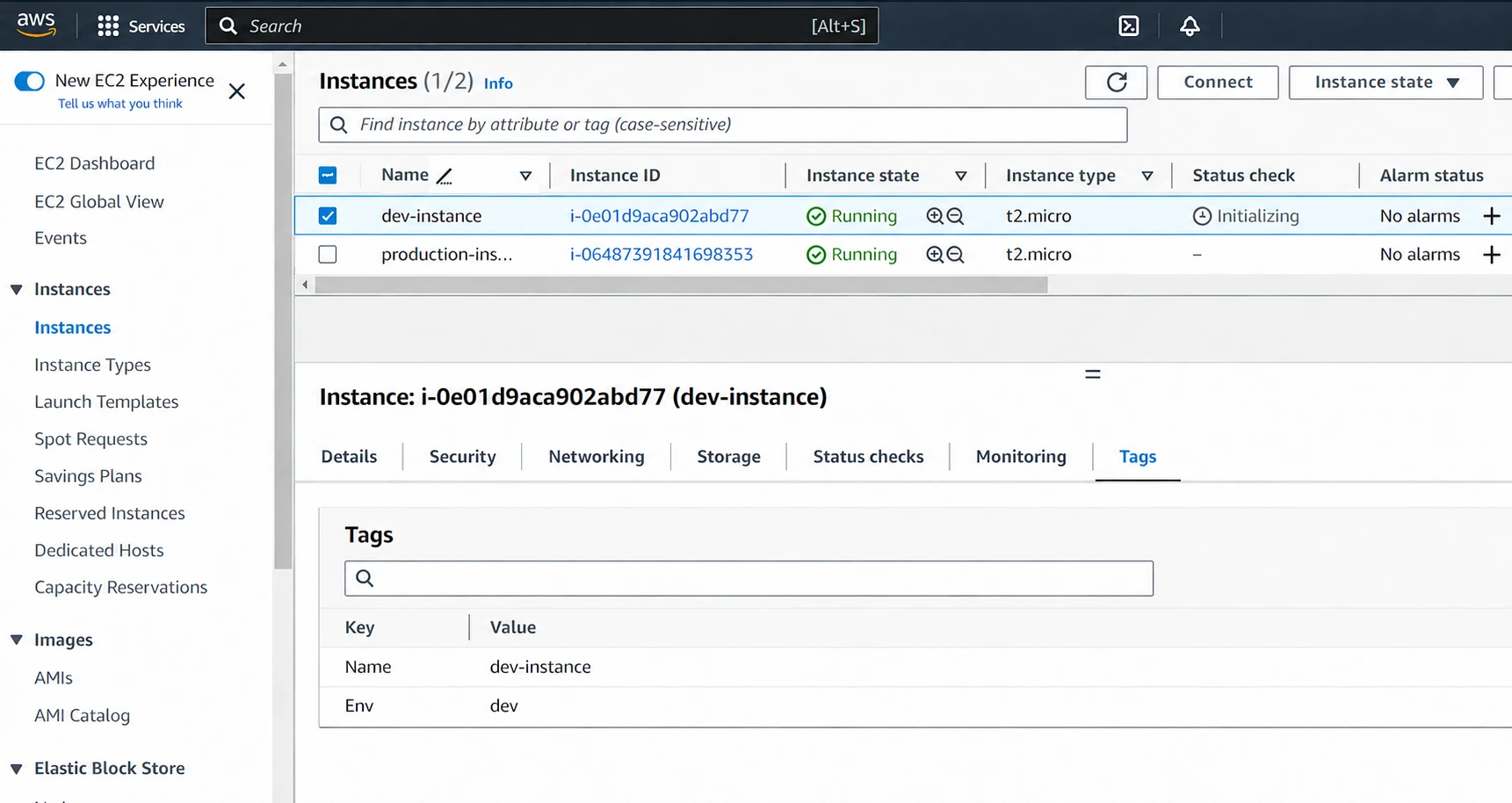
The Env=dev tag on the development instance.
The production instance received Env=prod.
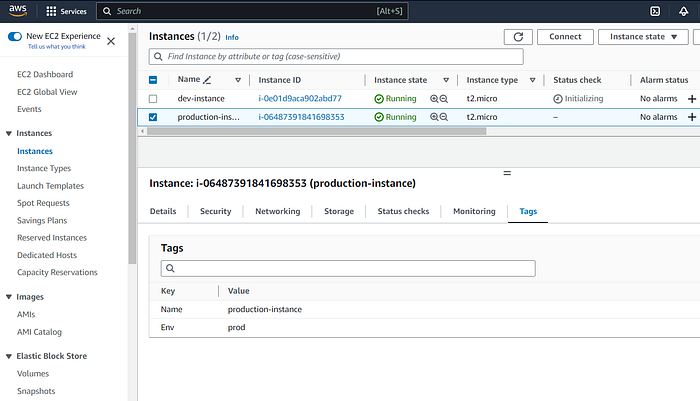
The corresponding production tag.
These tags did real work. The IAM policy used them to decide which instance the dev user could manage.
2. Creating the development policy and identity
I opened IAM and created a customer-managed policy for the dev user.
Opening the IAM workflow in the AWS console.
The policy allows EC2 actions only when the resource has Env=dev. It also allows read-only describe calls so the console can show resources. An explicit deny blocks creating or deleting tags. Without that, the user could just retag production and get around the rule.
{
  "Version": "2012-10-17",
  "Statement": [
    {
      "Effect": "Allow",
      "Action": "ec2:*",
      "Resource": "*",
      "Condition": {
        "StringEquals": {
          "ec2:ResourceTag/Env": "dev"
        }
      }
    },
    {
      "Effect": "Allow",
      "Action": "ec2:Describe*",
      "Resource": "*"
    },
    {
      "Effect": "Deny",
      "Action": [
        "ec2:CreateTags",
        "ec2:DeleteTags"
      ],
      "Resource": "*"
    }
  ]
}
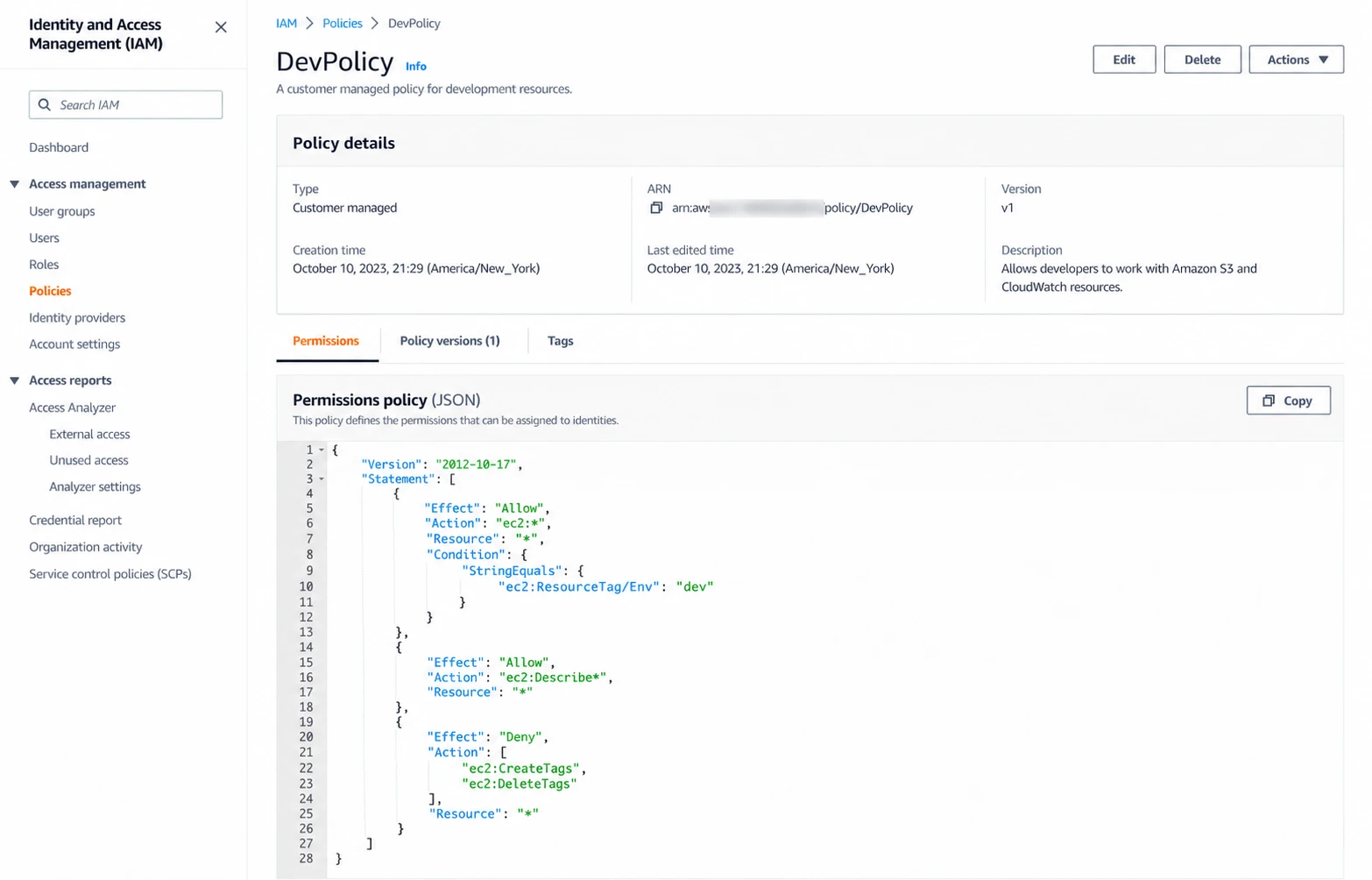
Creating the tag-conditioned development policy.
I saved it as DevPolicy. Then I created a group called dev-group and attached the policy to it.
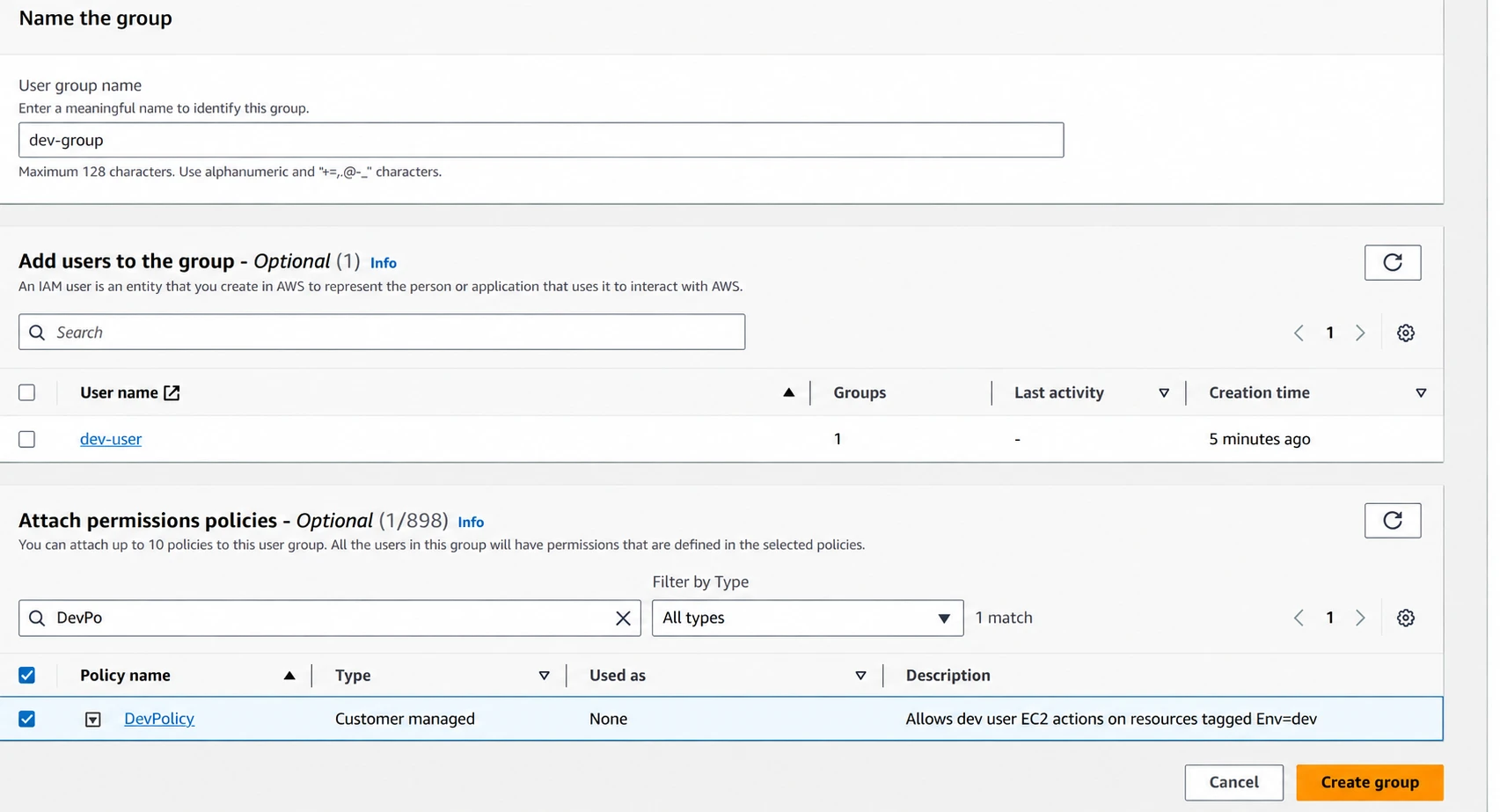
The development IAM group with its policy attached.
Next I created dev-user and added it to the group. I turned on console access because I wanted to test by clicking through as that user.
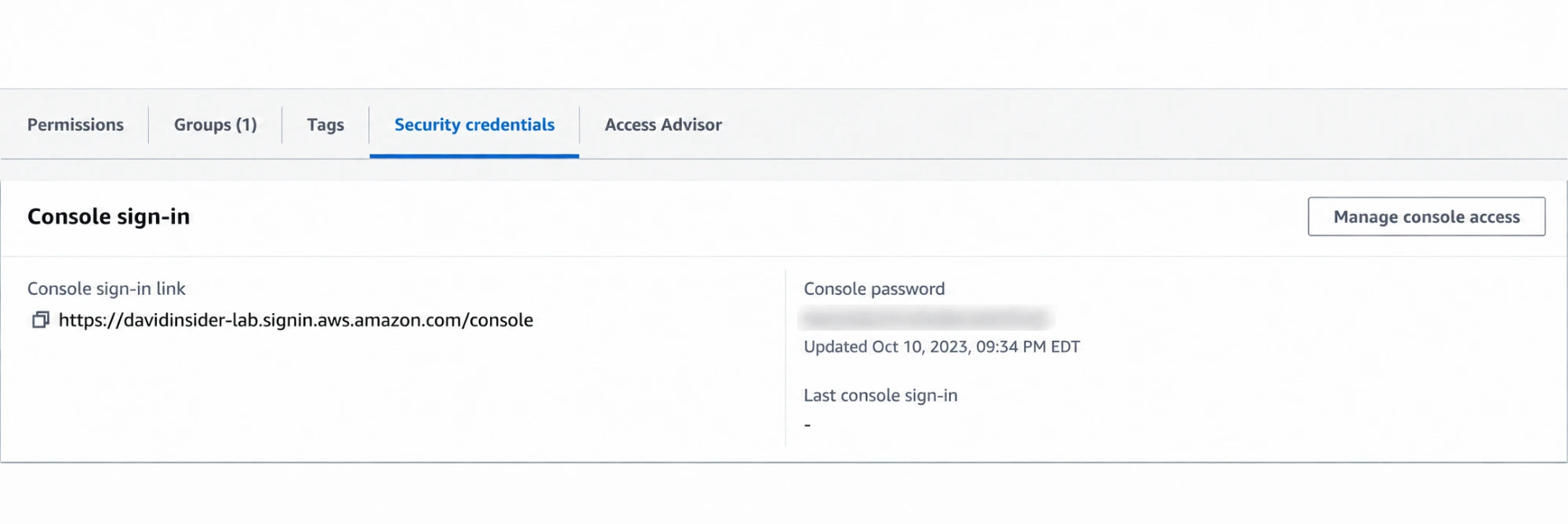
The development user’s sign-in and security settings.
I gave it a unique temporary password and required a change at sign-in. Never reuse a test password on a real account. For normal staff access, IAM Identity Center is usually better than long-term IAM users.
I signed out of the admin session and signed in as the dev user.
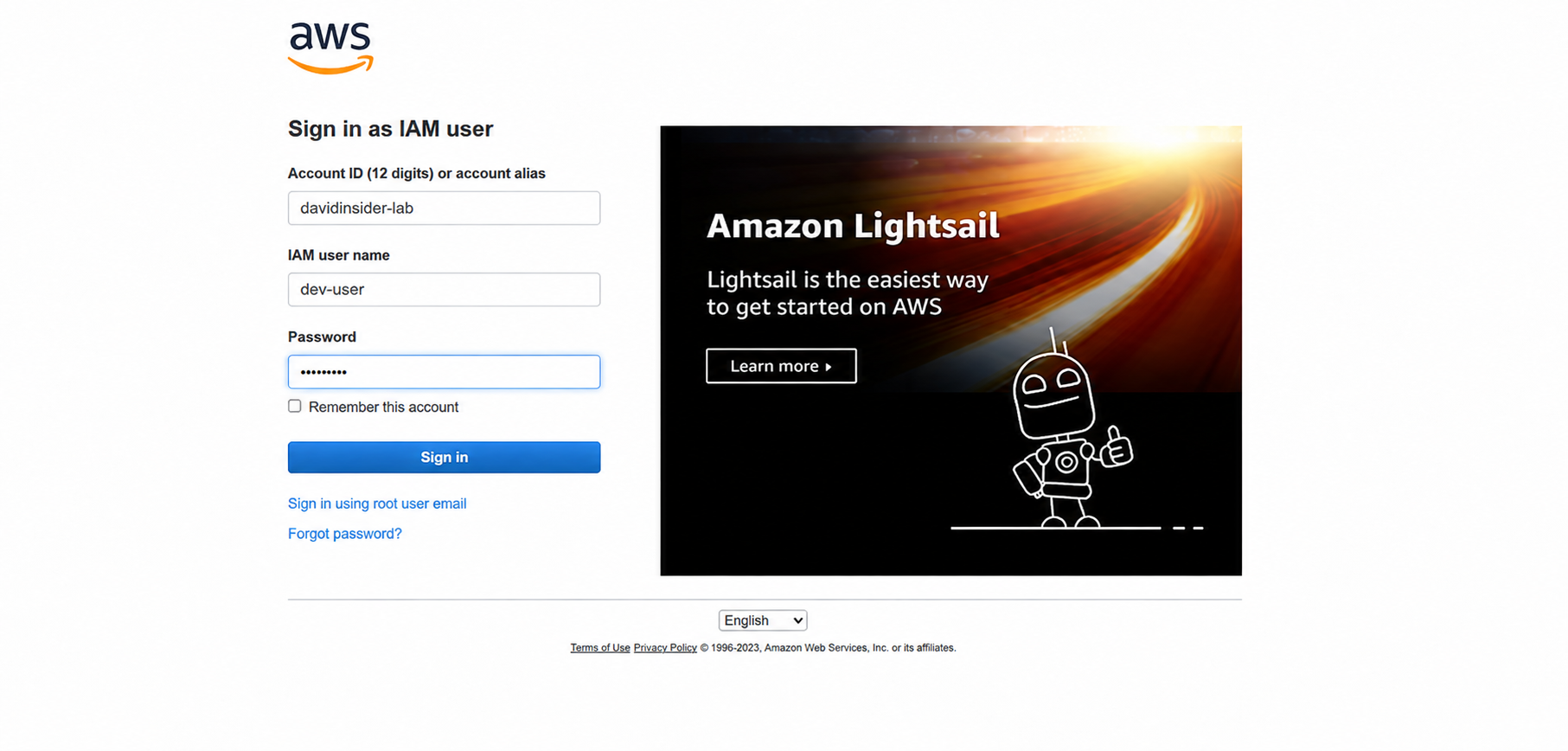
Signing in with the restricted development identity.
3. Testing tag-based EC2 permissions
I confirmed the identity and picked the Region with my instances.
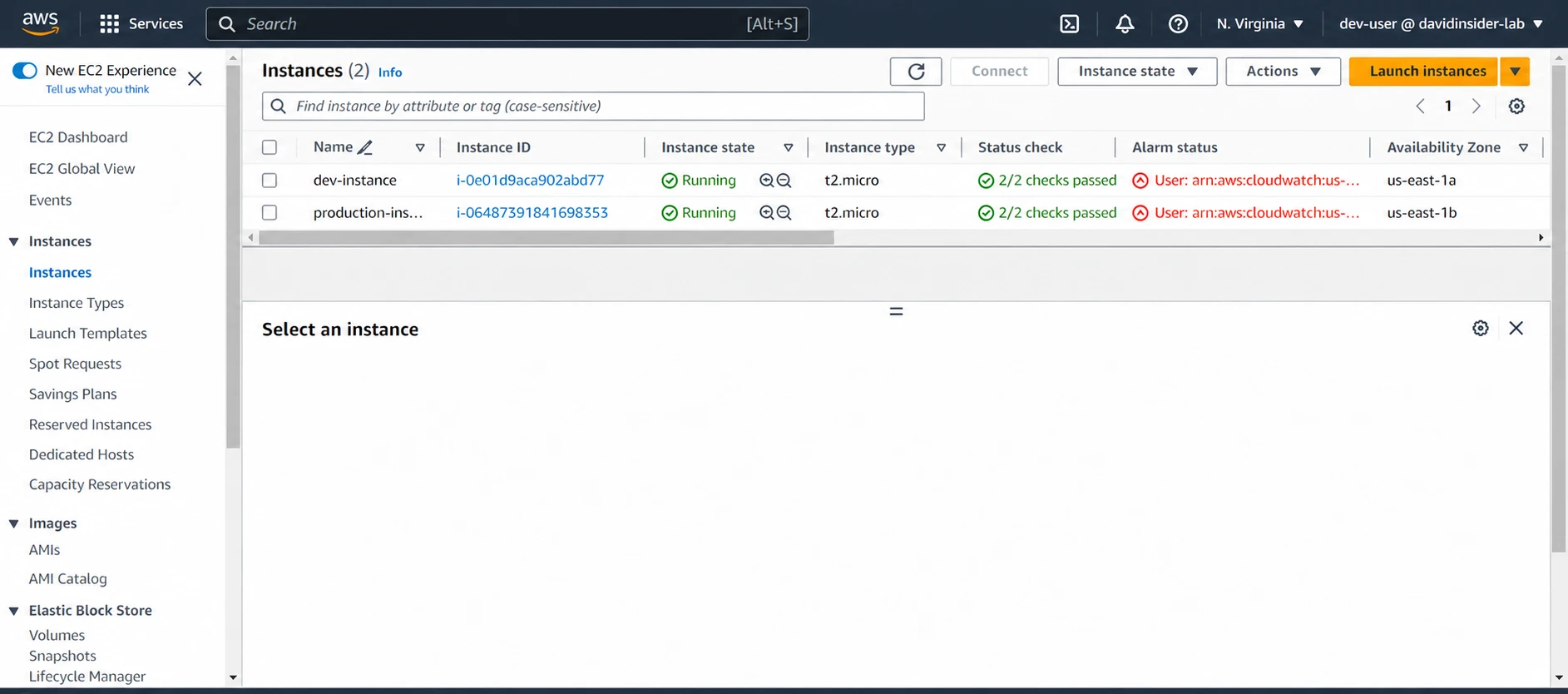
Verifying the signed-in user and AWS Region.
First I selected prod-instance and tried to stop it.

Testing an EC2 action against the production instance.
It was denied because the instance didn’t have Env=dev. Then I tried the same thing on dev-instance.
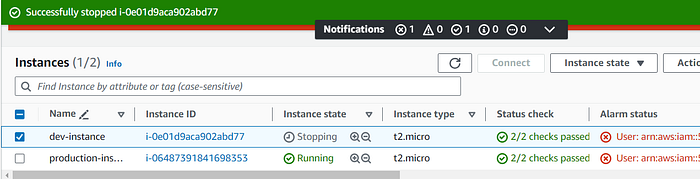
The permitted operation against the tagged development instance.
It worked. That’s attribute-based access control. The decision came from a property of the resource, not a hard-coded instance ID.
For production I’d narrow ec2:* to only what the user needs, like start, stop, and reboot. I kept it broad here to focus on the tag condition. It’s not true least privilege.
4. Creating two S3 test buckets
I switched back to the admin identity for the next part. I wanted an EC2 instance to read one bucket but not the objects in another.
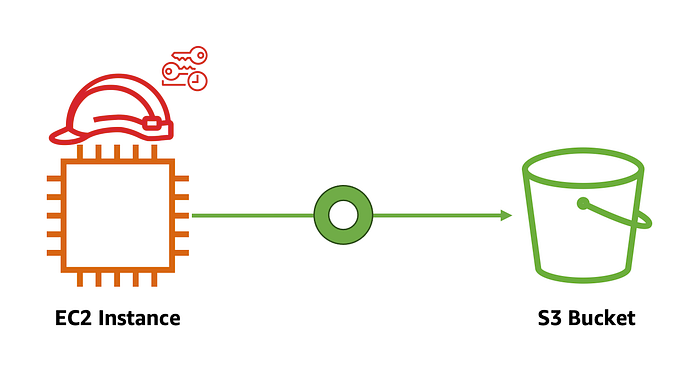
Starting the IAM role part of the project.
I created the first S3 bucket with a globally unique name.
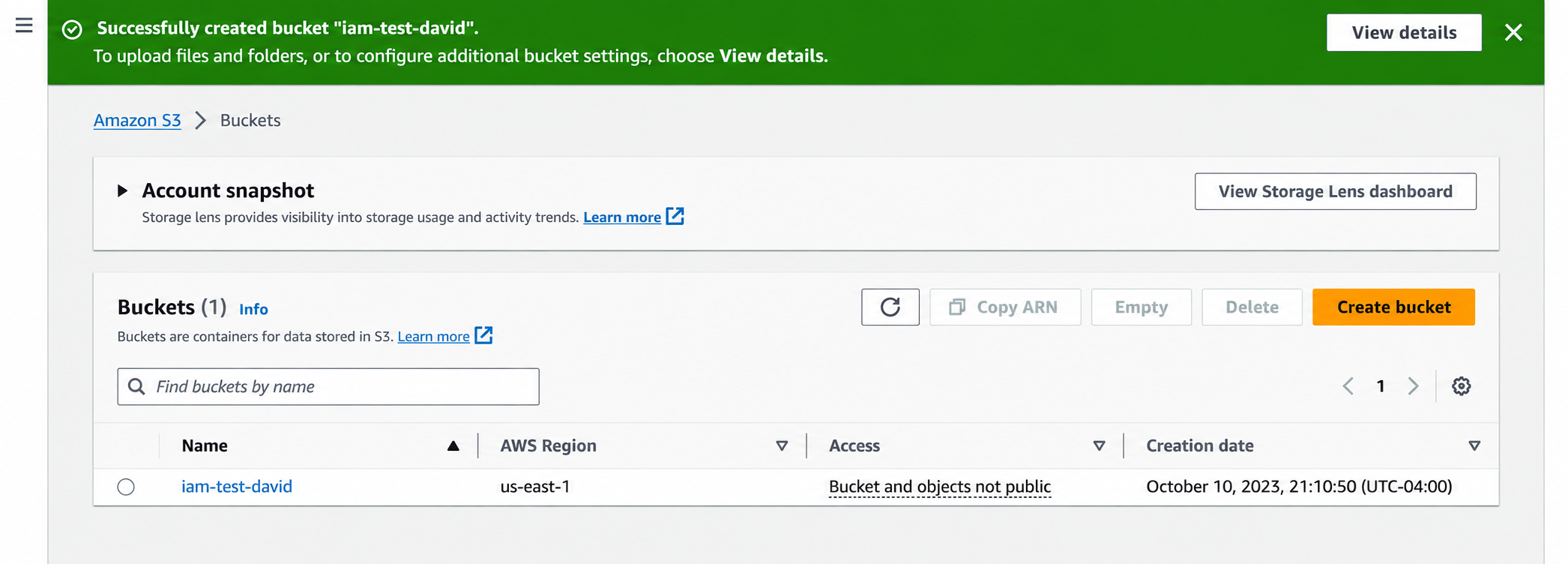
Creating the first S3 test bucket.
I uploaded a small sample file to it.
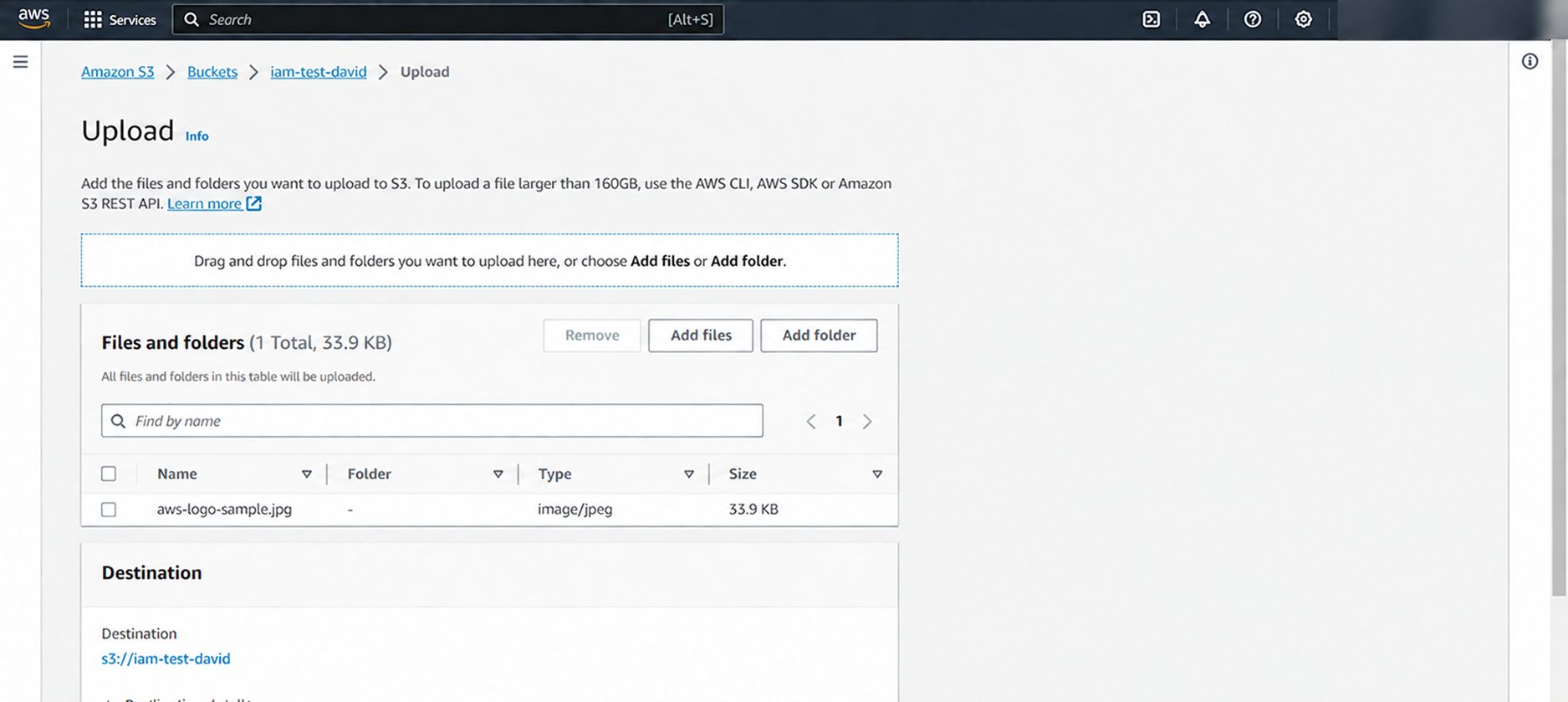
A sample object stored in the first bucket.
Then I created a second bucket and uploaded another sample file.
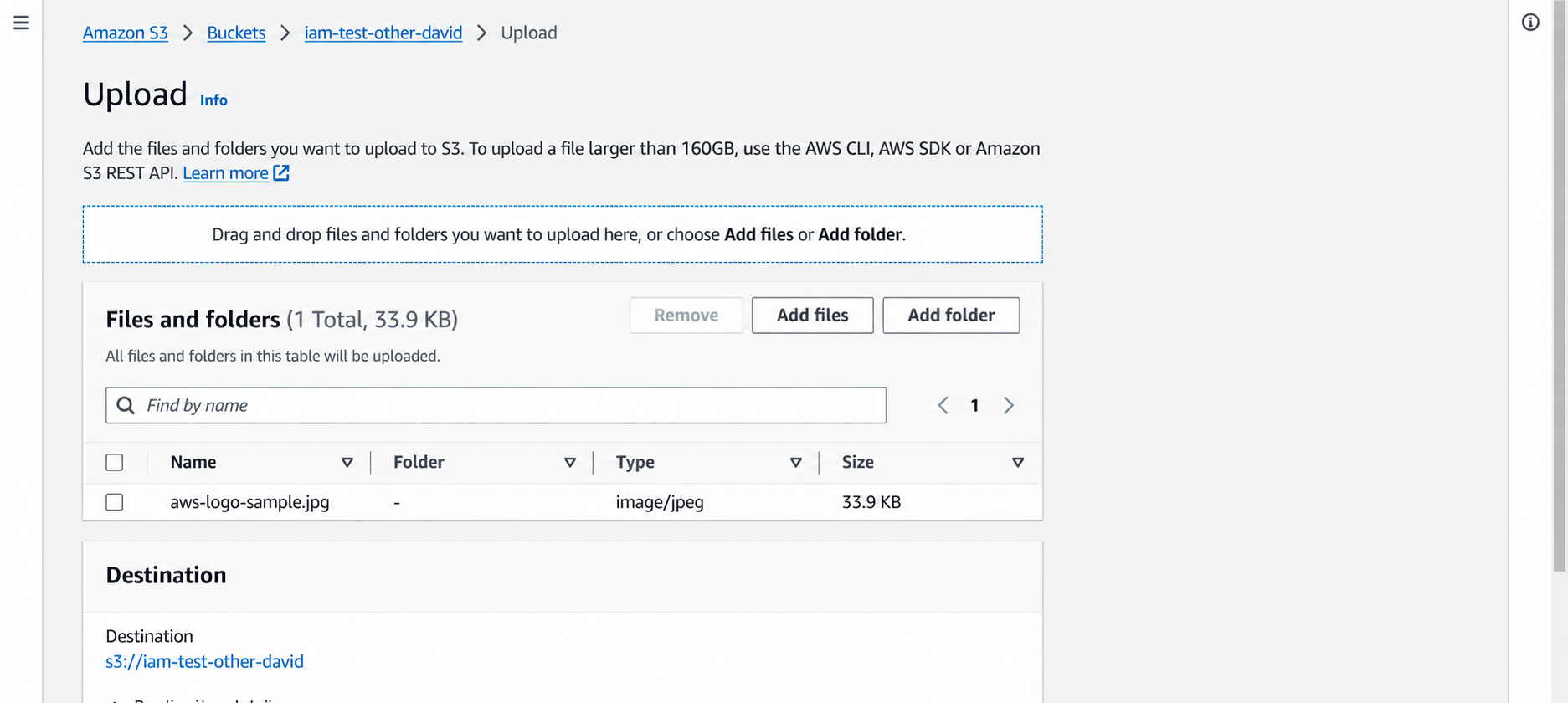
The second test bucket and its sample object.
5. Creating an EC2 role with limited S3 access
In IAM I created a role and picked EC2 as the trusted service. This lets EC2 get temporary credentials for any instance the role is attached to.
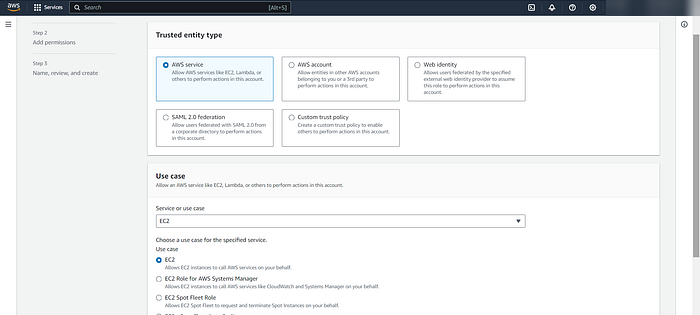
Selecting EC2 as the trusted service for the IAM role.
I created a customer-managed policy like this. Replace BUCKET_NAME with your first bucket’s name:
{
  "Version": "2012-10-17",
  "Statement": [
    {
      "Effect": "Allow",
      "Action": [
        "s3:ListAllMyBuckets",
        "s3:GetBucketLocation"
      ],
      "Resource": "*"
    },
    {
      "Effect": "Allow",
      "Action": [
        "s3:GetObject",
        "s3:ListBucket"
      ],
      "Resource": [
        "arn:aws:s3:::BUCKET_NAME",
        "arn:aws:s3:::BUCKET_NAME/*"
      ]
    }
  ]
}

Scoping the S3 permissions to the first bucket.
I saved the policy as IAMBucketTestPolicy.
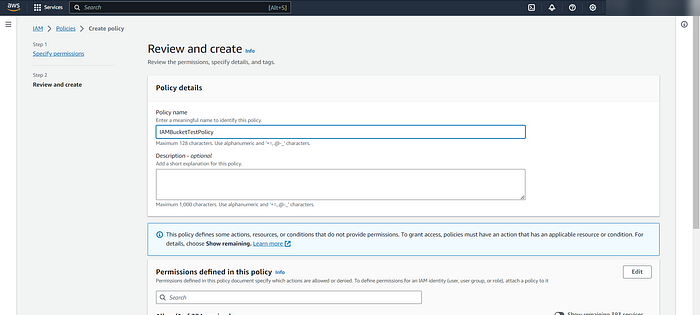
Reviewing and creating IAMBucketTestPolicy.
I attached it to an EC2 role named IAMBucketTestRole.
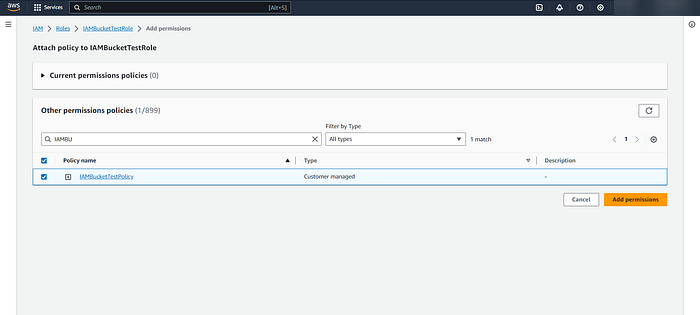
The S3 policy attached to the EC2 role.
The policy allows listing buckets at the account level, so aws s3 ls shows every bucket name. But it only grants object access to the one bucket. Seeing a bucket’s name doesn’t mean you can list or read what’s inside.
6. Attaching the role and testing access
Back in EC2, I connected to prod-instance with EC2 Instance Connect.
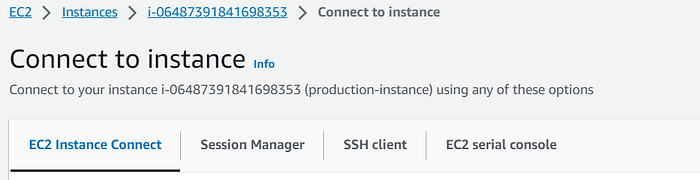
Connecting to the EC2 instance for the S3 test.
I attached IAMBucketTestRole to the instance. Then I used the AWS CLI with no access keys stored on the server.
aws s3 ls
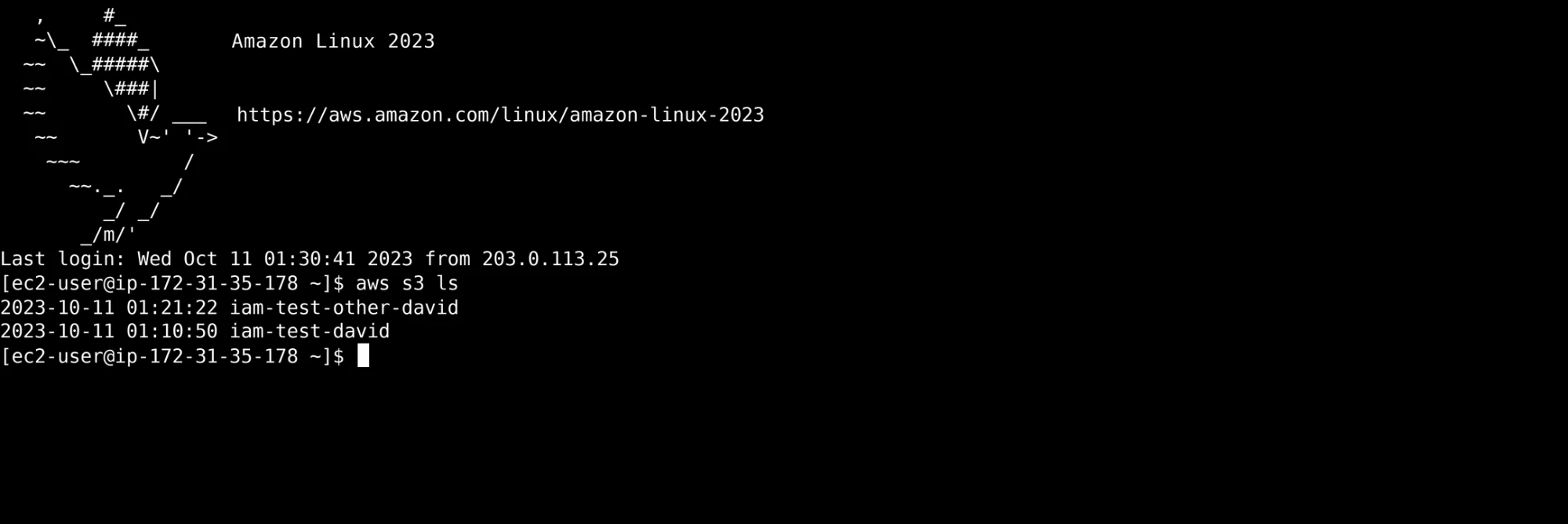
The EC2 instance using its attached role to list S3 buckets.
Then I tested each bucket directly:
aws s3 ls s3://<ALLOWED-BUCKET>
aws s3 ls s3://<OTHER-BUCKET>
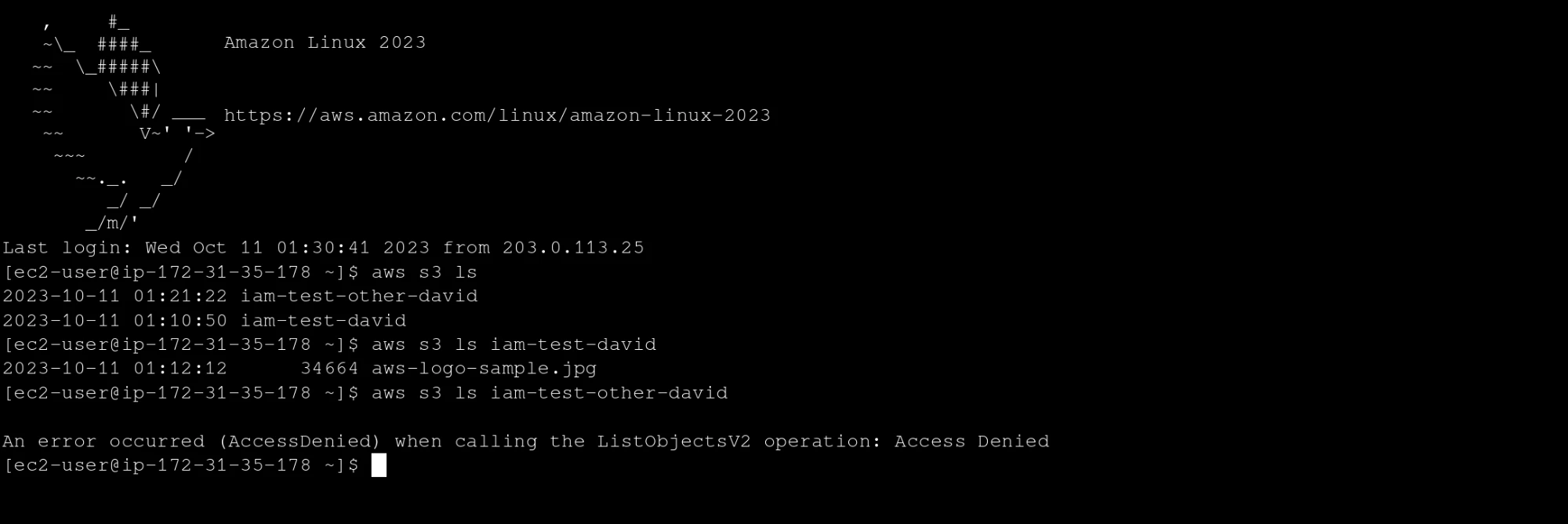
Object listing succeeds for the allowed bucket and is denied for the other bucket.
The instance got temporary role credentials. Access was limited to the bucket I intended.
7. Cleaning up
When I finished, I cleaned everything up. First I terminated both instances.
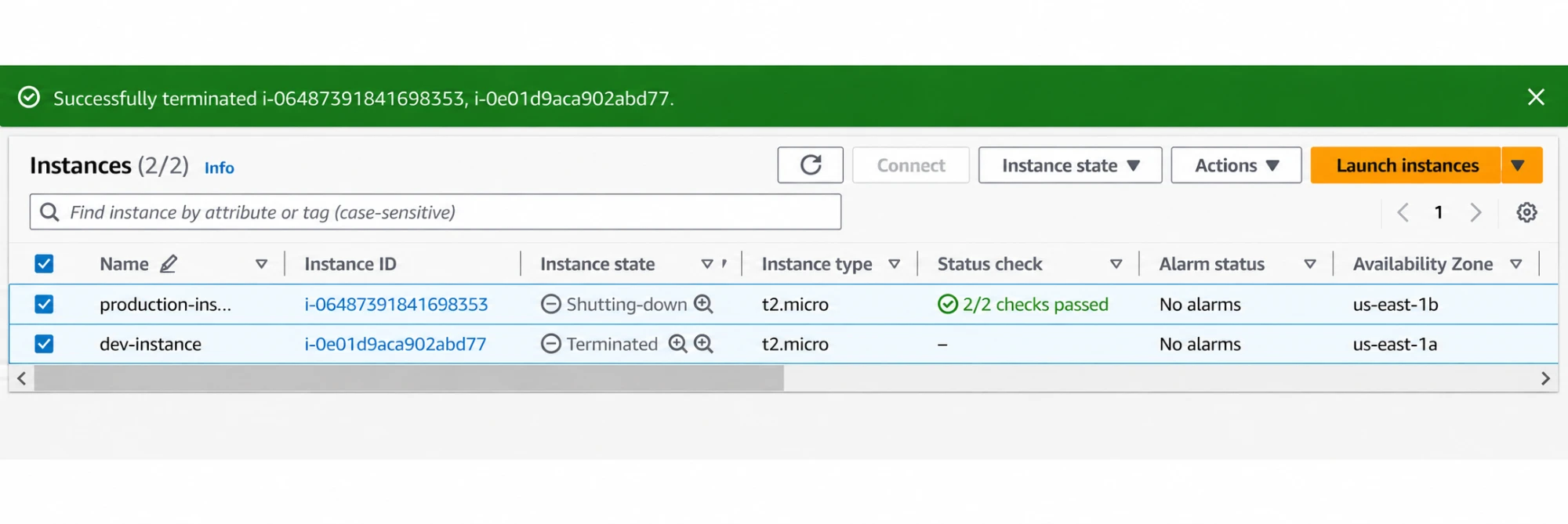
Terminating the two test instances.
I deleted dev-group.
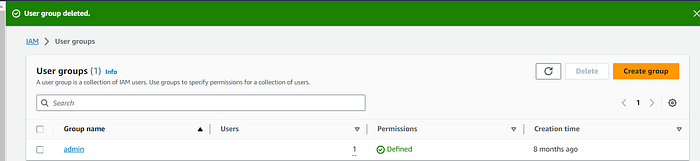
Deleting the development IAM group.
Then I deleted dev-user.
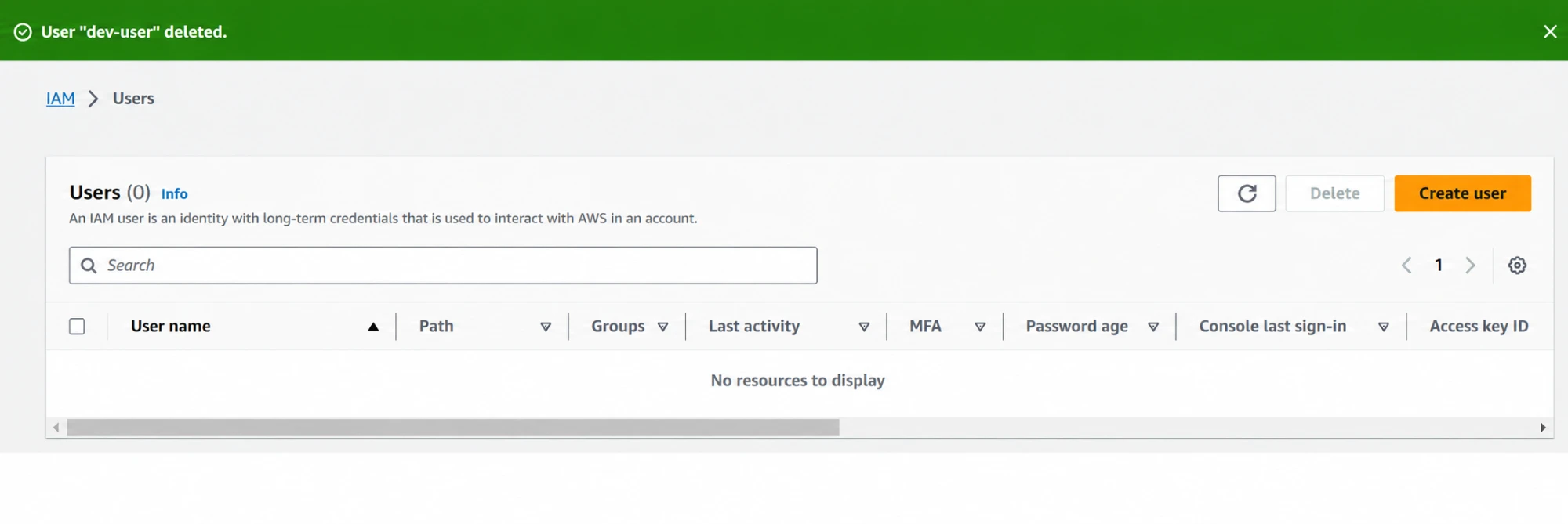
Deleting the temporary IAM user.
I removed IAMBucketTestRole after detaching its policy.

Deleting the EC2 IAM role.
I deleted the custom DevPolicy and IAMBucketTestPolicy policies once they were no longer attached.

Removing the custom IAM policies.
Finally, I emptied and deleted both S3 buckets.

Deleting the empty S3 test buckets.
What I learned
I tested two useful permission models:
IAM user -> group policy -> EC2 access based on Env tag

EC2 instance -> IAM role -> temporary credentials -> selected S3 bucket
The tag policy showed how the same EC2 action can be allowed or denied based on the target. The EC2 role showed why apps should use temporary role credentials instead of long-term keys on a server.
The biggest lesson was to test as the restricted user. A policy can look right on paper. Trying one allowed action and one denied action proves the boundary actually works.