
I deployed a full three-tier app on Amazon EKS. It has a React frontend, a Flask backend, and PostgreSQL on Amazon RDS. I exposed it with the AWS Load Balancer Controller and pointed a custom Route 53 domain at it. Then I added HTTPS with cert-manager and AWS Certificate Manager.
Important: A lot of the IDs below are specific to my environment. That includes account IDs, subnet IDs, security group IDs, hosted zone IDs, domain names, certificate ARNs, and RDS endpoints. Swap in your own. Use a unique database password and keep credentials out of Git.
1. Architecture and what you need
Here’s the finished setup:
Internet
   |
Route 53
   |
Application Load Balancer
   |
Kubernetes Ingress
   |
+--------------------+
| Amazon EKS         |
|                    |
| React frontend     |
| Flask backend      |
+--------------------+
          |
          v
Amazon RDS PostgreSQL
For HTTPS I added cert-manager, Route 53 DNS validation, IAM Roles for Service Accounts, and an ACM certificate on the ALB.
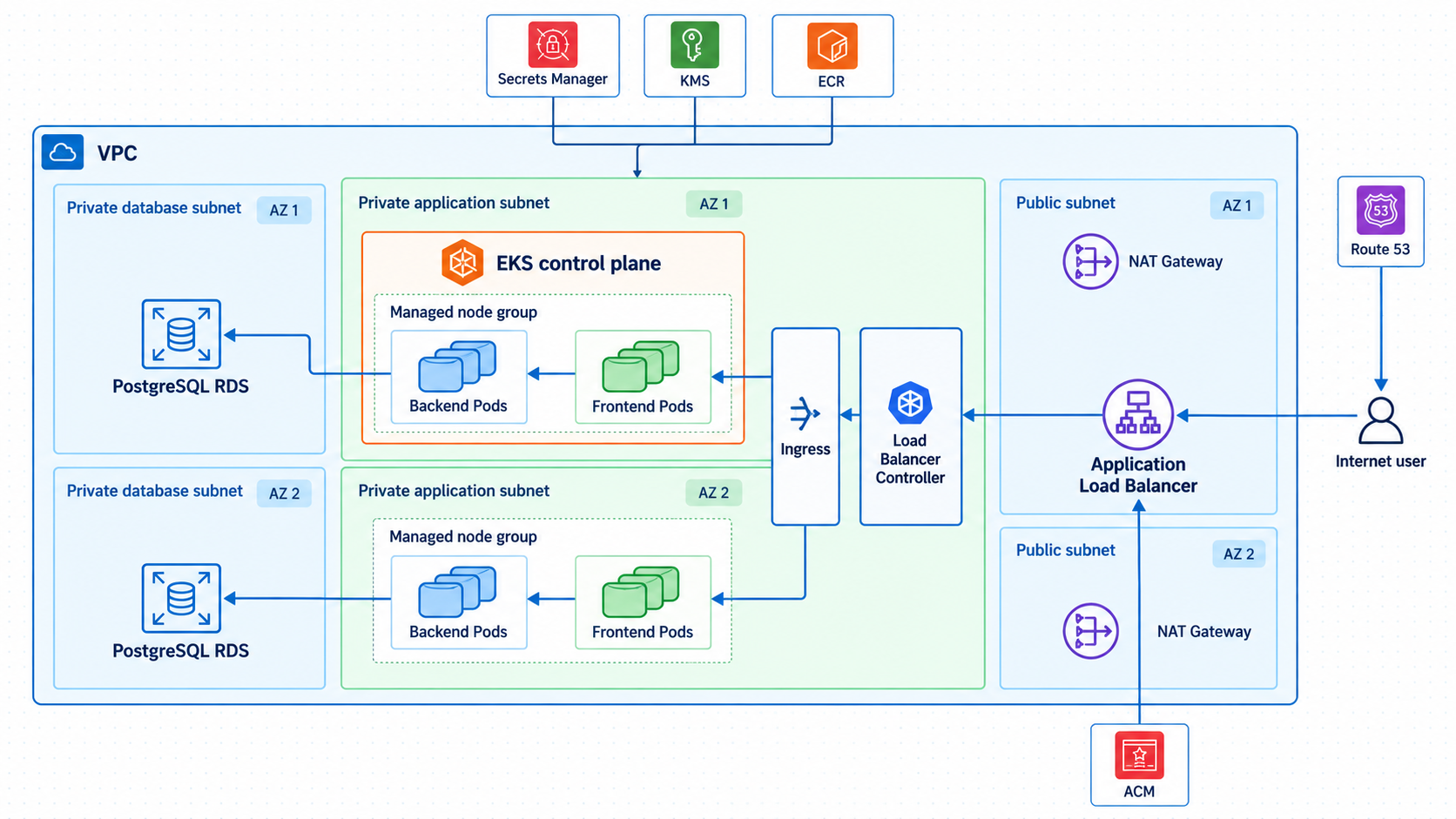
Target architecture for the React, Flask, PostgreSQL, EKS, ALB, Route 53, and HTTPS stack
I had these installed and configured first:
AWS CLI
kubectl
eksctl
Helm
Git
AWS credentials with permission to create the required resources
My values:
AWS Region: us-east-1
EKS cluster: david-cluster
Kubernetes namespace: 3-tier-app-eks
2. Creating the EKS cluster with eksctl
I created the cluster with a managed node group. It starts with two t3.medium instances and scales between one and three nodes.
eksctl create cluster \
  --name david-cluster \
  --region us-east-1 \
  --version 1.31 \
  --nodegroup-name standard-workers \
  --node-type t3.medium \
  --nodes 2 \
  --nodes-min 1 \
  --nodes-max 3 \
  --managed
eksctl builds everything through CloudFormation. That covers the VPC, subnets, networking, EKS control plane, and node group.
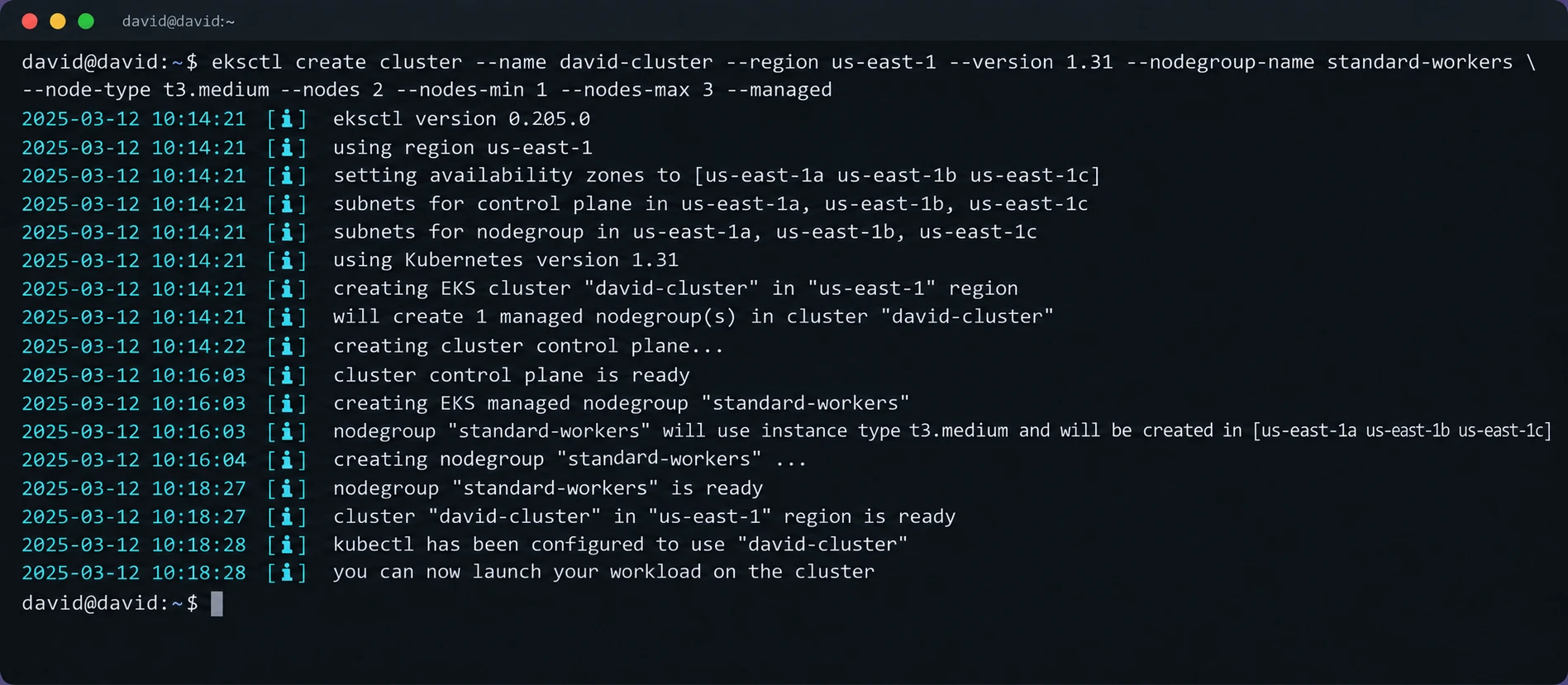
eksctl creating the EKS infrastructure through CloudFormation
I checked that AWS could see the cluster:
aws eks list-clusters
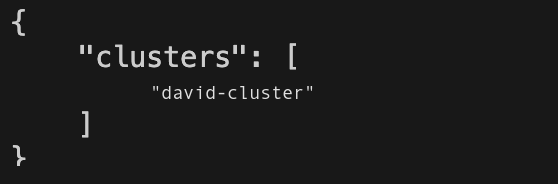
EKS cluster visible after provisioning
Then I saved the cluster name and updated my kubeconfig:
export cluster_name=david-cluster

aws eks update-kubeconfig \
  --name "$cluster_name" \
  --region us-east-1

kubectl config current-context
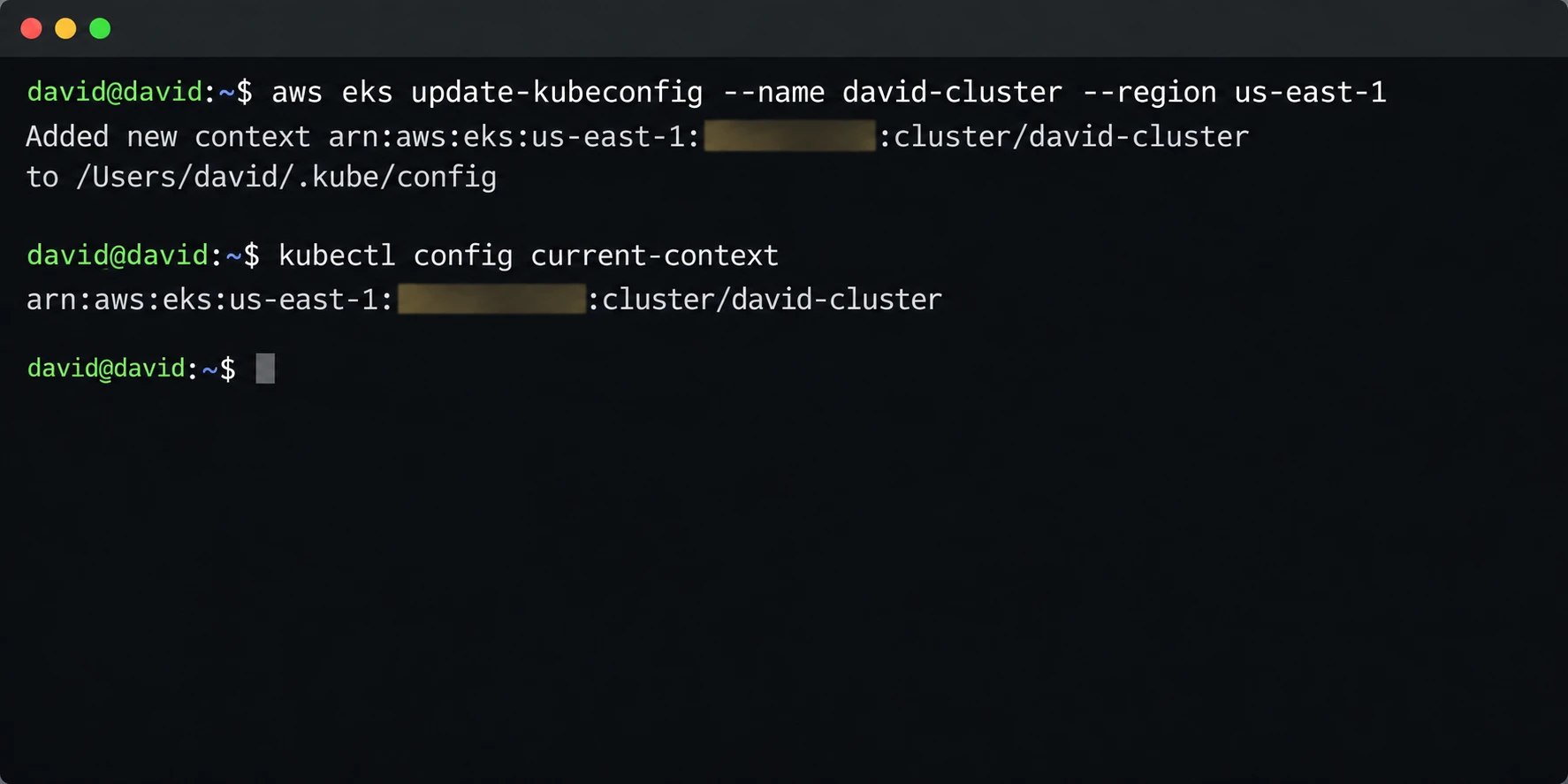
kubeconfig updated for the new EKS cluster
I ran a few basic checks:
kubectl get namespaces
kubectl get nodes
kubectl get pods -A
kubectl get services -A
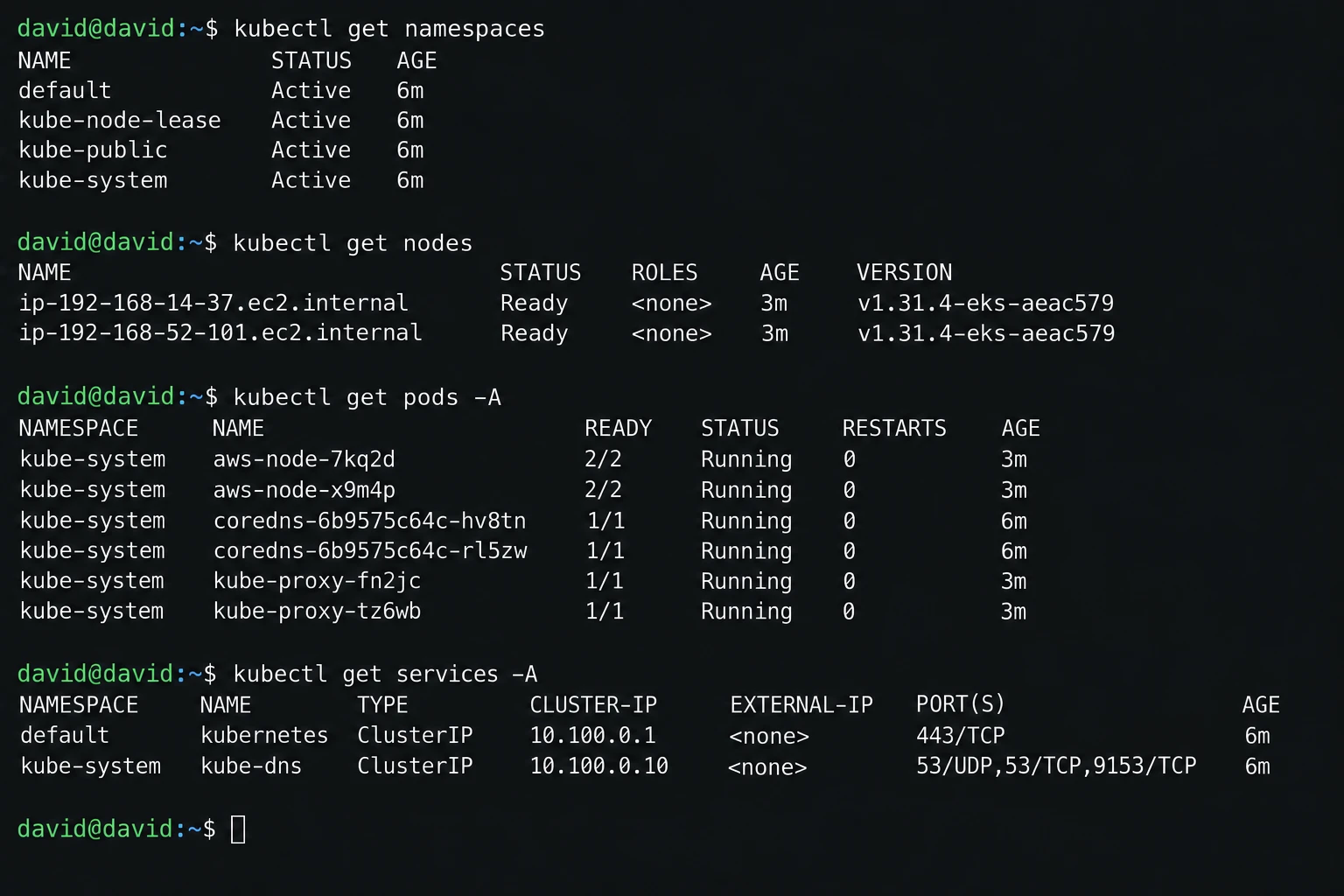
kubectl checks against namespaces, nodes, pods, and services
Now kubectl was talking to the EKS API.
3. Setting up PostgreSQL on RDS
The backend needs PostgreSQL. I put the RDS instance in private subnets inside the same VPC as the cluster.
First I grabbed the EKS VPC ID:
VPC_ID=$(aws eks describe-cluster \
  --name david-cluster \
  --region us-east-1 \
  --query "cluster.resourcesVpcConfig.vpcId" \
  --output text)

echo "$VPC_ID"
Then I listed the subnets and picked out the private ones:
PRIVATE_SUBNET_IDS=$(aws ec2 describe-subnets \
  --filters "Name=vpc-id,Values=$VPC_ID" \
  --query "Subnets[?MapPublicIpOnLaunch==\`false\`].SubnetId" \
  --output text \
  --region us-east-1)

echo "$PRIVATE_SUBNET_IDS"
I created an RDS subnet group with three private subnets:
aws rds create-db-subnet-group \
  --db-subnet-group-name david-postgres-private-subnet-group \
  --db-subnet-group-description "Private subnet group for three-tier PostgreSQL RDS" \
  --subnet-ids \
    subnet-0115609bc602b388e \
    subnet-0611f6ecae28a510c \
    subnet-00a21441953091d88 \
  --region us-east-1
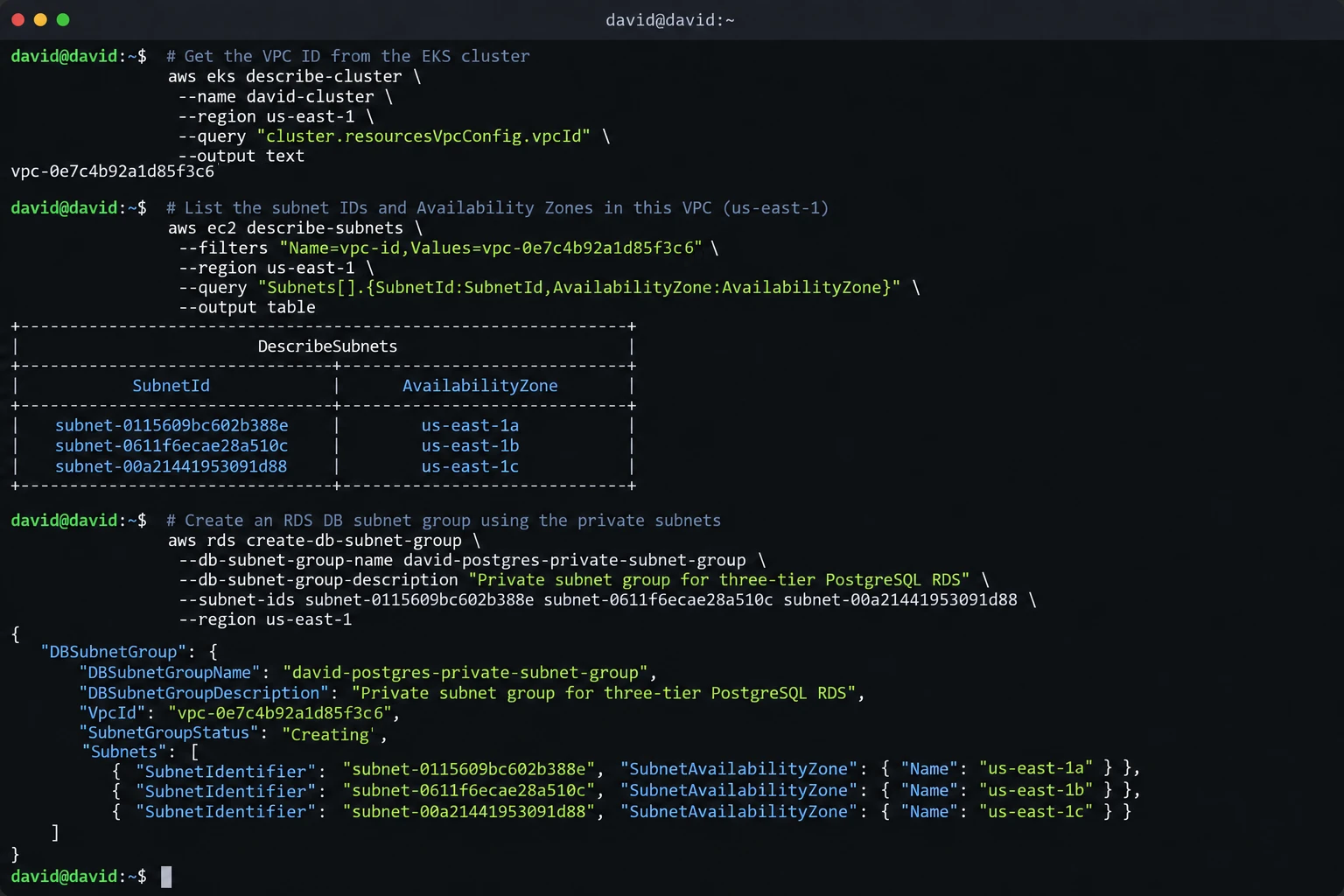
Private subnets selected for the RDS subnet group
I created a security group for the database:
aws ec2 create-security-group \
  --group-name postgressg \
  --description "SG for RDS" \
  --vpc-id "$VPC_ID" \
  --region us-east-1
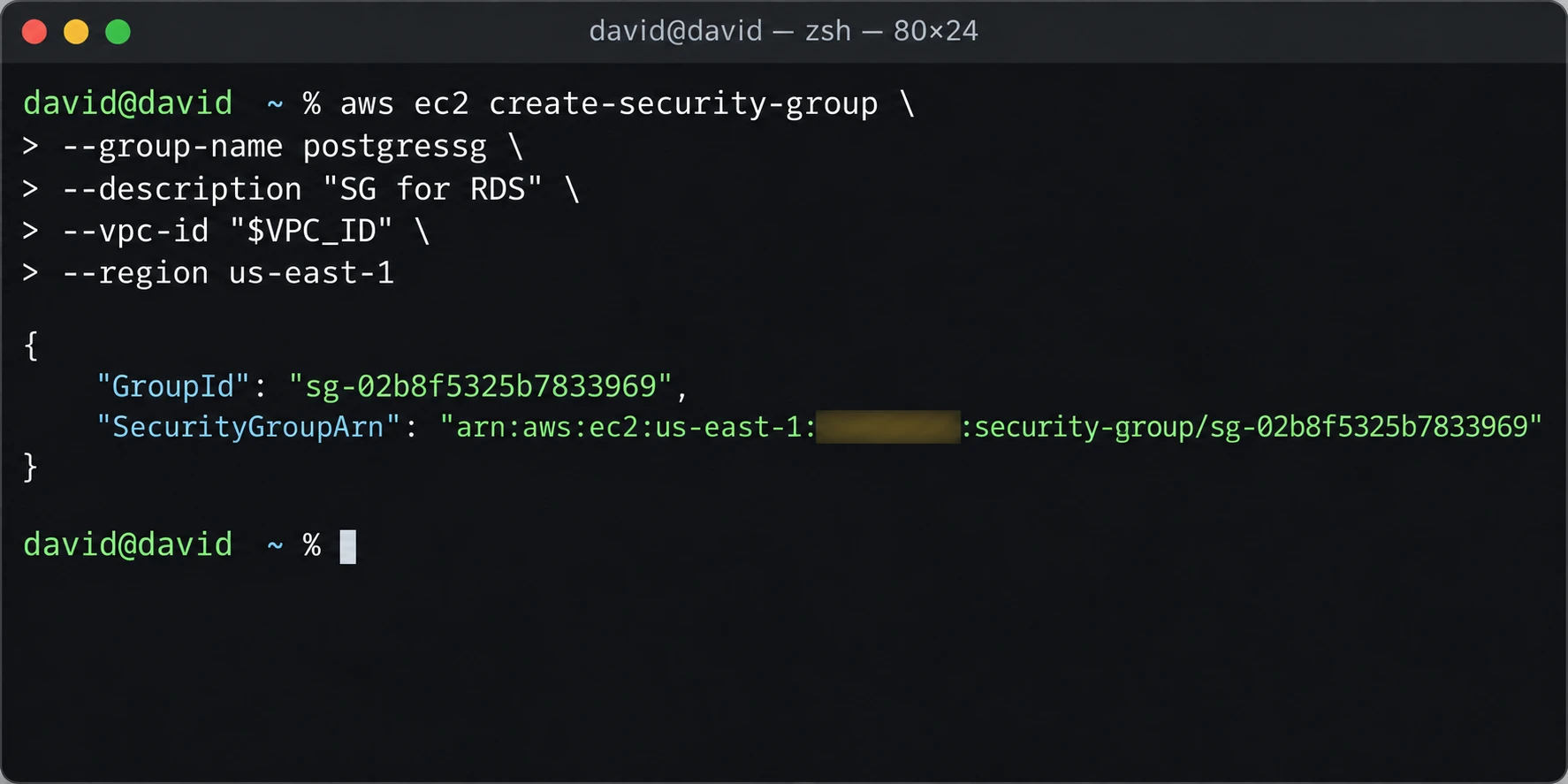
Security group created for PostgreSQL RDS
And saved its ID:
SG_ID=$(aws ec2 describe-security-groups \
  --filters \
    "Name=group-name,Values=postgressg" \
    "Name=vpc-id,Values=$VPC_ID" \
  --query "SecurityGroups[0].GroupId" \
  --output text \
  --region us-east-1)

echo "$SG_ID"
Then I got the cluster’s security group and let it reach PostgreSQL on TCP port 5432:
NODE_SG=$(aws eks describe-cluster \
  --name david-cluster \
  --region us-east-1 \
  --query "cluster.resourcesVpcConfig.securityGroupIds[0]" \
  --output text)

aws ec2 authorize-security-group-ingress \
  --group-id "$SG_ID" \
  --protocol tcp \
  --port 5432 \
  --source-group "$NODE_SG" \
  --region us-east-1
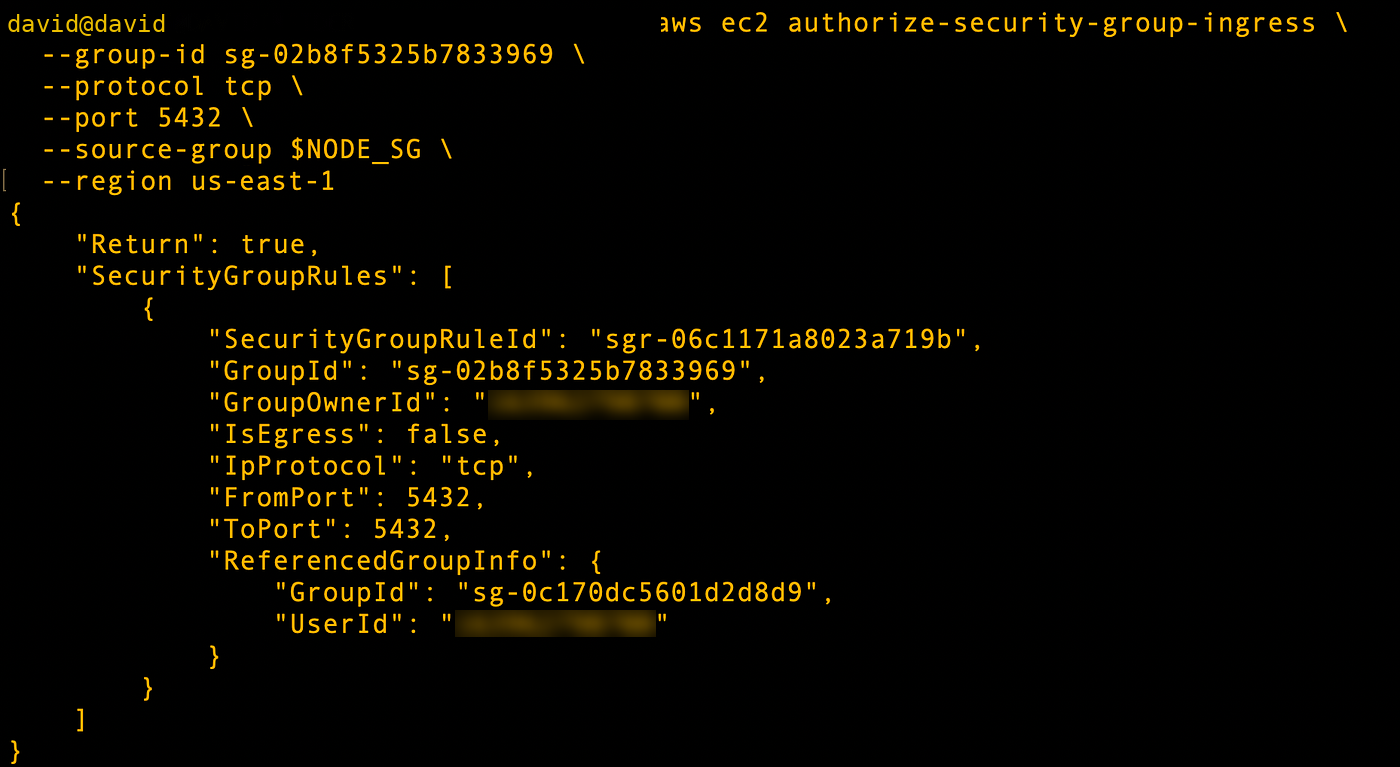
EKS node security group identified for database access
Referencing a security group is much safer than opening the port to 0.0.0.0/0.
Then I created the database:
aws rds create-db-instance \
  --db-instance-identifier david-postgres \
  --db-instance-class db.t3.small \
  --engine postgres \
  --engine-version 15 \
  --allocated-storage 20 \
  --master-username postgresadmin \
  --master-user-password '<USE_A_UNIQUE_DATABASE_PASSWORD>' \
  --db-subnet-group-name david-postgres-private-subnet-group \
  --vpc-security-group-ids "$SG_ID" \
  --no-publicly-accessible \
  --backup-retention-period 7 \
  --multi-az \
  --storage-type gp2 \
  --region us-east-1
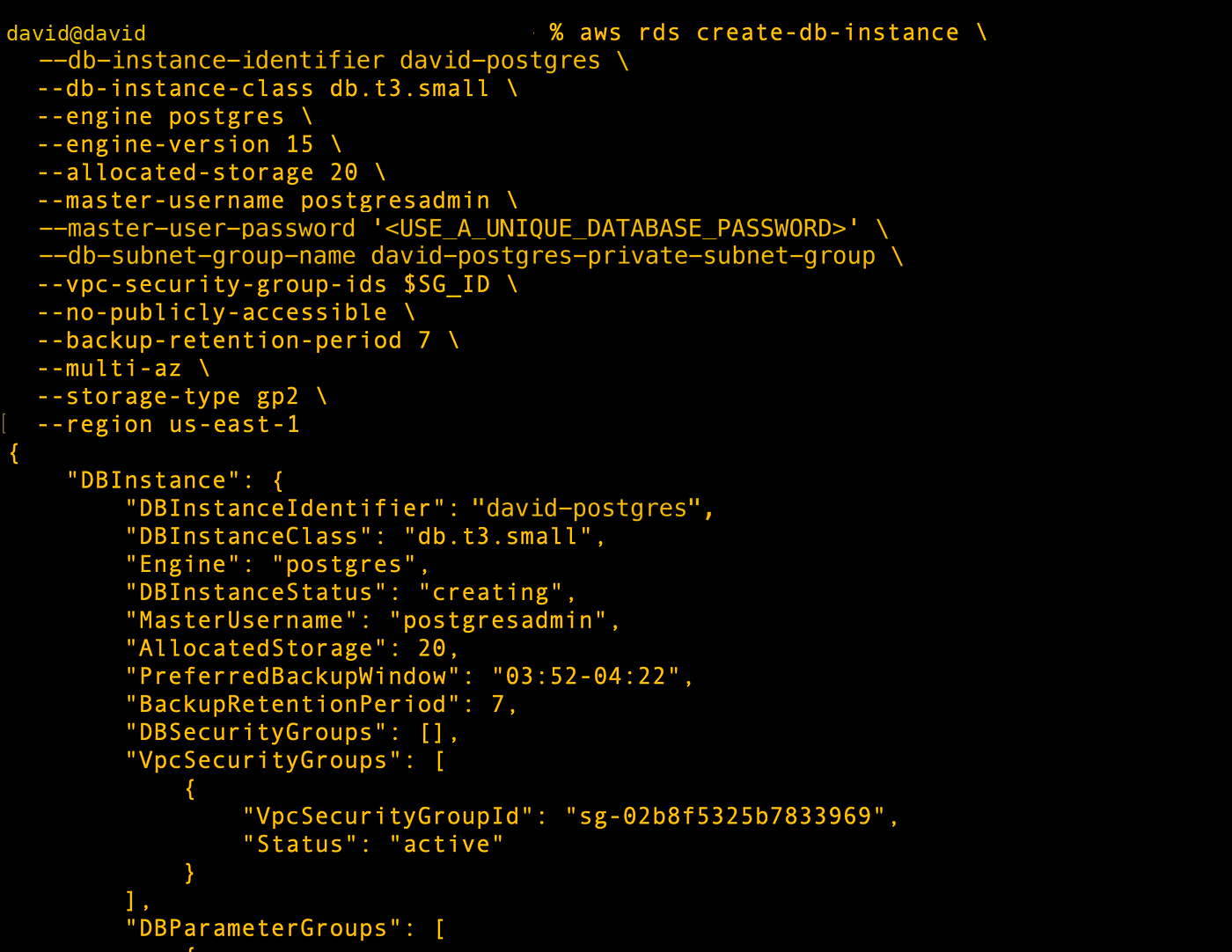
PostgreSQL RDS instance configuration
I waited for it to become available.
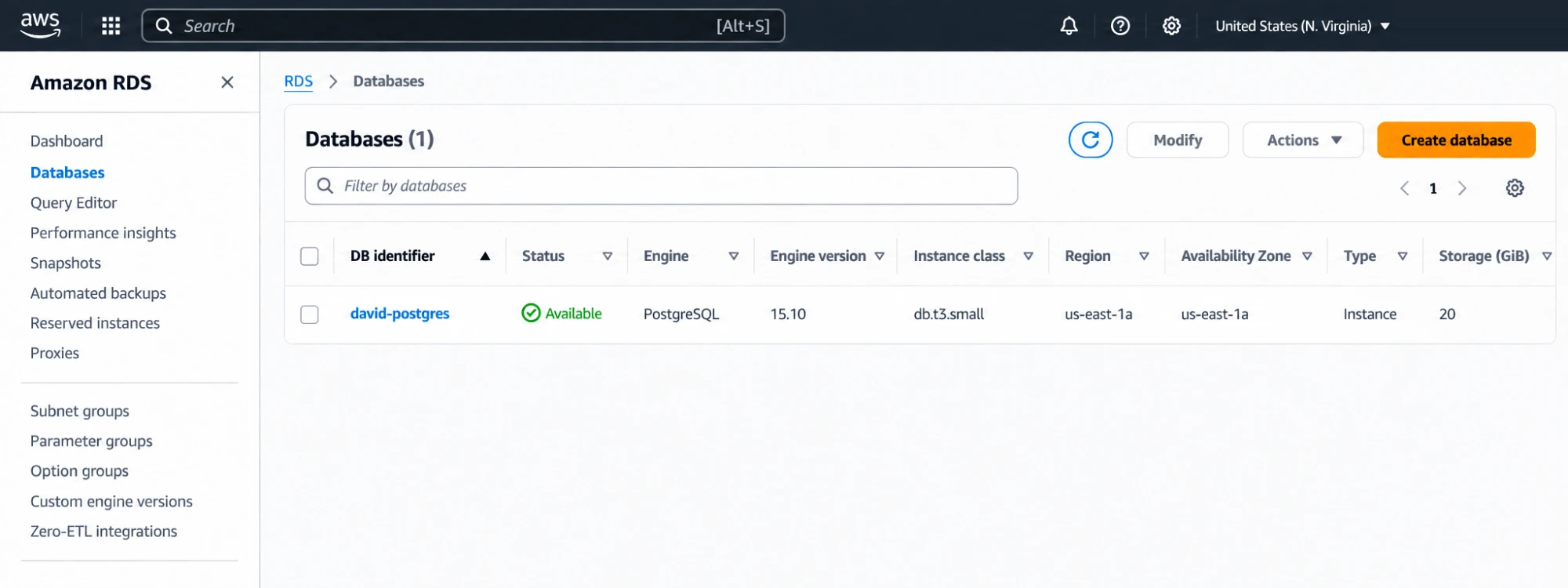
RDS instance available
The app uses these values:
DB_USERNAME=postgresadmin
DB_PASSWORD=<USE_A_UNIQUE_DATABASE_PASSWORD>
DB_HOST=<RDS endpoint>
DB_NAME=postgres
DB_PORT=5432
In a real environment, keep the password in a proper secrets manager. Don’t leave it in shell history or repo files.
4. Cloning the app repo
The repo has the frontend, backend, and Kubernetes manifests:
git clone <YOUR_REPO_URL>
cd 3-tier-app-eks/k8s
tree .
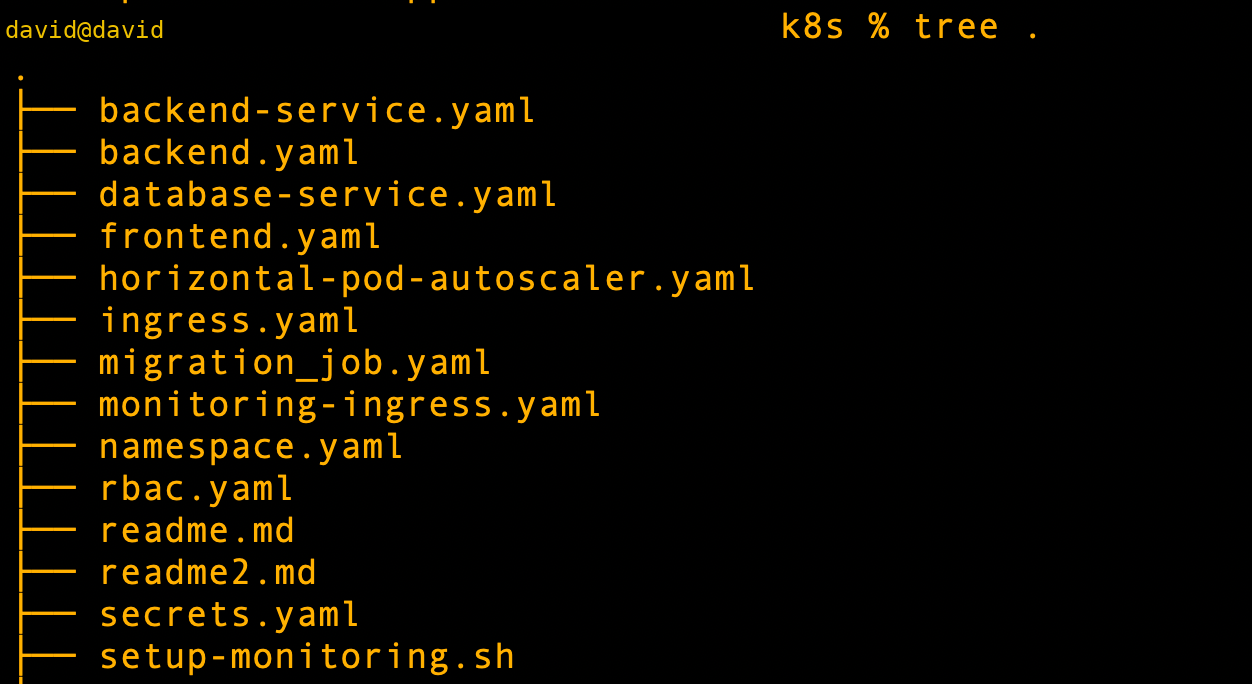
Repository and Kubernetes manifest structure after cloning
I used these prebuilt images. Swap in your own Docker Hub user:
Backend:
<DOCKERHUB_USER>/quiz-app:backend-latest

Frontend:
<DOCKERHUB_USER>/quiz-app:frontend-latest
5. Creating the namespace
I applied the namespace manifest:
kubectl apply -f namespace.yaml

3-tier-app-eks namespace created
Everything runs in this namespace:
3-tier-app-eks
A dedicated namespace keeps the app’s resources together and avoids name clashes.
6. Pointing to RDS with an ExternalName Service
I didn’t want the RDS hostname hardcoded all over the manifests. So I created a Kubernetes ExternalName Service.
Here’s database-service.yaml:
apiVersion: v1
kind: Service
metadata:
  name: postgres-db
  namespace: 3-tier-app-eks
  labels:
    service: database
spec:
  type: ExternalName
  externalName: david-postgres.cveph9nmftjh.us-east-1.rds.amazonaws.com
  ports:
    - port: 5432
I applied it:
kubectl apply -f database-service.yaml

ExternalName service created for the RDS endpoint
Now the backend can use:
postgres-db.3-tier-app-eks.svc.cluster.local
instead of the raw RDS endpoint.
I tested DNS from a throwaway pod:
kubectl run -it --rm \
  --restart=Never \
  dns-test \
  --image=tutum/dnsutils \
  -- dig postgres-db.3-tier-app-eks.svc.cluster.local
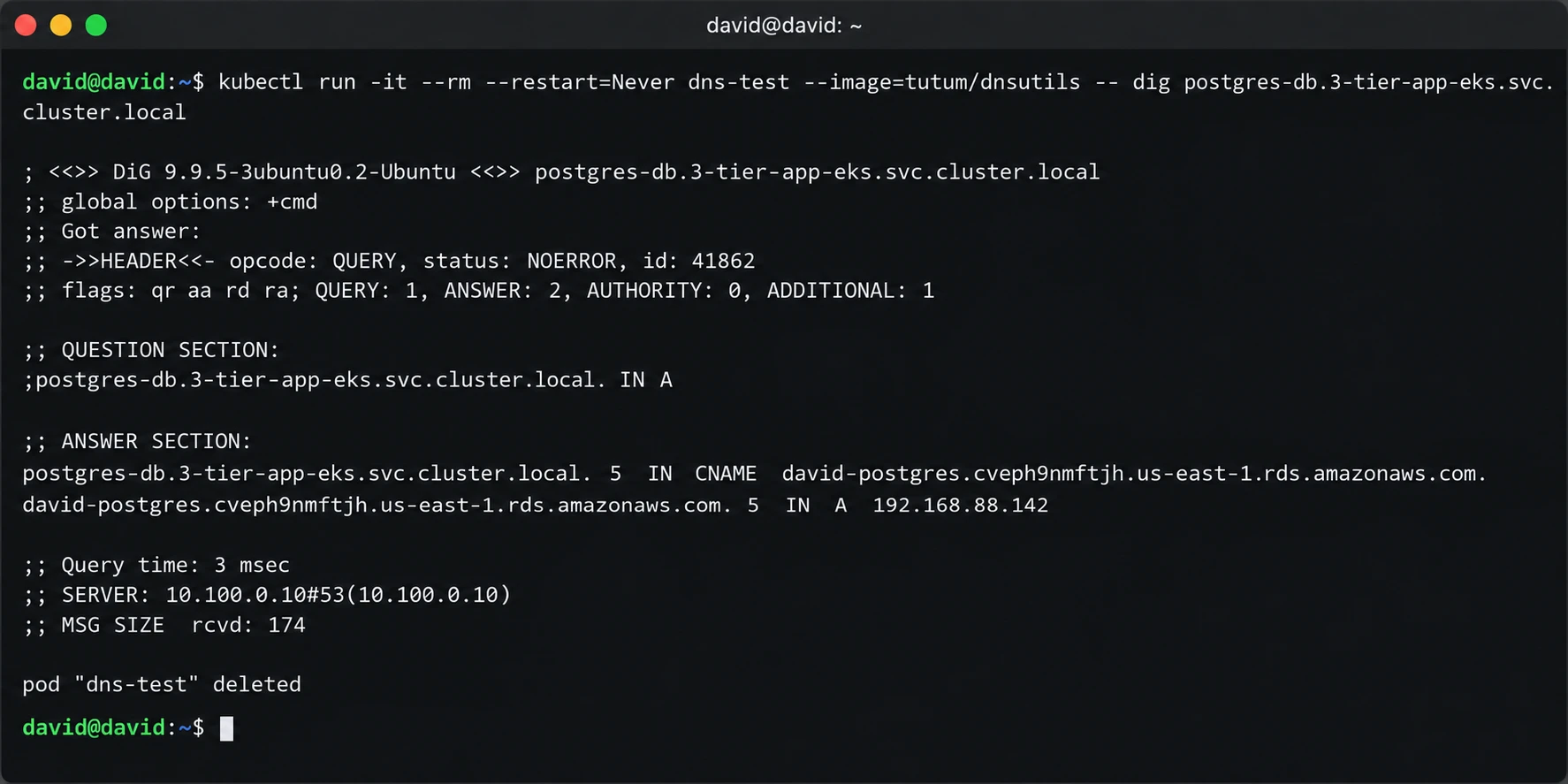
Cluster DNS lookup for the PostgreSQL service
7. Fixing database connectivity
DNS worked, but I still needed to prove the backend could connect. So I tested PostgreSQL from inside the cluster.
I started a temporary PostgreSQL client pod:
kubectl run debug-pod \
  --rm -it \
  --image=postgres \
  -- bash
From that shell I ran:
PGPASSWORD='<USE_A_UNIQUE_DATABASE_PASSWORD>' \
psql \
  -h postgres-db.3-tier-app-eks.svc.cluster.local \
  -U postgresadmin \
  -d postgres
A simple check:
SELECT COUNT(*) FROM topics;
The first attempt failed.

Database connectivity failure from the Kubernetes cluster
To prove the security group was the problem, I opened network access wide for a moment.
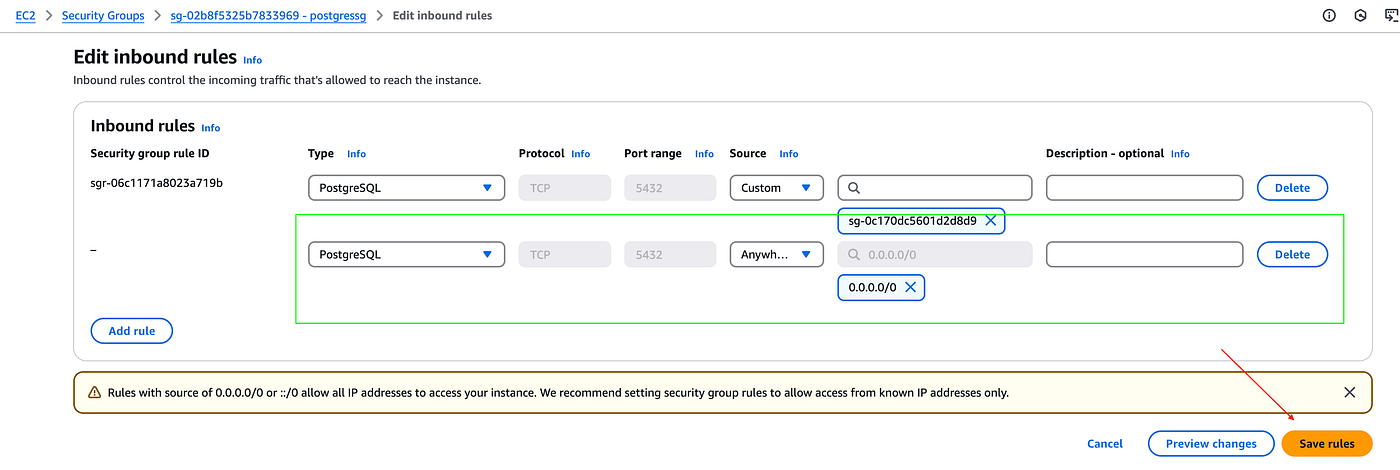
Temporary broad security-group rule used during troubleshooting
That wide rule was only for testing. Once it connected, I locked port 5432 back down to the specific EKS node or pod source.
8. Creating the Secret and ConfigMap
I encoded the database values with Base64:
echo -n 'postgresadmin' | base64
echo -n '<USE_A_UNIQUE_DATABASE_PASSWORD>' | base64
echo -n 'postgresql://postgresadmin:<USE_A_UNIQUE_DATABASE_PASSWORD>@postgres-db.3-tier-app-eks.svc.cluster.local:5432/postgres' | base64
Keep real credentials out of screenshots and source control.
Here’s secrets.yaml:
apiVersion: v1
kind: Secret
metadata:
  name: db-secrets
  namespace: 3-tier-app-eks
type: Opaque
data:
  DB_USERNAME: cG9zdGdyZXNhZG1pbg==
  DB_PASSWORD: <BASE64_ENCODED_PASSWORD>
  SECRET_KEY: <BASE64_ENCODED_APP_SECRET>
  DATABASE_URL: <BASE64_ENCODED_DATABASE_URL>
And configmap.yaml:
apiVersion: v1
kind: ConfigMap
metadata:
  name: app-config
  namespace: 3-tier-app-eks
data:
  DB_HOST: "postgres-db.3-tier-app-eks.svc.cluster.local"
  DB_NAME: "postgres"
  DB_PORT: "5432"
  FLASK_DEBUG: "0"
I applied both:
kubectl apply -f configmap.yaml
kubectl apply -f secrets.yaml
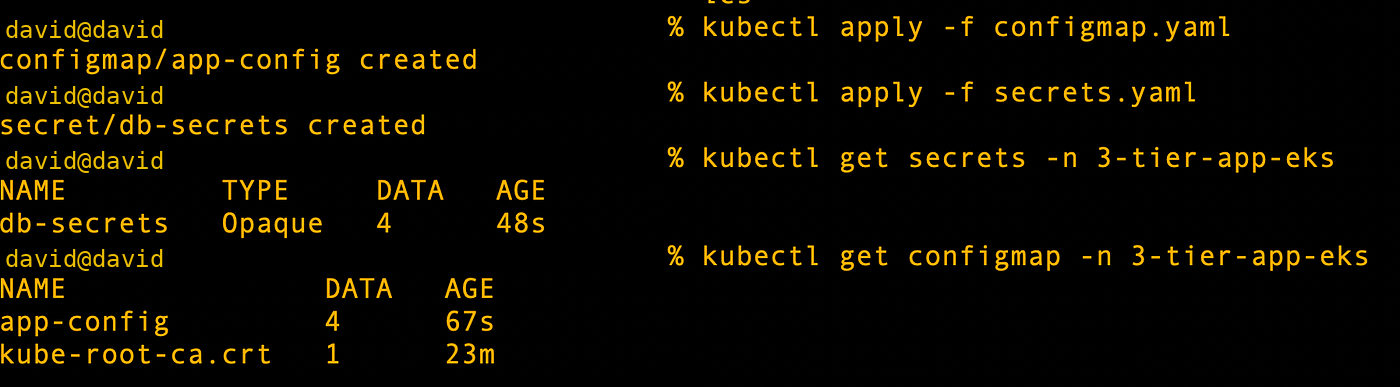
ConfigMap and Secret objects applied
Base64 is encoding, not encryption. In production, secrets still need RBAC and encryption at rest. Ideally they come from an external secrets system.
9. Running the migration job
Before starting the Flask API, I ran a Kubernetes Job. It creates the tables and seed data.
kubectl apply -f migration_job.yaml
I checked the Job and its pod:
kubectl get jobs -A
kubectl get pods -n 3-tier-app-eks
kubectl logs <migration-pod-name> -n 3-tier-app-eks
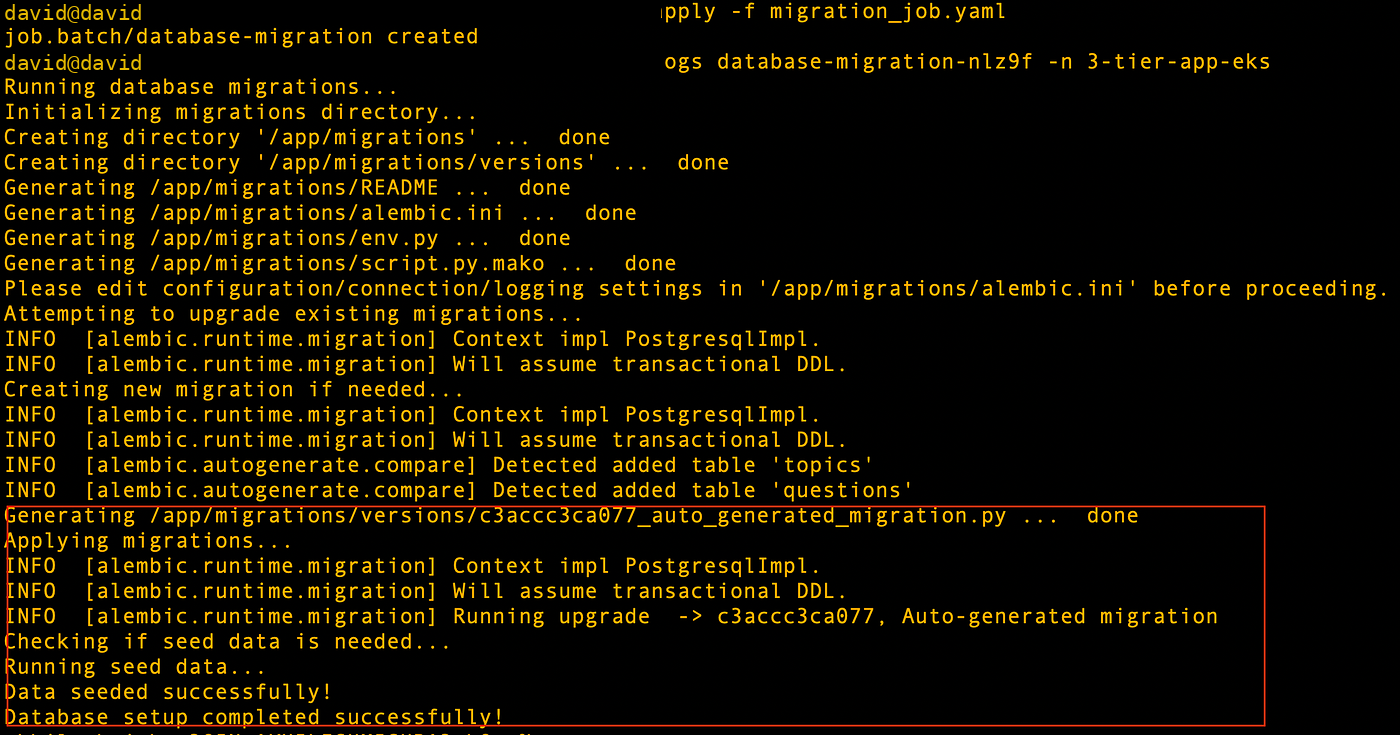
Database migration Job completing in the application namespace
The migration has to finish before the backend depends on the new schema.
10. Deploying the backend and frontend
I applied the app manifests:
kubectl apply -f backend.yaml
kubectl apply -f frontend.yaml

Frontend and backend resources deployed
Then I checked the deployments, services, and pods:
kubectl get deployments -n 3-tier-app-eks
kubectl get svc -n 3-tier-app-eks
kubectl get pods -n 3-tier-app-eks
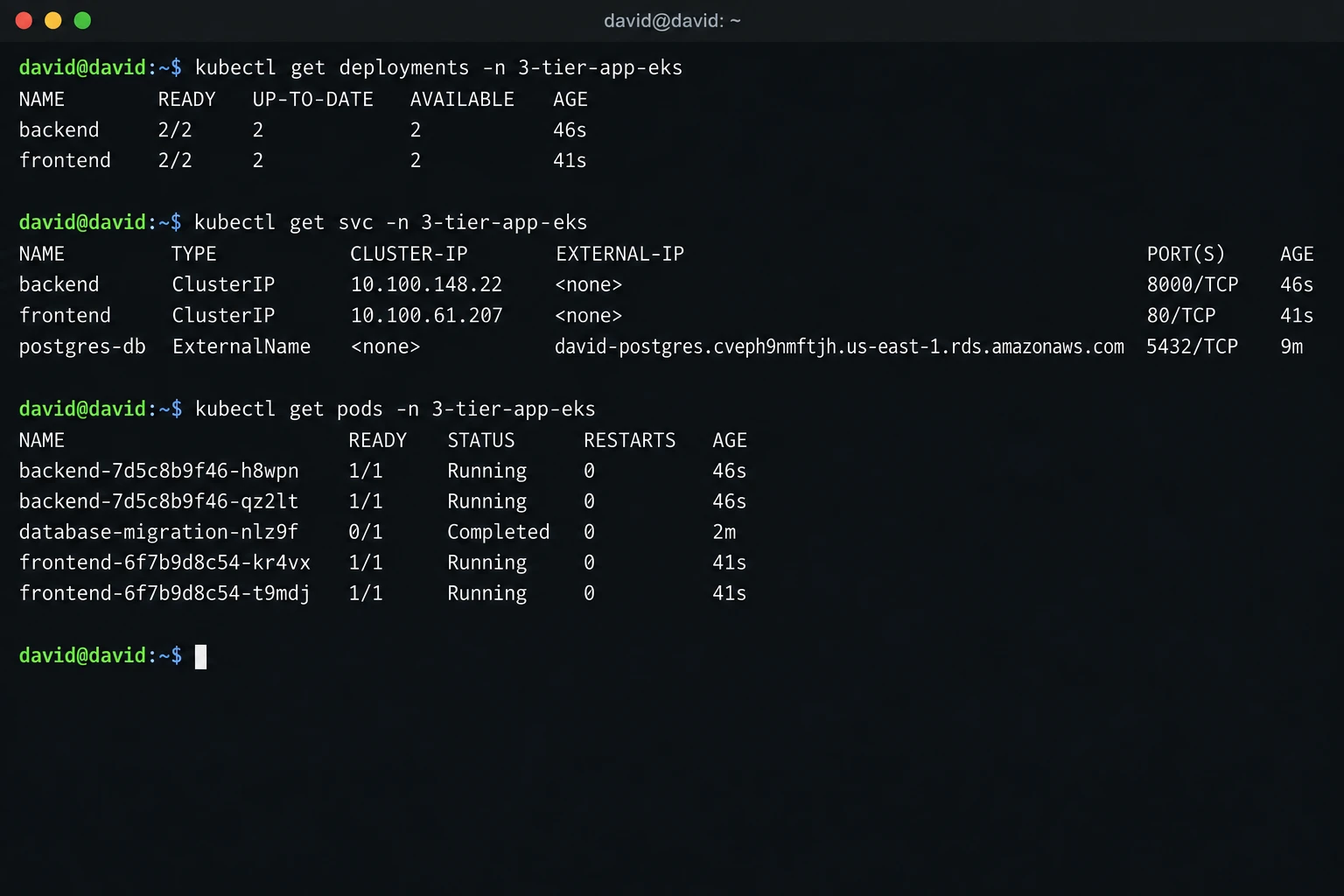
Deployments, services, and pods running
If something fails, check the logs:
kubectl logs -n 3-tier-app-eks -l app=backend
kubectl logs -n 3-tier-app-eks -l app=frontend
11. Testing before adding Ingress
Before adding a load balancer, I tested both services locally with port forwarding.
Backend:
kubectl port-forward \
  -n 3-tier-app-eks \
  svc/backend \
  8000:8000
Frontend:
kubectl port-forward \
  -n 3-tier-app-eks \
  svc/frontend \
  8080:80

Local port forwarding for backend and frontend services
I tested the backend API:
curl http://localhost:8000/api/topics

Backend API responding through localhost port forwarding
And opened the frontend:
http://127.0.0.1:8080
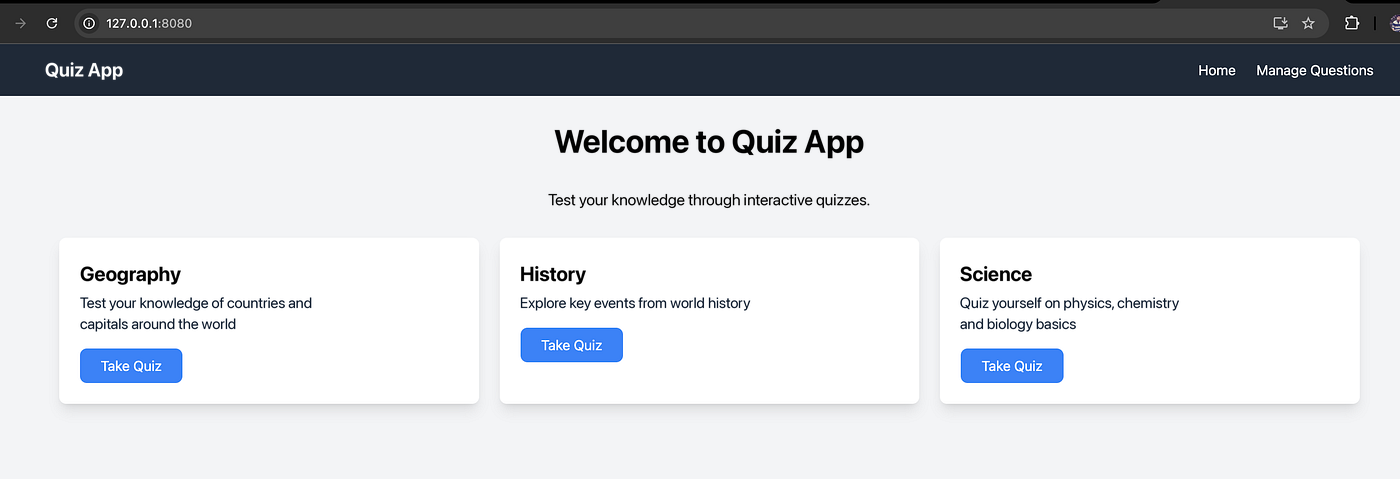
Frontend quiz application accessed locally
Testing locally first splits app problems from Ingress and load balancer problems.
12. Adding an OIDC provider to EKS
The AWS Load Balancer Controller uses an IAM role tied to a Kubernetes service account.
I associated the IAM OIDC provider with the cluster:
eksctl utils associate-iam-oidc-provider \
  --region us-east-1 \
  --cluster "$cluster_name" \
  --approve
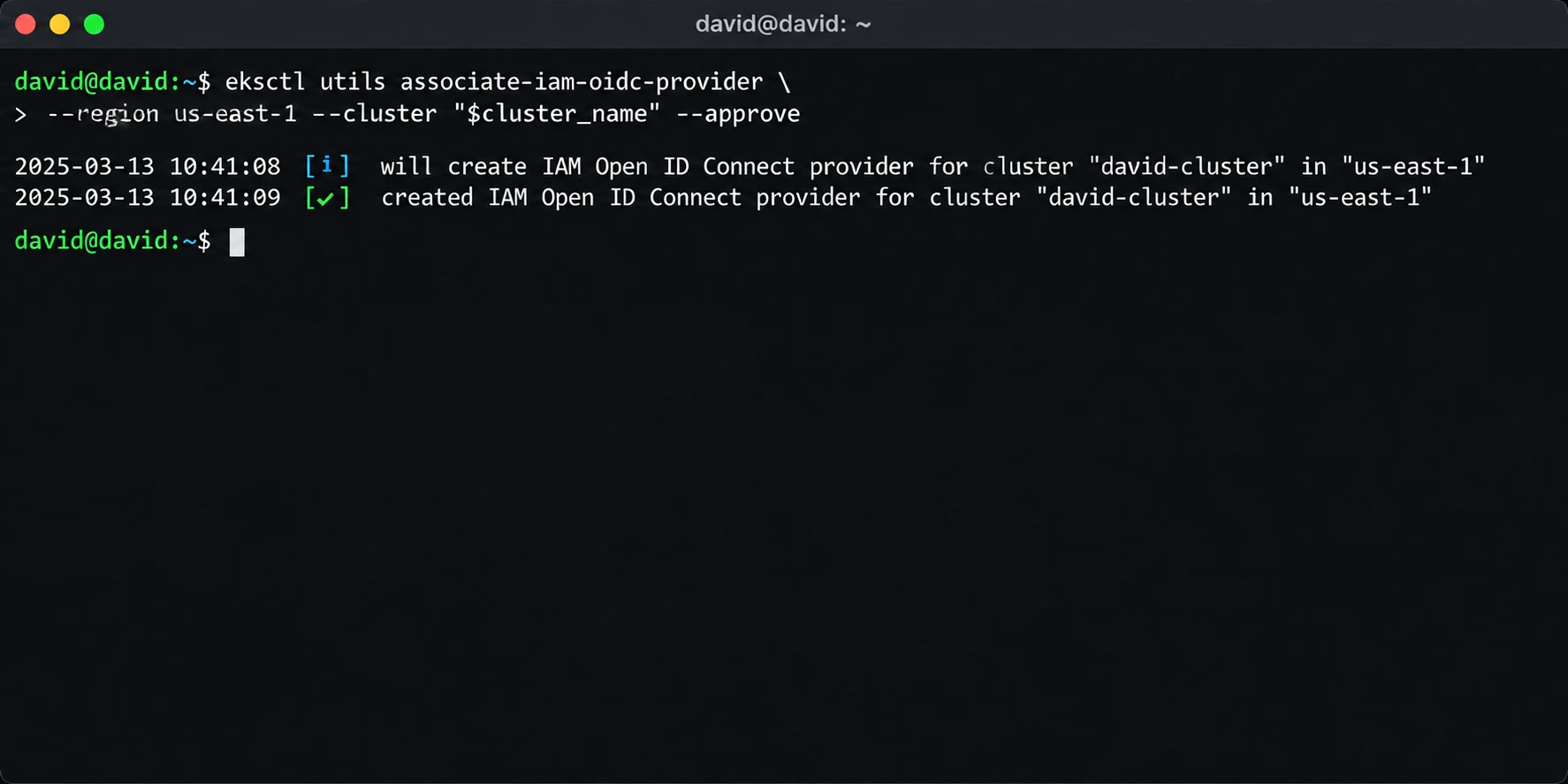
EKS OIDC provider associated with the cluster
This lets specific service accounts assume IAM roles. No static AWS keys inside pods.
13. Creating the controller IAM policy
I downloaded the controller policy:
curl -O \
https://raw.githubusercontent.com/kubernetes-sigs/aws-load-balancer-controller/v2.11.0/docs/install/iam_policy.json
And created it in IAM:
aws iam create-policy \
  --policy-name AWSLoadBalancerControllerIAMPolicy \
  --policy-document file://iam_policy.json
Use your own account ID in the policy ARN in the next step.
14. Creating the controller service account
I created the service account and attached the policy with eksctl:
eksctl create iamserviceaccount \
  --cluster="$cluster_name" \
  --namespace=kube-system \
  --name=aws-load-balancer-controller \
  --role-name AmazonEKSLoadBalancerControllerRole \
  --attach-policy-arn=arn:aws:iam::<ACCOUNT_ID>:policy/AWSLoadBalancerControllerIAMPolicy \
  --approve
Then checked it:
kubectl get serviceaccount \
  -n kube-system | grep aws-load-balancer-controller
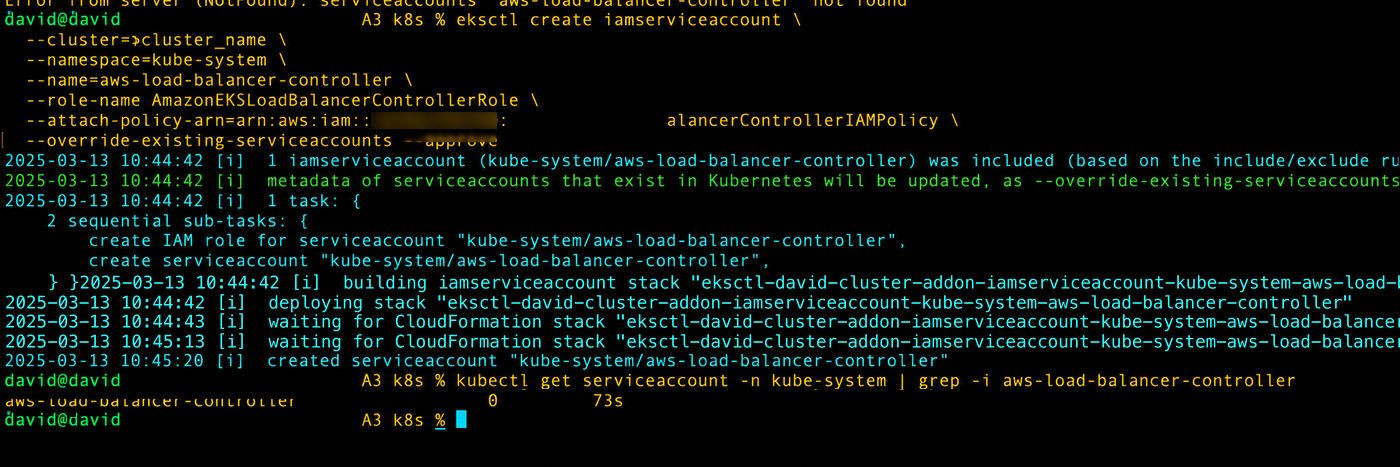
AWS Load Balancer Controller service account created
15. Installing the Load Balancer Controller
I applied the controller CRDs:
kubectl apply -k \
"github.com/aws/eks-charts/stable/aws-load-balancer-controller/crds?ref=master"
Added the EKS Helm repo:
helm repo add eks https://aws.github.io/eks-charts
helm repo update
Grabbed the VPC ID:
VPC_ID=$(aws eks describe-cluster \
  --name david-cluster \
  --region us-east-1 \
  --query "cluster.resourcesVpcConfig.vpcId" \
  --output text)
Installed the controller:
helm install aws-load-balancer-controller \
  eks/aws-load-balancer-controller \
  -n kube-system \
  --set clusterName="$cluster_name" \
  --set serviceAccount.create=false \
  --set serviceAccount.name=aws-load-balancer-controller \
  --set vpcId="$VPC_ID" \
  --set region=us-east-1
And checked the deployment:
kubectl get deployment \
  -n kube-system \
  aws-load-balancer-controller
16. Creating the ALB Ingress
Here’s ingress.yaml:
apiVersion: networking.k8s.io/v1
kind: IngressClass
metadata:
  name: alb
  annotations:
    ingressclass.kubernetes.io/is-default-class: "false"
spec:
  controller: ingress.k8s.aws/alb
---
apiVersion: networking.k8s.io/v1
kind: Ingress
metadata:
  name: 3-tier-app-ingress
  namespace: 3-tier-app-eks
  annotations:
    alb.ingress.kubernetes.io/scheme: "internet-facing"
    alb.ingress.kubernetes.io/target-type: "ip"
    alb.ingress.kubernetes.io/healthcheck-path: "/"
spec:
  ingressClassName: alb
  rules:
    - http:
        paths:
          - path: /api
            pathType: Prefix
            backend:
              service:
                name: backend
                port:
                  number: 8000
          - path: /
            pathType: Prefix
            backend:
              service:
                name: frontend
                port:
                  number: 80
I applied it:
kubectl apply -f ingress.yaml
Then I checked the status and controller logs:
kubectl get ingress -n 3-tier-app-eks

kubectl describe ingress \
  3-tier-app-ingress \
  -n 3-tier-app-eks

kubectl logs \
  -n kube-system \
  -l app.kubernetes.io/name=aws-load-balancer-controller
The ALB failed to provision. The subnets were missing the discovery tags the controller looks for.
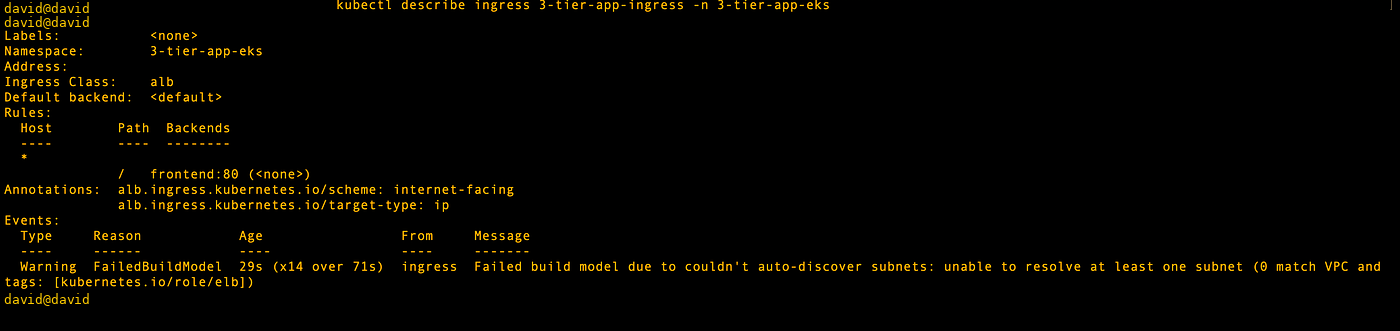
ALB provisioning failure caused by missing subnet tags
I deleted the failed Ingress before retrying:
kubectl delete ingress \
  3-tier-app-ingress \
  -n 3-tier-app-eks
A finalizer blocked the delete. So I removed the finalizer and force deleted it:
kubectl patch ingress \
  3-tier-app-ingress \
  -n 3-tier-app-eks \
  -p '{"metadata":{"finalizers":[]}}' \
  --type=merge

kubectl delete ingress \
  3-tier-app-ingress \
  -n 3-tier-app-eks \
  --grace-period=0 \
  --force
17. Tagging public subnets for the ALB
I listed the public subnets in the EKS VPC:
VPC_ID=$(aws eks describe-cluster \
  --name david-cluster \
  --region us-east-1 \
  --query "cluster.resourcesVpcConfig.vpcId" \
  --output text)

aws ec2 describe-subnets \
  --filters \
    "Name=vpc-id,Values=$VPC_ID" \
    "Name=map-public-ip-on-launch,Values=true" \
  --query "Subnets[*].{SubnetId:SubnetId,AvailabilityZone:AvailabilityZone,PublicIp:MapPublicIpOnLaunch}"
Tagged them:
aws ec2 create-tags \
  --resources \
    subnet-05c313851d6e027e0 \
    subnet-002f8dde08d2f1643 \
    subnet-0f8aabbf5f8538d81 \
  --tags Key=kubernetes.io/role/elb,Value=1
Checked the tags:
aws ec2 describe-subnets \
  --subnet-ids \
    subnet-05c313851d6e027e0 \
    subnet-002f8dde08d2f1643 \
    subnet-0f8aabbf5f8538d81 \
  --query "Subnets[*].{SubnetId:SubnetId,Tags:Tags}"
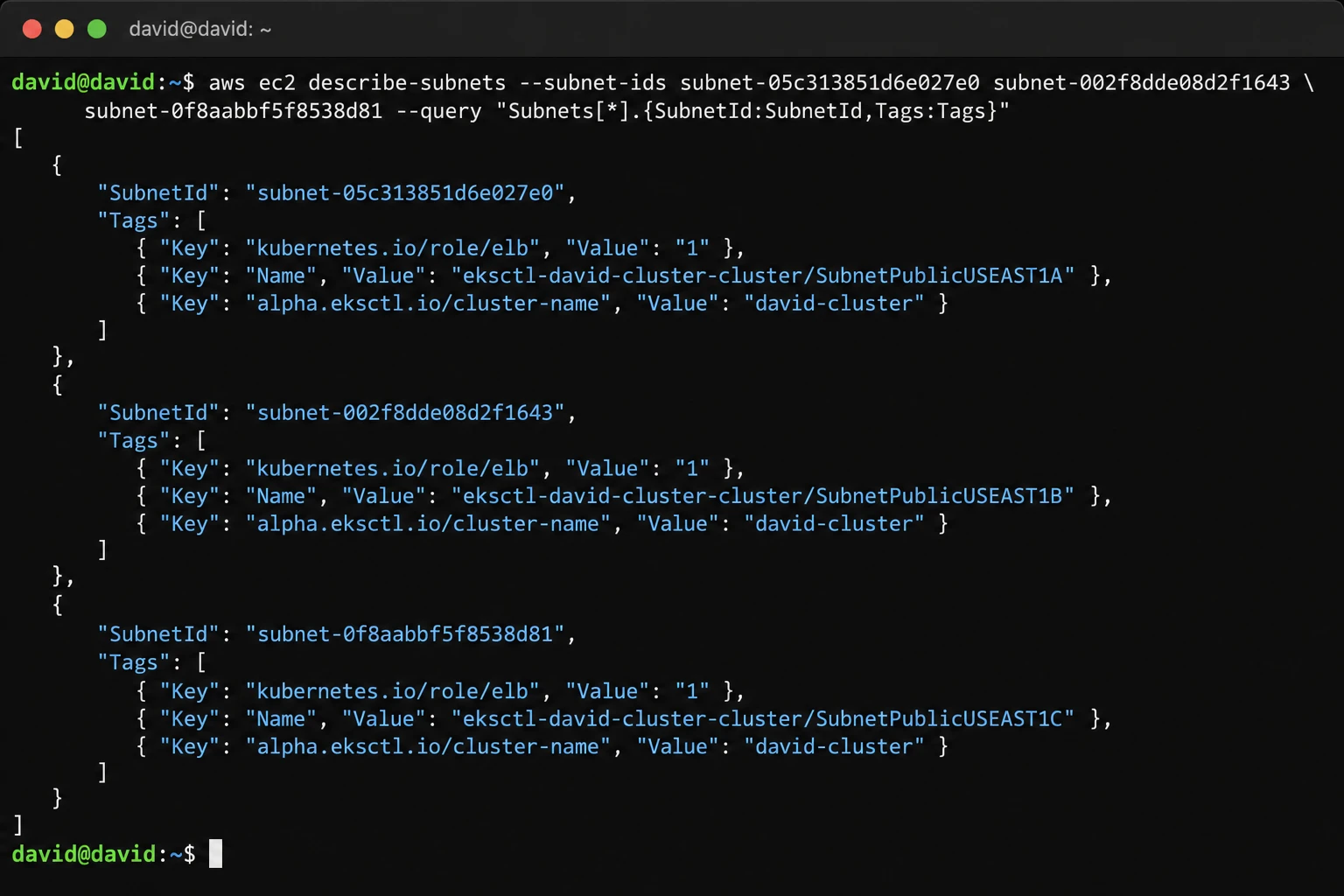
Public EKS subnets tagged for ALB discovery
And reapplied the Ingress:
kubectl apply -f ingress.yaml
kubectl get ingress -n 3-tier-app-eks

Ingress reconciled after correcting subnet tags
18. Checking the ALB
Once the Ingress showed an address, the controller had created a real Application Load Balancer.
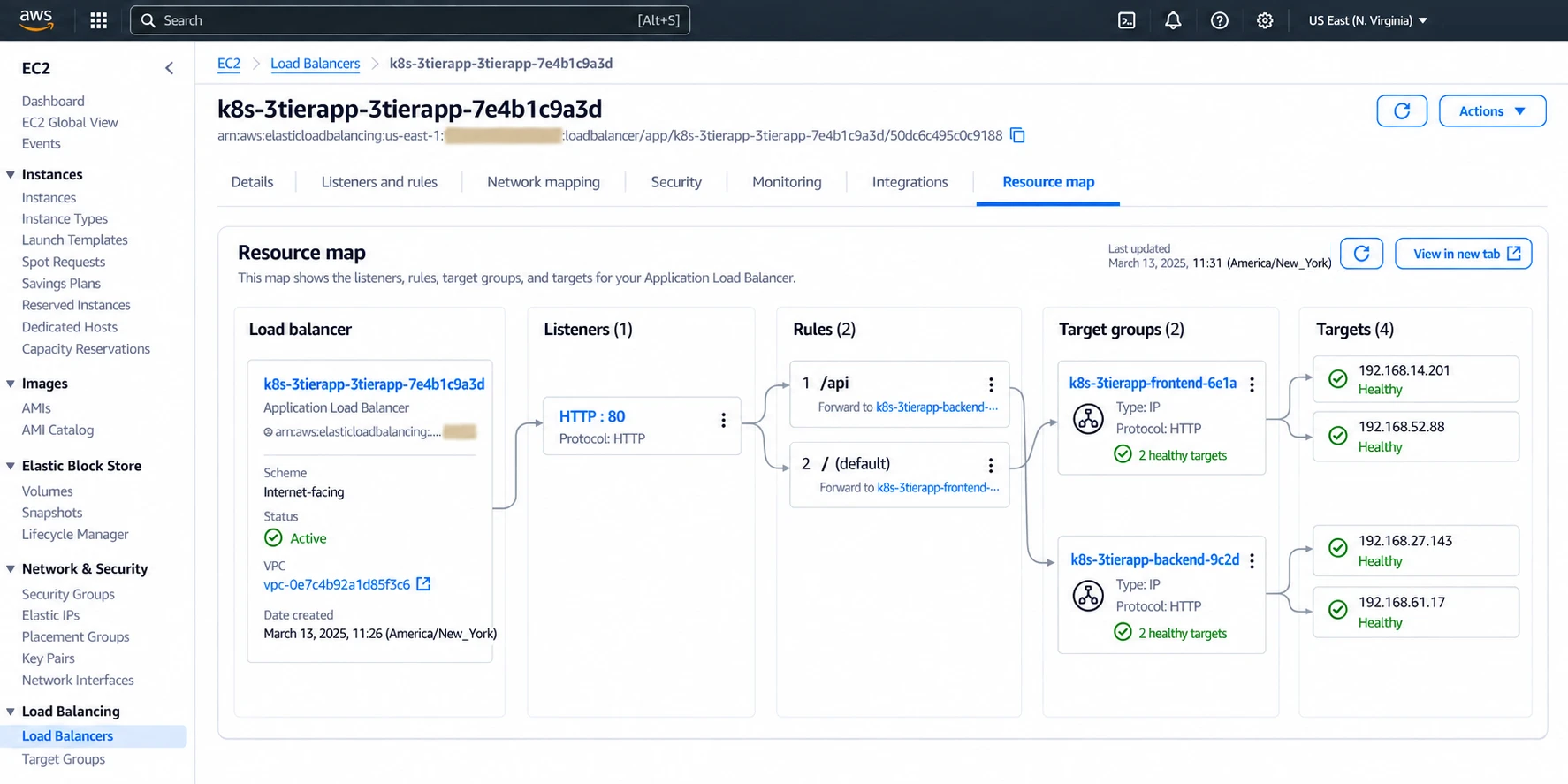
AWS Application Load Balancer created for the Kubernetes Ingress
I opened the ALB DNS name in a browser. / goes to the frontend. Anything under /api goes to the backend.
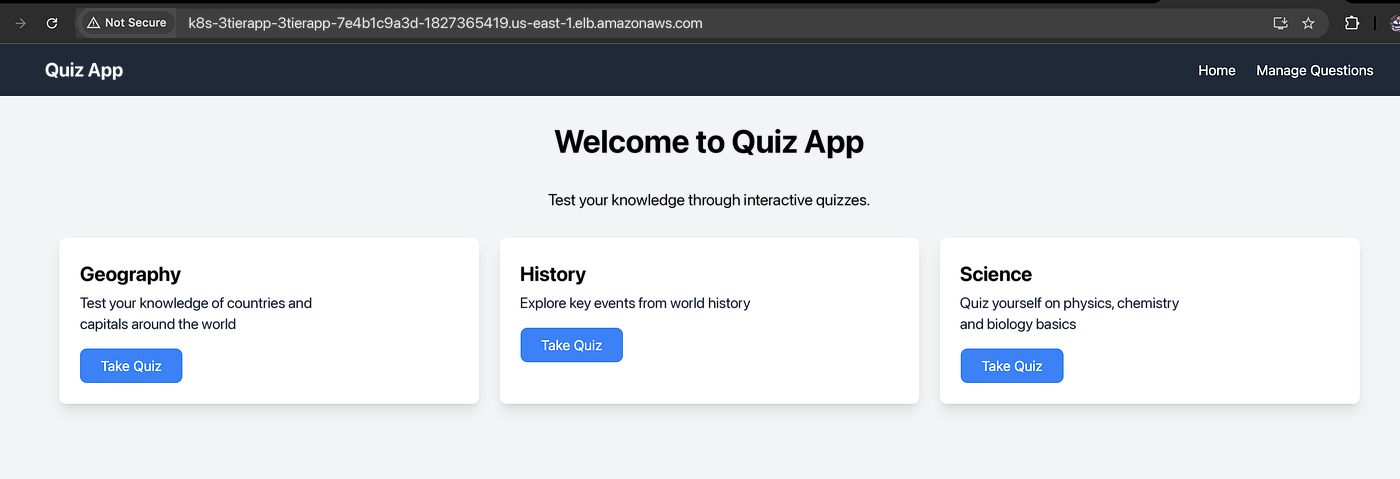
Three-tier application reached through the ALB
The site was public now, but only on the ALB’s generated AWS hostname.
19. Creating a Route 53 hosted zone
I created a hosted zone for:
davidinsider.com
Here’s the command:
aws route53 create-hosted-zone \
  --name davidinsider.com \
  --caller-reference "$(date +%s)" \
  --hosted-zone-config \
  Comment="Public hosted zone for davidinsider.com"
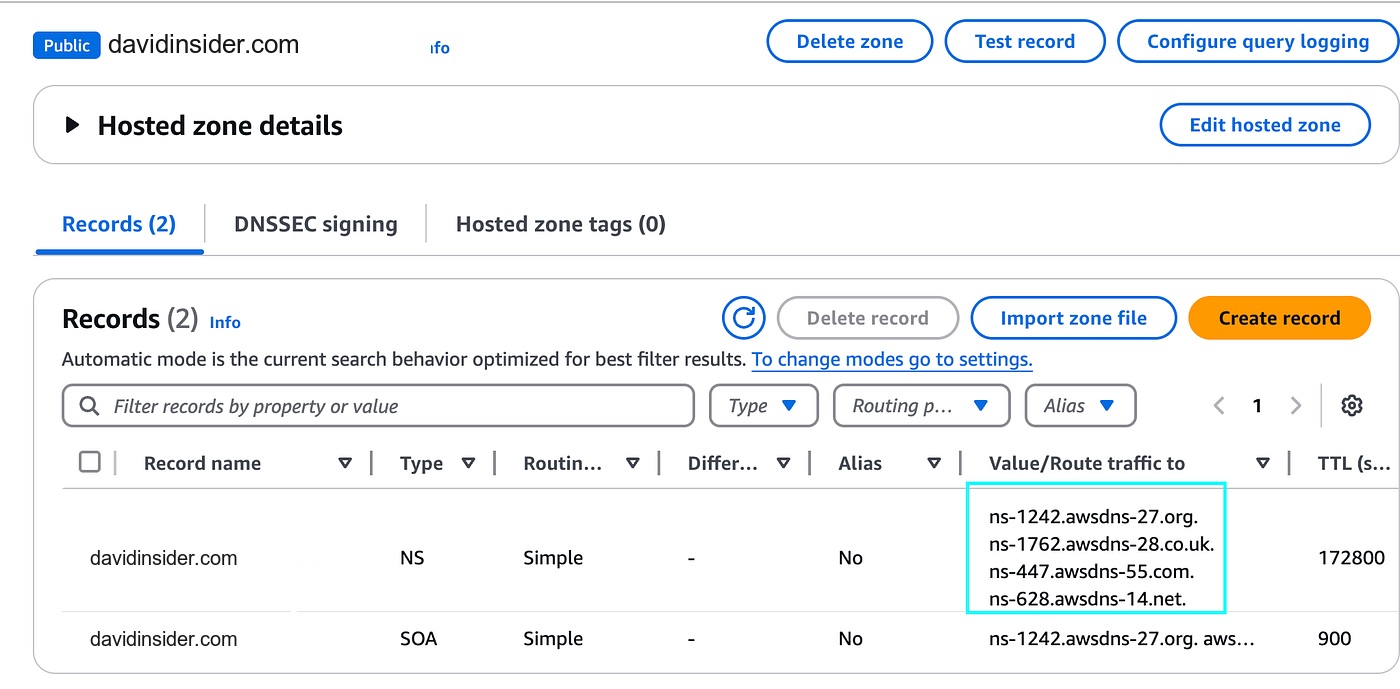
Route 53 hosted zone created for the custom domain
I copied the Route 53 nameservers into my domain registrar so Route 53 became authoritative.
Then I got the ALB hostname:
ALB_DNS=$(kubectl get ingress \
  3-tier-app-ingress \
  -n 3-tier-app-eks \
  -o jsonpath='{.status.loadBalancer.ingress[0].hostname}')

echo "ALB DNS Name: $ALB_DNS"
And the hosted zone ID:
ZONE_ID=$(aws route53 list-hosted-zones-by-name \
  --dns-name davidinsider.com \
  --query "HostedZones[0].Id" \
  --output text | sed 's|/hostedzone/||')

echo "Hosted Zone ID: $ZONE_ID"
Then I created an alias record:
eks.davidinsider.com → Application Load Balancer
Use the right ALB hosted zone ID for your region and load balancer. Don’t copy mine blindly.
20. Adding HTTPS with cert-manager
Next I secured the domain with TLS.
Here’s the flow:
cert-manager
   |
   +--> Let's Encrypt ACME request
   |
   +--> Route 53 DNS-01 validation through IAM/IRSA
   |
   +--> Kubernetes TLS Secret
   |
   +--> Certificate imported into ACM
   |
   +--> ALB listens on HTTPS/443
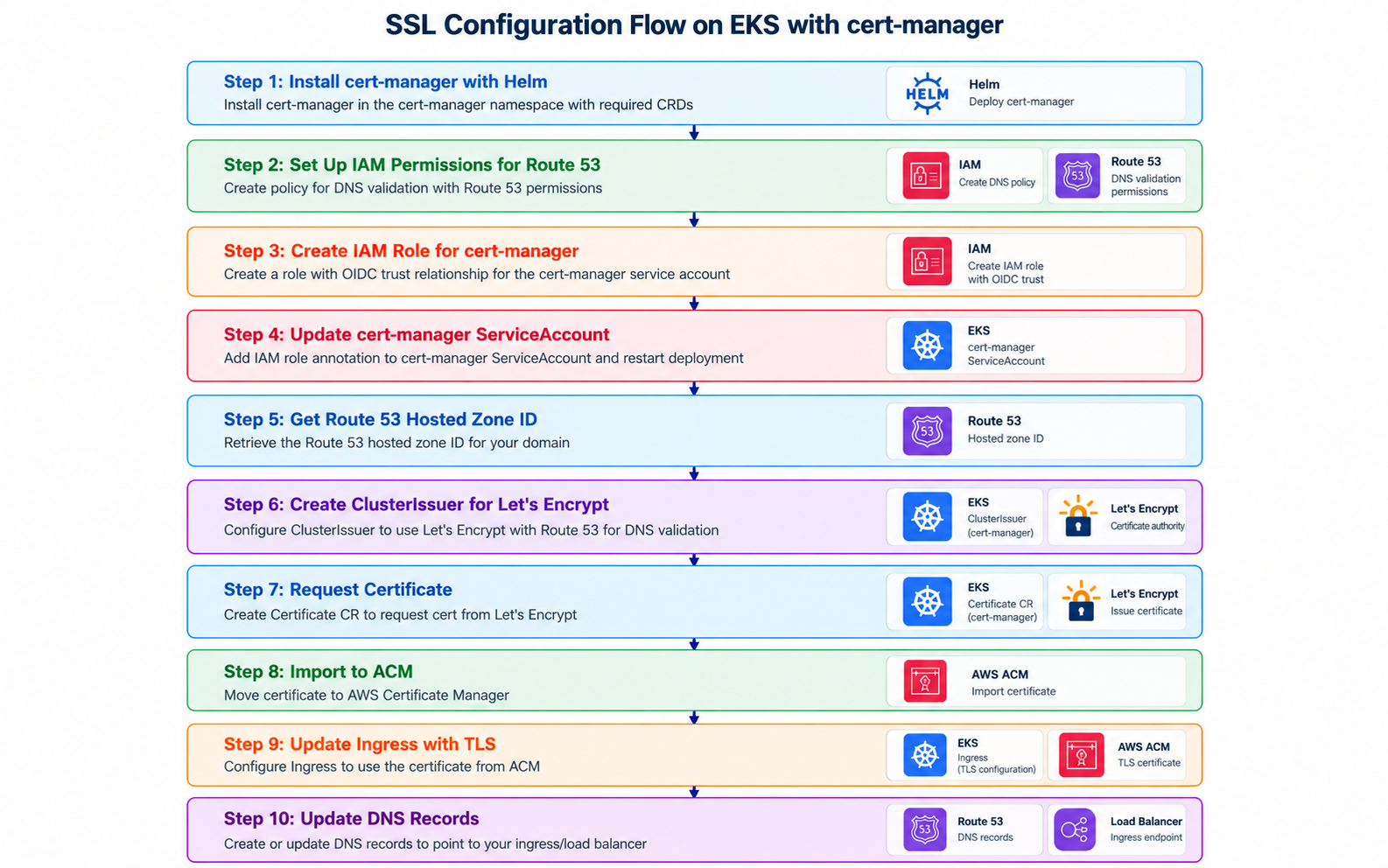
HTTPS and certificate-management workflow overview
21. Installing cert-manager with Helm
I added the Jetstack repo:
helm repo add jetstack https://charts.jetstack.io
helm repo update
Installed cert-manager with CRDs:
helm install cert-manager \
  jetstack/cert-manager \
  --namespace cert-manager \
  --create-namespace \
  --version v1.13.3 \
  --set installCRDs=true
And checked the pods:
kubectl get pods -n cert-manager
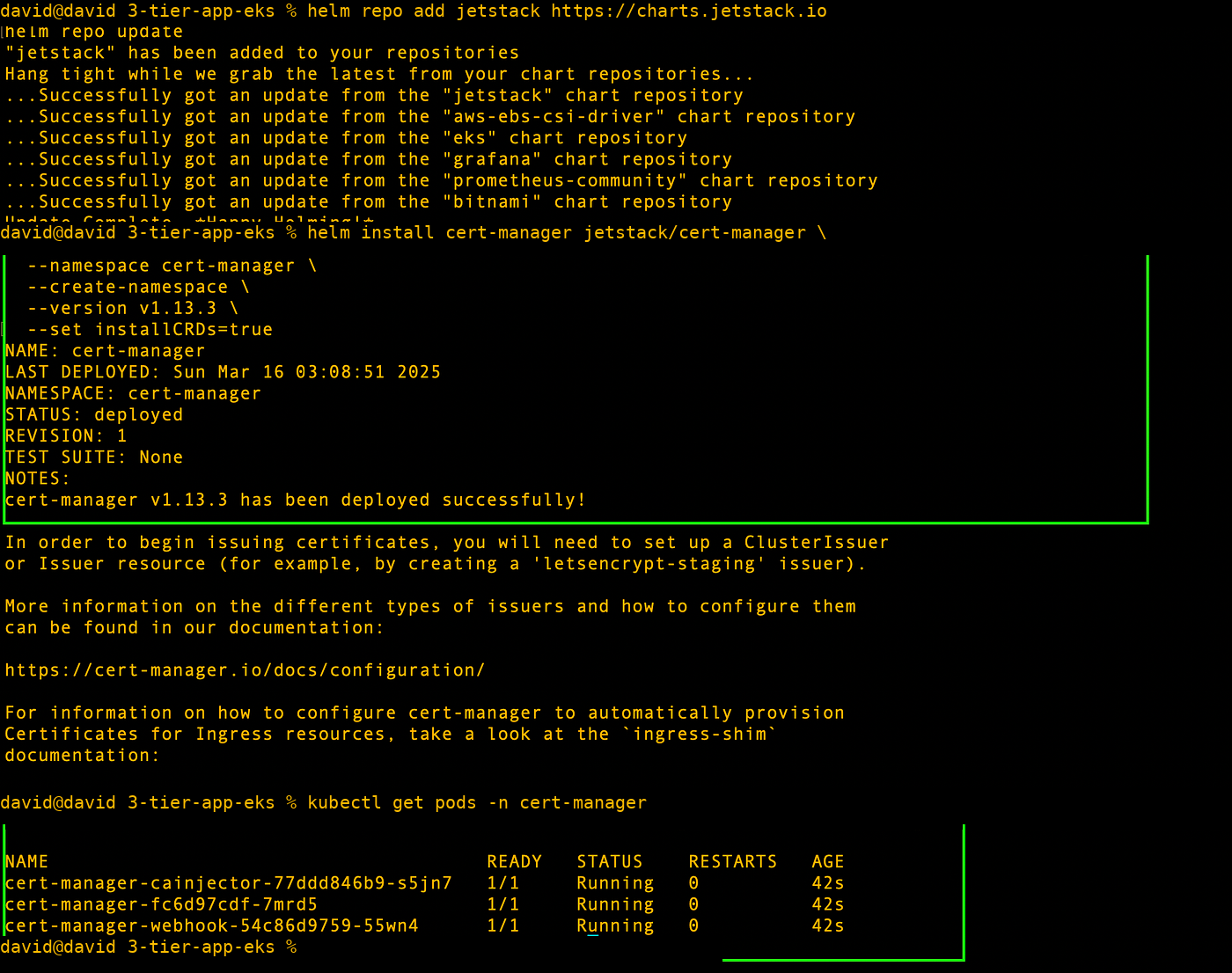
cert-manager pods running after Helm installation
That’s the version I pinned at the time. Check current compatibility before reusing it.
22. Letting cert-manager update Route 53
I created route53-policy.json:
{
  "Version": "2012-10-17",
  "Statement": [
    {
      "Effect": "Allow",
      "Action": "route53:GetChange",
      "Resource": "arn:aws:route53:::change/*"
    },
    {
      "Effect": "Allow",
      "Action": [
        "route53:ChangeResourceRecordSets",
        "route53:ListResourceRecordSets"
      ],
      "Resource": "arn:aws:route53:::hostedzone/*"
    },
    {
      "Effect": "Allow",
      "Action": "route53:ListHostedZonesByName",
      "Resource": "*"
    }
  ]
}
Created the policy:
aws iam create-policy \
  --policy-name CertManagerRoute53 \
  --policy-document file://route53-policy.json
And got its ARN:
aws iam list-policies \
  --query 'Policies[?PolicyName==`CertManagerRoute53`].Arn' \
  --output text
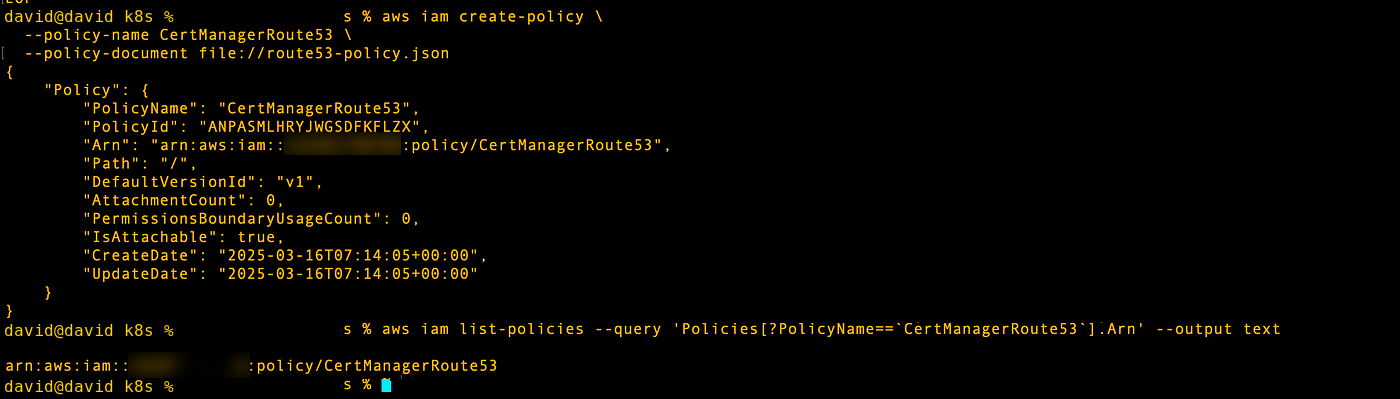
Route 53 permission policy created for cert-manager
For production, limit Route 53 access to the exact hosted zone if you can.
23. Creating an IAM role for cert-manager
I got the EKS OIDC provider:
export CLUSTER_NAME=david-cluster

export OIDC_PROVIDER=$(aws eks describe-cluster \
  --name "$CLUSTER_NAME" \
  --query "cluster.identity.oidc.issuer" \
  --output text | sed -e "s|^https://||")
Then I created certmanager-trust-policy.json with my account ID and OIDC provider filled in:
{
  "Version": "2012-10-17",
  "Statement": [
    {
      "Effect": "Allow",
      "Principal": {
        "Federated": "arn:aws:iam::<ACCOUNT_ID>:oidc-provider/<OIDC_PROVIDER>"
      },
      "Action": "sts:AssumeRoleWithWebIdentity",
      "Condition": {
        "StringEquals": {
          "<OIDC_PROVIDER>:sub": "system:serviceaccount:cert-manager:cert-manager"
        }
      }
    }
  ]
}
Created the role:
aws iam create-role \
  --role-name CertManagerRoute53Role \
  --assume-role-policy-document file://certmanager-trust-policy.json
Attached the Route 53 policy:
aws iam attach-role-policy \
  --role-name CertManagerRoute53Role \
  --policy-arn arn:aws:iam::<ACCOUNT_ID>:policy/CertManagerRoute53
And saved the role ARN:
export ROLE_ARN=$(aws iam get-role \
  --role-name CertManagerRoute53Role \
  --query Role.Arn \
  --output text)

echo "$ROLE_ARN"
24. Annotating the cert-manager service account
I bound the service account to the IAM role:
kubectl annotate serviceaccount cert-manager \
  --namespace cert-manager \
  eks.amazonaws.com/role-arn="$ROLE_ARN"
Then restarted cert-manager so it picked up the new identity:
kubectl rollout restart \
  deployment cert-manager \
  -n cert-manager
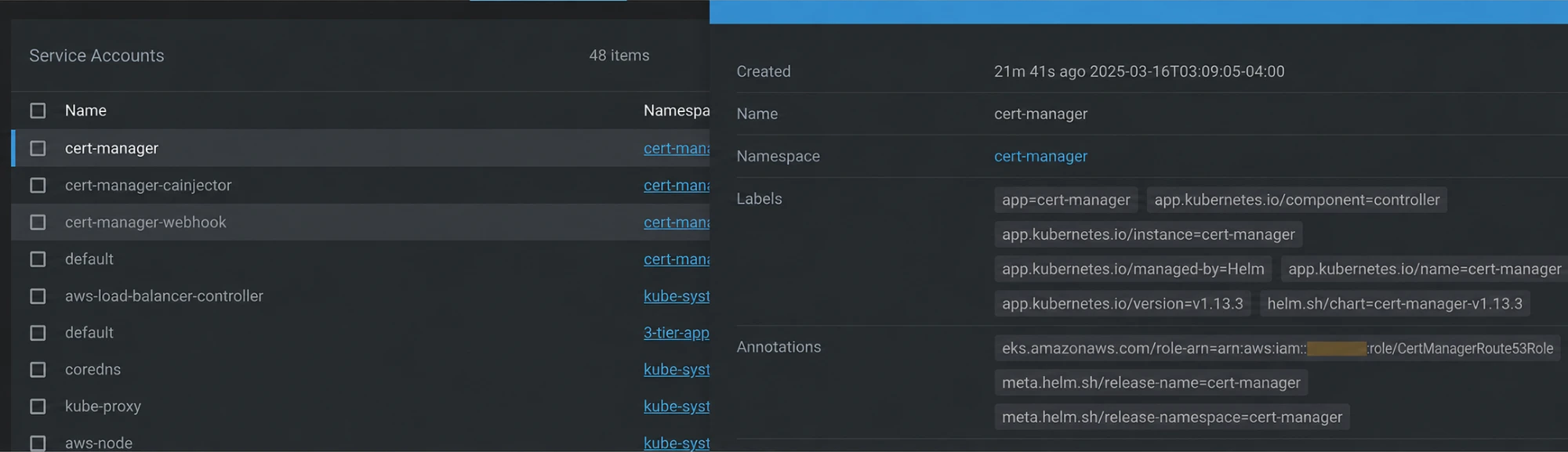
cert-manager service account annotated with the IAM role
25. Getting the hosted zone ID
I set the domain and pulled its zone ID:
export DOMAIN="davidinsider.com"

export HOSTED_ZONE_ID=$(aws route53 list-hosted-zones-by-name \
  --dns-name "$DOMAIN" \
  --query "HostedZones[0].Id" \
  --output text | sed 's|/hostedzone/||')

echo "$HOSTED_ZONE_ID"
26. Creating the Let’s Encrypt ClusterIssuer
Here’s cluster-issuer.yaml:
apiVersion: cert-manager.io/v1
kind: ClusterIssuer
metadata:
  name: letsencrypt-dev
spec:
  acme:
    server: https://acme-v02.api.letsencrypt.org/directory
    email: you@example.com
    privateKeySecretRef:
      name: letsencrypt-dev-account-key
    solvers:
      - selector:
          dnsZones:
            - "davidinsider.com"
        dns01:
          route53:
            region: us-east-1
            hostedZoneID: <YOUR_HOSTED_ZONE_ID>
I applied it and checked it:
kubectl apply -f cluster-issuer.yaml
kubectl get clusterissuer letsencrypt-dev -o wide

Let’s Encrypt ClusterIssuer created
I named the issuer letsencrypt-dev, but it points at Let’s Encrypt’s production ACME endpoint. That name is misleading. Pick a name that matches the endpoint you actually use.
27. Requesting the certificate
I created certificate.yaml:
apiVersion: cert-manager.io/v1
kind: Certificate
metadata:
  name: example-com-tls
  namespace: 3-tier-app-eks
spec:
  secretName: example-com-tls
  issuerRef:
    name: letsencrypt-dev
    kind: ClusterIssuer
  dnsNames:
    - "eks.davidinsider.com"
    - "www.eks.davidinsider.com"
Applied it:
kubectl apply -f certificate.yaml
And tracked the request:
kubectl get certificate -n 3-tier-app-eks
kubectl get certificaterequest -n 3-tier-app-eks
kubectl get order -n 3-tier-app-eks
kubectl get challenge -n 3-tier-app-eks
kubectl get secret example-com-tls -n 3-tier-app-eks
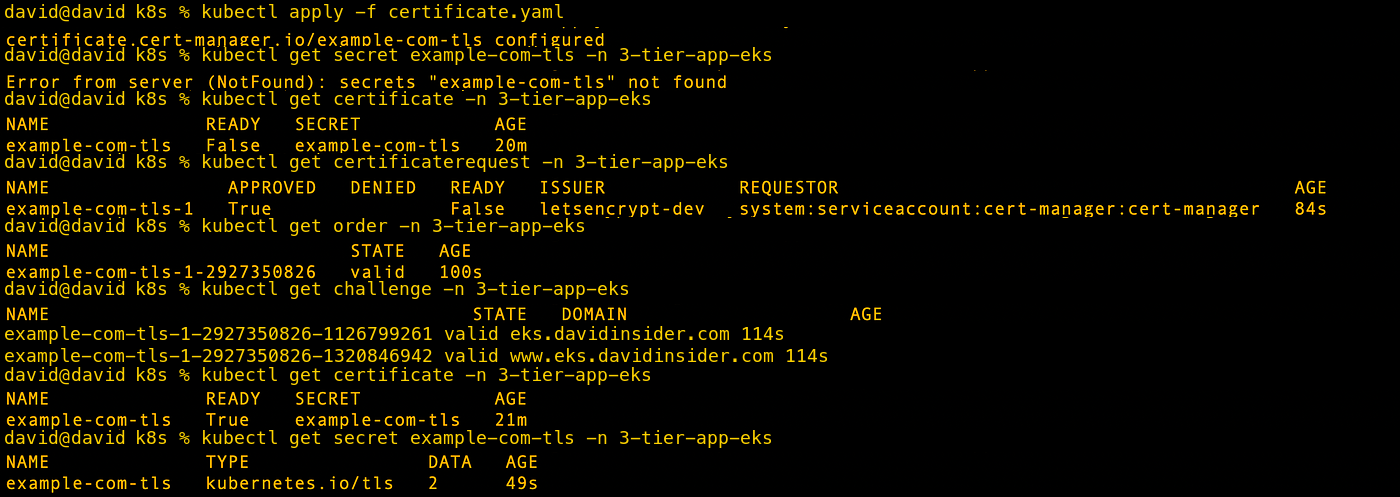
Certificate request and DNS challenge progressing
Once DNS validation passed, cert-manager saved the certificate and private key in the Kubernetes Secret.
28. Importing the certificate into ACM
I exported the TLS files from the Secret.
The certificate chain:
kubectl get secret example-com-tls \
  -n 3-tier-app-eks \
  -o jsonpath='{.data.tls\.crt}' \
  | base64 --decode > combined.crt
Pulled out the leaf certificate:
awk 'BEGIN {c=0} /BEGIN CERT/{c++} {if(c==1) print $0}' \
  combined.crt > cert.pem
Pulled out the rest of the chain:
awk 'BEGIN {c=0} /BEGIN CERT/{c++} {if(c>1) print $0}' \
  combined.crt > chain.pem
Exported the private key:
kubectl get secret example-com-tls \
  -n 3-tier-app-eks \
  -o jsonpath='{.data.tls\.key}' \
  | base64 --decode > key.pem
And imported it all into ACM:
aws acm import-certificate \
  --certificate fileb://cert.pem \
  --private-key fileb://key.pem \
  --certificate-chain fileb://chain.pem \
  --region us-east-1
Protect key.pem. It’s the private key. Don’t commit it or leave it on a shared machine.
29. Updating the Ingress for HTTPS
I created an HTTPS Ingress:
apiVersion: networking.k8s.io/v1
kind: Ingress
metadata:
  name: 3-tier-app-eks-ingress
  namespace: 3-tier-app-eks
  annotations:
    alb.ingress.kubernetes.io/scheme: "internet-facing"
    alb.ingress.kubernetes.io/target-type: "ip"
    alb.ingress.kubernetes.io/healthcheck-path: "/"
    alb.ingress.kubernetes.io/listen-ports: '[{"HTTP":80},{"HTTPS":443}]'
    alb.ingress.kubernetes.io/ssl-redirect: "443"
    alb.ingress.kubernetes.io/ssl-policy: "ELBSecurityPolicy-TLS-1-2-2017-01"
    alb.ingress.kubernetes.io/certificate-arn: <ACM_CERTIFICATE_ARN>
spec:
  ingressClassName: alb
  rules:
    - http:
        paths:
          - path: /api
            pathType: Prefix
            backend:
              service:
                name: backend
                port:
                  number: 8000
          - path: /
            pathType: Prefix
            backend:
              service:
                name: frontend
                port:
                  number: 80
Applied it:
kubectl apply -f ingress-with-tls.yaml
And checked it:
kubectl describe ingress \
  3-tier-app-eks-ingress \
  -n 3-tier-app-eks
Now the ALB listens on HTTPS and redirects HTTP to port 443.
30. Pointing Route 53 at the HTTPS Ingress
I got the hosted zone ID:
HOSTED_ZONE_ID=$(aws route53 list-hosted-zones-by-name \
  --dns-name davidinsider.com \
  --query "HostedZones[0].Id" \
  --output text | sed 's|/hostedzone/||')
And the ALB DNS name:
ALB_DNS=$(kubectl get ingress \
  3-tier-app-eks-ingress \
  -n 3-tier-app-eks \
  -o jsonpath='{.status.loadBalancer.ingress[0].hostname}')

echo "ALB DNS Name: $ALB_DNS"
Then I created the Route 53 alias record. The ALB HostedZoneId has to match your environment.
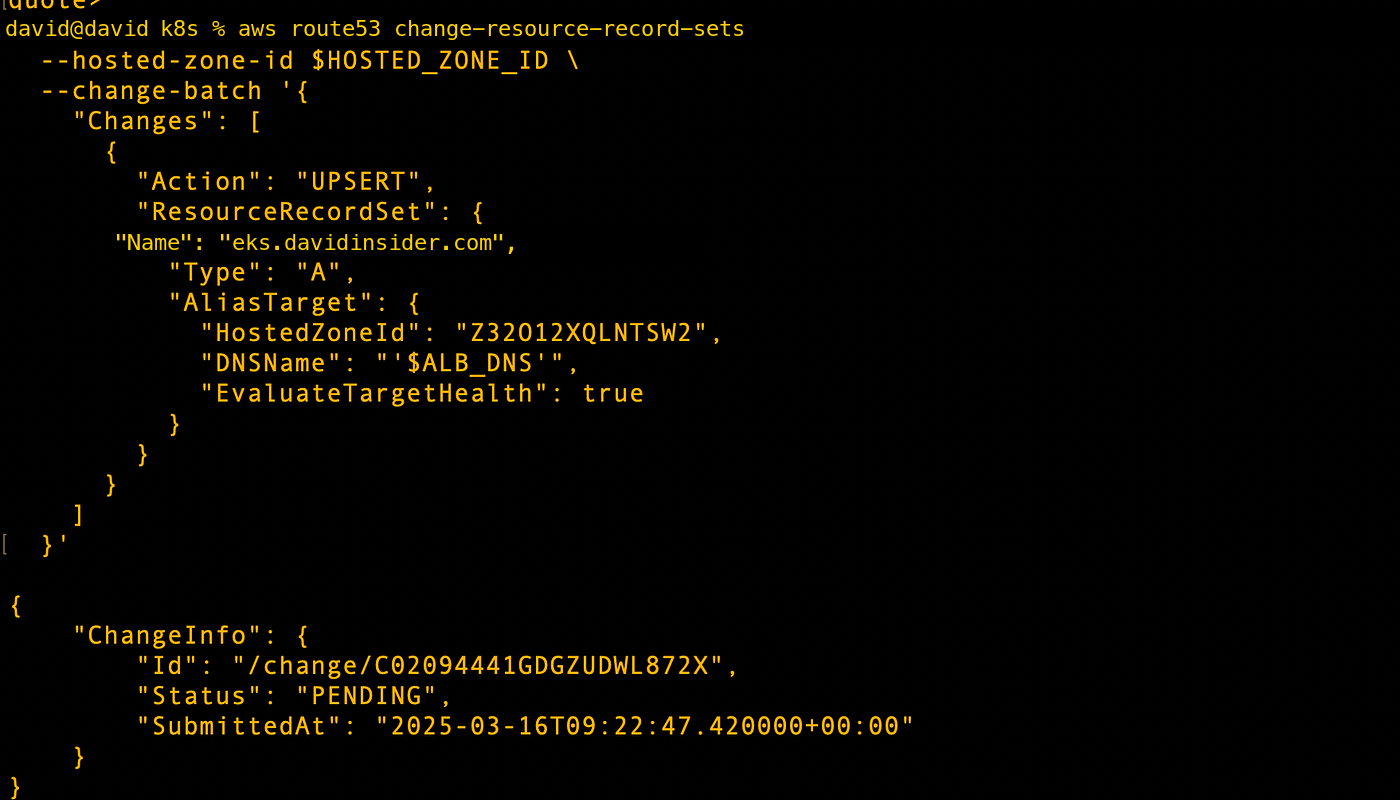
Route 53 record updated to direct the domain to the ALB
After DNS propagated, I tested the domain over HTTPS.
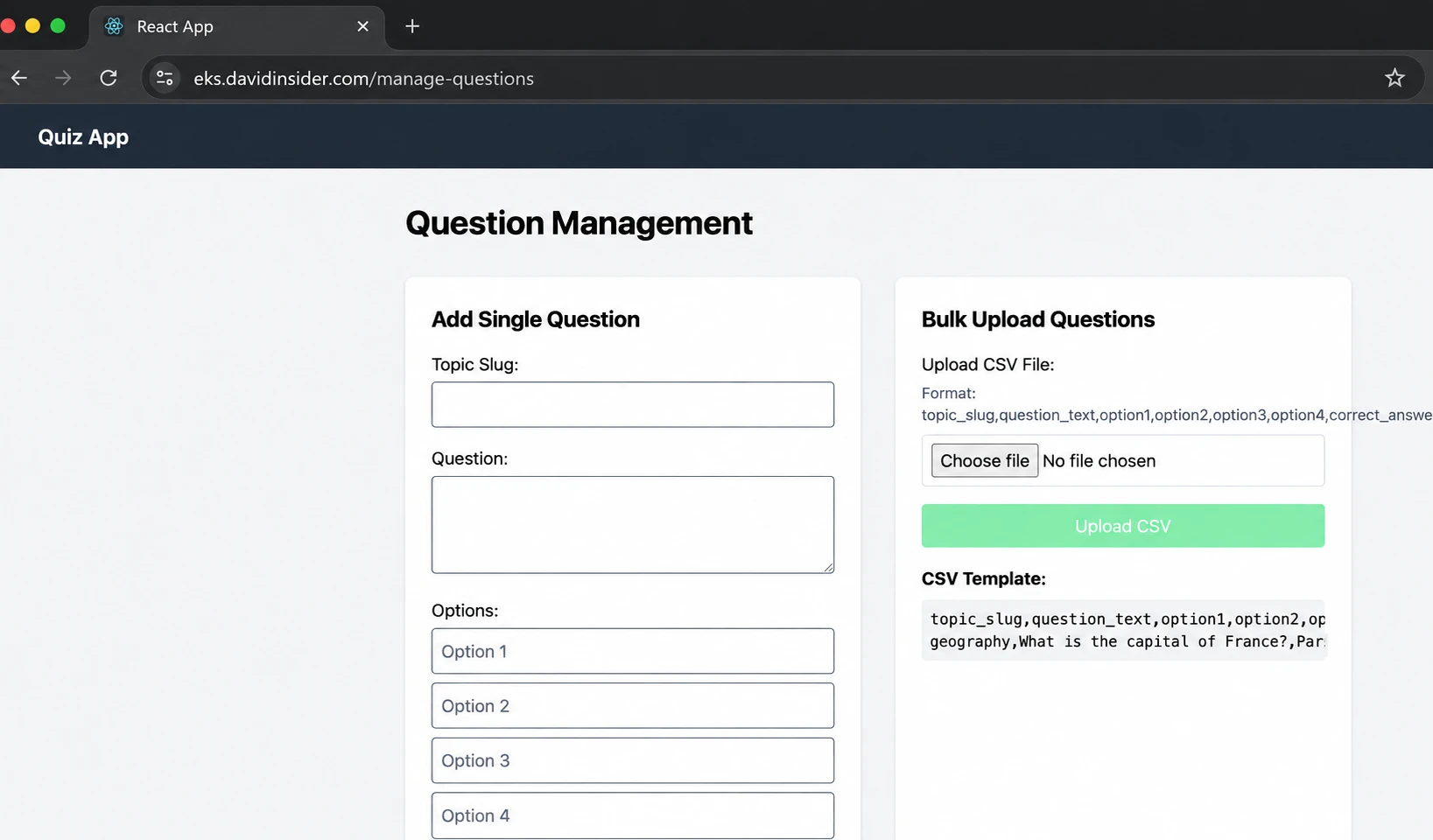
Final application available over HTTPS
Here’s the final traffic path:
User
  |
HTTPS
  |
Route 53
  |
Application Load Balancer
  |
Kubernetes Ingress
  |
+--------------------+
| Frontend / Backend |
+--------------------+
          |
          v
      PostgreSQL RDS
31. Cleaning up
All of this costs money. When you’re done, remove the app and the AWS resources behind it.
I started with:
kubectl delete -f ingress-with-tls.yaml
kubectl delete -f certificate.yaml
kubectl delete -f cluster-issuer.yaml
kubectl delete namespace 3-tier-app-eks
Then I removed the outside resources:
RDS instance
RDS subnet group
database security group
Route 53 records/hosted zone if no longer needed
ACM certificate if no longer needed
IAM policies and roles created for the controllers
EKS cluster and node group
Since eksctl created the cluster, this removes it:
eksctl delete cluster \
  --name david-cluster \
  --region us-east-1
Double check that load balancers and other outside resources are really gone. Deleting the cluster doesn’t always catch everything that bills you.
Wrapping up
This project pulled together every layer of a public three-tier Kubernetes app on AWS:
EKS for container orchestration
RDS for PostgreSQL
Kubernetes Services for internal discovery
Secrets and ConfigMaps for runtime configuration
Kubernetes Jobs for database migrations
AWS Load Balancer Controller for ALB provisioning
Route 53 for DNS
OIDC/IRSA for AWS permissions from Kubernetes
cert-manager and Let's Encrypt for certificate automation
ACM and ALB for HTTPS termination
The troubleshooting mattered as much as the final design. I tested the app before adding Ingress. I tested cluster-to-RDS connectivity on its own and found the missing security group path. Later I traced the ALB failure to subnet tags. Going step by step kept each problem small and easy to reason about.