My lab doesn’t have a lot of resources. A couple of test VMs hit high CPU once in a while and needed a reboot. They’re only test VMs but I still wanted to catch the spikes. I’d like to automate the reboot later.
So I built an Aria Operations alert for high CPU. It works at the hypervisor level. That means no agent in the guest and no VMware Tools needed.
What I needed
- A vSphere environment with some VMs I can access
- Aria Operations that’s already monitoring that vSphere environment through the vCenter adapter
- A test VM where I can run a script to spike the CPU
- A quiet place where nobody interrupts you
1. Creating the alert definition
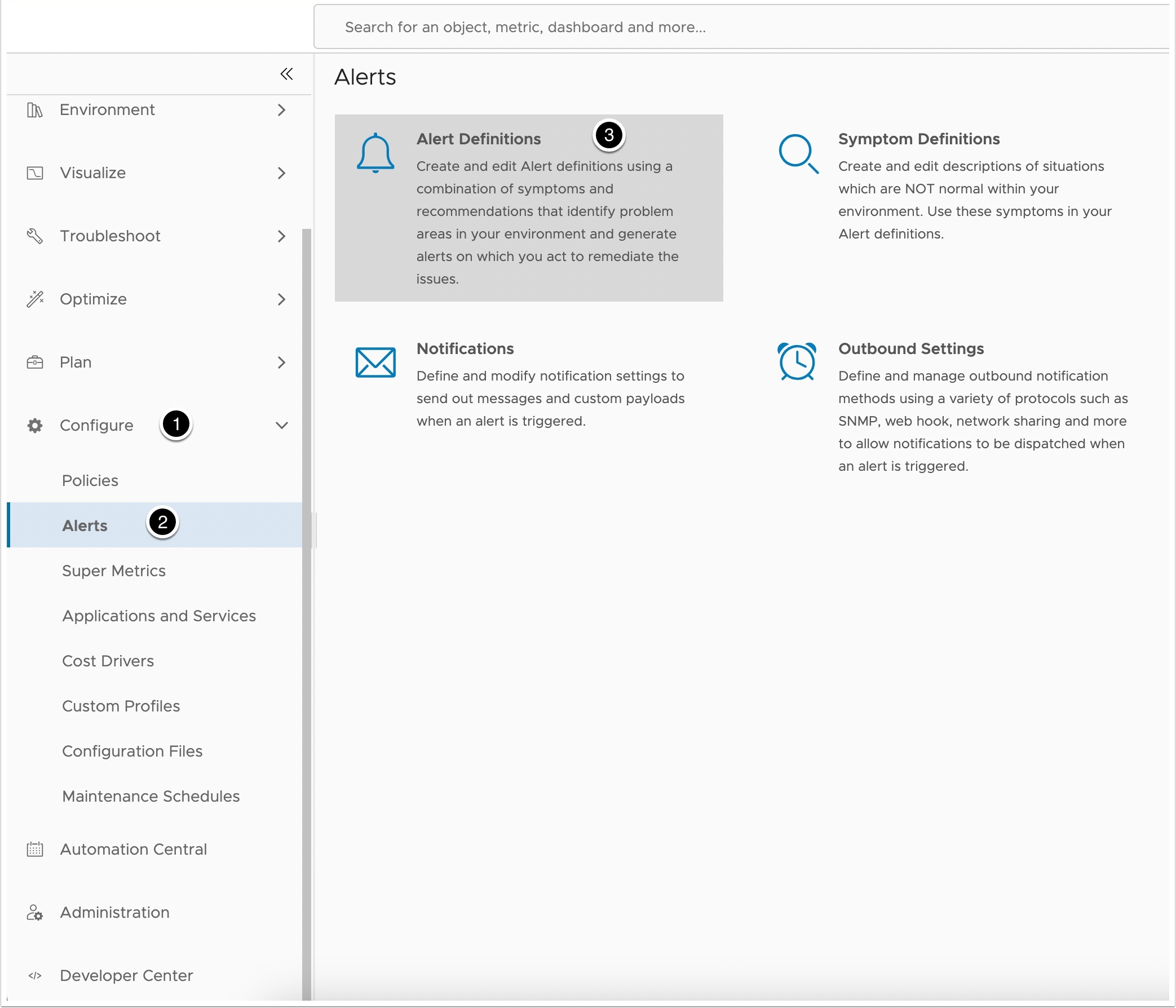
In Aria Operations I went to Configure → Alerts → Alert Definitions.
Opening Alert Definitions
Then I clicked Add.
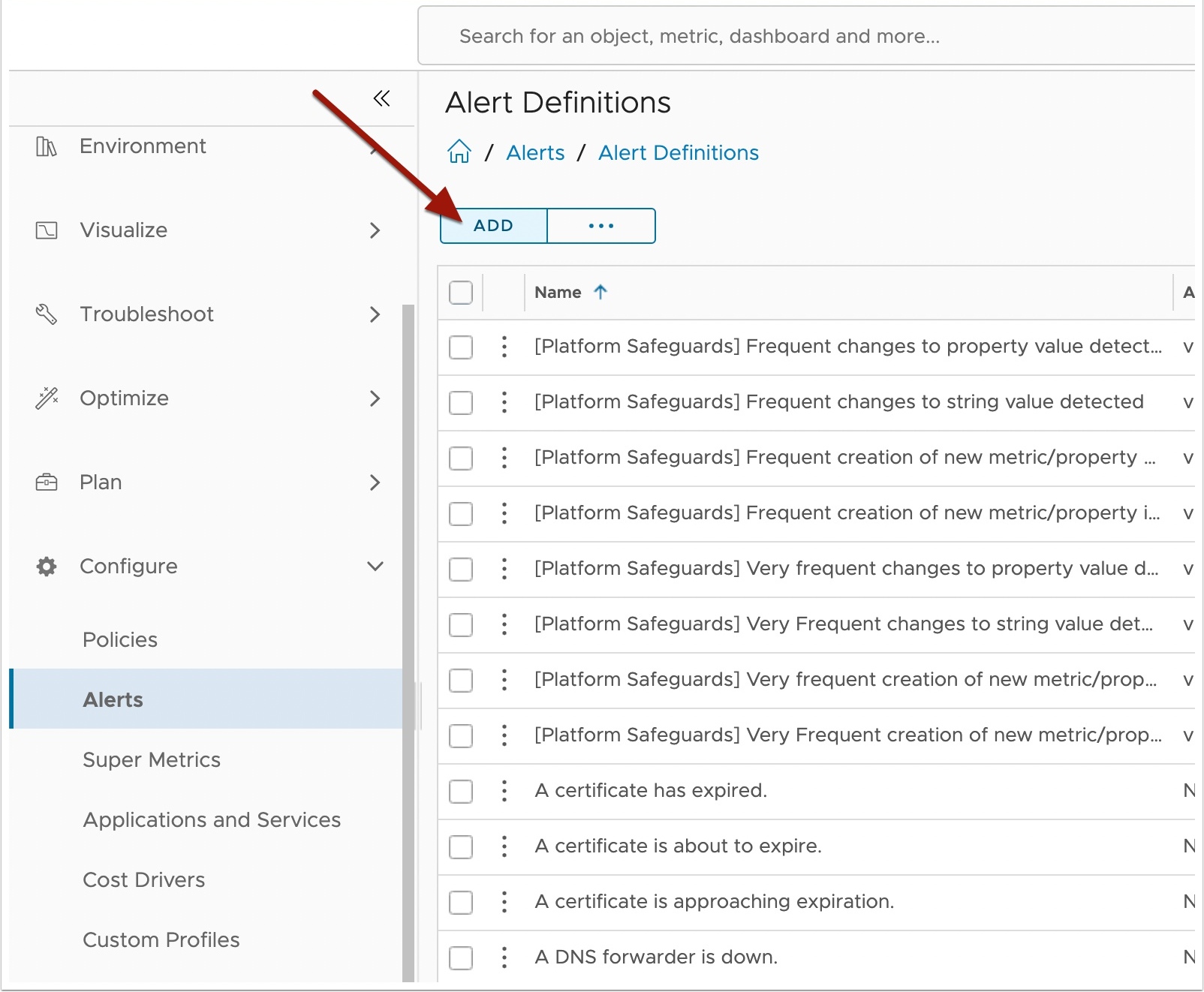
Adding a new alert definition
2. Naming it
I gave the alert a name and a description. I set the base object type to Virtual Machine and clicked Next.
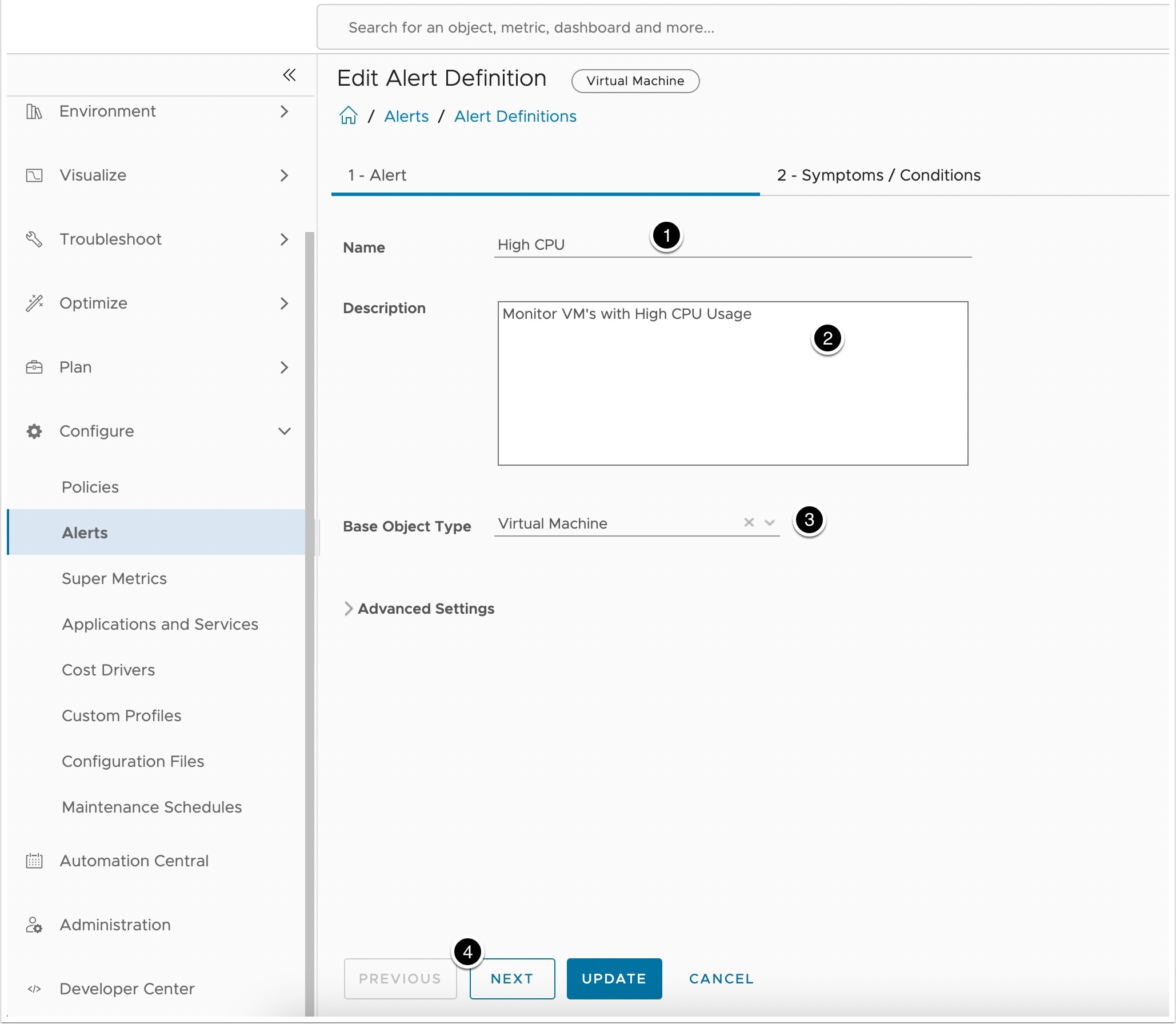
Naming the alert and setting the base object type
3. Adding the condition
I went to Conditions → Metrics → CPU and dragged Demand (%) into the condition. Then I set the threshold and clicked Next.
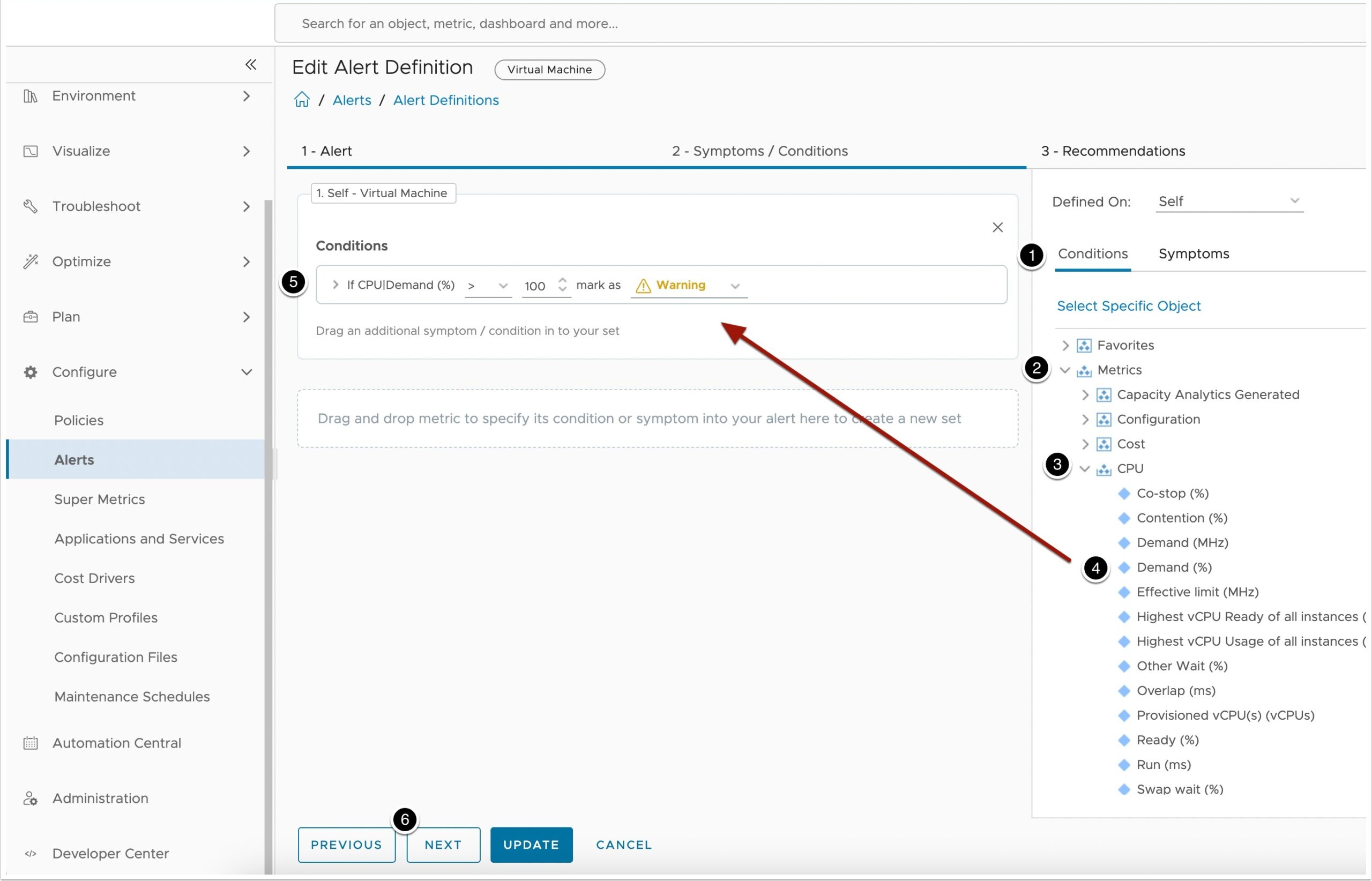
Configuring the CPU demand condition
4. Picking a recommendation
I dragged in the recommendations I’d want to see for fixing the VM, then clicked Next.
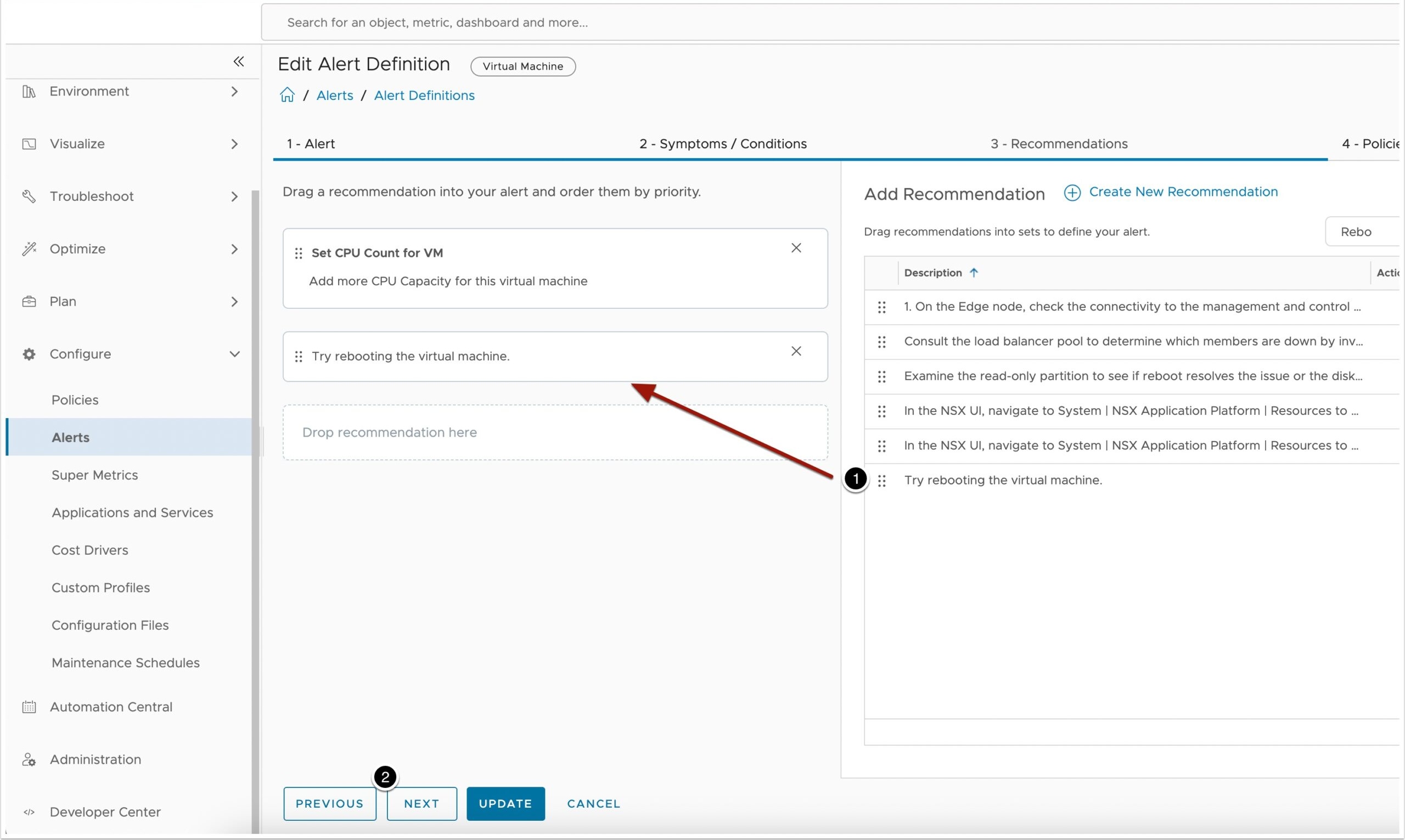
Selecting recommendations
5. Choosing the policy
Policies let you pick a subset of the vCenter inventory. I could have used the vSphere Default Policy for everything. Or I could make one for a specific group of VMs.
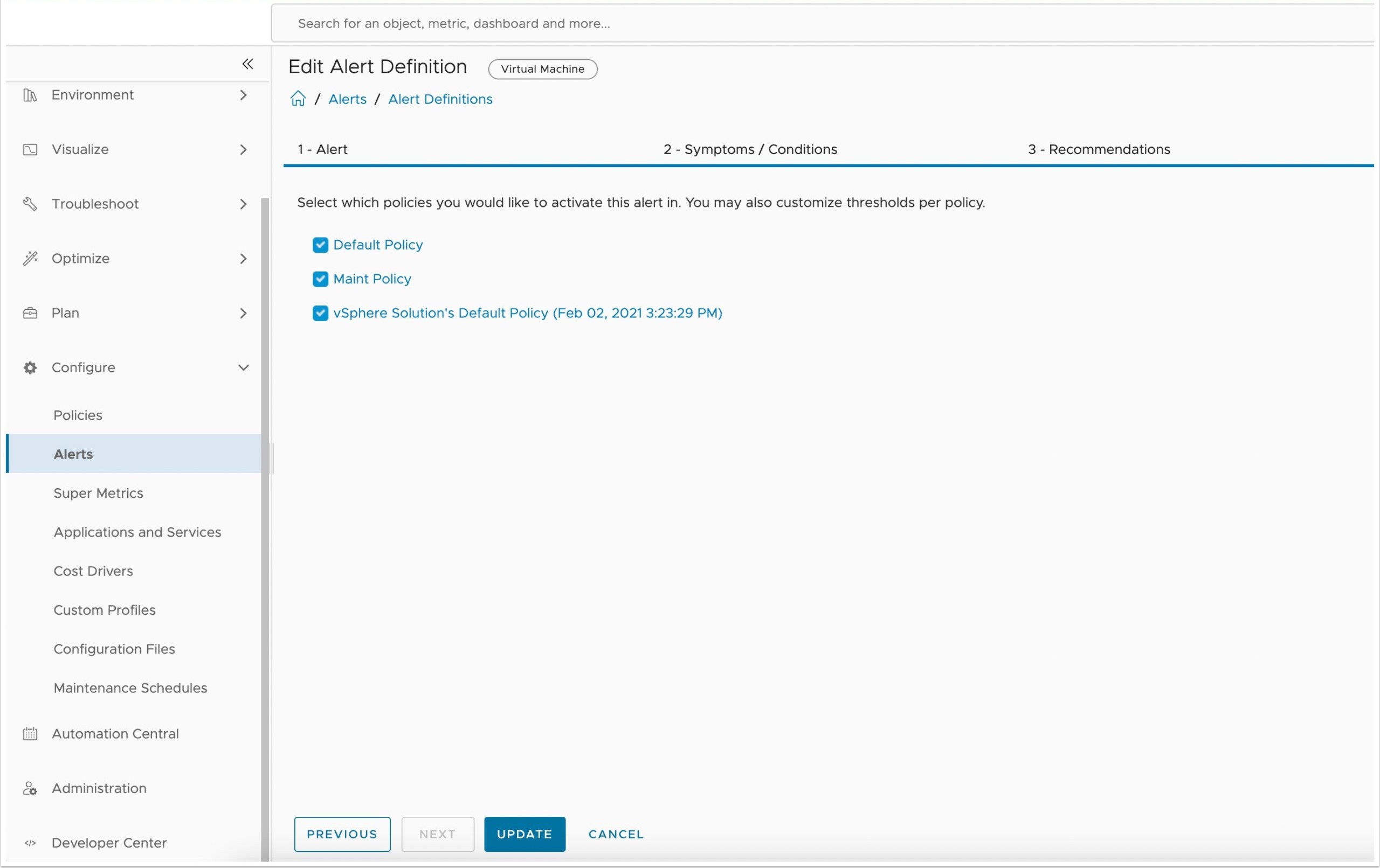
Selecting the policy for the alert
6. Making the CPU spike
I used a Photon OS 4 VM, but any Linux or Windows test VM works. Just make sure it’s one you don’t mind spiking.
- Photon OS is free: download it here
- CPU spike script for Linux
- CPU spike script for Windows
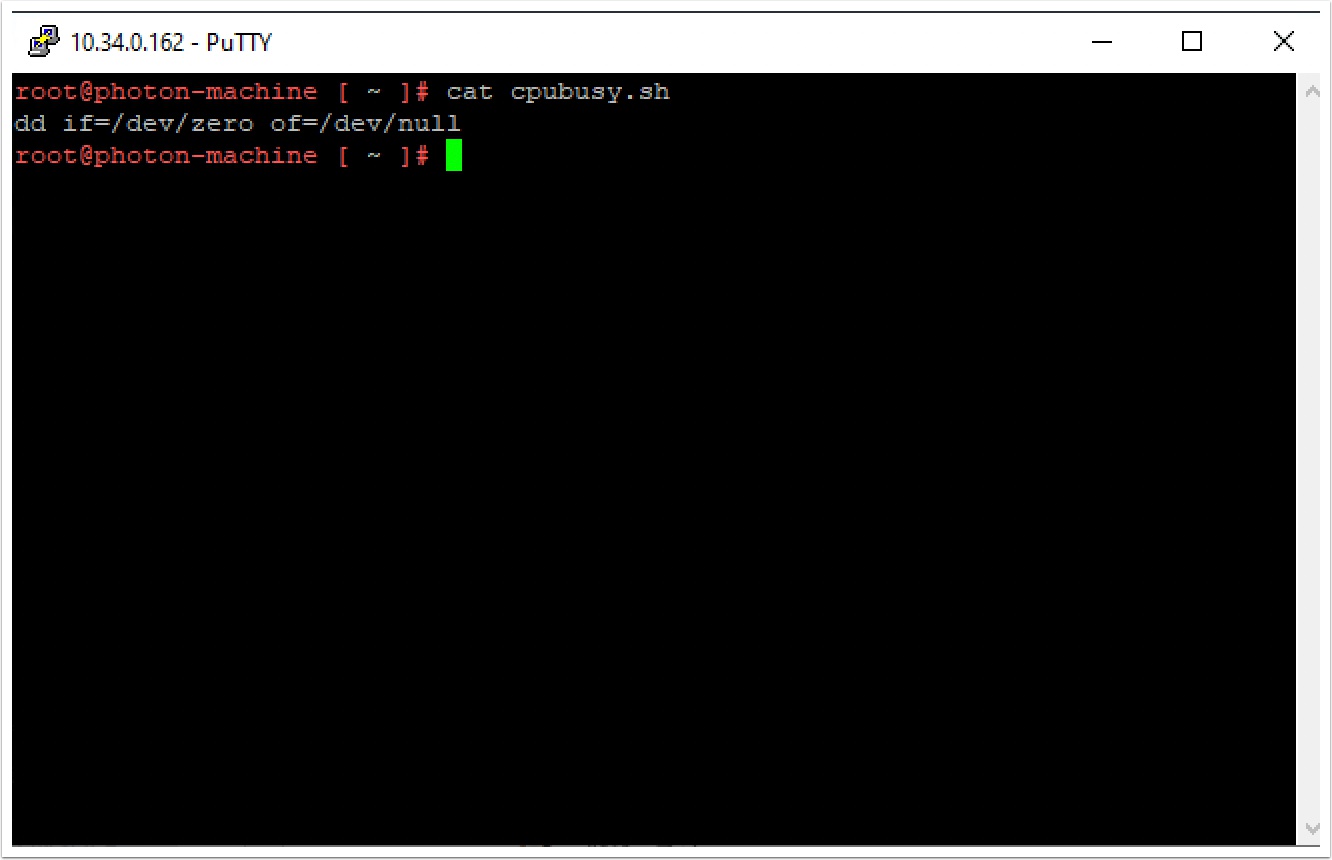
The CPU spike script on the test VM
Then I started it:
sh cpubusy.sh
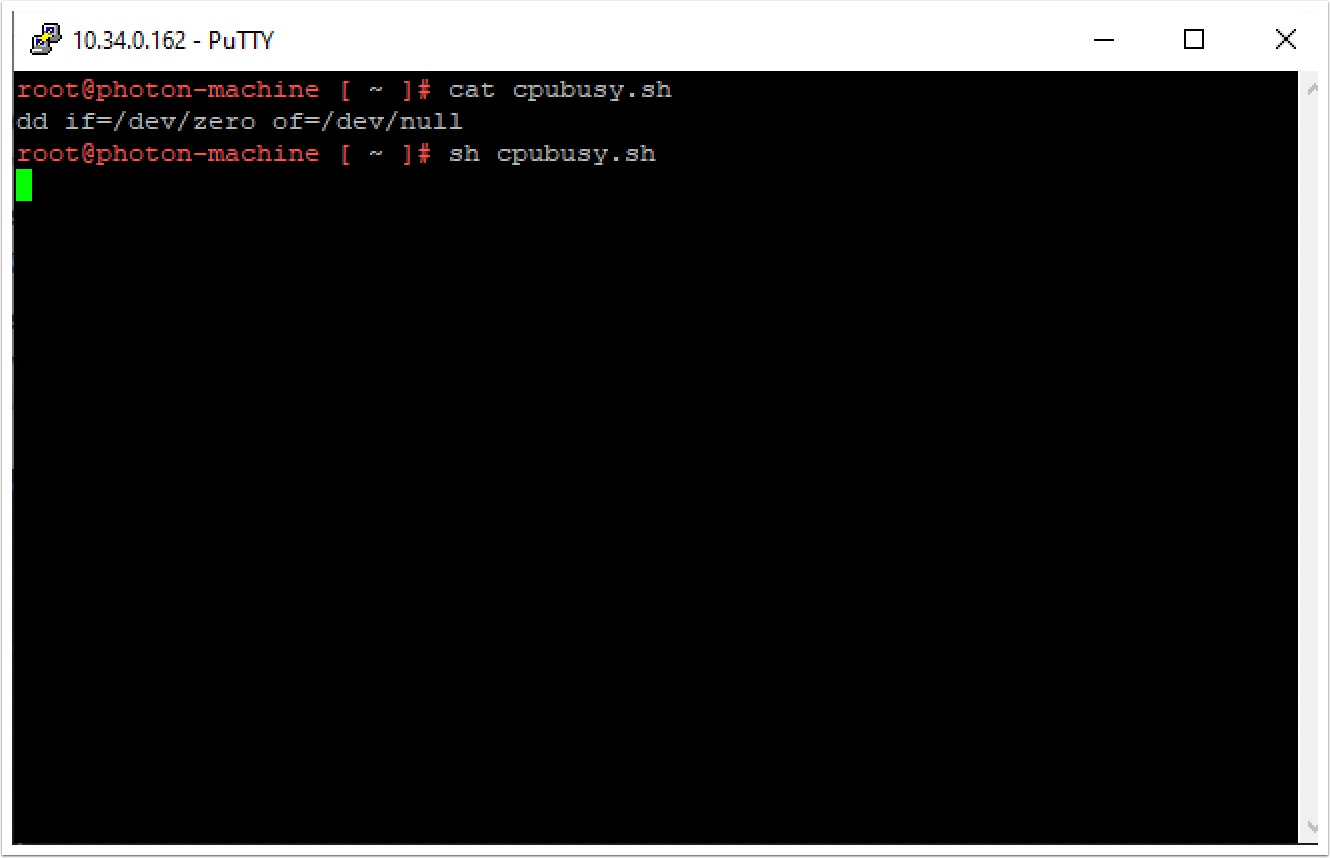
Running the CPU spike script
7. Watching it in vCenter
In vCenter I selected the VM and watched the CPU start to climb.
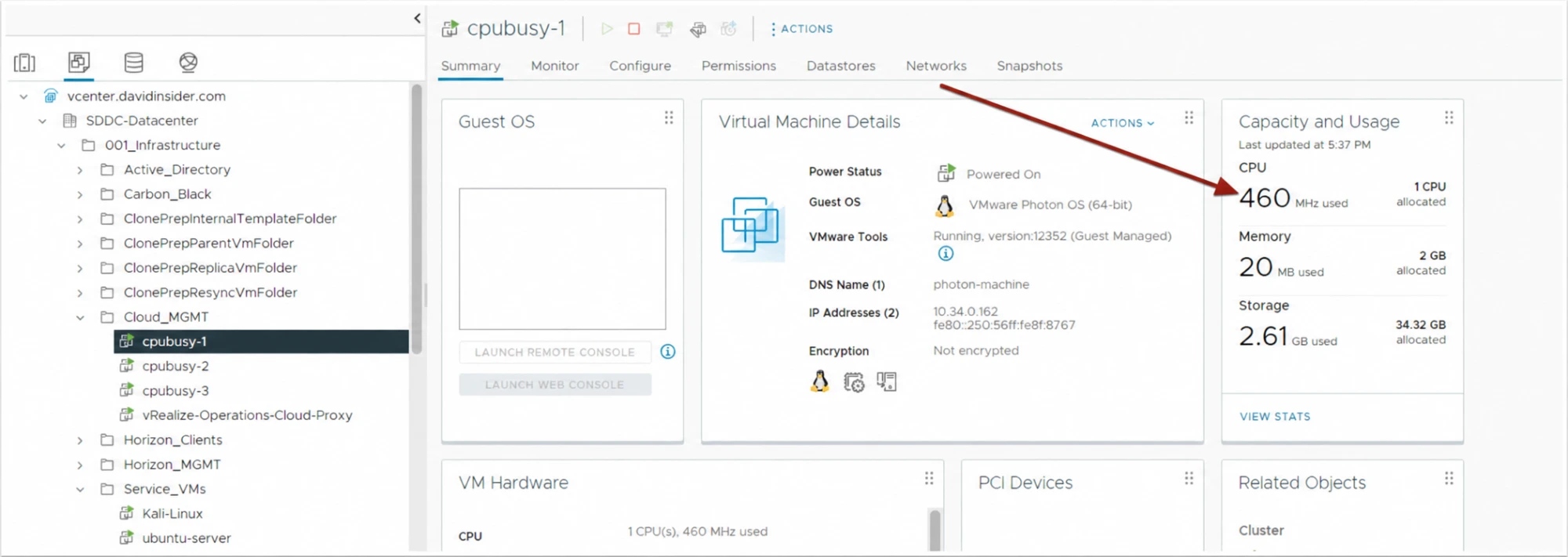
The VM’s CPU climbing in vCenter
8. Finding the alert
Back in Aria Operations I went to Troubleshoot → Alerts. I changed the view to Scope and picked Virtual Machine. Then I kept hitting refresh until the alert for my VM showed up.
It can take a few minutes to trigger, so give it time.
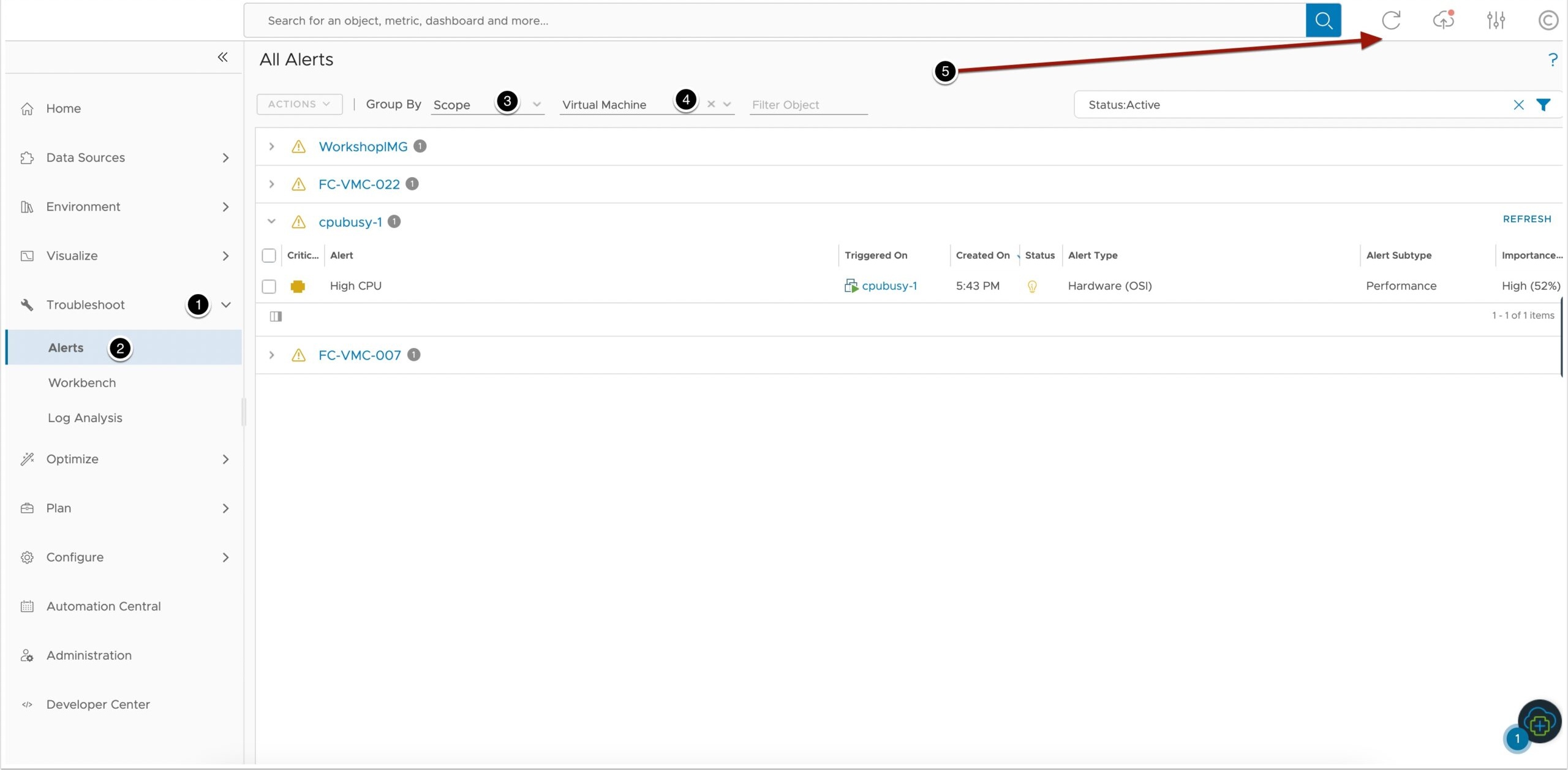
The high CPU alert showing in Aria Operations
9. Stopping the spike
I went back to the VM and stopped the script.
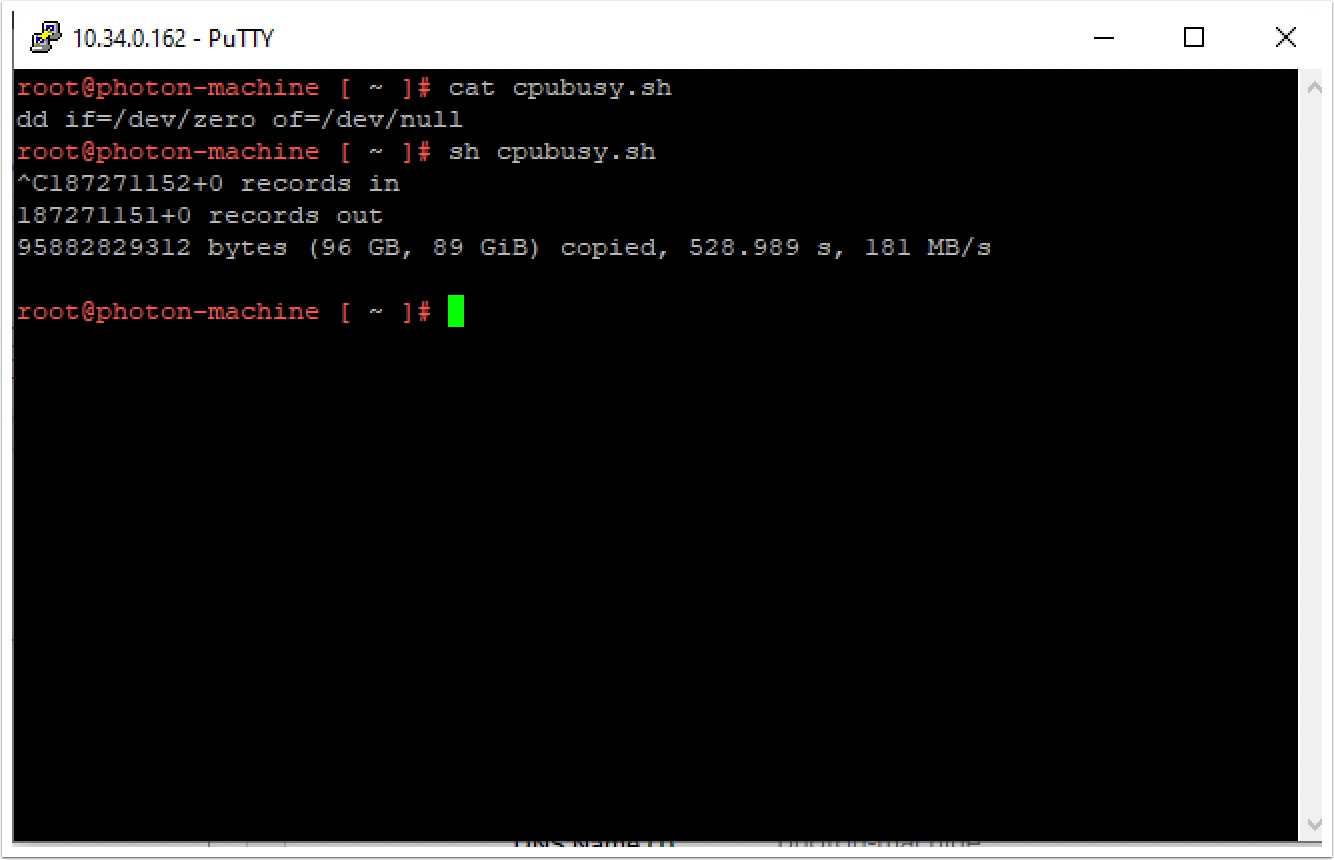
Stopping the CPU spike script
Then I went back to Aria Operations and refreshed until the alert went away.
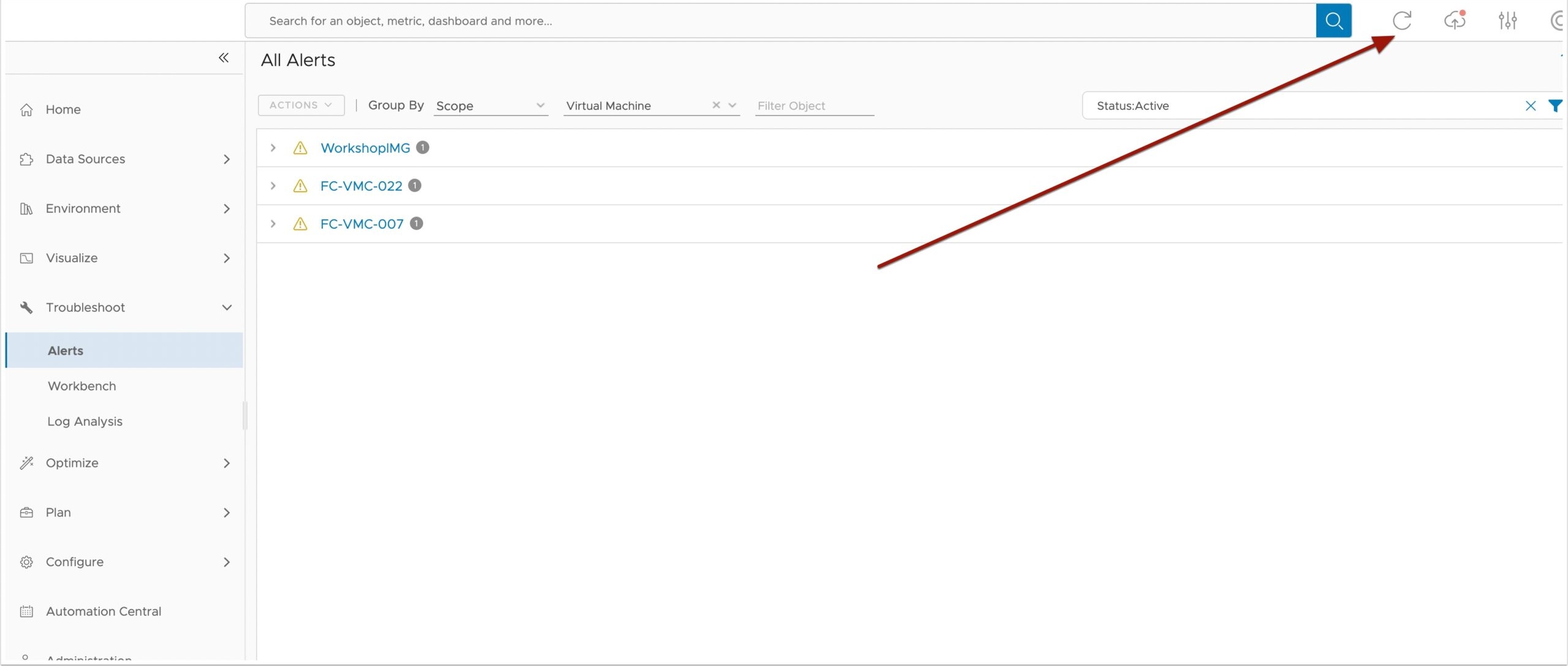
The alert cleared after the CPU dropped
The alert clears itself once the condition is gone. I like that.