I added a second domain controller to my Active Directory lab and tested replication. Then I backed it up, deleted the VM on purpose, and restored it onto a brand new one.
This builds on my Active Directory lab. I use the same domain, the same first domain controller, and the same Windows 11 client. Everything runs in VMware Workstation Pro 17.
Here is what I did:
- Built a second Windows Server 2022 domain controller
- Fixed DNS so both DCs and the client can see each other
- Tested replication in both directions with
repadmin - Looked at the FSMO roles
- Shut down a DC and checked that the domain kept working
- Backed up a DC with Windows Server Backup
- Deleted that DC and restored it from the backup on a new VM
- Checked for a USN rollback
If AD goes down, everyone is stuck. That’s why a single domain controller makes me nervous.
1. Building the second domain controller
I started with one Windows Server 2022 VM and one Windows 11 VM from the earlier lab. I built the new server the same way I built the first one. The steps are in the earlier post, so I won’t repeat them all here.
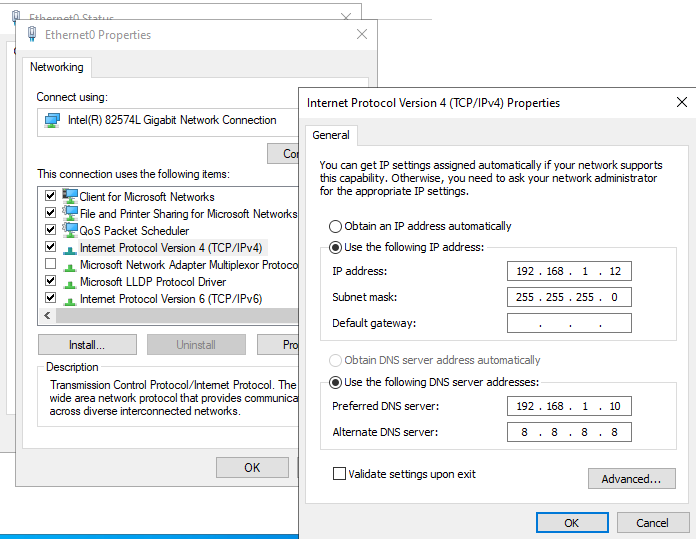
The only change was the network settings. The first DC is 192.168.1.10 and the Windows 11 client is 192.168.1.11. So the new server got the next free address:
- IP address:
192.168.1.12 - Preferred DNS server:
192.168.1.10
Setting the IP address and DNS server on the second server
Then I booted up the first DC and the Windows 11 VM and promoted the new server to a domain controller. I followed the same promotion steps as the earlier lab. The wizard shows these screens.
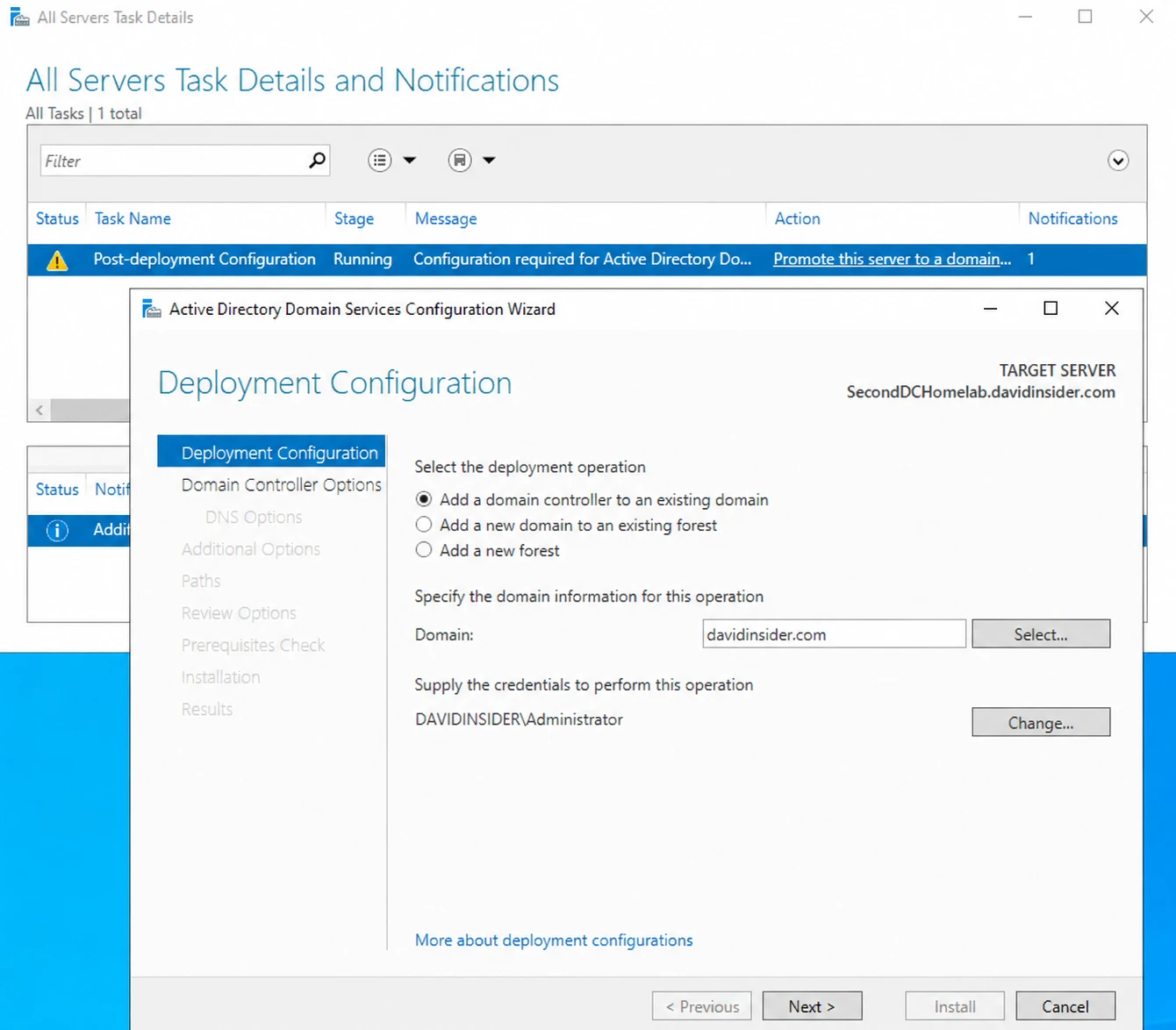
Choosing to add a domain controller to the existing domain
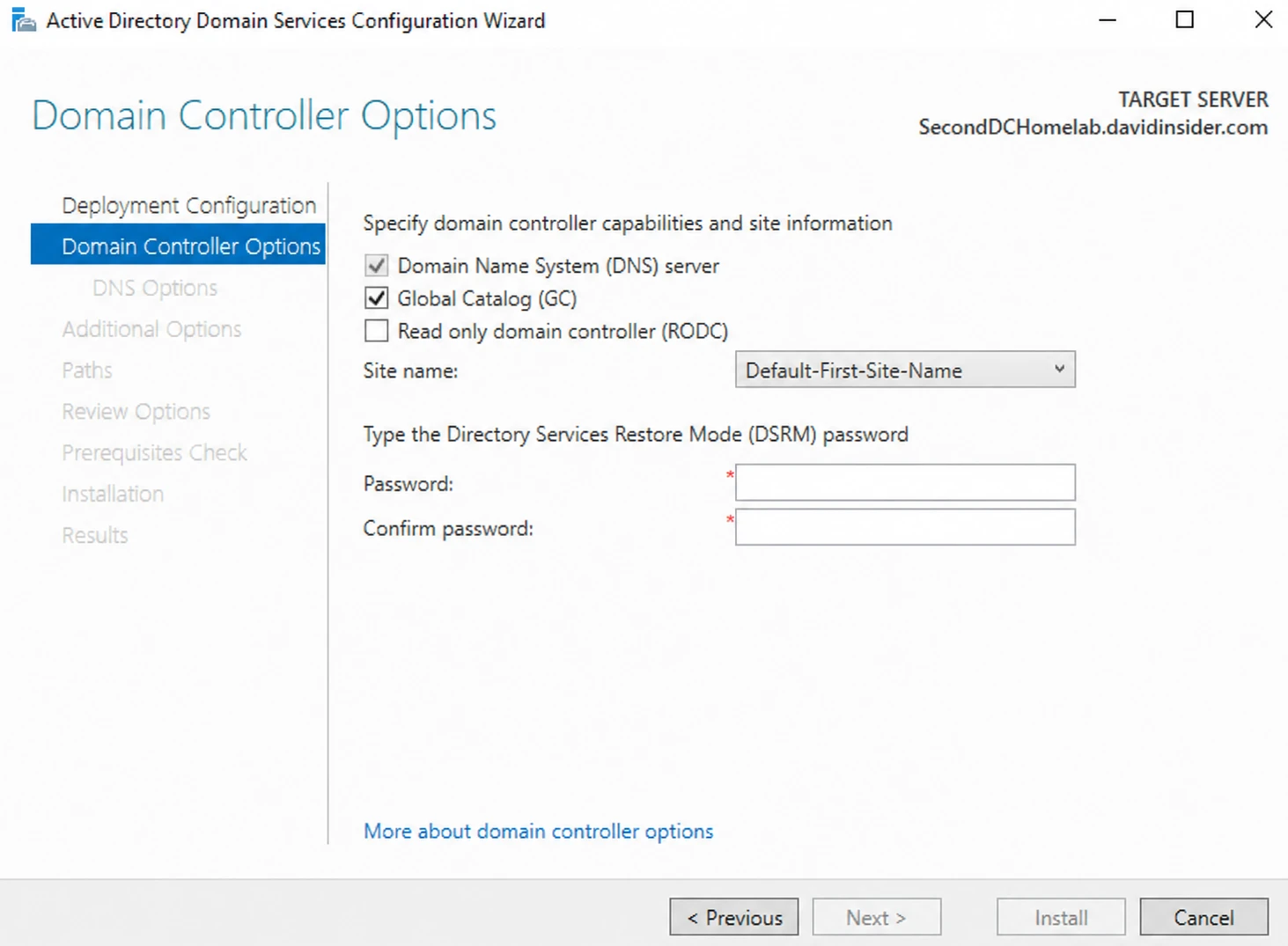
Domain Controller Options before the DSRM password
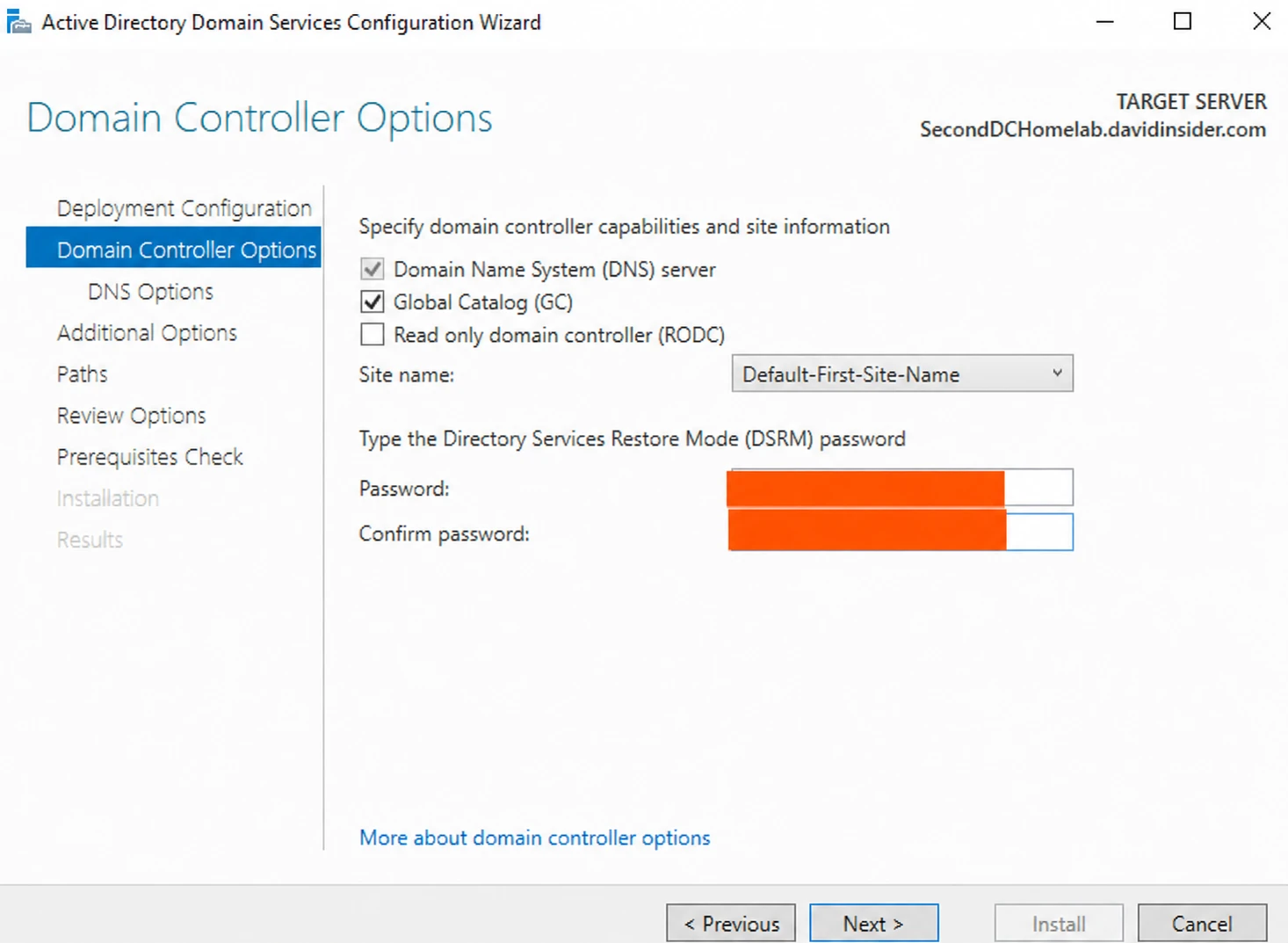
Setting the DSRM password
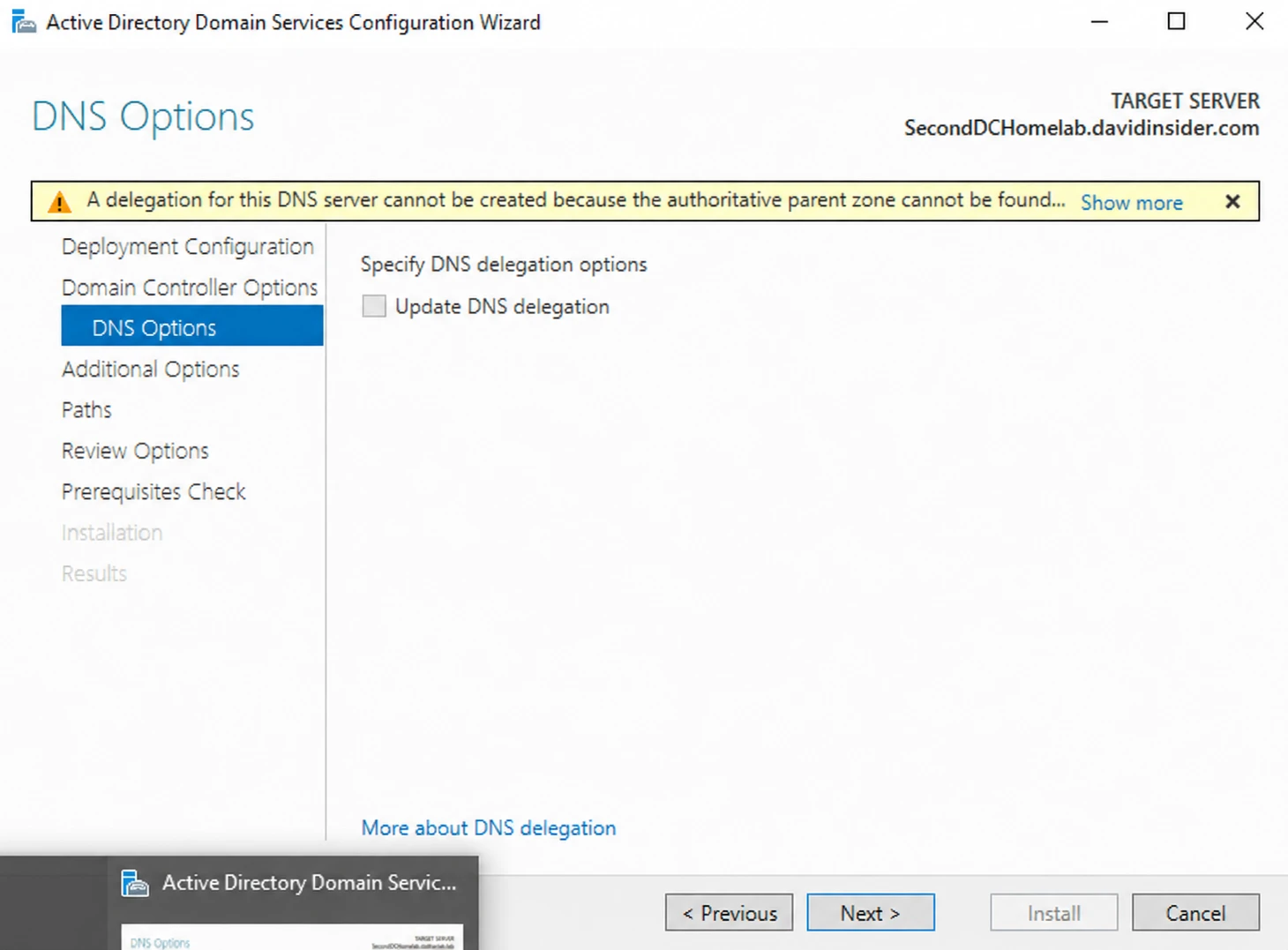
DNS Options
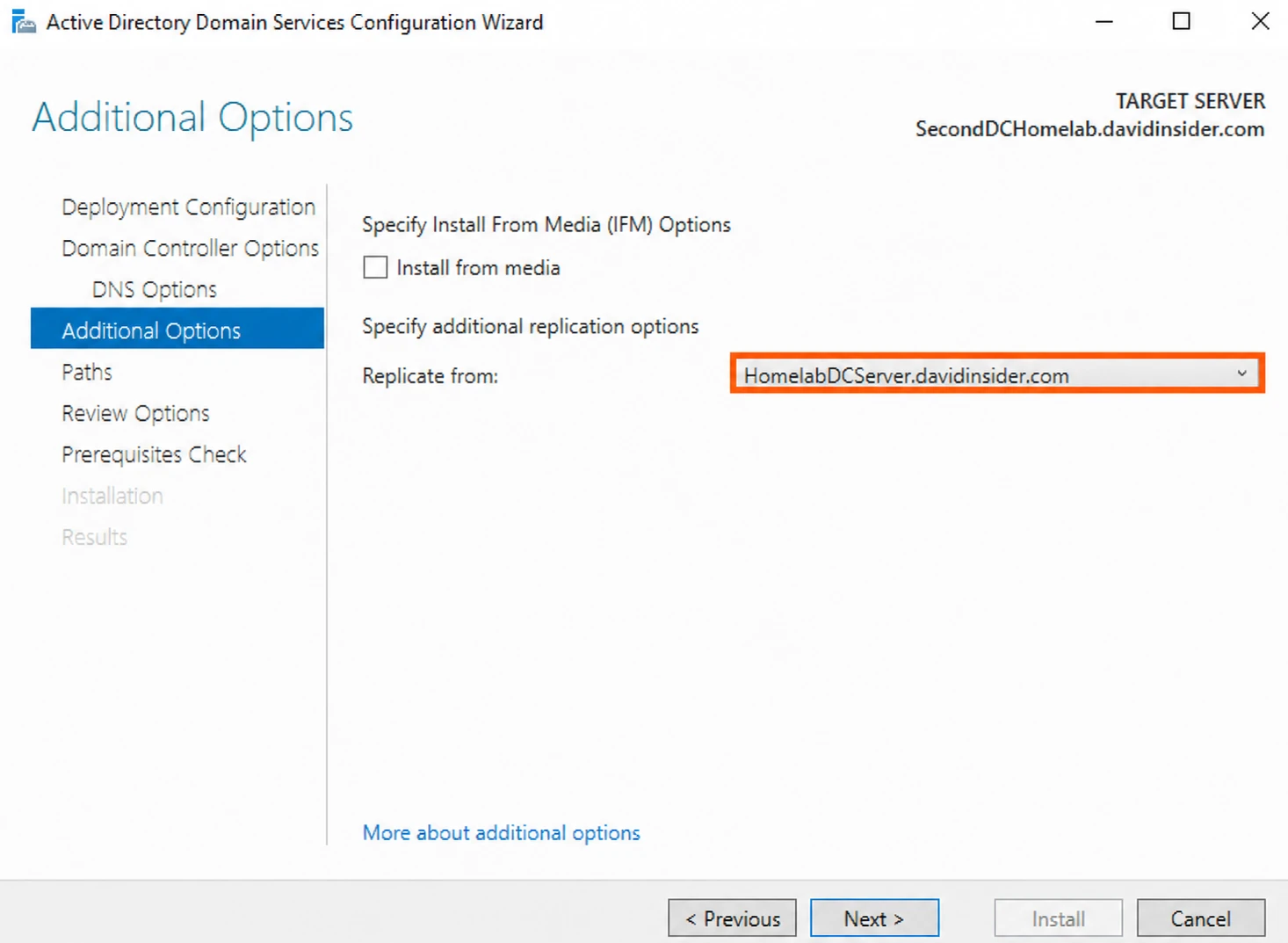
Choosing the first DC to replicate from
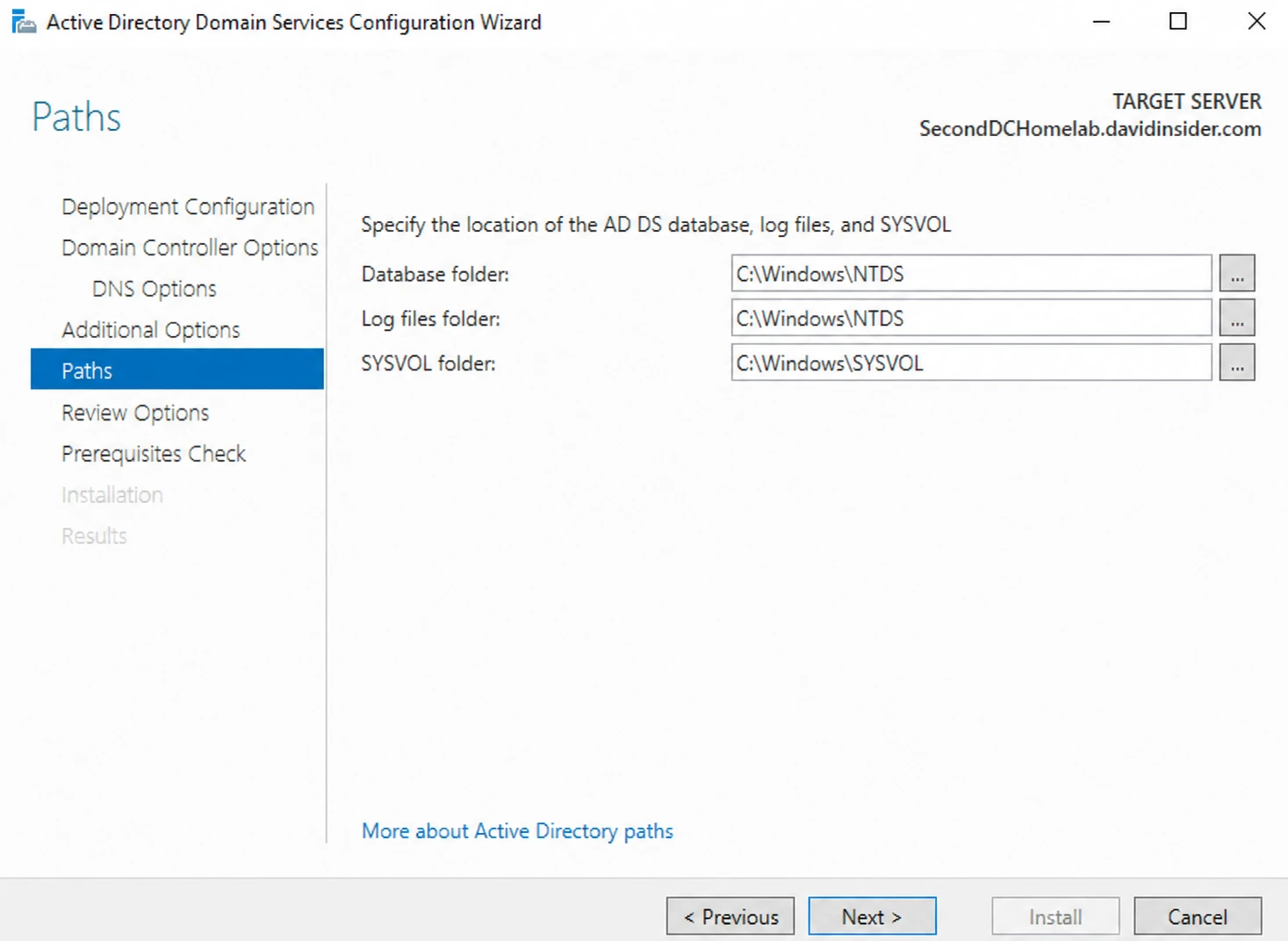
Paths for the AD database, logs, and SYSVOL
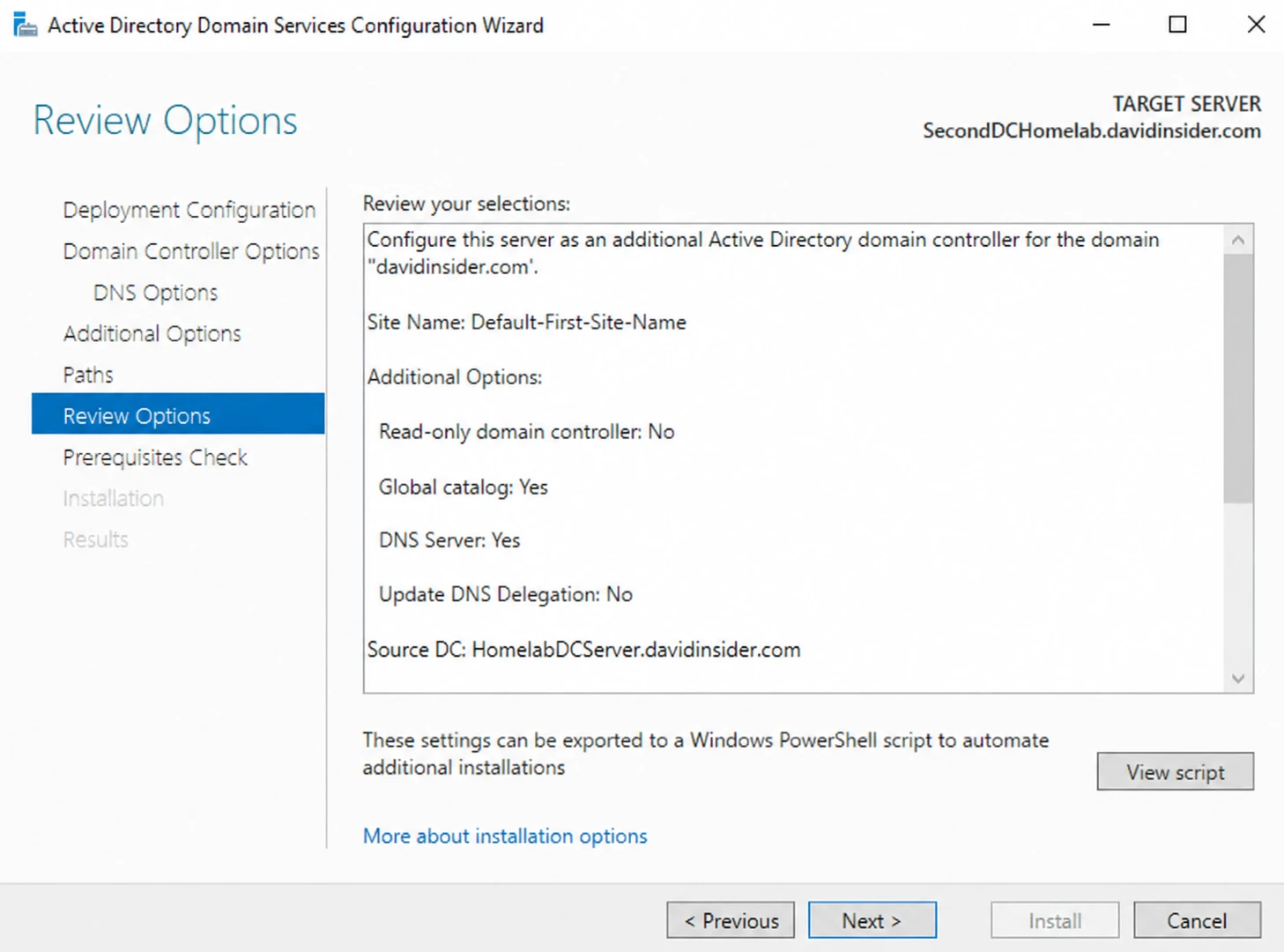
Reviewing the options before the install
Once it came back up, I ran Get-ADDomain to make sure the domain looked right.
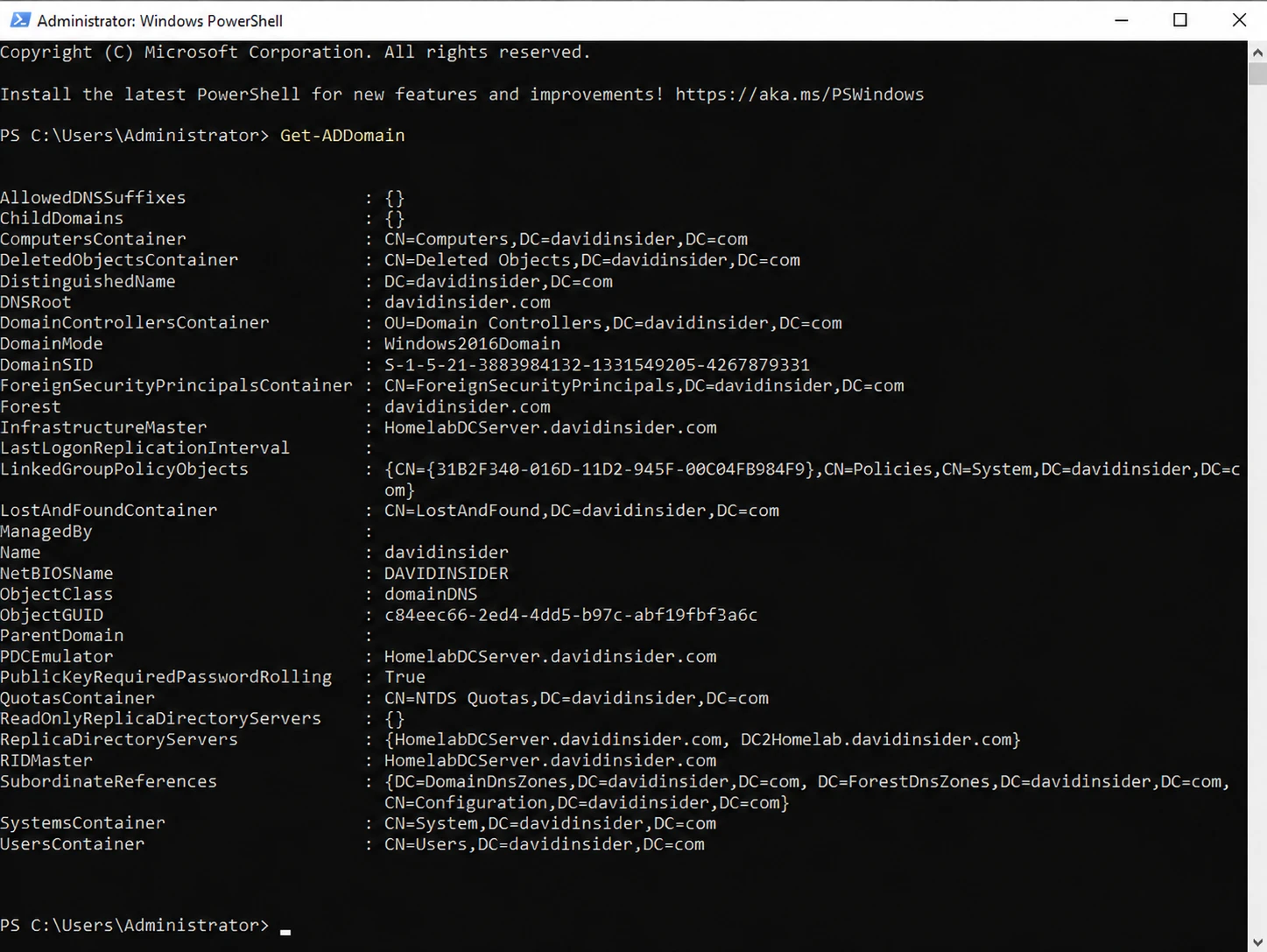
Get-ADDomain output on the new domain controller
I also turned on auditing for account lockouts, logons, and logoffs, like I did in the first lab.
Then I checked that this server could see both domain controllers.
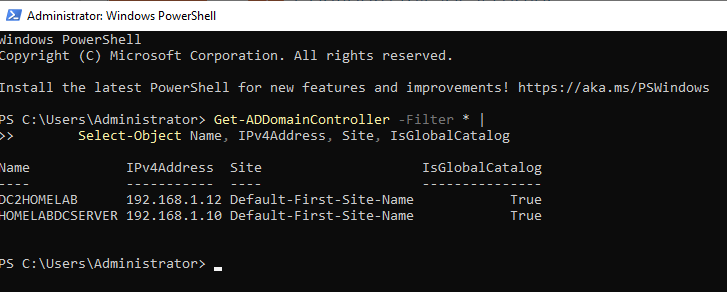
Both domain controllers visible from the second DC
2. Fixing DNS on the first DC and the client
Remember how I pointed the second DC’s DNS at the first one? Now I did the reverse so the first DC can see the second. I opened Control Panel → Network and Internet → Network and Sharing Center, clicked Ethernet0, and changed the DNS settings.
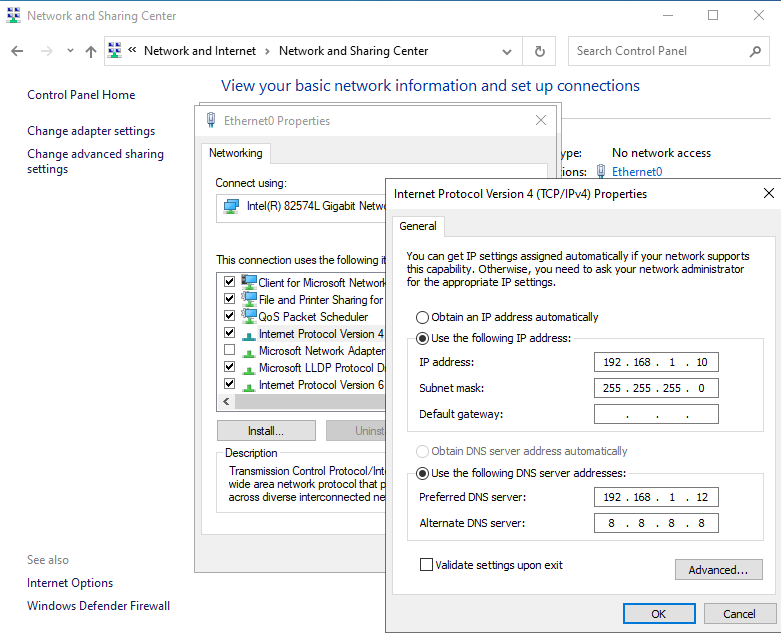
Updating DNS settings on the first domain controller
Same check as before. I made sure the first DC could see both domain controllers.

Both domain controllers visible from the first DC
Then I updated the DNS settings on the Windows 11 client so it knows about both DCs. I used nslookup to confirm it could find them.

DNS settings on the Windows 11 client
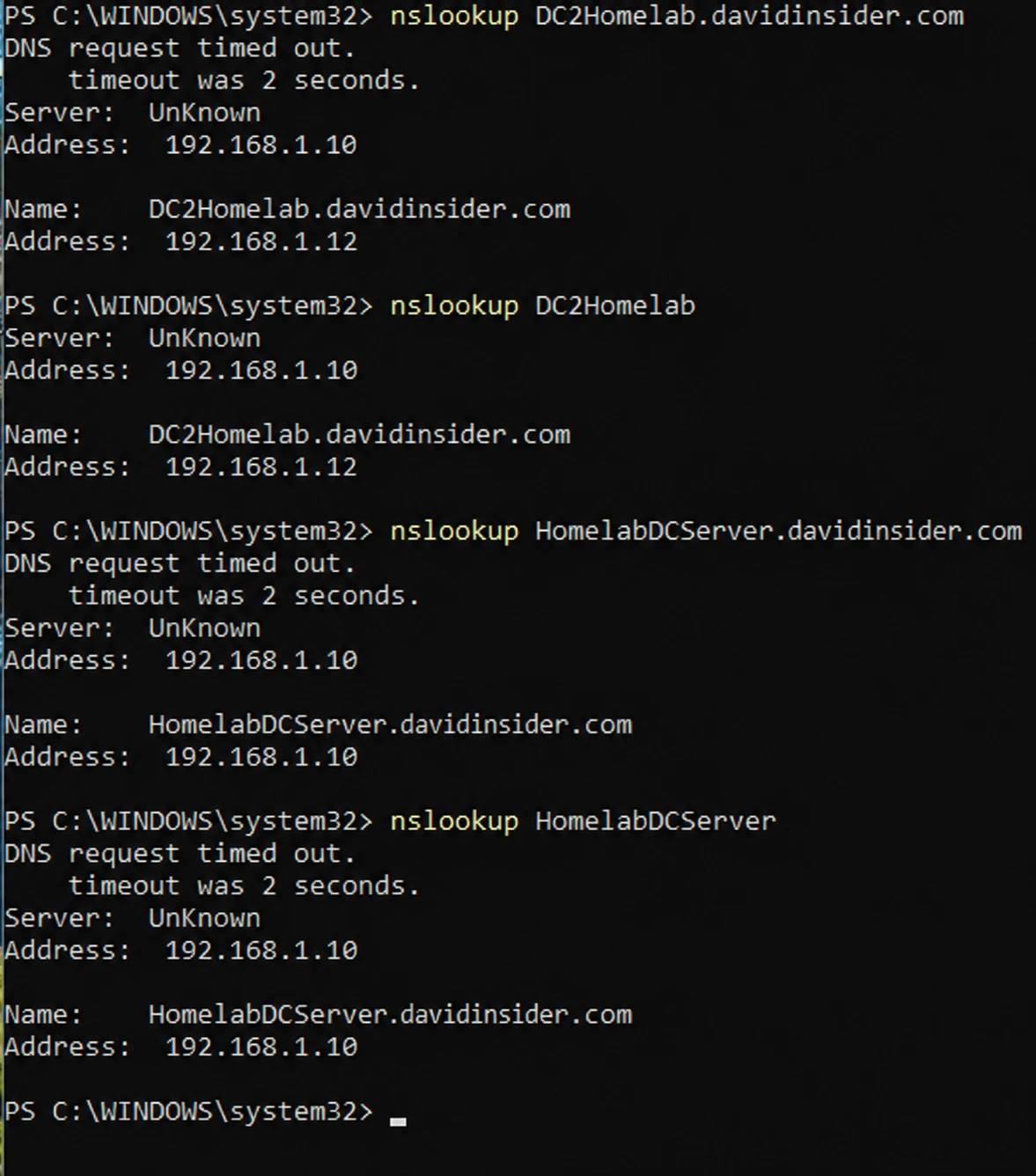
nslookup finding both domain controllers
3. Checking replication
I ran these two commands on both DCs:
repadmin /showrepl
repadmin /replsummary
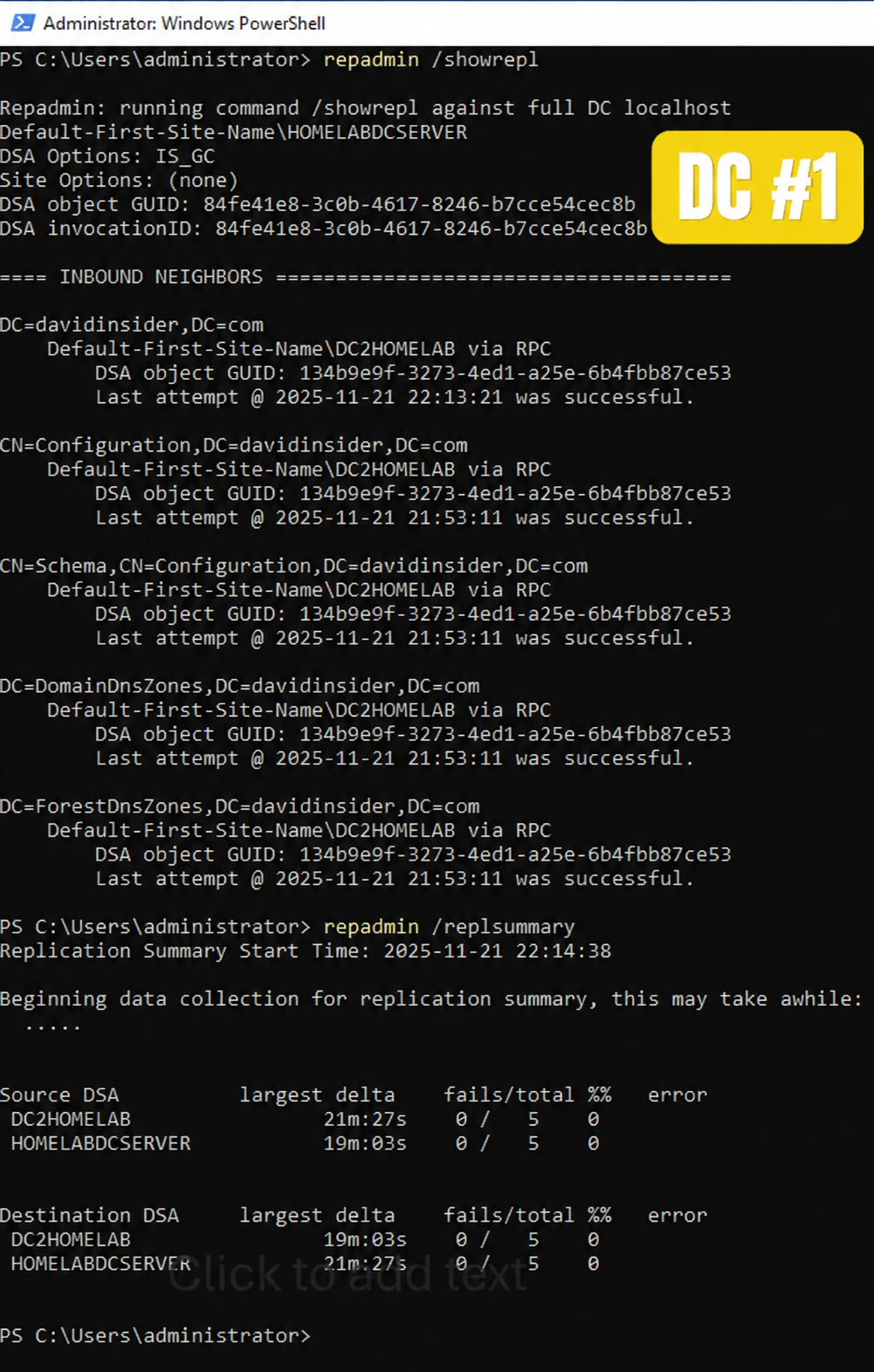
repadmin /showrepl output
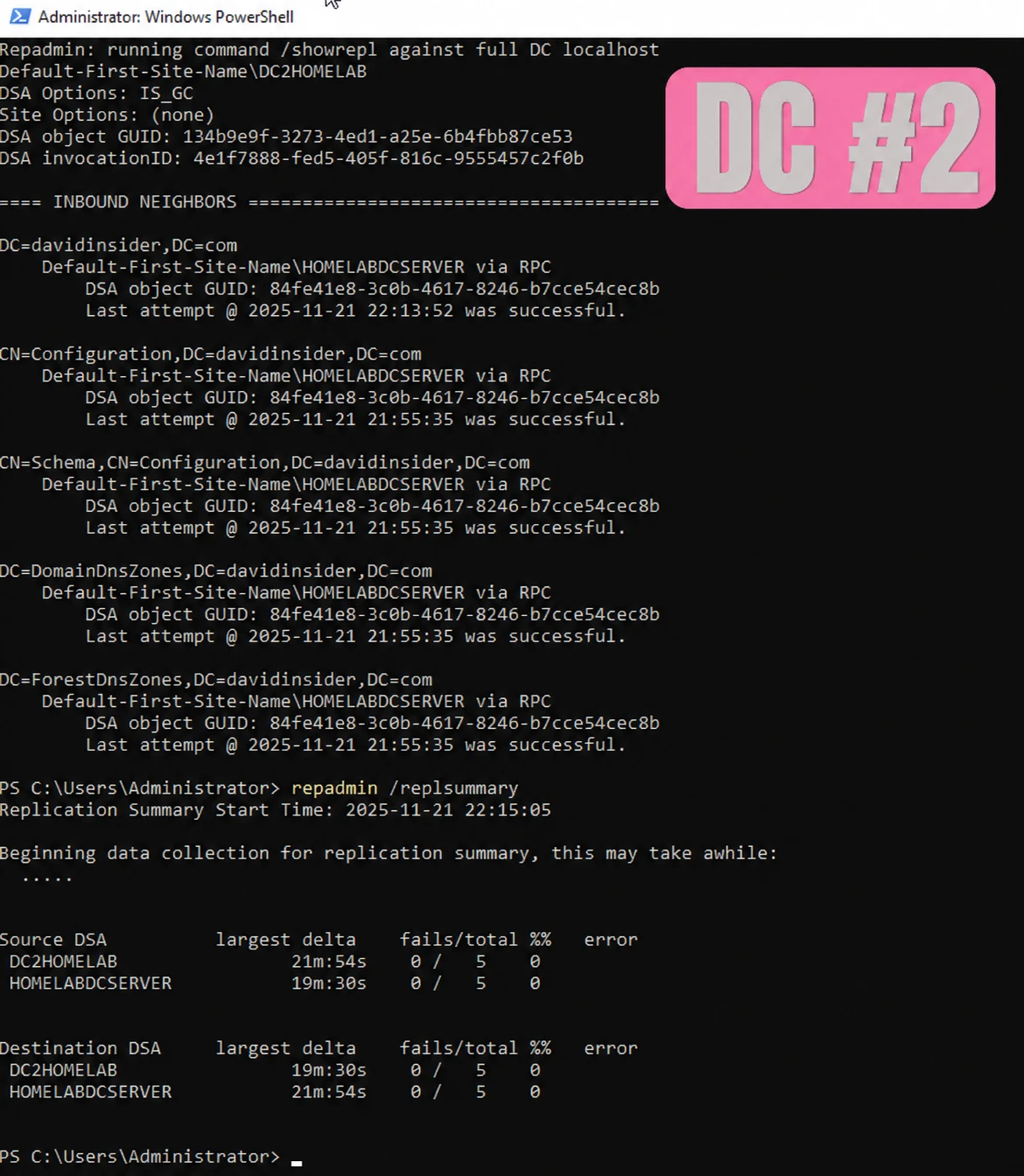
repadmin /replsummary output
showrepl goes deep. It shows each naming context (domain, configuration, schema), the last attempt, whether it worked, and which partners are replicating. I use it when I’m troubleshooting something specific. replsummary is the quick one. It shows the success rate and any failures across all DCs, so it’s the fast way to see that DC01 and DC02 are syncing.
Next I forced replication out from each DC. Replace the name with the DC you’re pushing changes from:
repadmin /syncall <DC name> /AdeP
First domain controller:
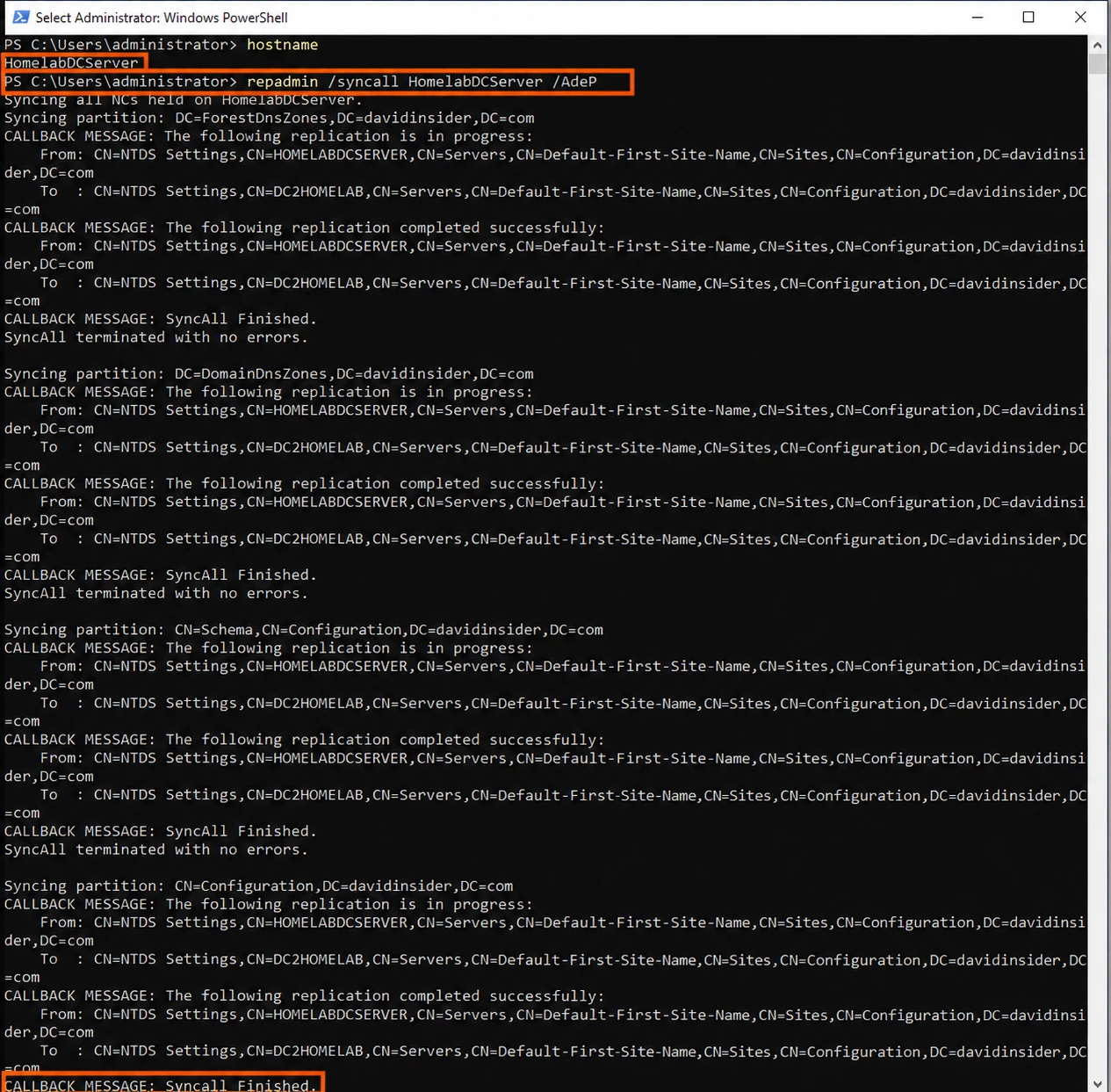
Forcing replication from the first DC
Second domain controller:
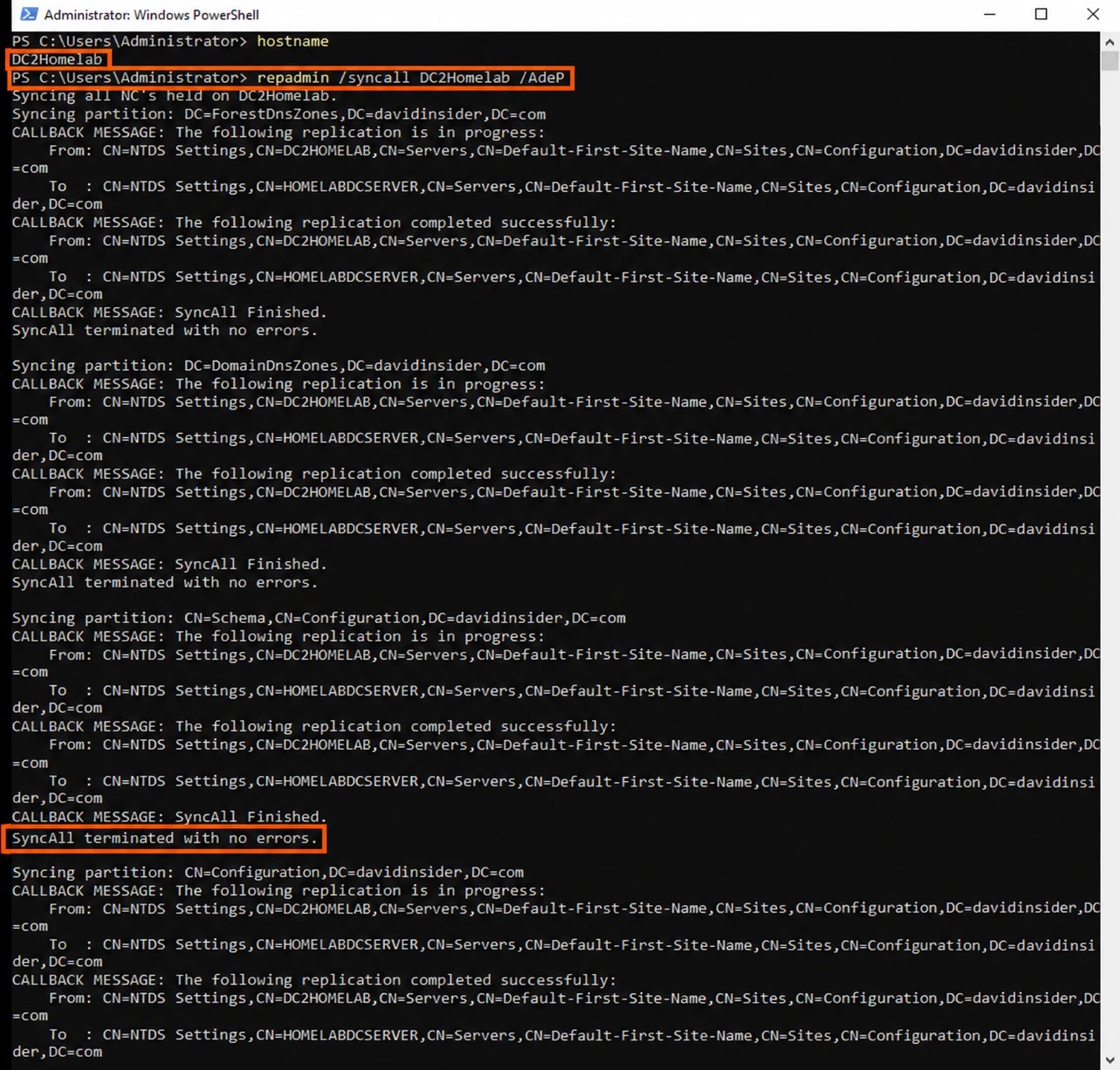
Forcing replication from the second DC
Then I looked for failures with this one:
repadmin /showrepl * /csv | ConvertFrom-Csv | Where-Object {$_.'Number of Failures' -gt 0}
It came back empty, which is what I wanted. I also ran it with -eq 0 so the screenshots show what the output looks like when everything is healthy.
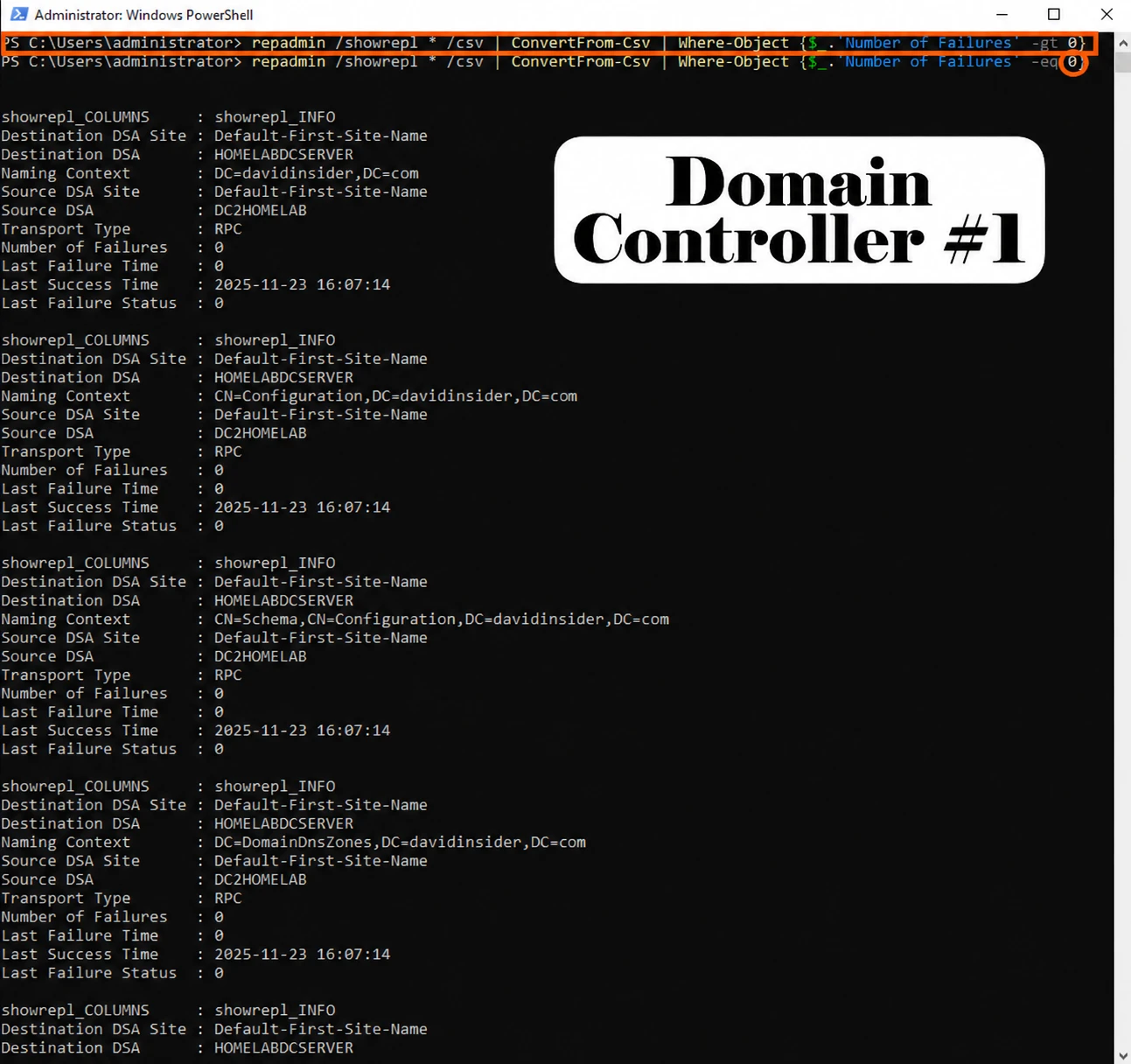
Checking for replication failures on the first DC
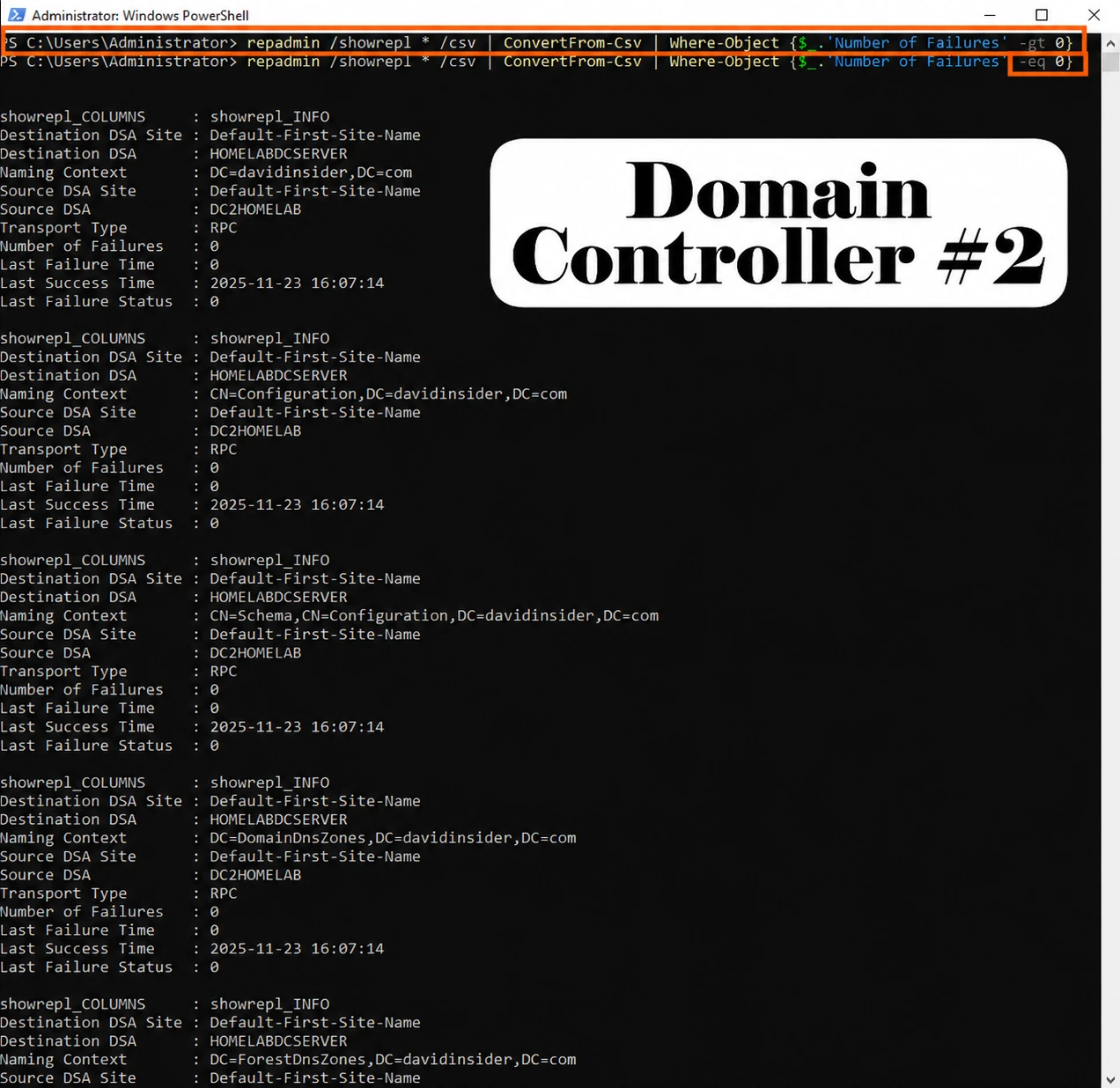
Checking for replication failures on the second DC
Testing it with real objects
I created a user called repltest on the first DC and checked that it showed up on the second.

Creating the repltest user on the first DC
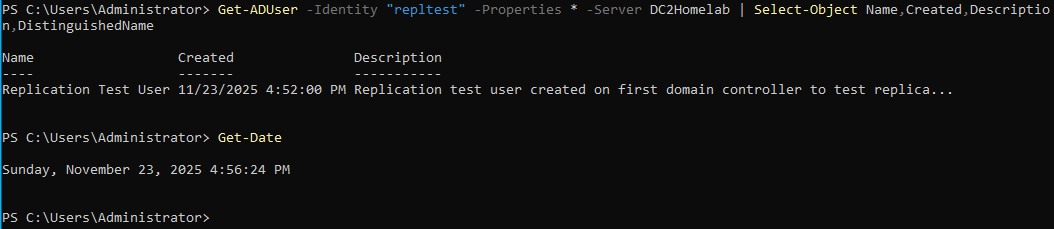
The repltest user showing up on the second DC
Then I went the other way. I created a test OU on the second DC and checked it on the first.

Creating a test OU on the second DC
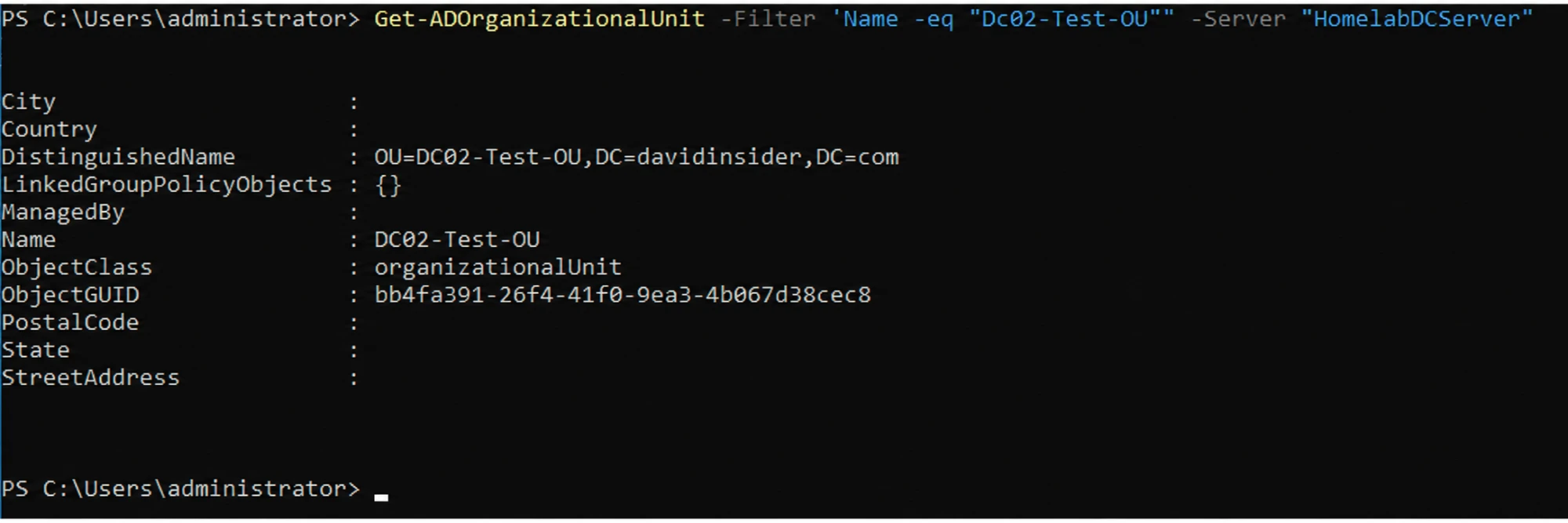
The test OU showing up on the first DC
An OU is basically a folder for AD objects. You put users, computers, and groups in it. It makes Group Policy and delegation a lot easier to manage.
4. Looking at the FSMO roles
Most AD changes can happen on any DC, because AD is multi-master. A few jobs can only live on one DC at a time. These are the FSMO roles, and there are five of them.
Forest-wide, one per forest:
- Schema Master controls changes to the schema
- Domain Naming Master adds and removes domains in the forest
Domain-wide, one per domain:
- RID Master hands out blocks of RIDs so every object gets a unique SID
- PDC Emulator handles password changes, time sync, and legacy authentication
- Infrastructure Master keeps track of cross-domain references
By default the first DC holds all five. You can transfer them to another DC. If the holder dies for good, you can seize them. I didn’t need to do either here.
I ran this on the first DC to check where they were:
netdom query fsmo
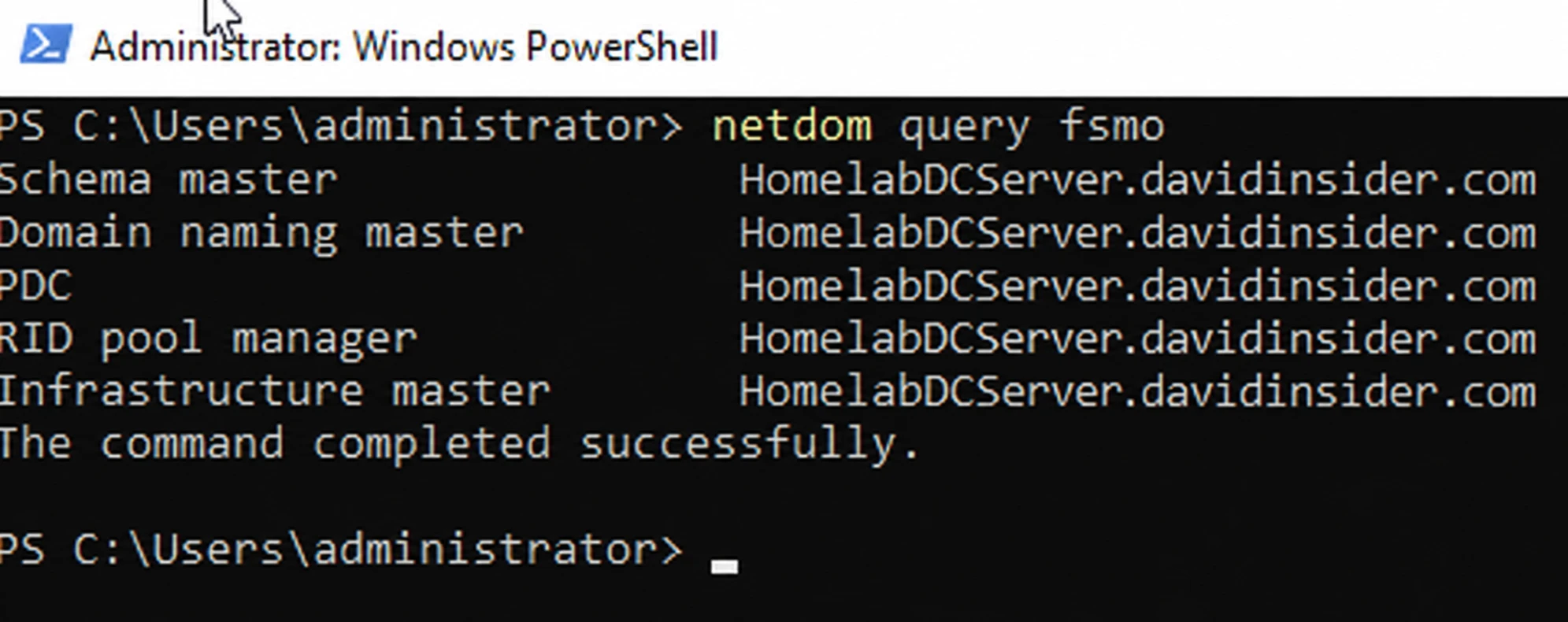
All five FSMO roles on the first domain controller
All five were on the first DC, like I expected.
5. Simulating a DC failure
First I wanted to know which DC the Windows 11 client was using. I ran this on the client:
nltest /dsgetdc:davidinsider.com
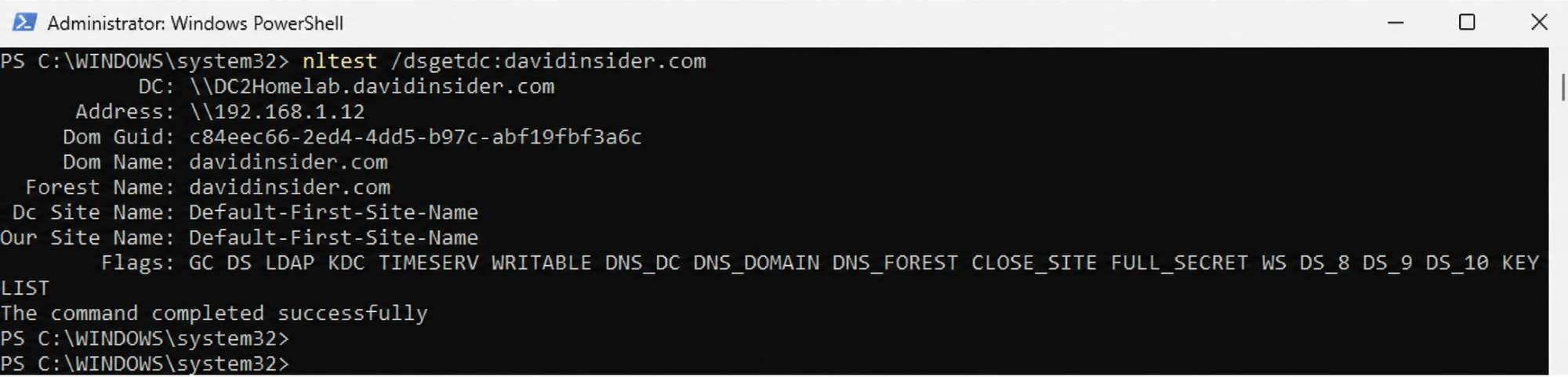
The client authenticating against the second DC
It was using the second DC. I tested DNS too.
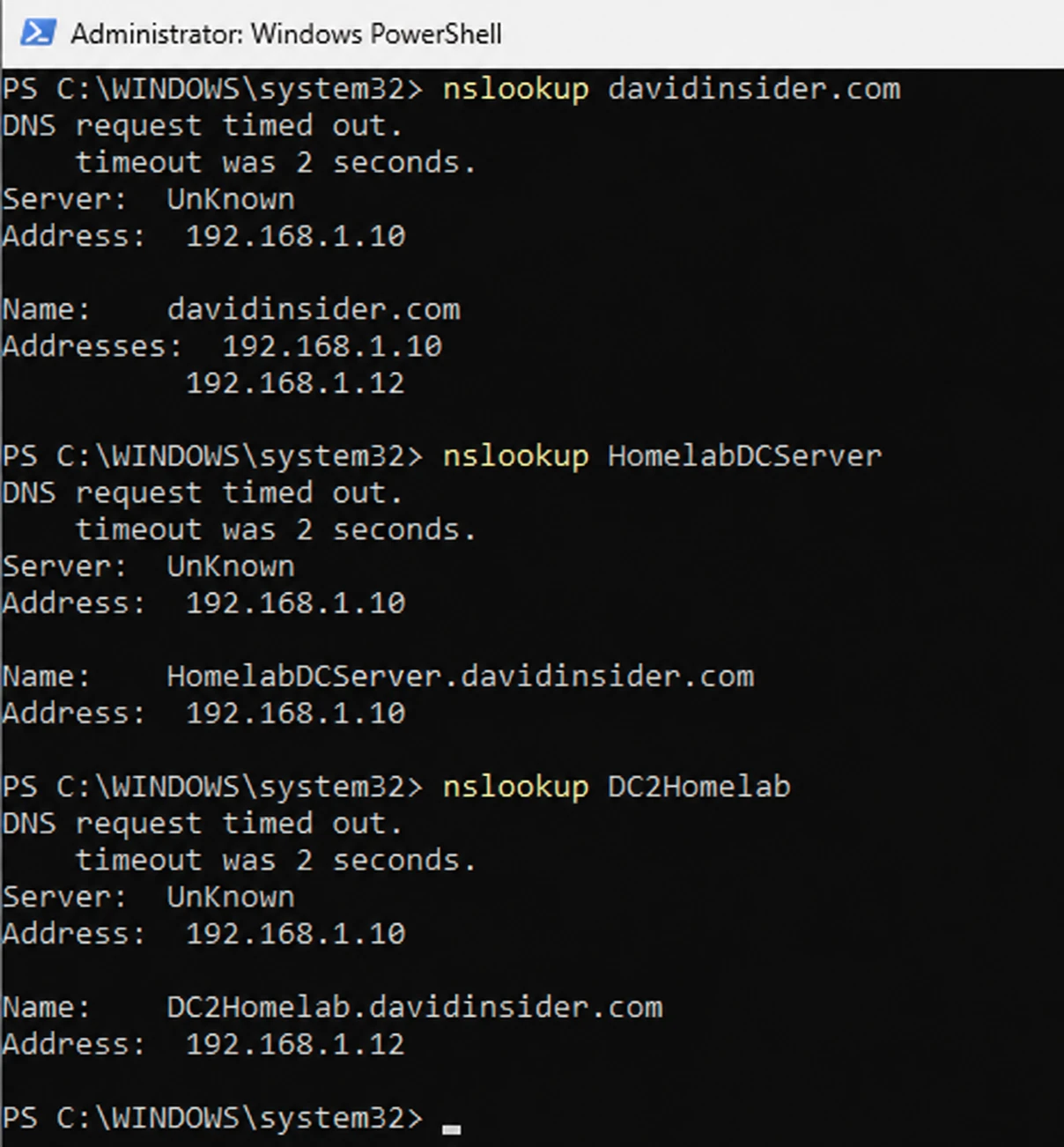
DNS resolution working from the client
And I confirmed authentication worked against both DCs.

Authentication working against both domain controllers
Before breaking anything I took VM snapshots of both DCs and the client. I named them “Before DC02 Failure Test”.
Then I shut down DC02 from inside Windows, not from VMware. I clicked Shut Down and gave the network two minutes to settle.
On the first DC I checked that the services were still running.
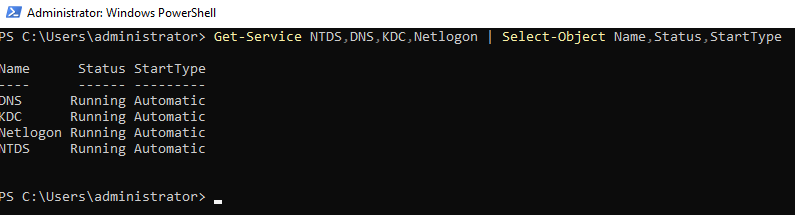
Services still running on the first DC
On the client I checked that it could still reach the first DC.
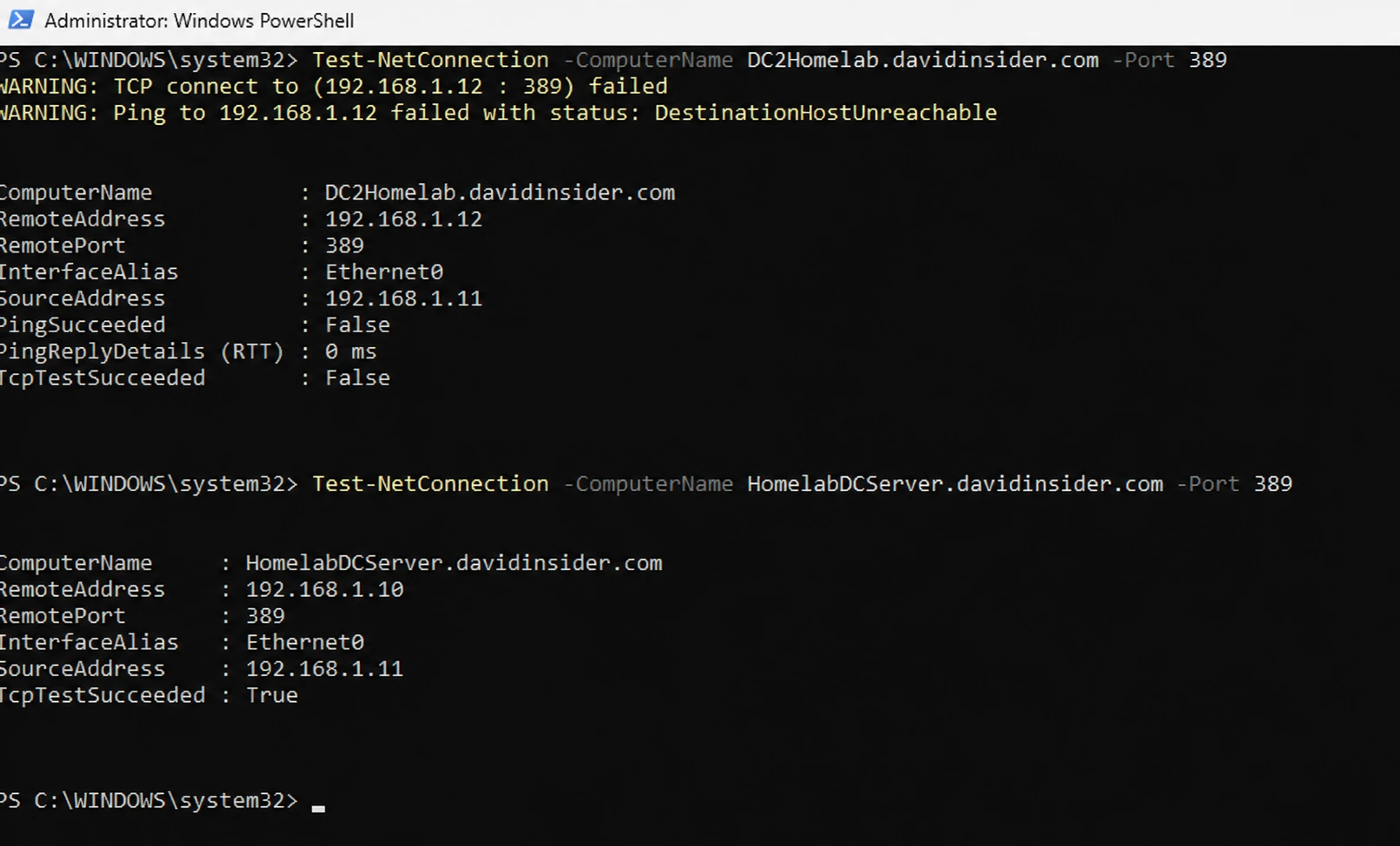
The client reaching only the first DC
While DC02 was down, I made some changes on the first DC. I created a user, modified an existing user, and created a security group.

Changes made on the first DC during the outage
Then I ran dcdiag. It’s a Microsoft tool that checks the health of your domain controllers and reports problems. It correctly showed DC02 as down.
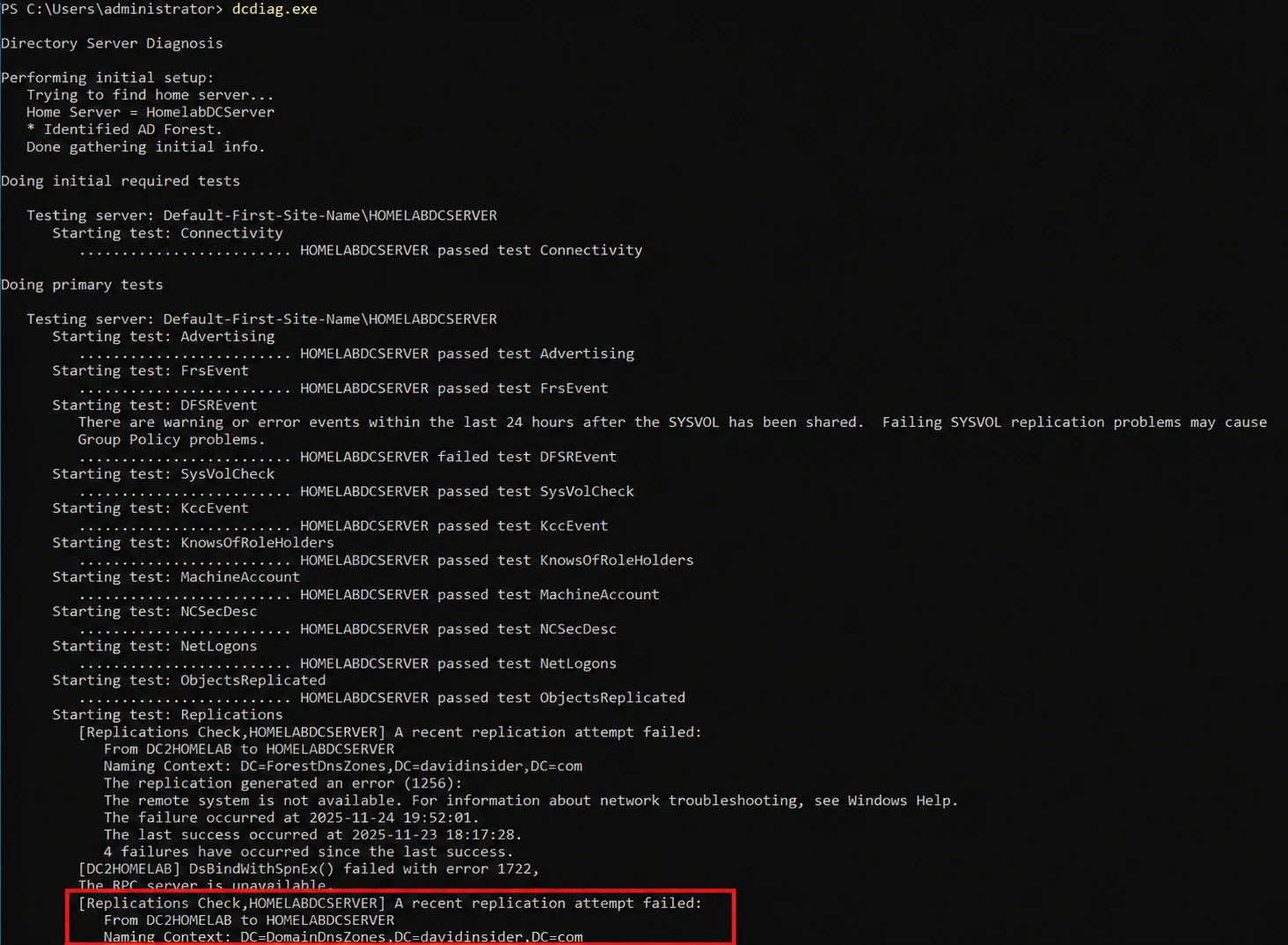
dcdiag reporting the second DC as down
Then I powered DC02 back on and waited a few minutes. I forced a sync to catch up:
repadmin /syncall DC2Homelab /AdeP
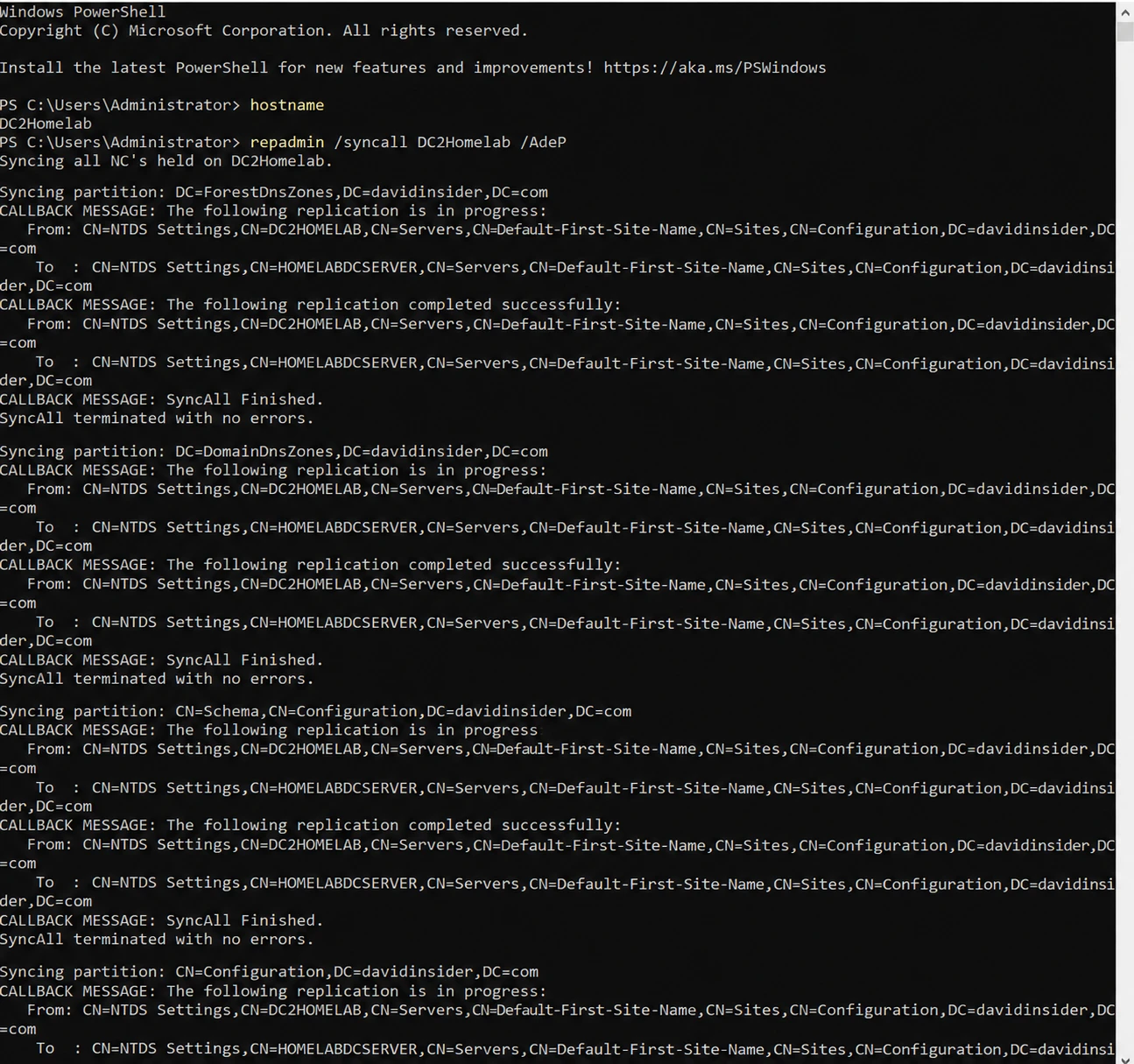
Syncing DC02 with its replication partner
The user and group I made during the outage were on DC02.
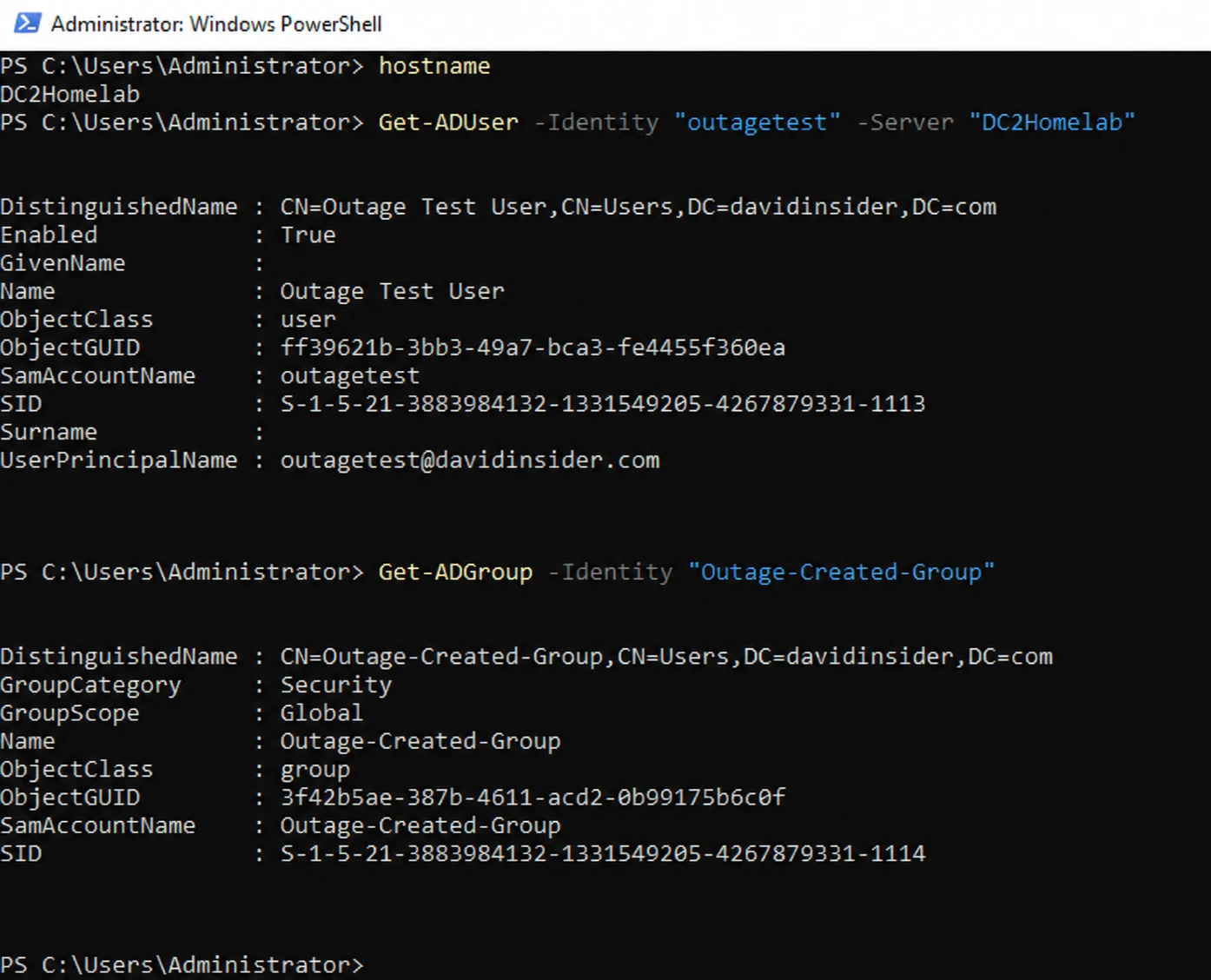
Changes from the outage showing up on DC02
So the domain kept working with one DC down. The changes caught up after the other one came back.
6. Setting up a backup disk
Now for backups. I used the second DC for this. The first DC is tied to my earlier lab and I didn’t want to risk it if I ever need that one again. You’ll see why in a minute.
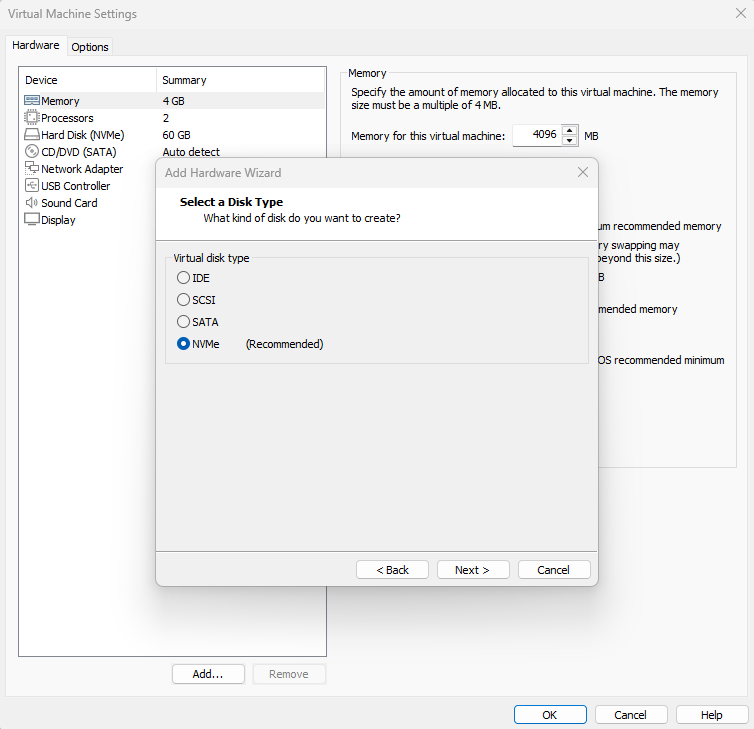
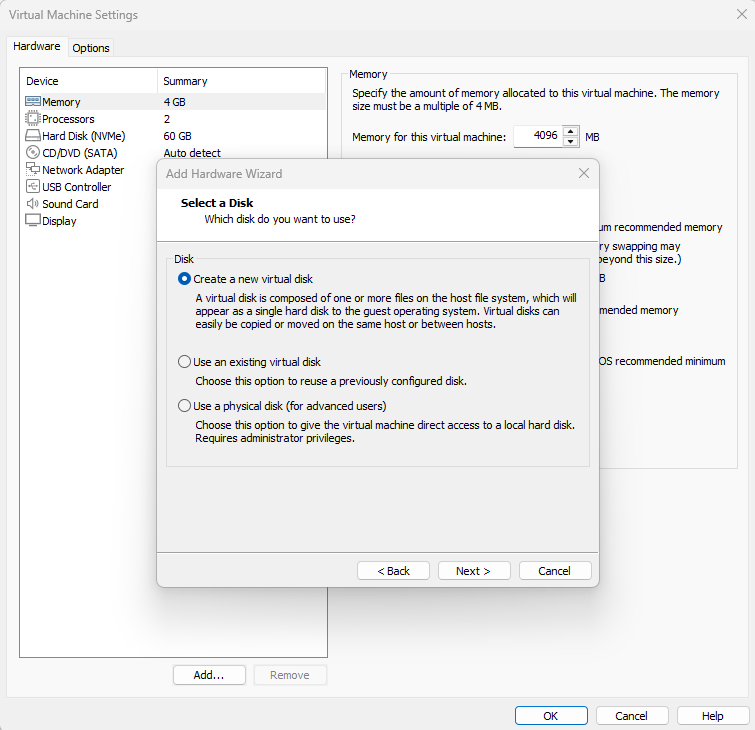
I powered off DC02, went to Settings → Add, and created a new virtual disk.
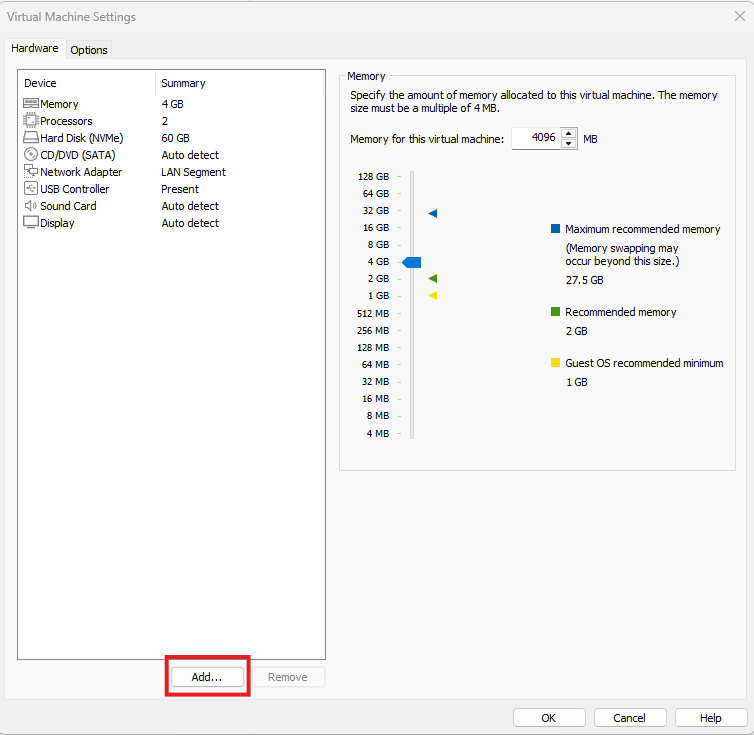
Adding a new hard disk in VMware
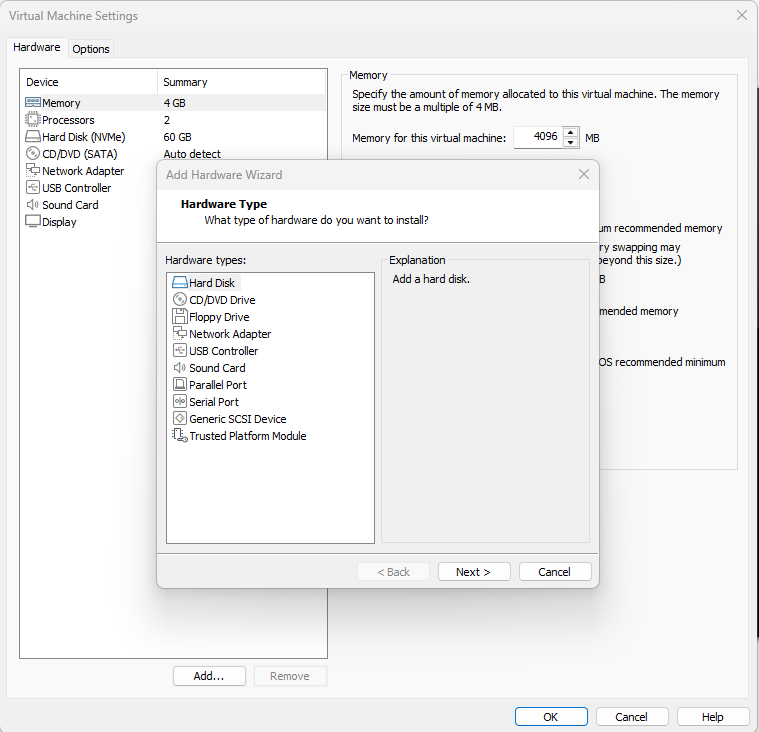
Selecting the disk type
Creating a new virtual disk
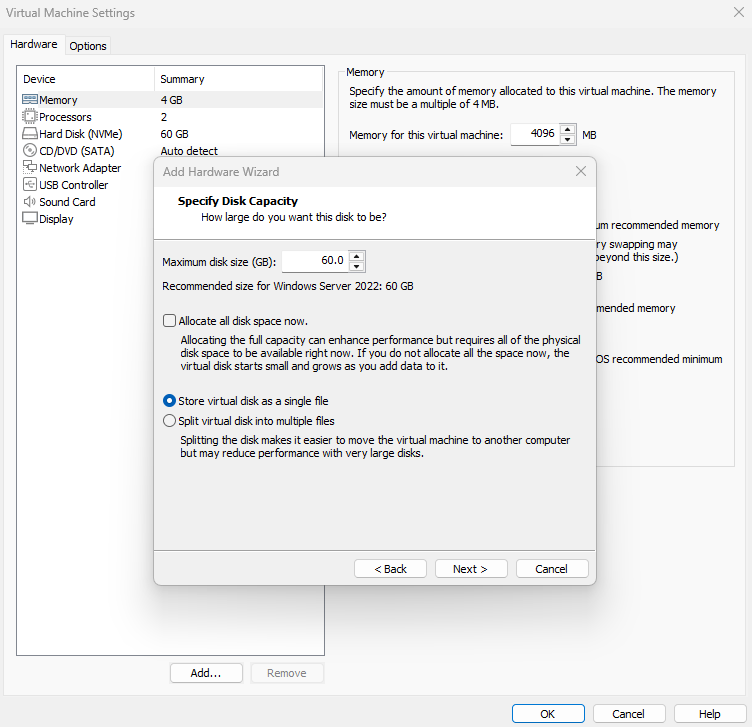
Setting the disk size
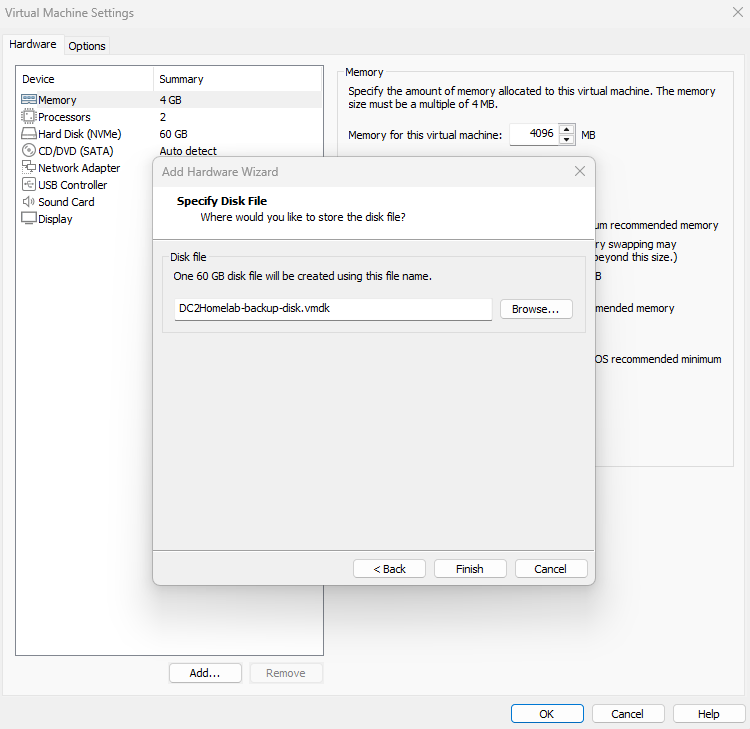
Choosing the disk file name
Reviewing the new disk settings
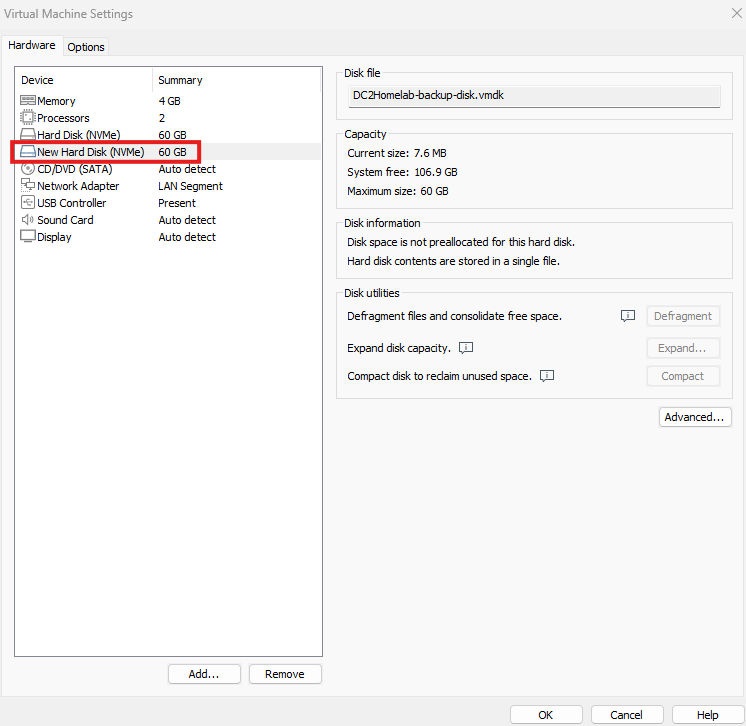
The new disk added to the VM
I powered DC02 back on and ran Get-Disk.
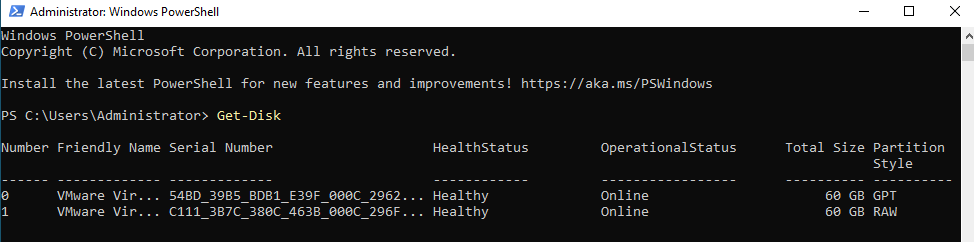
Get-Disk showing the new RAW disk
The second row, number 1, is my new disk and its partition style is RAW. The first disk is GPT. RAW basically means Windows can’t read any file structure on it yet. That’s expected for a disk I just created.
I initialized it and made a formatted partition.
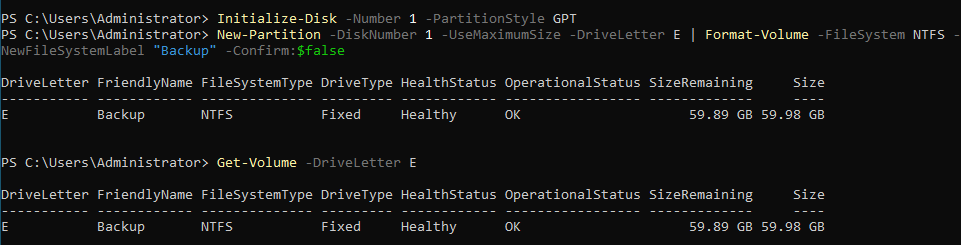
Initializing and formatting the new disk, then checking it with Get-Volume
7. Backing up with Windows Server Backup
Windows Server Backup is built into Windows Server. It can take full system backups, including the OS, apps, and system state like Active Directory. That’s the one I need if a DC dies.
I installed the feature first.
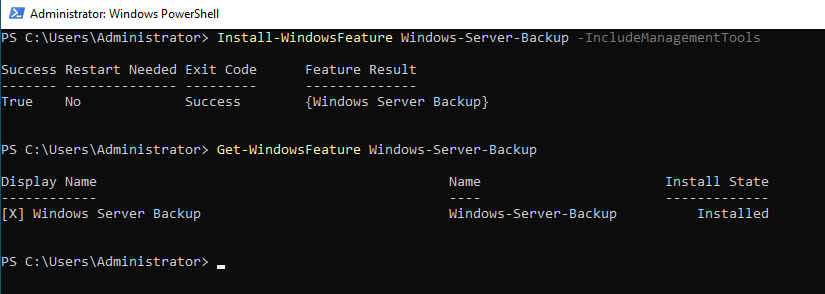
Installing Windows Server Backup
Then I created a backup policy in PowerShell.
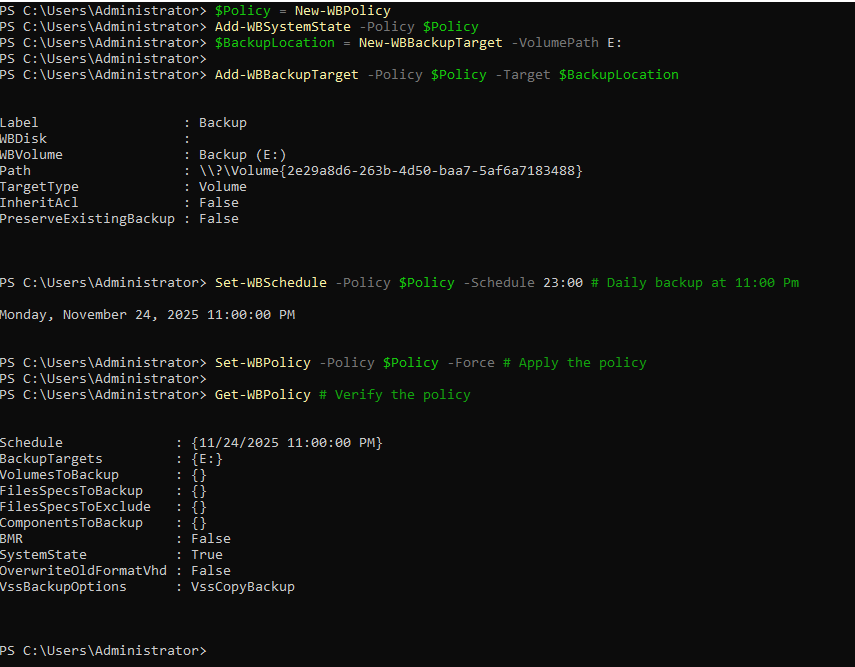
Creating the backup policy in PowerShell
I started a manual backup from that policy. I watched the progress in the console and also ran Get-WBJob from a second PowerShell window.
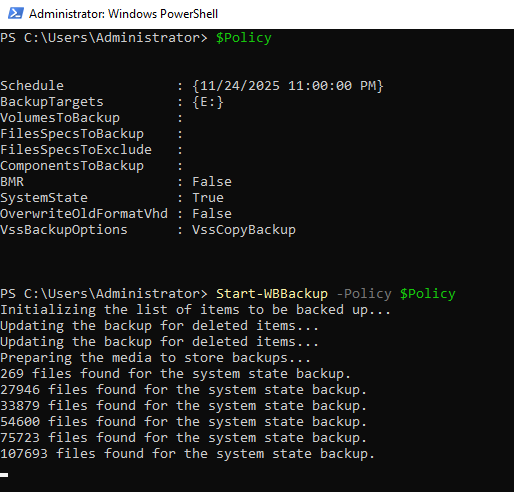
Starting the manual backup
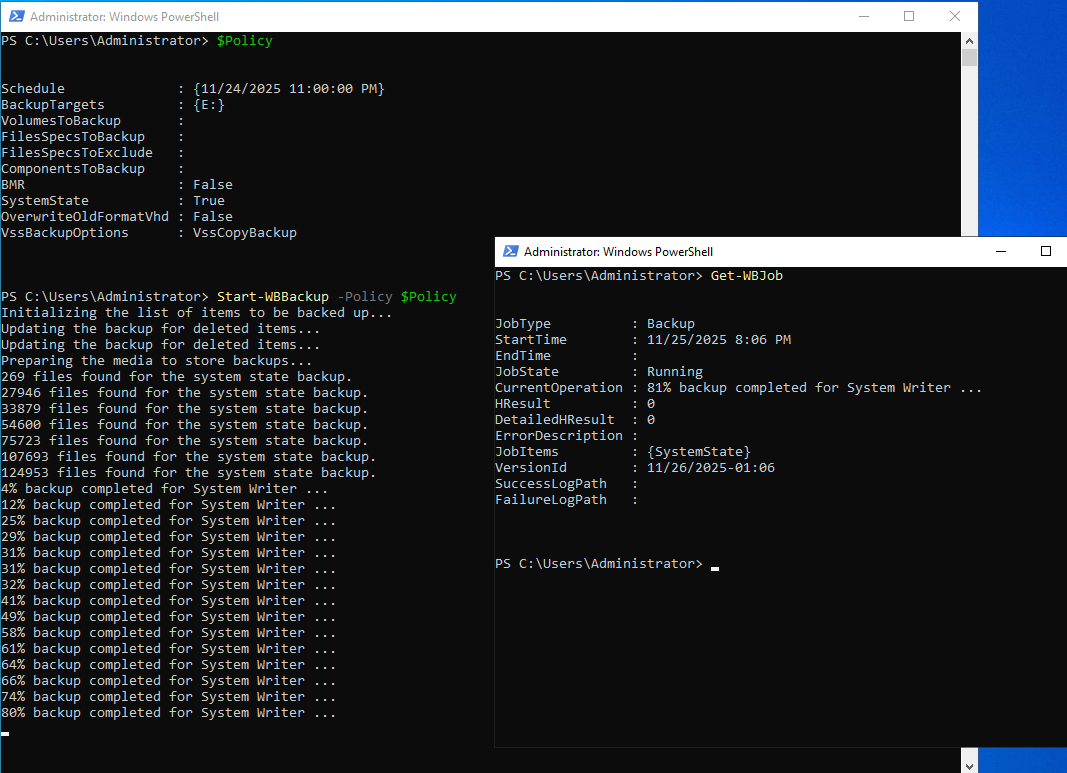
Backup progress
It finished fine.
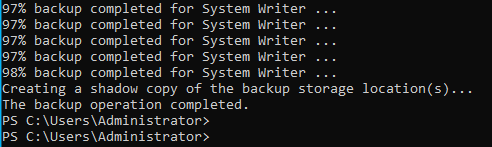
Backup completed successfully
Then I pulled up the details with Get-WBSummary and Get-WBBackupSet.
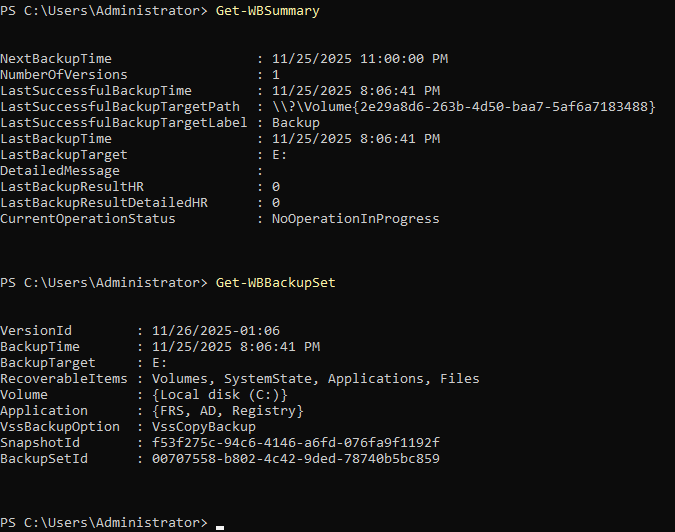
Get-WBSummary output
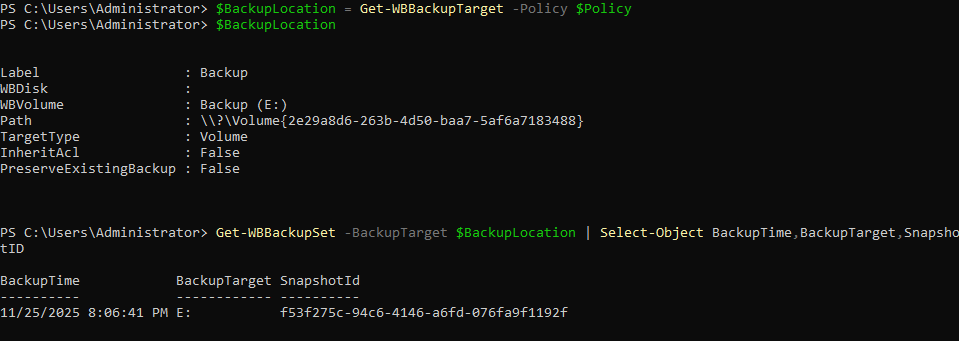
Get-WBBackupSet output

Backup set details
8. Destroying DC02 and restoring it
First I noted the state of DC02 before the “disaster”.
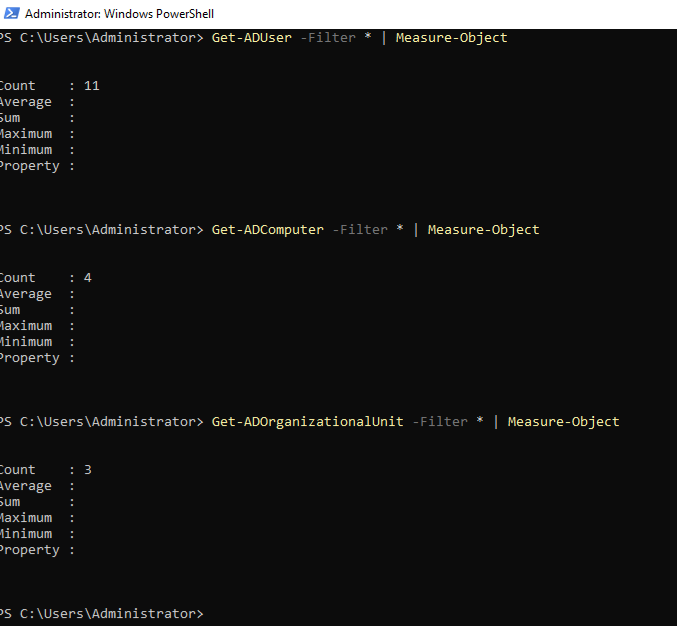
DC02 before the simulated disaster
Then I created a new user after the backup. This user should not exist after the restore, because the backup doesn’t have it.

Creating a post-backup user on DC02
Now the fun part. I shut down DC02, opened its settings, and removed the backup disk (Hard Disk 2). I kept that disk file.
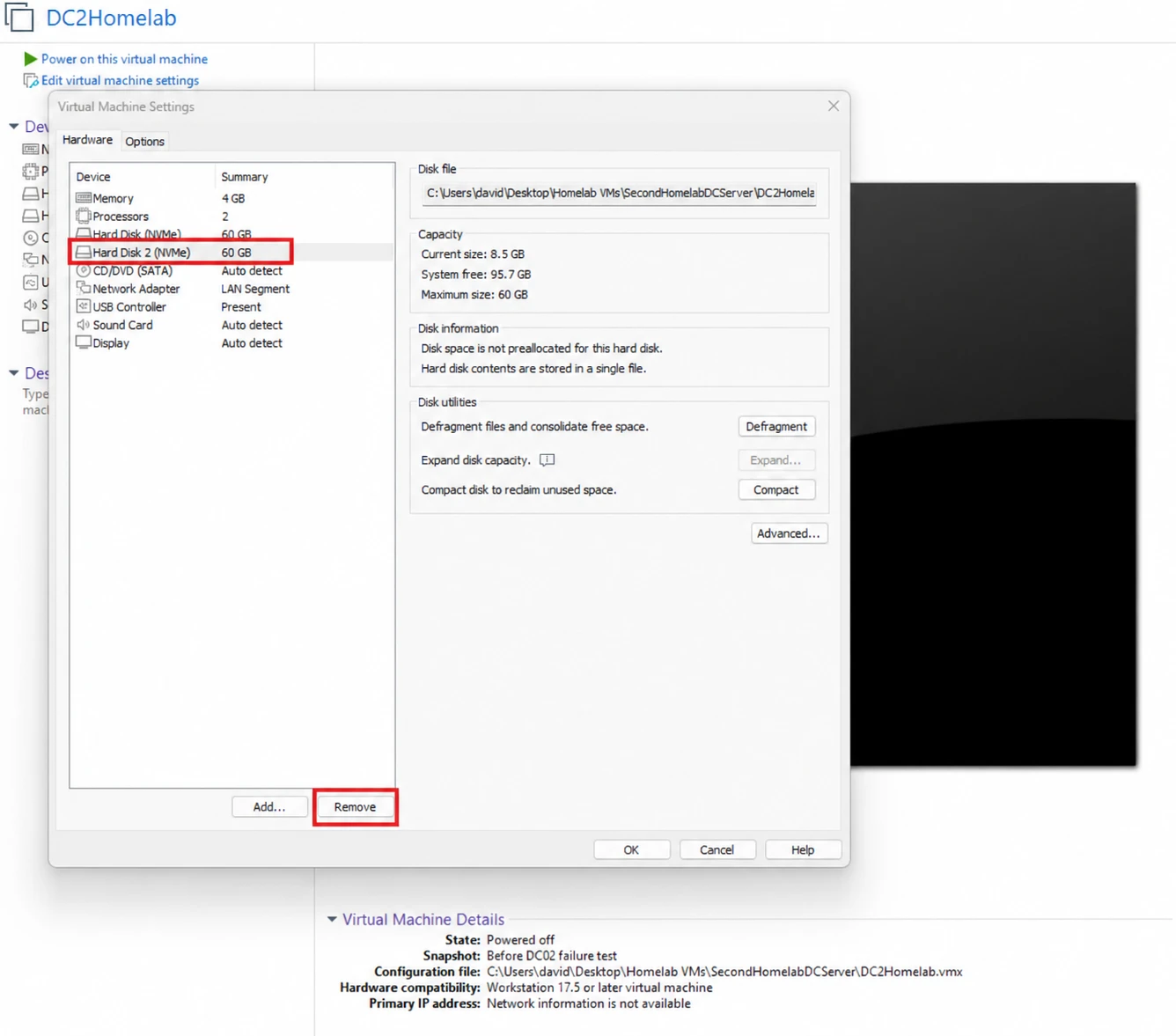
Removing the backup disk from DC02
Then I deleted the DC02 VM from disk. That’s a full hardware failure as far as I’m concerned.
I built a brand new VM for the replacement. Same steps and sizing as in step 1. Then I attached the backup disk to it.
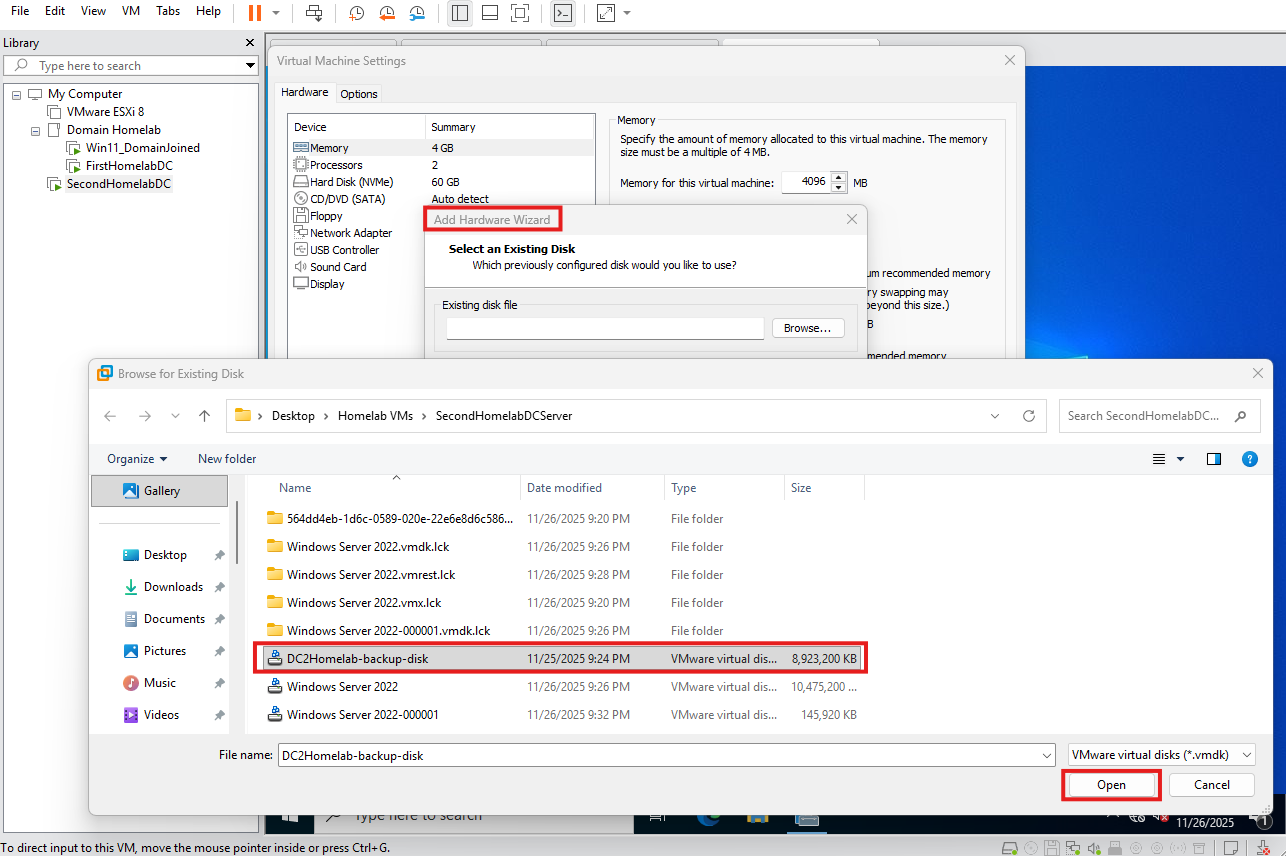
Attaching the backup disk to the new VM
I gave it the same network settings as before, 192.168.1.12 with 192.168.1.10 for DNS. Then I installed Windows Server Backup on it.
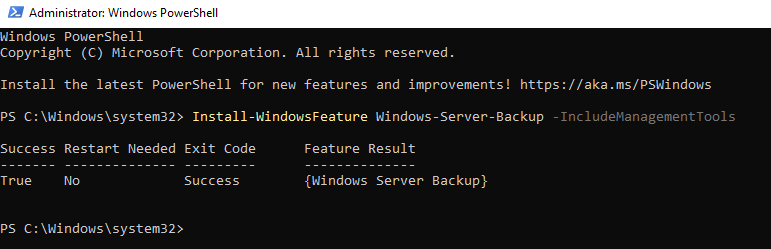
Installing Windows Server Backup on the new VM
Booting into DSRM
To restore AD I need Directory Services Restore Mode. That’s a special boot mode for offline repair and restore of a domain controller. I turned it on with bcdedit and rebooted:
bcdedit /set safeboot dsrepair
Restart-Computer
Once it was back, I needed to get the backup disk online. The disk was showing as offline.
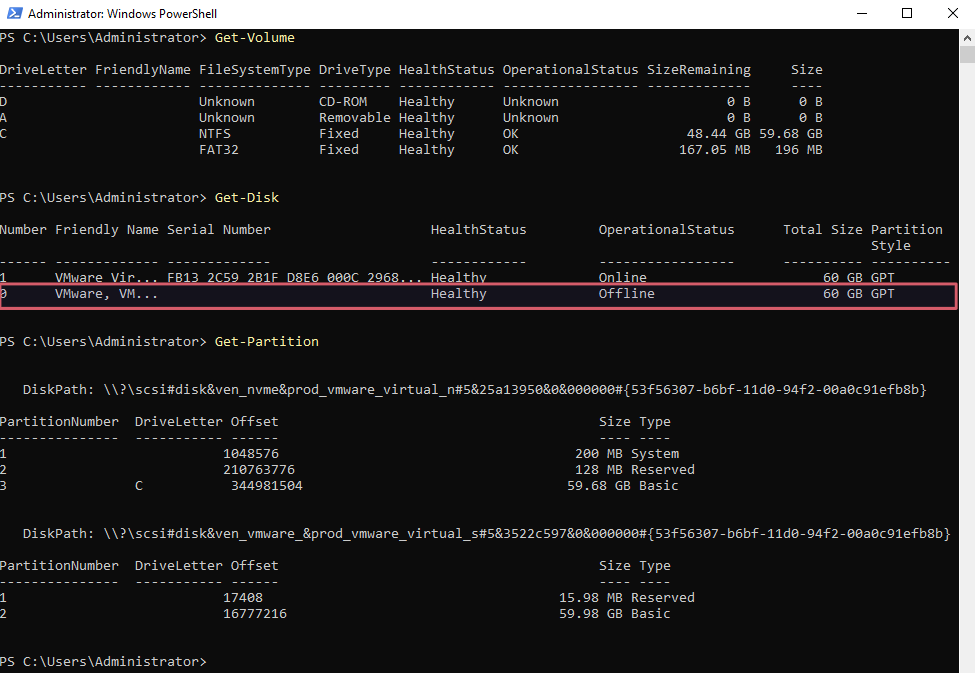
The backup disk showing as offline
I brought it online and looked at its partitions.
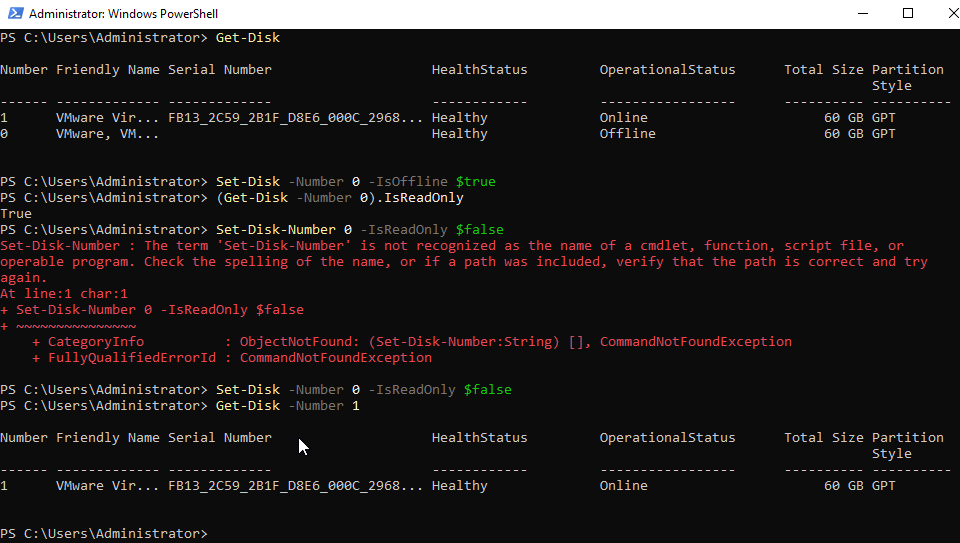
Bringing the disk online
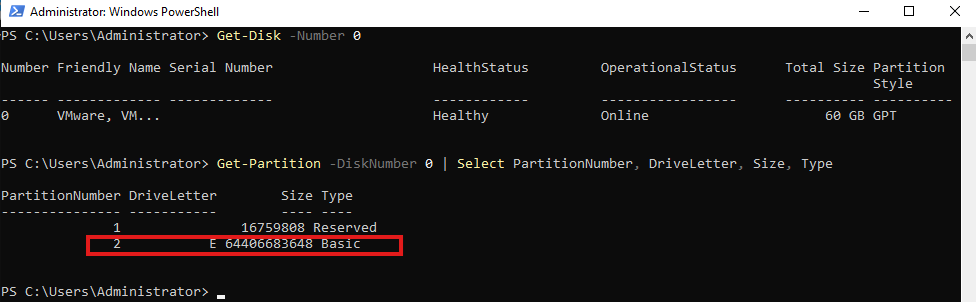
The partitions on the backup disk
Then I listed the backups on the E: drive:
wbadmin get versions -backupTarget:E:
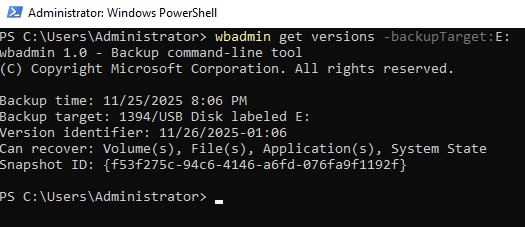
Listing the available backup versions
And ran the system state restore with the version from that output:
wbadmin start systemstaterecovery -version:11/26/2025-01:06 -backupTarget:E: -quiet
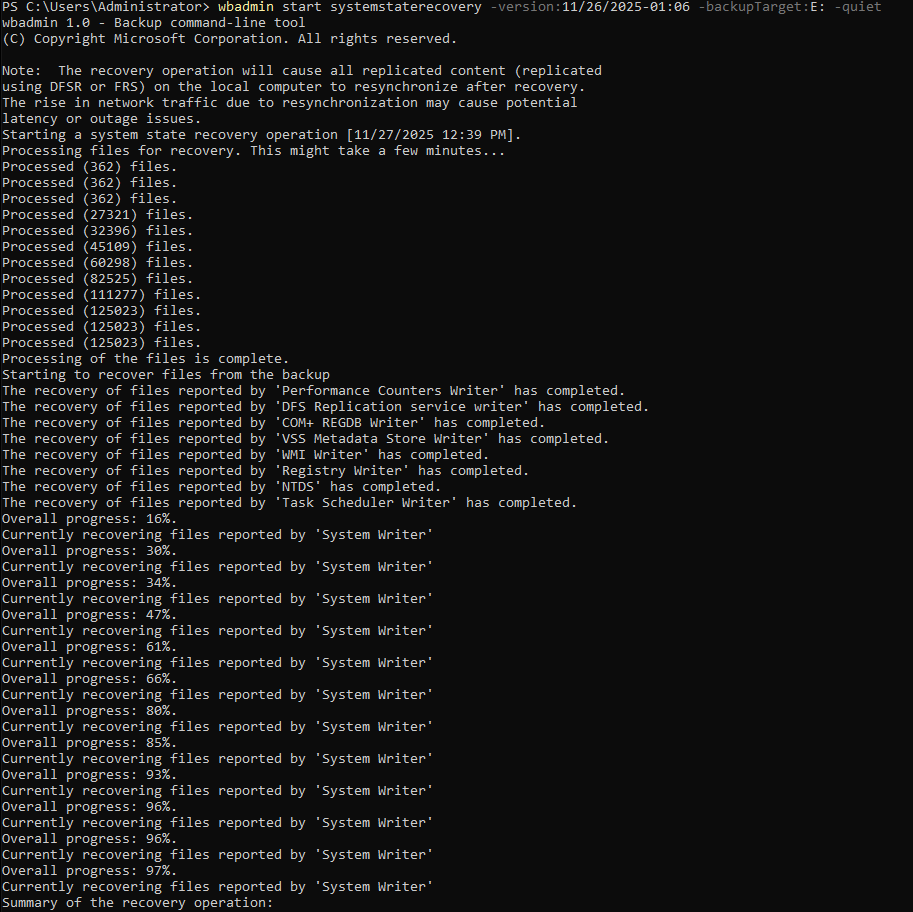
Starting the system state recovery
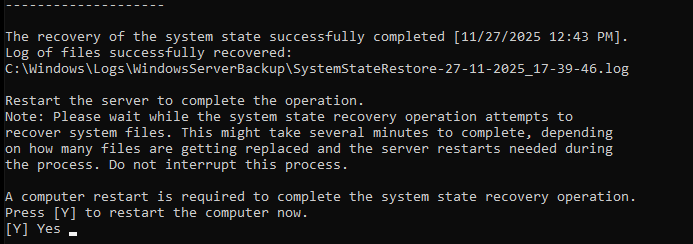
The restore in progress
It rebooted on its own. But it came back up in DSRM again, so I had to remove the flag:
bcdedit /deletevalue safeboot
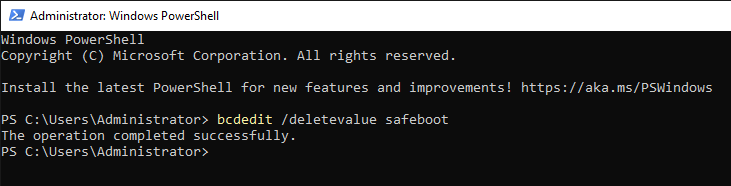
Removing the DSRM boot flag
Then I restarted again and checked that things were running.
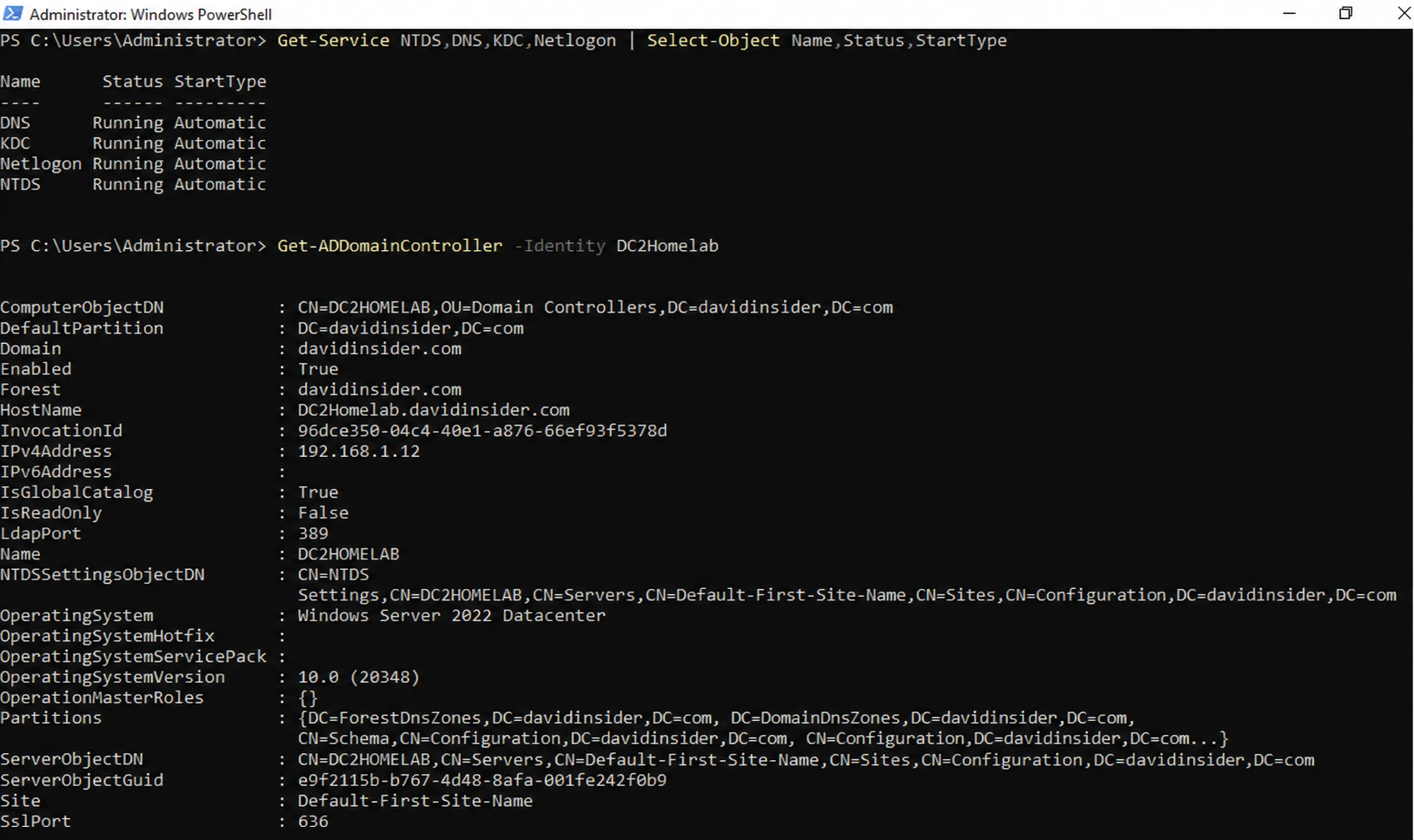
The restored DC running normally
Did it actually work?
I looked for two users. The repltest user came from before the backup. The “Post-Backup User” was created after the backup, right before I wiped the VM.
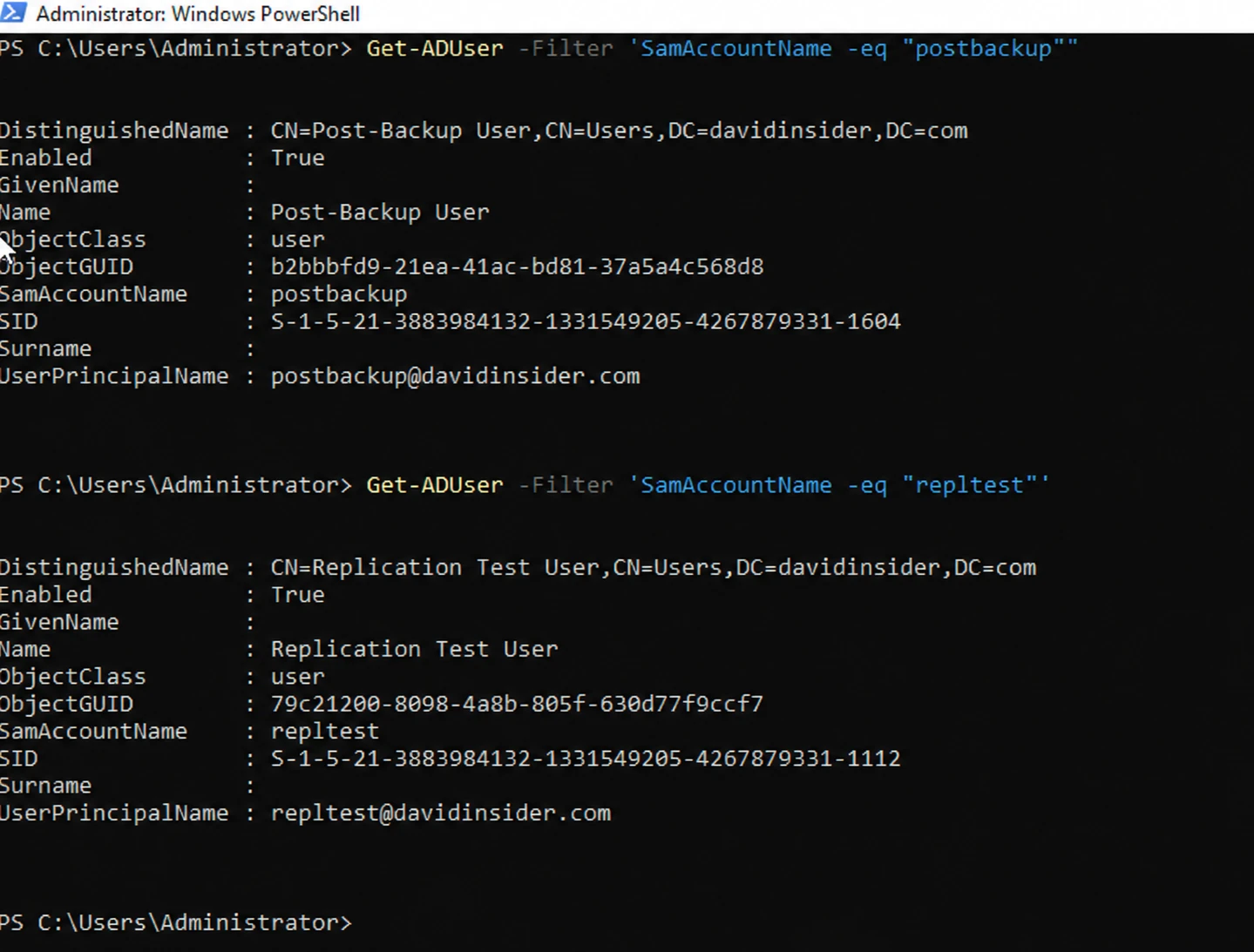
Both users present on the restored DC
Both were there. That surprised me for a second. The restore itself only had repltest. The post-backup user came back because the first DC replicated it over after the restored DC came online. So the restored DC has the backup data plus whatever it caught up on from its partner. That’s how it should work.
9. Final checks
First I forced replication with the first DC.
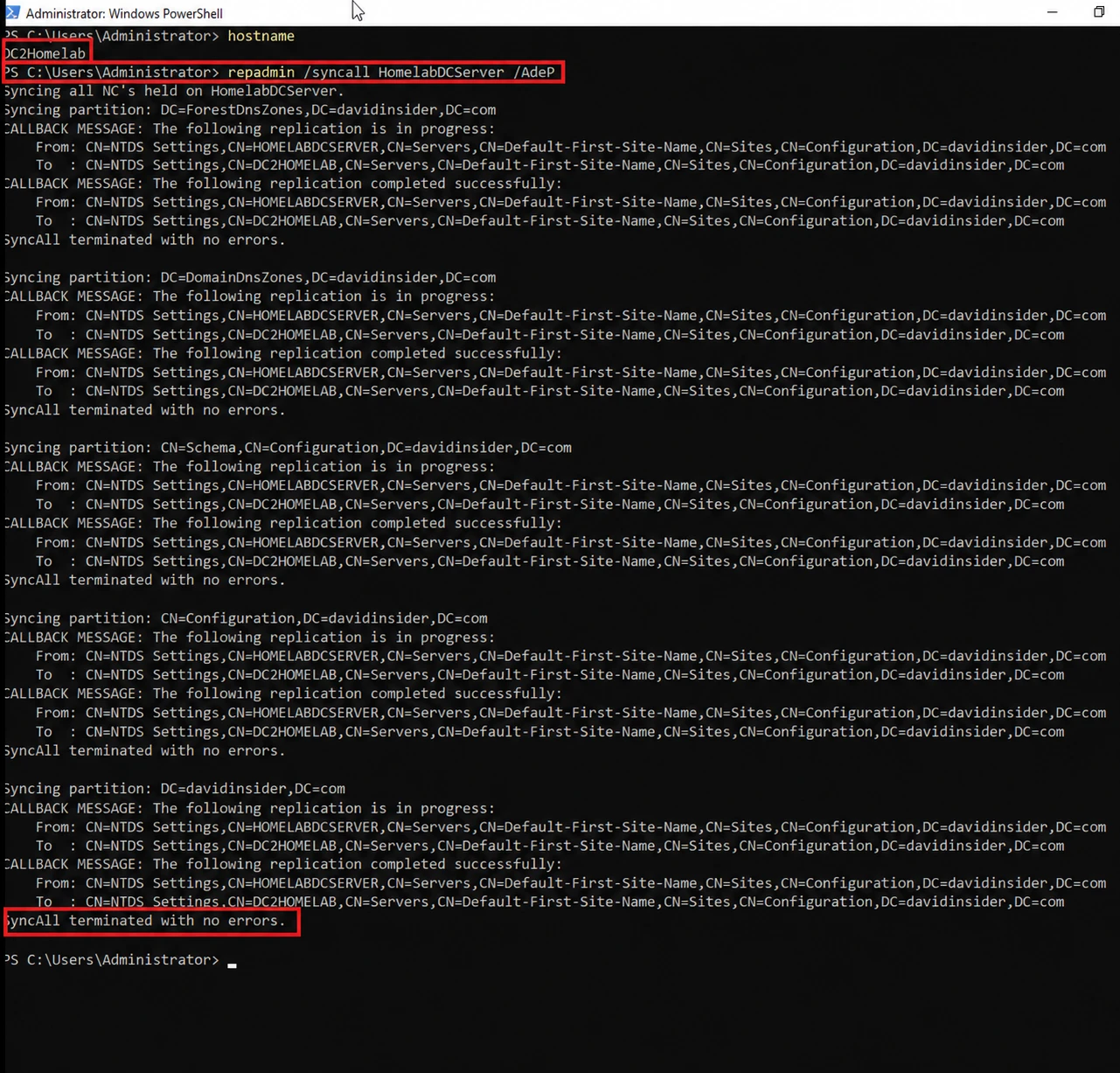
Forcing replication after the restore
Then I checked for a USN rollback. Every DC tags each change it makes with an increasing number called the USN. Its partners remember the highest USN they’ve received from it, so they only ask for changes above that.
A USN rollback happens when a DC gets rolled back in time, usually from a plain VM snapshot. The partners still remember a USN that’s higher than anything the rolled-back DC will use. They think they already have everything from it. So they ignore its changes, sometimes for a very long time. Replication quietly breaks, even though everything looks fine at first.
That’s the reason I did a real system state restore and not a snapshot revert.
I ran this on the healthy first DC:
repadmin /showutdvec
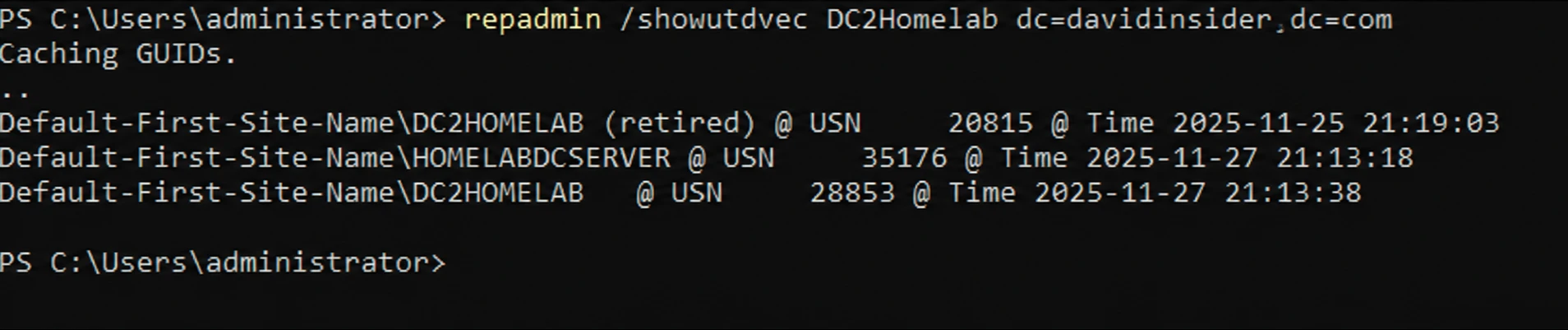
repadmin /showutdvec on the first domain controller
The restored DC (DC2HOMELAB) has a lower USN. The healthy DC is waiting for changes above 28,853. That’s a normal number, so no USN rollback.
I also ran dcdiag /test:replications on both the first and restored DCs. No errors. And the first DC could see the restored one.

The first DC seeing the restored domain controller
Last test. I created a new user on the restored DC.

Creating a new user on the restored DC
And checked that it showed up on the first DC.
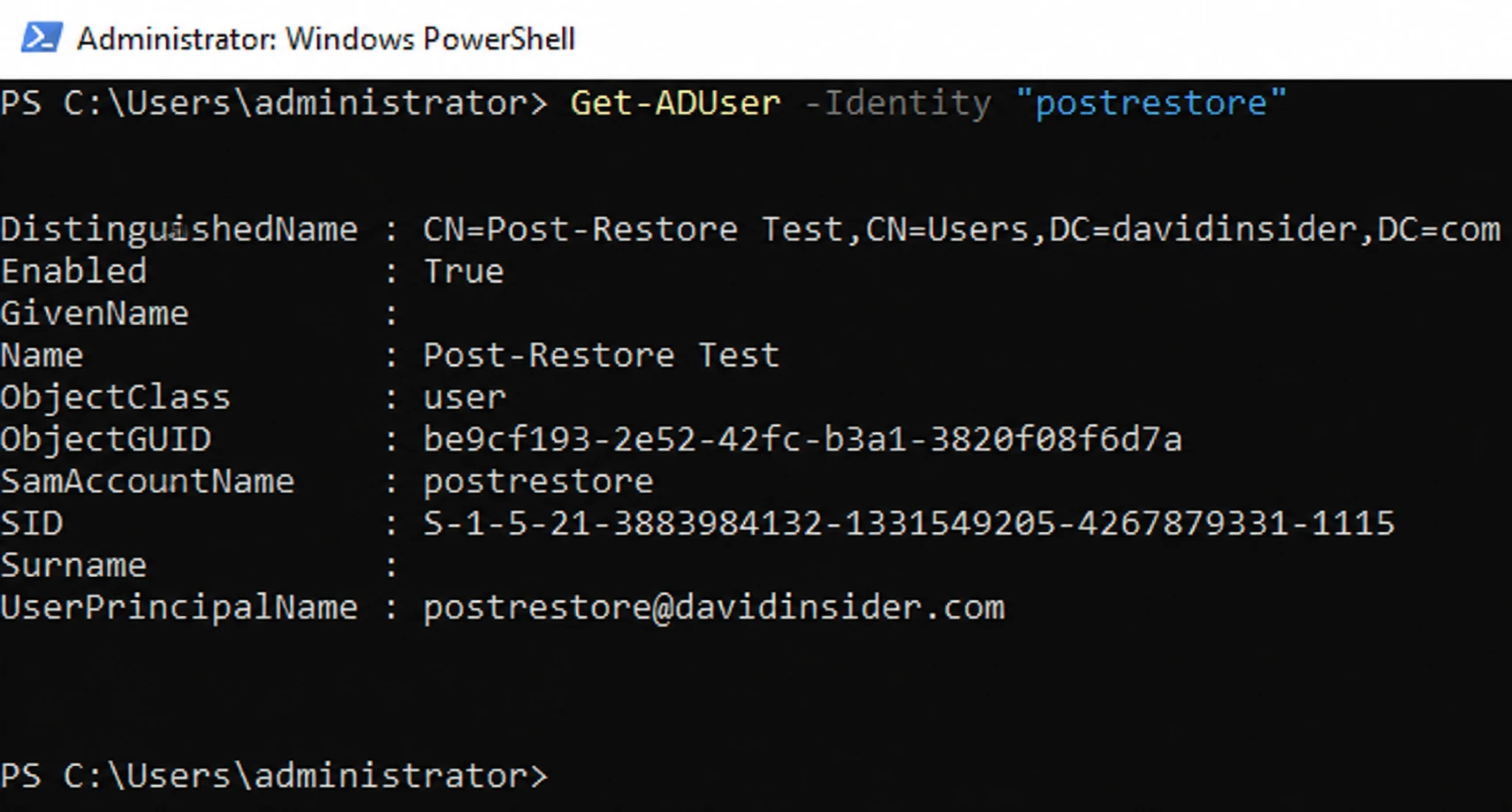
The new user replicated to the first DC
Result
I ended up with two domain controllers replicating in both directions. I tested a failure with one DC down. Then I backed up a DC, deleted the VM, and restored it onto a new one without a USN rollback.
The biggest thing I took away is how much a second DC helps. When DC02 was off, the domain kept working. The backup is for when a DC is gone for good. This was good practice for replication, repadmin, DSRM, and system state restores.
A few things I’d change for production. I’d keep backups on a separate machine instead of a disk attached to the same VM. I’d test restores on a schedule. And I’d spread the DCs across different hosts so one failure doesn’t take out both.